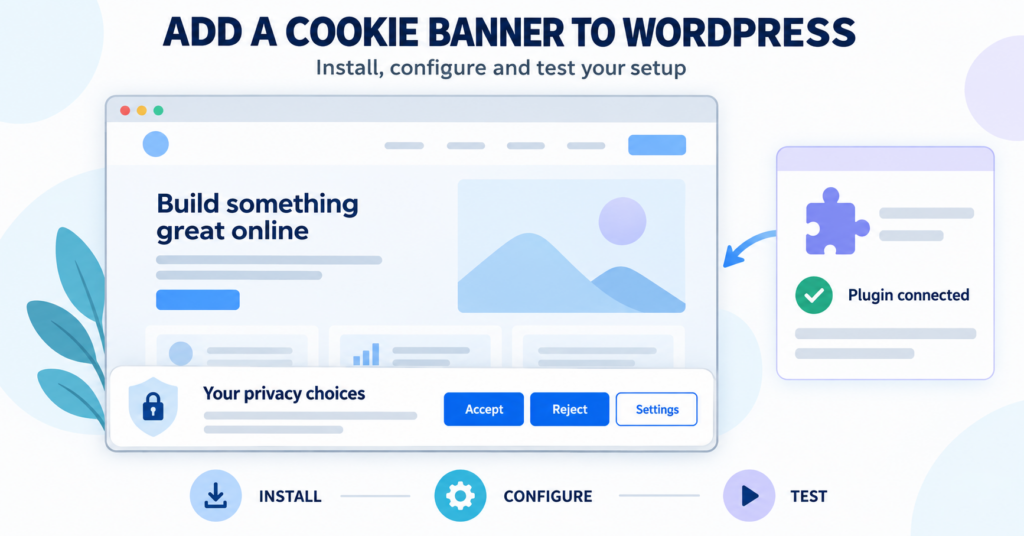
WordPress does not include a complete cookie consent banner by default. This guide explains how to add one, connect it to your tracking tools and check that it works, with links to provider-specific installation tutorials.
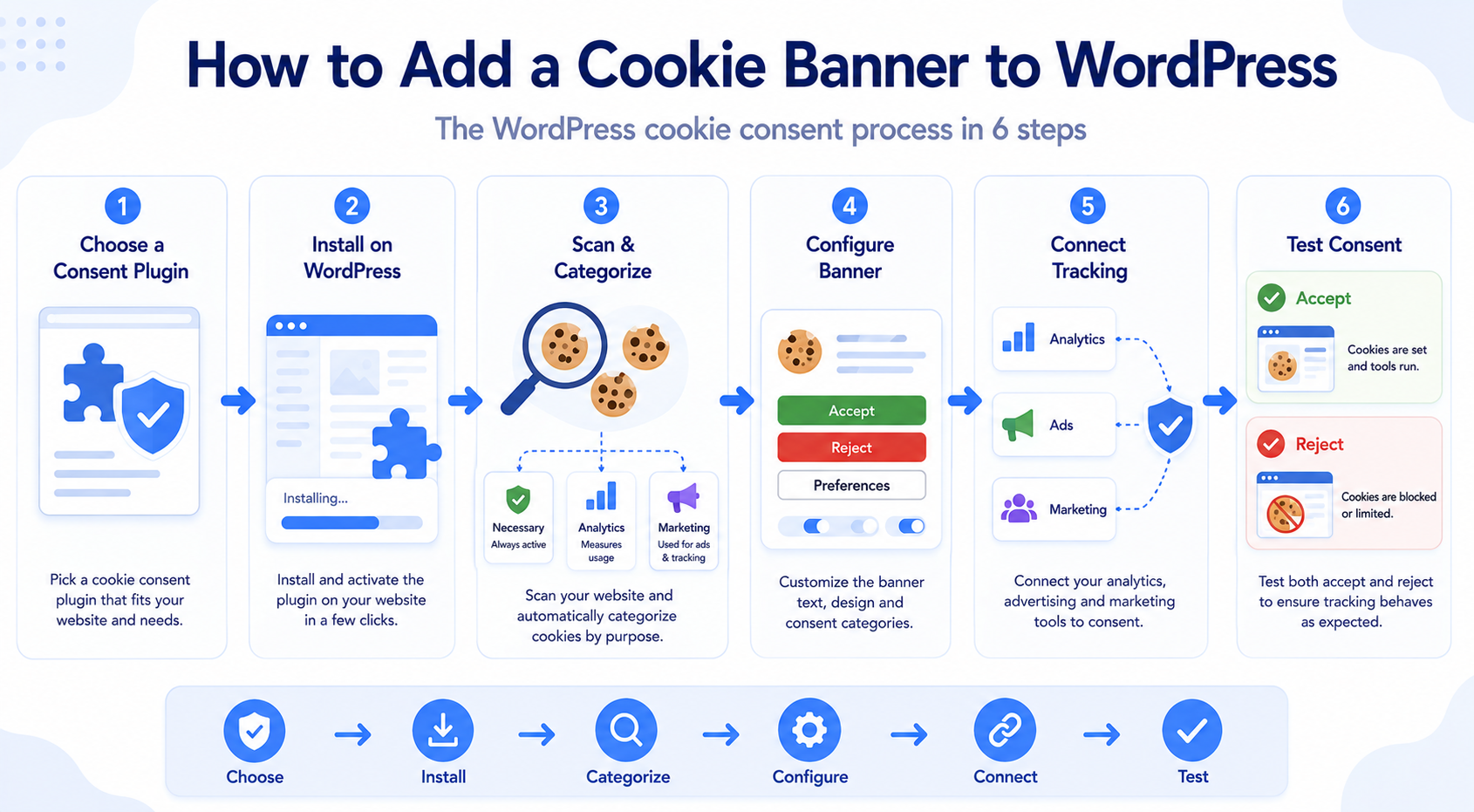
To add a cookie consent banner to WordPress:
- Choose a cookie consent plugin or platform.
- Install it and connect your account if required.
- Scan your website and review its cookie categories.
- Configure the banner and visitor choices.
- Connect those choices to your tracking tools.
- Test the default state, Accept, Reject and changes to consent.
The steps below explain what to do at each stage and link to the installation guide for your chosen provider.
Does WordPress Have a Cookie Banner Built In?
WordPress can use cookies for features such as authentication, user settings, and comments, but it does not provide a complete consent banner that manages all the cookies and tracking technologies a modern WordPress site may use.
This becomes important because additional cookies may come from:
- WordPress plugins
- Google Analytics
- tags added through Google Tag Manager
- advertising platforms
- WooCommerce
- embedded videos or maps
- chat and marketing tools
A cookie consent plugin or consent management platform can help organize these technologies and collect the visitor’s consent choices.
If you first want to understand where WordPress cookies come from, read Does WordPress Use Cookies?.
What Do You Need Before Adding a Cookie Banner?
Before installing a WordPress cookie banner, it helps to understand what your website is actually using.
You need access to install plugins and manage your consent settings. Also check whether your site includes:
- analytics tools
- advertising or remarketing
- tags added through Google Tag Manager
- ecommerce
- embedded content
- marketing pixels
- forms or chat tools
You should also identify which cookies and other browser storage appear when someone visits the website.
Scan or inspect your website before configuring the banner. It is much easier to create useful cookie categories when you already know which tools and cookies are present.
You can use our Cookie Scanner as a starting point for checking which cookies and tracking technologies appear on your site.
How to Add a Cookie Banner to WordPress
The exact screens depend on your chosen tool. Follow these six stages, using the provider-specific guide for the installation screens.
Step 1: Choose a WordPress Cookie Consent Plugin
The first step is choosing how you want to manage consent.
For most WordPress users, the easiest option is a dedicated cookie consent plugin or a consent management platform with a WordPress integration.
Popular approaches include tools such as:
- Install CookieYes on WordPress
- Install Cookiebot on WordPress
- Install Complianz on WordPress
- Install CookieHub on WordPress
- Install CookieScript on WordPress
Different tools vary in areas such as:
- cookie scanning
- automatic blocking
- Google Consent Mode support
- banner customization
- languages
- consent records
- pricing
Not sure which WordPress cookie consent tool to choose?
You do not need the most advanced solution for every website. A small blog may have very different needs from an ecommerce store using analytics, advertising, and several third-party integrations.
Want to understand which features your website needs?
Step 2: Install the Cookie Consent Plugin
Most WordPress cookie consent plugins can be installed through the WordPress dashboard.
The general process is:
- Open your WordPress dashboard.
- Go to Plugins → Add New.
- Search for your chosen consent plugin.
- Install the plugin.
- Activate it.
- Open the plugin’s setup wizard or settings.
Some consent platforms also require you to create an external account and connect your WordPress site to it. Use one active consent tool at a time. If you are replacing a banner, remove its old integration as part of the change.
The exact process varies by provider, which is why provider-specific setup guides are more useful once you have chosen your tool.
Step 3: Scan and Categorize Your Cookies
After installation, the next step is to understand which cookies and services your site uses.
Many cookie consent tools include a scanner that can identify at least some of the technologies found on your website.
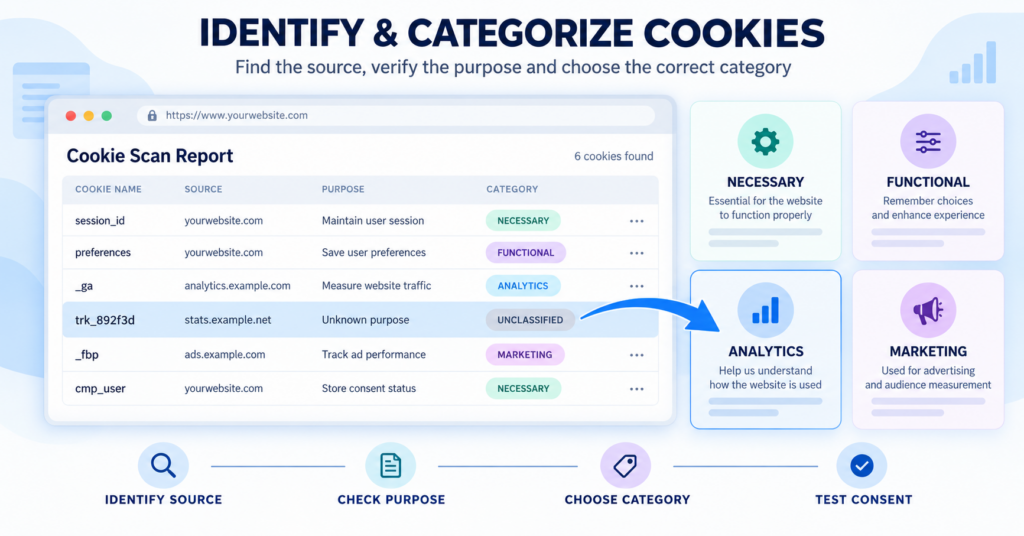
Cookies are commonly grouped into categories such as:
- Necessary — required for core website functionality
- Functional — remember preferences or support additional features
- Analytics — measure website usage
- Marketing — support advertising or marketing tracking
The names used by individual consent tools can vary slightly.
Do not assume that every cookie discovered by a scanner is automatically categorized correctly. Review unfamiliar cookies and check which plugin or service creates them.
For a full explanation of these categories, read Types of Website Cookies Explained.
Found an unfamiliar cookie? Follow our guide to identify its source, check its purpose and choose the right category.
Step 4: Configure Your Cookie Banner
Once your cookies are categorized, configure what visitors see when they open the website.
A clear WordPress cookie banner should make the visitor’s choices easy to understand.
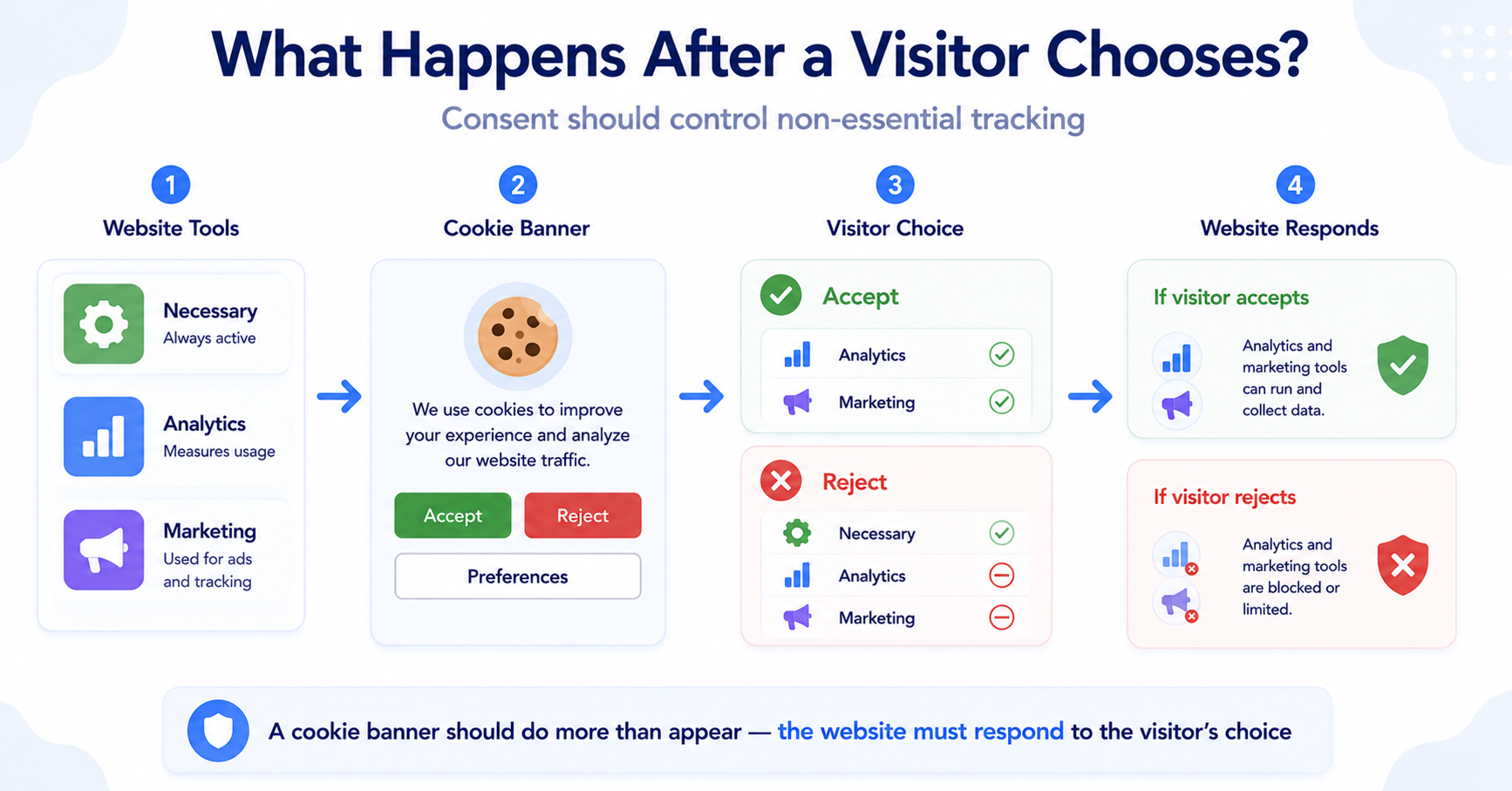
Depending on the rules that apply to your website, common controls include:
- Accept
- Reject
- Preferences or Customize
The preference panel can then allow visitors to control categories such as analytics or marketing.
You should also make sure visitors can find a way to change their consent choice later.
Banner design matters too. Avoid making the Reject option unnecessarily difficult to find or making the Accept option much more prominent in a way that undermines a real choice.
Want to check what your banner should include?
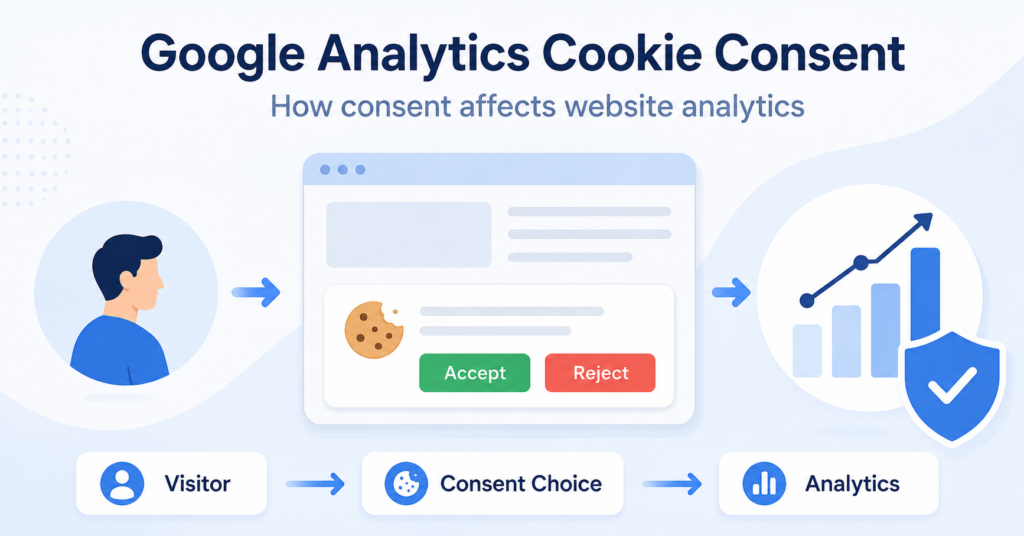
Step 5: Control Analytics and Marketing Tools
This is one of the most important parts of WordPress cookie consent.
A banner can look perfect while cookies that require consent are still being set before the visitor agrees.
For example, your WordPress site may use:
- Google Analytics
- Google Ads
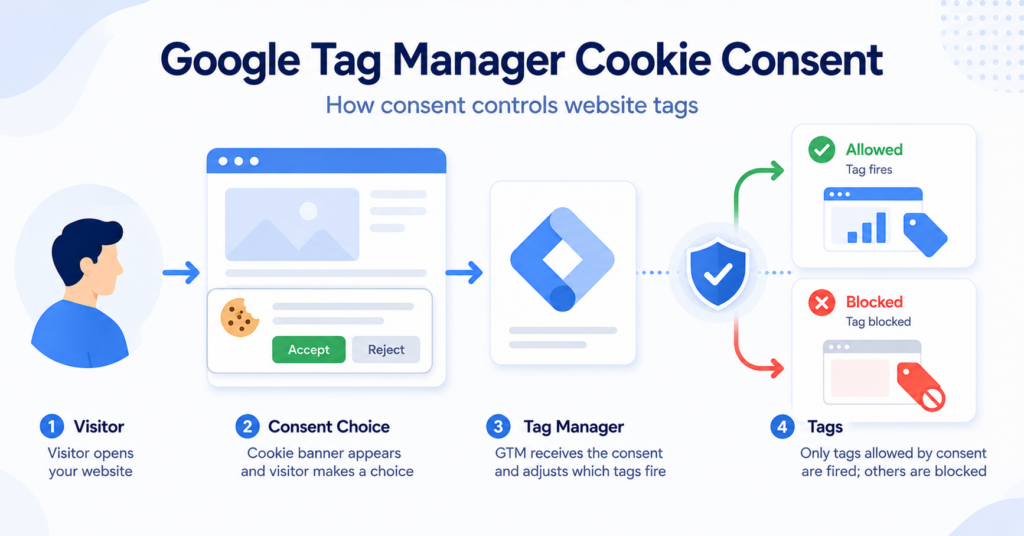
- tags added through Google Tag Manager
- marketing pixels
- other analytics or advertising scripts
Your consent setup needs to interact correctly with these tools.
For Google services, Google Consent Mode can communicate consent states such as:
analytics_storagead_storagead_user_dataad_personalization
For example, analytics_storage controls storage related to analytics, including analytics cookies.
Google provides two Consent Mode options:
- Basic: Google tags stay blocked until the visitor grants consent. Rejecting does not activate them.
- Advanced: Google tags can load with consent set to denied and send measurements without cookies. Their behavior changes when the visitor grants consent.
A Google request in Developer Tools does not, by itself, prove that consent is broken. Check whether cookies are being used and whether the tag follows the visitor’s choice. See Google’s explanation of basic and advanced Consent Mode.
Consent Mode communicates choices to supported Google tags. Other services, such as advertising pixels and embedded videos, also need the appropriate blocking or consent integration.
Using Google Analytics on your WordPress site?
If you manage tracking through GTM, also see Google Tag Manager Cookie Consent.
Step 6: Test Your WordPress Cookie Banner
Do not consider the setup finished just because the banner appears correctly.
Check these five situations:
| Test | What to Check |
|---|---|
| Before making a choice | Which tags, cookies, and storage appear by default? |
| After Accept | Do the allowed analytics and marketing tools behave as expected? |
| After Reject | Are restricted cookies and tracking handled according to the consent setup? |
| After choosing specific categories | If you allow analytics but reject marketing, do the two categories follow those separate choices? |
| After withdrawing consent | Can you reopen preferences and turn a category off? Does the related tracking stop using the withdrawn permission? |
For separate clean tests in Chrome, close all Incognito windows before opening a new one. To test withdrawal, accept first and then change your choice in the same session. Chrome’s Incognito guide explains when the private session ends.
You can also open Developer Tools and check:
- cookies
- local storage
- session storage
- network requests
- tag activity
You open your WordPress site in an incognito window and reject analytics cookies.
If the same analytics cookies appear exactly as they do after Accept, review whether Analytics is installed outside the consent system or whether another plugin is loading it independently.
Free vs Paid WordPress Cookie Consent Tools
You do not necessarily need a paid cookie consent tool for every WordPress website.
A free option may work well for a smaller or simpler website, while paid plans can become useful when the setup becomes more complex.
| Free May Be Enough If | Paid May Be Useful If |
|---|---|
| Your traffic and domain count fit the free allowance | Your traffic or domain count exceeds the free allowance |
| The free plan includes the consent controls you need | A required control is available only in a paid plan |
| The included banner design options are sufficient | You need paid design or branding options |
| Your services work with the included integrations | A required integration or scanning feature costs extra |
| The free plan covers your languages and regional settings | Your languages or regional settings require an upgrade |
The exact limits depend on the provider, so compare the features you actually need rather than choosing only by price.
Which WordPress Cookie Consent Tool Should You Use?
There is no single best WordPress cookie consent plugin for every website.
The right option depends on how complex your site is and how much control you want.
For example:
- Simple website: prioritize easy setup and automatic scanning.
- WordPress-focused setup: look for strong plugin integration and clear configuration tools.
- Analytics-heavy website: check support for Google Analytics, GTM, and Consent Mode.
- Ecommerce or marketing website: look carefully at blocking, integrations, consent records, and regional settings.
Once you choose a provider, follow its dedicated WordPress setup guide instead of trying to adapt generic instructions.
Common WordPress Cookie Banner Mistakes
These are some of the most common problems to check for:
- analytics cookies that require consent are set before the visitor agrees
- there is no clear way to reject optional tracking in an opt-in setup
- Reject still allows cookies or tracking that should depend on consent
- Google Analytics is installed more than once
- GTM loads tags independently of the consent setup
- cookies are placed in the wrong categories
- the visitor cannot reopen the preferences panel
- the site is tested while logged into WordPress
- old cookies from previous visits affect the test
- third-party tags are assumed to respect consent automatically
A visible cookie banner is not proof that your consent setup works. The real test is whether cookies, storage, and tracking behavior change correctly when the visitor makes a choice.
How to Check If Your WordPress Cookie Banner Works
Use this sequence to carry out the checks from Step 6:
- Log out of WordPress.
- Close all Chrome Incognito windows, then open a new one.
- Visit the website without clicking the banner.
- Check which cookies and tags appear.
- Reject non-essential cookies.
- Check the website again.
- Close all Incognito windows and open a new one for the Accept test.
- Accept cookies.
- Compare the result.
- In that same session, reopen preferences and withdraw consent. Check that the related tracking follows the new choice.
- Run a separate clean test with only selected categories enabled.
For a more detailed testing process, follow our guide on how to test a cookie banner before treating the setup as complete.
Test the public website while logged out. WordPress administrator sessions create their own cookies, which can make it harder to understand what a normal visitor receives.
Conclusion
Adding a cookie banner to WordPress is more than installing a plugin and choosing a design. A good setup starts by understanding what the website uses, categorizing its cookies, configuring clear consent choices, and connecting those choices to analytics and marketing tools.
Check the setup again whenever you add new plugins or tracking services. The banner settings and the services running on your website need to stay in sync.
Recommended Next Step
Now that you understand the general WordPress cookie consent process, choose the provider you want to use and follow its dedicated installation and configuration guides.
Start with the installation guide, complete the available configuration steps, and finish by testing the banner in a fresh private browser session.
Frequently Asked Questions
Common questions about this topic
Not simply because the website uses WordPress. Whether a banner is needed depends on the cookies, tracking technologies, services, visitors, and privacy rules that apply to the website.
WordPress has built-in cookie functionality for features such as authentication and comments, but most sites use a separate plugin or CMP when they need a complete cookie consent banner and tracking controls.
For most website owners, the easiest approach is to install a dedicated WordPress cookie consent plugin or CMP, follow its setup wizard, categorize the site’s cookies, and then test the result.
Yes. Several consent tools offer free WordPress options. Whether a free plan is enough depends on your website size, integrations, languages, and the consent features you need.
Not necessarily. The banner must be correctly integrated with your Analytics or tag setup. Always test what happens before consent, after Accept, and after Reject.
Test while logged out of WordPress. In Chrome, close all Incognito windows before starting each separate test. Check the default state, Accept, Reject and selected categories. Then accept and withdraw consent in the same session to check that tracking follows the changed choice.