Websites can use cookies for essential functions, visitor preferences, analytics, advertising, and other services. However, these cookies are not always visible while you browse a website.
Learning how to find cookies on a website helps you understand what the site stores in your browser and which external services may be active. In this guide, you’ll learn how to view website cookies manually and how to use a cookie scanner for a faster overview.
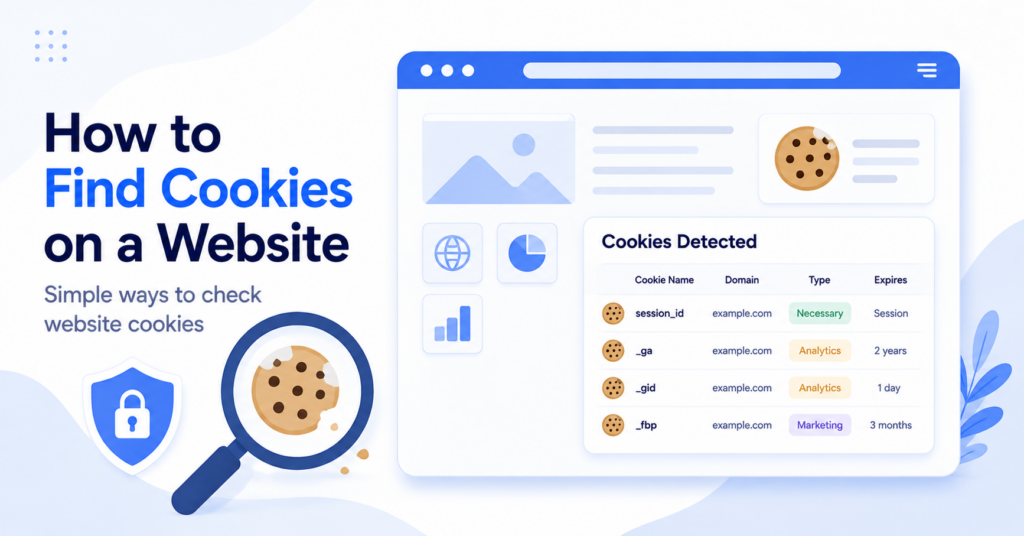
You can find cookies on a website by opening your browser’s developer tools and checking the Cookies section under Application or Storage. For a quicker website-wide check, use a cookie scanner that automatically detects and categorizes cookies.
How to Find Cookies on a Website
There are two main ways to find website cookies:
- inspect cookies manually using your browser;
- scan the website with an automated cookie checker.
Browser tools give you detailed information about cookies stored during your current visit. A cookie scanner can provide a faster overview and may help identify cookies across several pages.
The best method depends on what you want to check. Manual inspection is useful when you want to see individual cookie details. Automated scanning is more practical when reviewing an entire website.
| Method | Best For | Main Limitation |
|---|---|---|
| Browser developer tools | Viewing detailed cookie information on one page | Requires manual checking |
| Browser privacy settings | Seeing cookies already stored by different websites | May show less technical detail |
| Cookie scanner | Getting a quick overview of website cookies | Results may still require manual review |
Method 1: Use a Website Cookie Scanner
The easiest way for most website owners to find cookies is to use a cookie scanner. A scanner visits a webpage and looks for cookies and other technologies that appear while the page loads.
You can use the free CookieBannerGuide Cookie Scanner to perform an initial check.
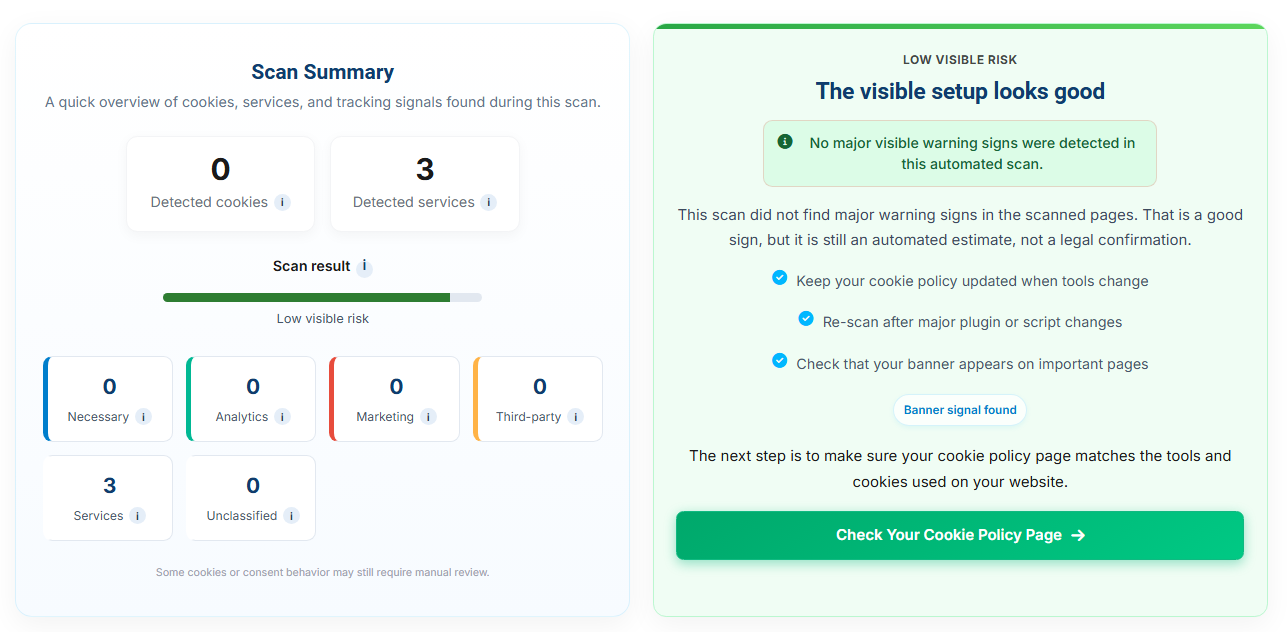
A cookie checker website may show information such as:
- the number of detected cookies;
- cookie names;
- cookie providers or domains;
- possible cookie categories;
- cookie duration;
- possible consent issues.
This can save time because you do not need to inspect every cookie manually. It is especially useful for beginners and website owners who are unfamiliar with browser developer tools.
Scan more than your homepage. Contact forms, checkout pages, embedded videos, maps, and advertising landing pages may use cookies that do not appear elsewhere.
Are cookie scanner results always complete?
No automated scan should be treated as a guaranteed complete result. Some cookies appear only after a visitor performs a particular action.
For example, a cookie may be created only when someone:
- plays an embedded video;
- opens a live chat window;
- logs into an account;
- adds a product to the cart;
- submits a form;
- accepts analytics or marketing cookies.
A scanner is a useful starting point, but you should review the results and test important website features manually. Our guide explaining what a cookie scanner is covers how automatic scanning works in more detail.
Method 2: Google Chrome
Google Chrome includes developer tools that allow you to inspect the cookies used by the webpage currently open in your browser.
To view cookies in Chrome:
- Open the website you want to inspect.
- Right-click anywhere on the page and select Inspect.
- Open the Application panel.
- Find the Storage section in the left-hand menu.
- Expand Cookies.
- Select the website domain you want to inspect.
Chrome will display the cookies associated with the selected domain in a table.
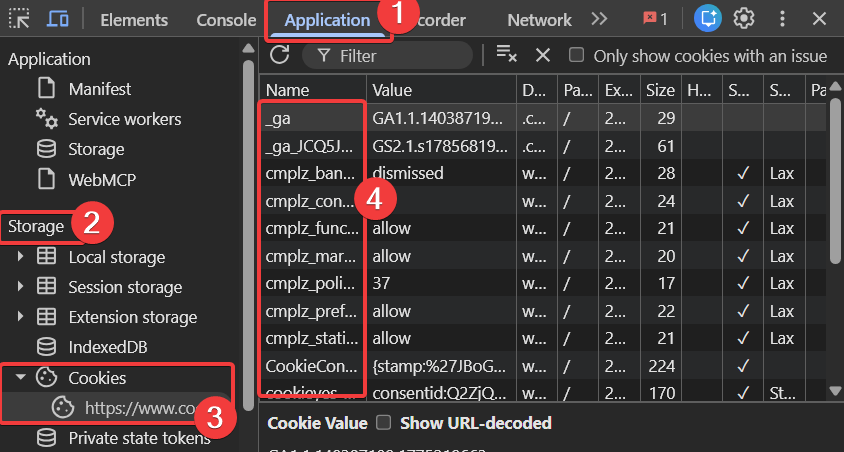
The table may include information such as:
- cookie name;
- stored value;
- domain;
- path;
- expiry date;
- security settings;
- SameSite setting.
Google’s official Chrome DevTools documentation provides additional instructions for viewing, editing, and deleting browser cookies.
View the official Chrome DevTools cookie guide.
Developer tools normally show cookies associated with the page and domains loaded during your current browser session. They may not reveal every technology used across the entire website.
Method 3: Firefox
Firefox provides a Storage Inspector that can display cookies and other information stored by a webpage.
To find cookies in Firefox:
- Open the website you want to check.
- Right-click the page and select Inspect.
- Open the Storage panel.
- Select Cookies from the storage list.
- Choose the relevant website domain.
The cookie table can show details including the cookie name, value, domain, path, and expiry time.
Firefox may also show cookies created by page content loaded through external frames. This can help you identify cookies connected to embedded tools or third-party services.
Method 4: Safari
Safari users can inspect website data through Apple’s Web Inspector. The tool can show cookies, local storage, databases, and other information stored by a webpage.
Before using Web Inspector, you may need to enable Safari’s developer features in the browser settings.
Once developer tools are available:
- Open the website you want to inspect.
- Open Safari’s Web Inspector.
- Navigate to the storage-related section.
- Select the website’s cookies.
- Review the available cookie details.
The exact panel names may differ between Safari versions, but the Web Inspector includes tools for reviewing data stored by a webpage.
What Cookie Information Should You Check?
Finding a cookie is only the first step. To understand what it does, you should review several details.
| Cookie Detail | What It Means | Why It Matters |
|---|---|---|
| Name | The identifier used for the cookie | Helps you research which service created it |
| Domain | The website or provider connected to the cookie | Helps identify first-party and third-party cookies |
| Path | The website area where the cookie is available | Shows whether the cookie applies to the full site or a specific section |
| Expiry | How long the cookie remains stored | Helps distinguish session cookies from persistent cookies |
| Secure | Whether the cookie is sent only over a secure connection | Provides information about how the cookie is transmitted |
| SameSite | How the browser handles the cookie across different websites | Helps explain cross-site cookie behavior |
Cookie names are often technical and may not clearly explain their purpose. Search the cookie name together with the provider or service that appears in the domain column.
For example, cookies connected to an analytics service may measure visits and user behavior. Cookies connected to an ecommerce platform may support a shopping cart or customer session.
How to Identify First-Party and Third-Party Cookies
The domain information can help you understand whether a cookie comes directly from the website or from an external service.
First-party cookies
A first-party cookie is connected to the website domain you are currently visiting.
These cookies may be used to:
- keep visitors logged in;
- remember language settings;
- save shopping cart contents;
- store cookie consent choices;
- support essential website functions.
Third-party cookies
A third-party cookie is connected to a different domain or external provider loaded by the website.
These cookies may be associated with:
- advertising platforms;
- analytics services;
- embedded videos;
- social media widgets;
- live chat systems;
- external booking tools.
Not every third-party service necessarily creates a traditional cookie during every visit. Some services use other browser storage or tracking technologies.
You can learn more about cookie purposes and categories in our guide to the different types of website cookies.
How to Check Which Cookies Load Before Consent
If you are checking your own website, it is important to test which cookies appear before and after a visitor interacts with the cookie banner.
Start with a clean browser session:
- Open a private or incognito browser window.
- Open developer tools before loading the website.
- Visit the website without clicking the cookie banner.
- Record which cookies are already present.
- Reject non-essential cookies and check again.
- Open another clean session and accept all cookies.
- Compare the results.
Necessary cookies may appear before a visitor makes a choice because they support essential website functions. Analytics and marketing cookies may require a different consent approach depending on the applicable rules and configuration.
You open a website in incognito mode and see only a cookie that stores the banner choice. After accepting analytics cookies, additional measurement cookies appear. This suggests that the consent controls are changing which cookies are activated.
If analytics or marketing cookies appear before any choice is made, review your consent tool and script-blocking configuration.
Finding Cookies vs Performing a Cookie Audit
Finding cookies tells you which cookies are visible during your test. A cookie audit is a broader process.
A full audit may also involve:
- testing several important pages;
- identifying each cookie’s provider and purpose;
- assigning the correct category;
- checking which cookies require consent;
- testing Accept and Reject choices;
- reviewing the cookie policy;
- documenting and fixing problems.
If you are reviewing your own website, read our complete guide to what a cookie audit is.
Common Mistakes When Checking Website Cookies
Checking only the homepage
Different pages may load different plugins, forms, videos, advertisements, or ecommerce services. A homepage check alone may miss important cookies.
Testing in a browser with old cookies
Cookies from an earlier visit can make it difficult to understand what a new visitor experiences. Use a private browser window or clear the existing website data before testing.
Looking only at cookie names
A technical name does not always explain the cookie’s purpose. Review the domain, duration, provider documentation, and the service installed on the website.
Assuming every cookie requires consent
Cookies can serve different purposes. Essential cookies and optional tracking cookies should not automatically be treated in exactly the same way.
Ignoring local storage and similar technologies
A website may store information using local storage, session storage, tracking pixels, scripts, or other technologies. Traditional cookie lists may not show all of them.
Forgetting to test after rejecting cookies
Do not test only the Accept button. Check whether rejecting optional cookies actually prevents the relevant technologies from loading.
Frequently Asked Questions
How can I see what cookies a website uses?
Open the website’s developer tools and look under Application or Storage, then select Cookies. You can also use a cookie scanner for a quicker overview.
Can I find website cookies without developer tools?
Yes. An automated cookie scanner can detect many website cookies without requiring you to use technical browser tools.
Can a website use cookies that do not appear immediately?
Yes. Some cookies appear only after you interact with a feature, visit a particular page, log in, play a video, or accept a cookie category.
Does finding cookies show whether a website is compliant?
No. Finding cookies is only one part of reviewing a website. You must also check their purposes, categories, consent behavior, and cookie information.
Why do different cookie scanners show different results?
Scanners may visit different pages, locations, or website features. The results can also depend on consent choices, browser settings, and when each cookie is activated.
Next Step: Scan Your Website for Cookies
Browser tools are useful when you want to inspect individual cookies, but checking every page manually can take time. Run a cookie scan to get a faster overview, then review the results and test how your website behaves before and after consent.