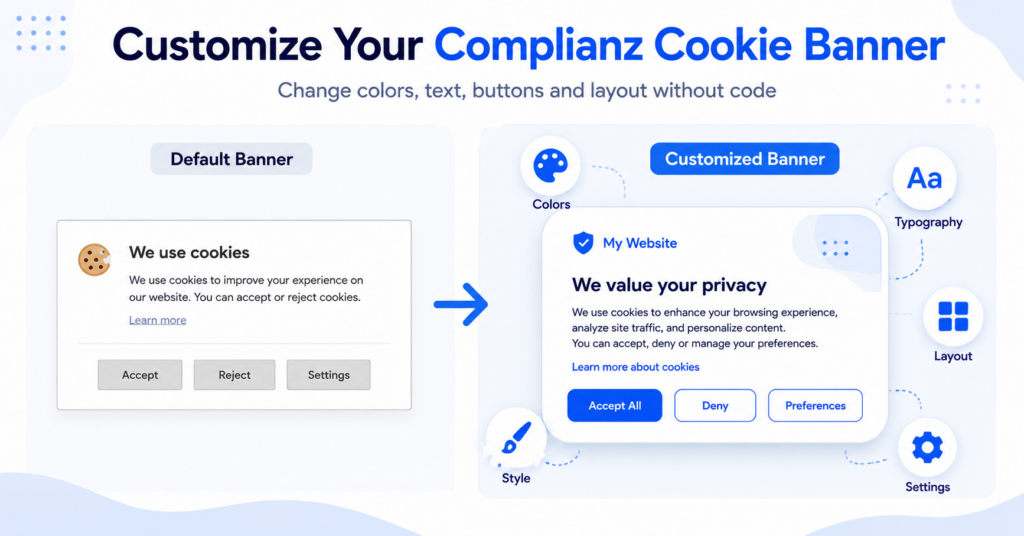
The default Complianz cookie banner works immediately after setup, but its design may not match the rest of your WordPress website.
Complianz lets you change the banner position, colors, button labels, cookie message, border radius, and several other appearance settings without installing another plugin.
In this guide, you’ll learn how to customize the Complianz cookie banner using the settings available in the free version.
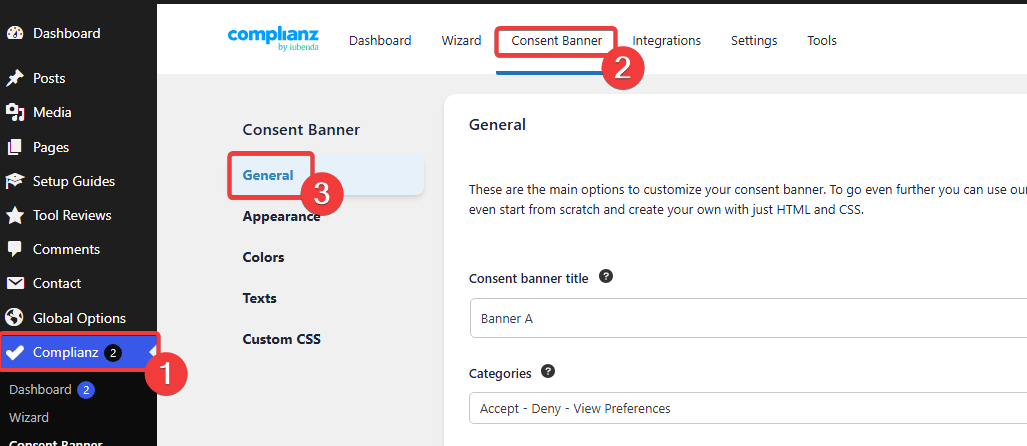
To customize the Complianz cookie banner, go to Complianz → Consent Banner in your WordPress dashboard.
Use the General, Appearance, Colors, and Texts sections to change the banner layout, colors, buttons, message, and consent options. Save your changes and test the finished banner in a private browser window.
Most customization can be completed in the free version of Complianz. You can change the banner layout, colors, buttons, text, and border radius without writing custom CSS.
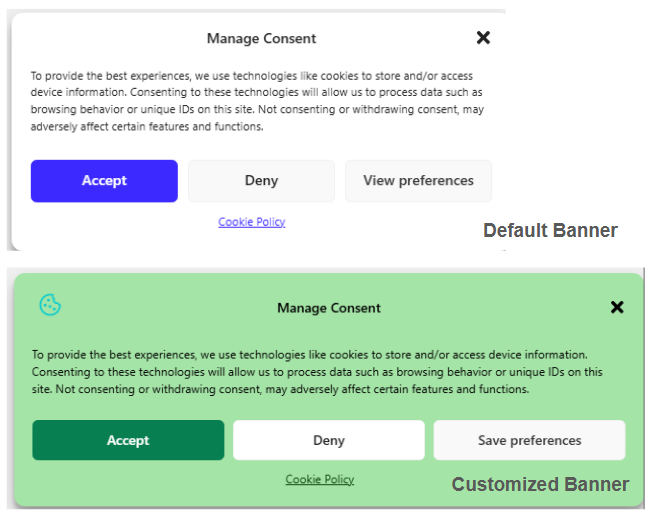
The example above shows how the default Complianz banner can be changed using the built-in customization settings.
The customized version uses a different background color, button color, border radius, icon, and preference button text.
Changing the design does not change how consent works. Your banner should still give visitors clear ways to accept, deny, and manage non-essential cookies.
How to Access the Complianz Banner Settings
Log in to your WordPress dashboard and go to:
Complianz → Consent Banner
Complianz separates the main customization options into five sections:
- General
- Appearance
- Colors
- Texts
- Custom CSS
If you have not completed the initial setup yet, follow our step-by-step Complianz installation guide first.
1. Configure the General Banner Settings
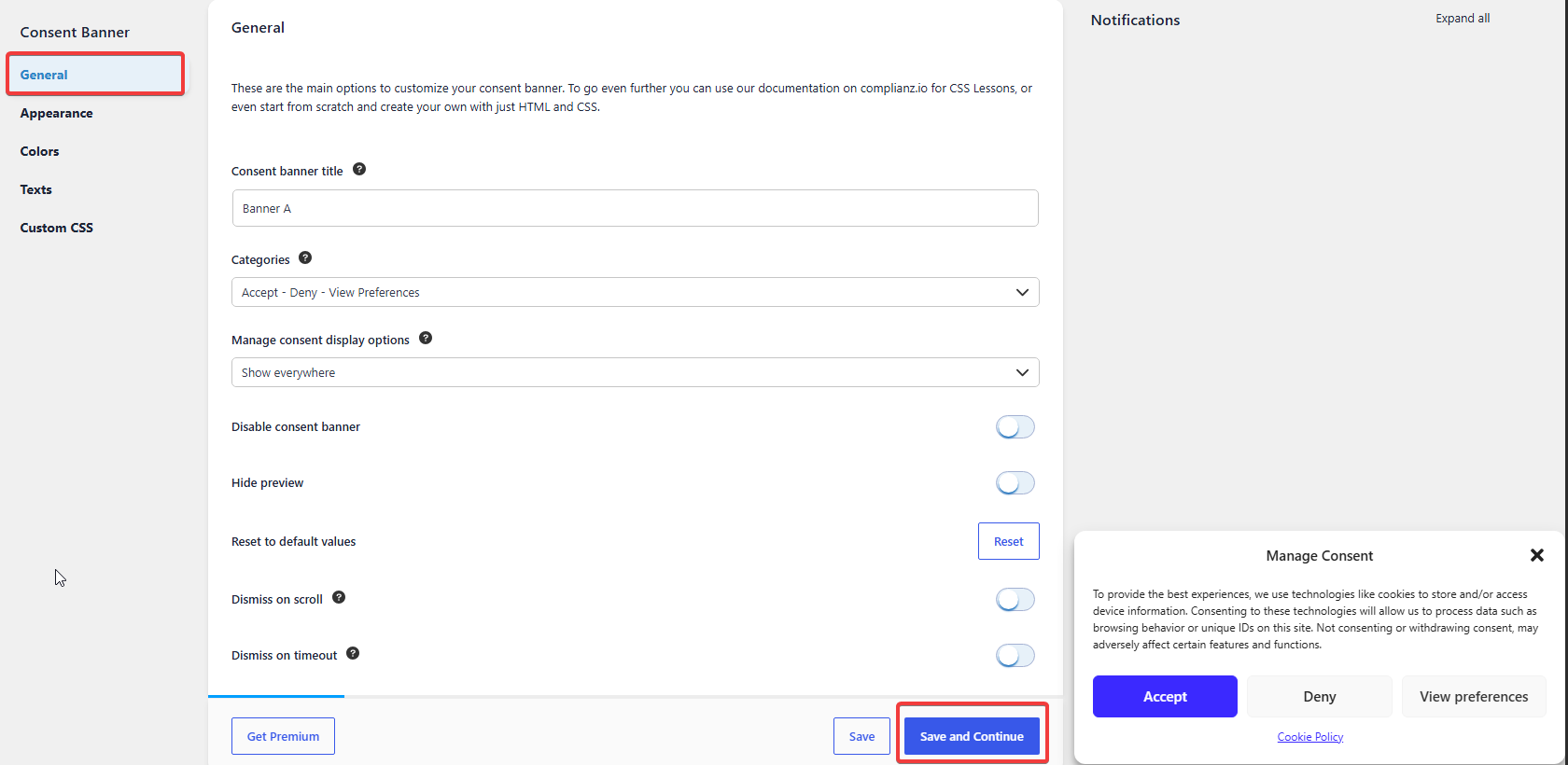
Open the General section to control the basic behavior of the consent banner.
Consent banner title
The consent banner title is mainly used inside Complianz to identify the banner.
You can keep the default name, such as Banner A, or enter a more descriptive internal name. This setting does not normally change the visible heading shown to visitors.
Categories
The Categories dropdown controls which consent choices appear on the main banner.
For a standard GDPR-focused setup, a clear option is:
- Accept
- Deny
- View Preferences
This gives visitors an immediate way to accept or deny non-essential cookies. They can also open the detailed preference settings.
Manage consent display options
The Show everywhere option displays the banner across your website where consent is required.
Only change this option if you have a specific reason to limit where the banner appears.
Disable consent banner
Keep this option turned off if you want the banner to remain active.
Turning it on disables the consent banner, which means visitors will no longer see it.
Hide preview
Complianz displays a live preview on the right side of the settings screen.
Keep the preview visible while editing the banner so you can see how each change affects the design.
Dismiss on scroll and dismiss on timeout
These settings can close the banner after a visitor scrolls or waits for a specified period.
Leave automatic dismissal options disabled for a standard GDPR-focused setup. Consent should normally be based on a clear action by the visitor, such as clicking Accept or Deny.
Click Save and Continue after reviewing the General settings.
2. Change the Banner Appearance
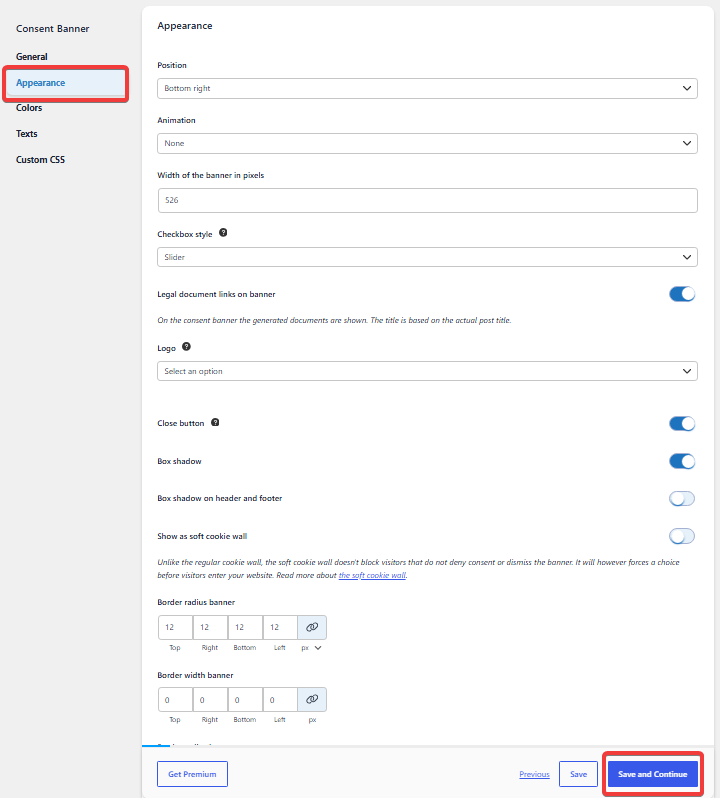
Open the Appearance section to change the position, size, shape, and visual structure of the banner.
Position
The Position setting controls where the banner appears on the page.
Depending on the selected banner design, available positions may include:
- Bottom right
- Bottom left
- Bottom center
- Center
A banner shown at the bottom of the screen is usually less disruptive. A centered banner is more noticeable but also blocks more page content.
Animation
The animation setting controls how the banner appears.
Keeping this set to None creates a simple and predictable experience. A subtle animation can work, but avoid effects that make the banner distracting.
Banner width
Use the width field to control the banner size in pixels.
A wider banner may keep the buttons on one row. However, a banner that is too wide can take up unnecessary screen space.
Always test the banner width on desktop and mobile. A layout that looks balanced on a large screen may feel crowded on a phone.
Checkbox style
This setting controls how the category controls appear when visitors open the detailed consent preferences.
The Slider option is easy to understand because it clearly shows whether a category is active or inactive.
Legal document links
Keep legal document links enabled if you want visitors to access your Cookie Policy directly from the banner.
The visible link text is normally based on the title of the connected legal document.
Logo
You can use the Logo setting to display a suitable image inside the cookie banner.
A small logo or simple icon can help the banner match your website. Avoid using a large image that distracts from the consent options.
Close button
The close button displays an X icon on the banner.
Before enabling it, make sure closing the banner does not activate non-essential cookies. Visitors who close the banner without choosing should not be treated as having accepted consent.
Box shadow
A box shadow separates the banner from the page behind it.
This can improve visibility when the website background is similar to the banner background.
Border radius
Border radius controls how rounded the banner corners appear.
- 0 px creates square corners.
- 6–12 px creates softly rounded corners.
- Higher values create a more rounded design.
Try to match the corner style already used by your website’s buttons, forms, and content cards.
Click Save and Continue after adjusting the appearance.
3. Customize the Banner Colors
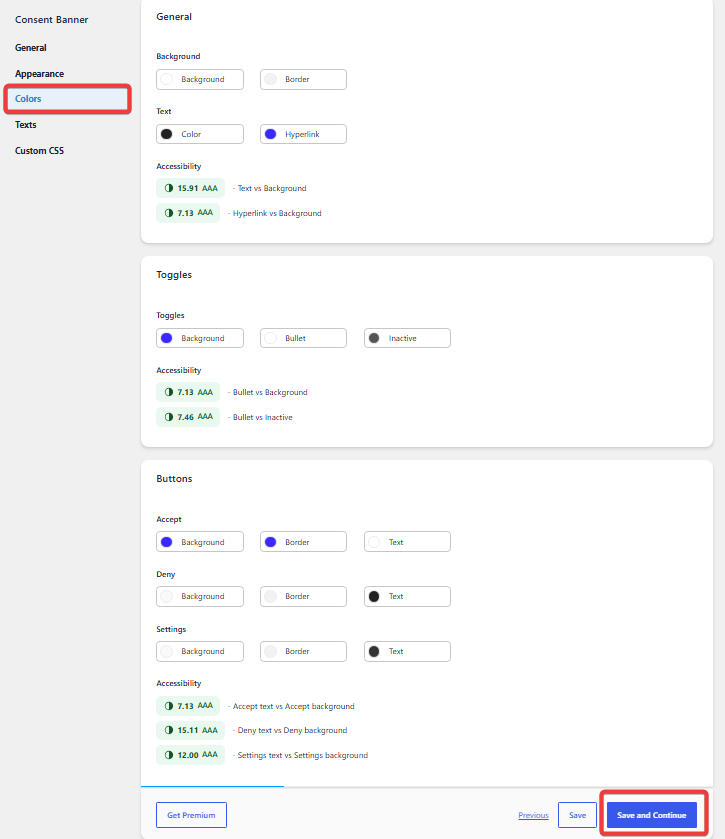
Open the Colors section to change the background, text, links, toggles, and button colors.
Background and border
Choose a background color that separates the banner from the website without making it unnecessarily distracting.
You can also add a border when the banner needs clearer separation from the page behind it.
Text and hyperlink colors
The normal text must remain easy to read against the selected background.
Hyperlinks, including the Cookie Policy link, should look clickable and have enough contrast against the banner background.
Toggle colors
The toggle settings control the background, bullet, and inactive colors used in the preference panel.
Visitors should be able to see clearly whether each cookie category is active or inactive.
Button colors
Complianz lets you customize the background, border, and text colors for the main consent buttons:
- Accept
- Deny
- Settings or preference buttons
The Accept button can use your primary brand color. However, the Deny option must also remain visible and easy to use.
Use your website’s primary brand color for the Accept button if it matches the rest of your design. Keep enough contrast between all buttons so visitors can clearly understand every available choice.
Do not make the Accept button highly visible while hiding the Deny option with weak contrast or unreadable colors. Visitors should be able to understand and use both choices.
Check the accessibility scores
Complianz displays contrast ratios next to several color combinations.
A green accessibility result indicates that the selected text and background colors have sufficient contrast.
If the score becomes too low, adjust the background or text color until the content is easier to read.
Do not judge contrast only by how the banner looks on your own monitor. Use the accessibility score shown by Complianz and test the banner on a mobile screen.
Click Save and Continue when the colors are ready.
4. Edit the Cookie Banner Text
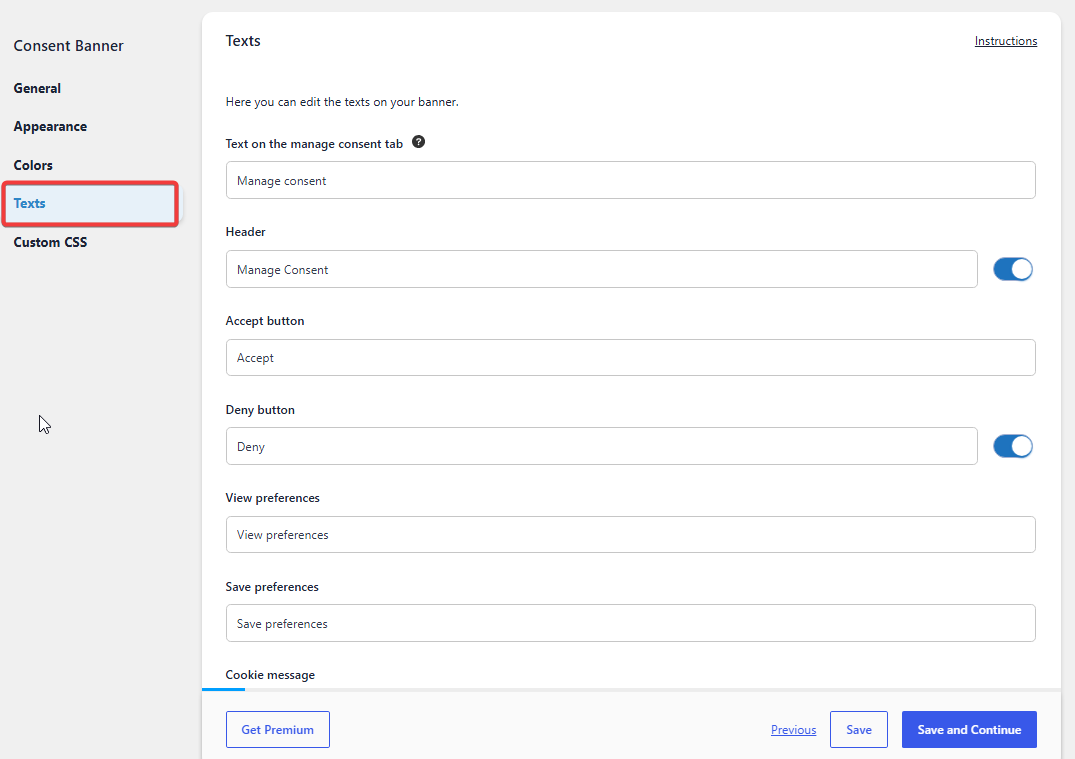
Open the Texts section to change the wording displayed inside the consent banner.
Manage consent tab
This is the text displayed on the tab or control that visitors use to reopen their consent settings.
Clear labels include:
- Manage consent
- Cookie settings
- Privacy settings
Header
The Header field controls the main title shown at the top of the banner.
Suitable examples include:
- Manage Consent
- Cookie Settings
- Your Privacy Choices
Keep the heading short and easy to understand.
Button labels
You can edit the visible text used for each consent button.
Clear button labels include:
- Accept or Accept All
- Deny or Reject
- View Preferences
- Save Preferences
Avoid vague labels such as “Continue” or “Okay.” These words do not clearly explain what happens after the visitor clicks them.
Cookie message
The cookie message explains why the website uses cookies or similar technologies.
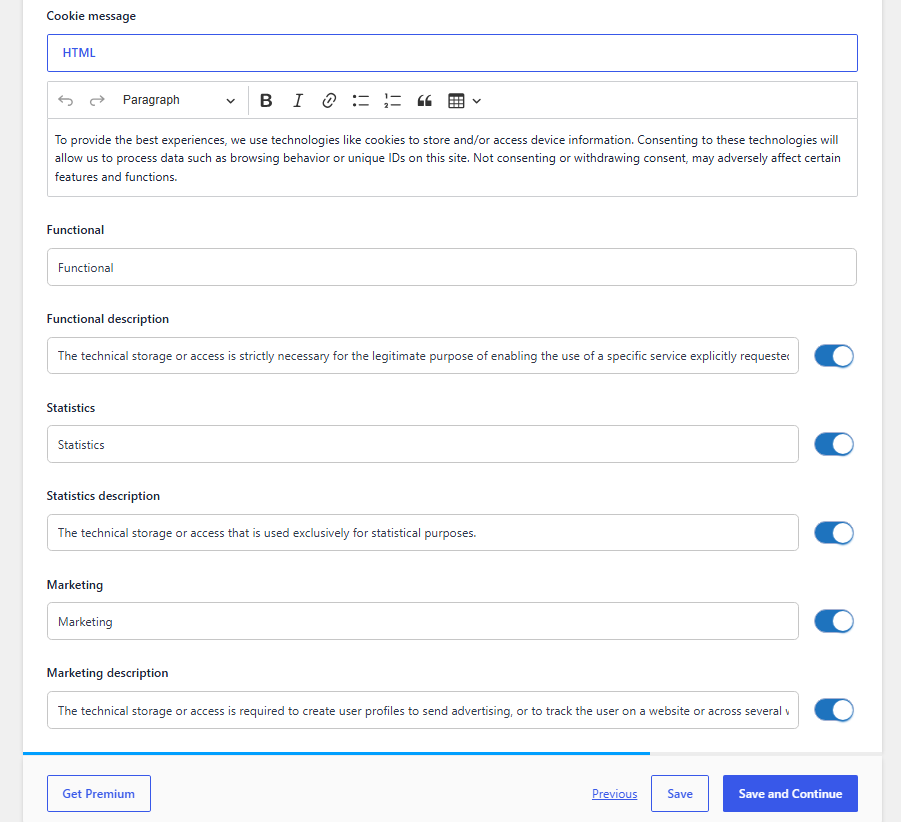
You can edit the message using the built-in WordPress editor.
The message should be:
- Easy to understand
- Accurate for your website
- Short enough to scan
- Consistent with the available consent choices
Do not say that your website uses only necessary cookies if it also uses analytics, advertising, embedded videos, or other non-essential services.
Cookie category names and descriptions
You can edit the names and descriptions for categories such as:
- Functional
- Statistics
- Marketing
Keep each description clear and specific. Visitors should understand what the category does before saving their preferences.
Do not rewrite a category description only to make tracking sound less intrusive. The text should accurately describe the cookies and services used by your website.
Click Save and Continue after editing the banner text.
5. Add Custom CSS
The Custom CSS section allows advanced users to change banner elements that are not covered by the built-in settings.
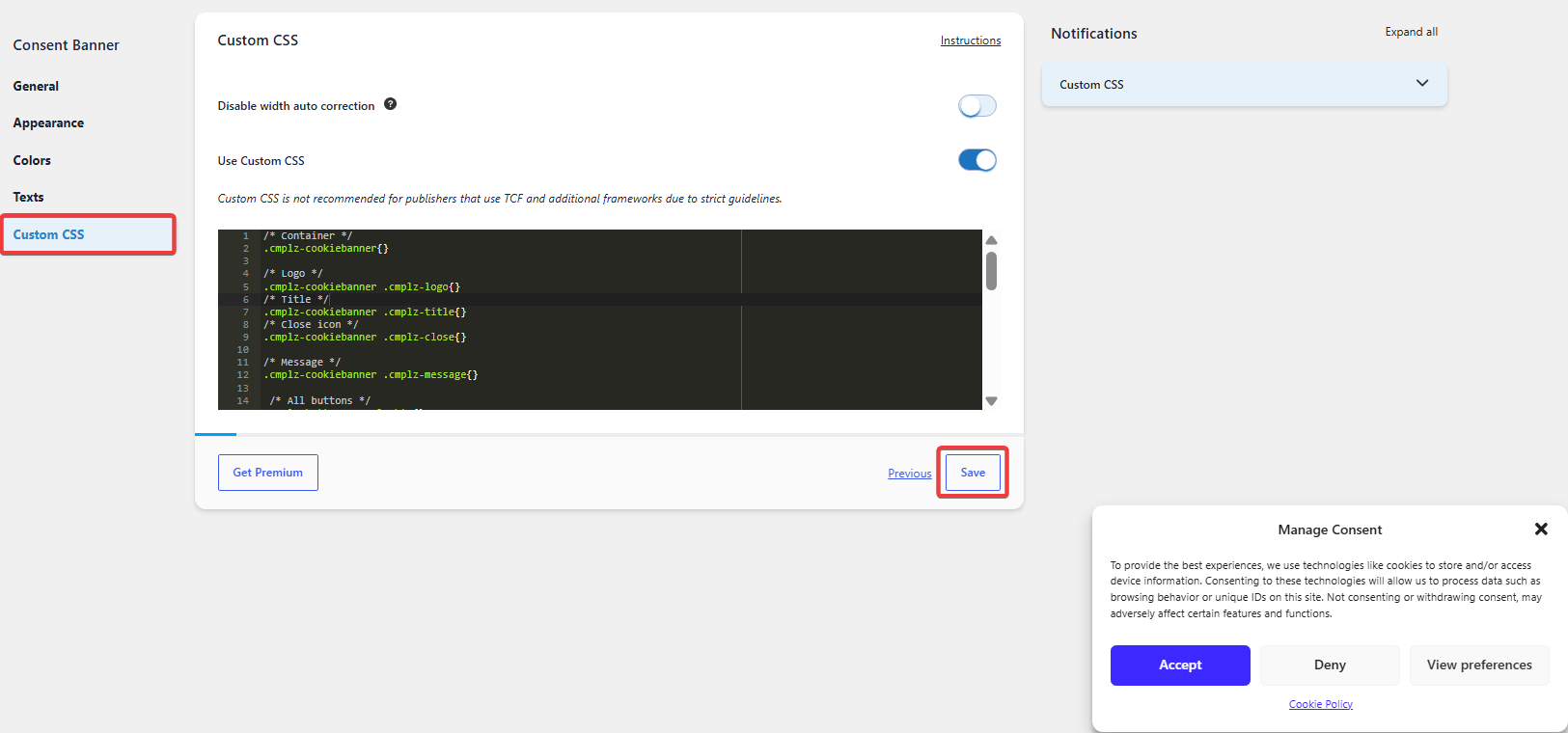
Complianz provides CSS selectors for elements such as:
- The main banner container
- The logo
- The title
- The close icon
- The cookie message
- The consent buttons
Custom CSS can help match a specific website design, but most users will not need it for basic customization.
Try the built-in Appearance and Colors settings before using CSS. Incorrect CSS can make buttons unreadable, break the mobile layout, or hide important consent options.
When adding custom CSS:
- Make one change at a time.
- Save and preview after each change.
- Test the banner on desktop and mobile.
- Keep a backup of your CSS.
Click Save after adding or editing the CSS.
6. Preview and Test the Customized Banner
The live preview inside Complianz is useful, but it should not be your only test.
After saving your customization:
- Clear your WordPress and website cache.
- Open the website in a private or incognito browser window.
- Check the banner on desktop.
- Check the banner on a mobile screen.
- Test the Accept button.
- Test the Deny button.
- Open View Preferences.
- Confirm that the Cookie Policy link works.
You should also confirm that non-essential cookies remain blocked until the visitor gives the relevant consent.
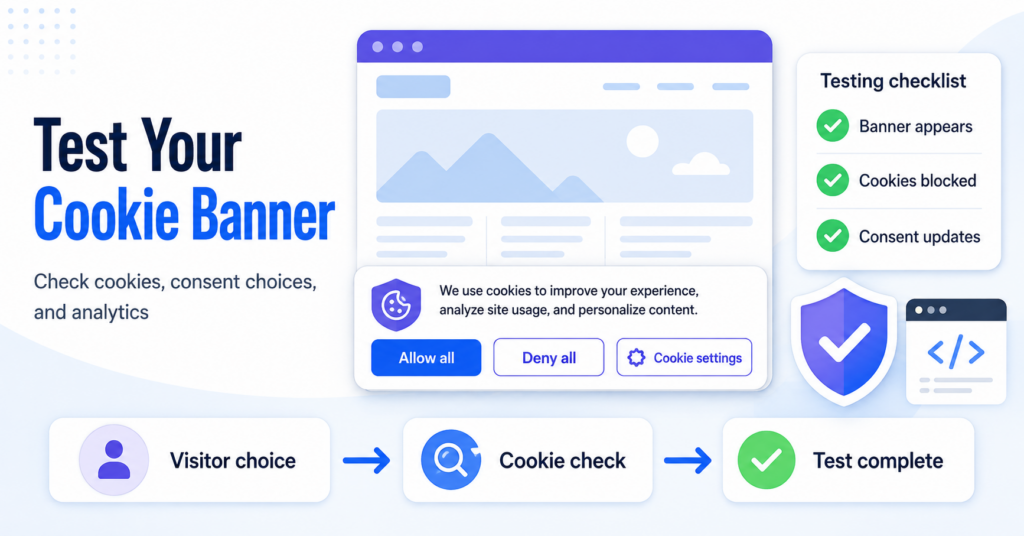
For a complete technical check, follow our guide explaining how to test a cookie banner before and after the visitor makes a consent choice.
Test the banner while logged out of WordPress. Your normal browser may already contain a saved consent choice or administrator cookies.
Read our guide to cookie banner requirements to understand which choices and information a consent banner should include.
Common Complianz Customization Problems
The banner changes do not appear
Make sure you clicked Save. Then clear your website cache and test the page again in an incognito window.
Your normal browser may still contain an older cached design or a saved consent choice.
The banner looks too wide on mobile
Reduce the banner width or select a different position.
Also check whether custom CSS is forcing the banner to use a fixed width that does not adapt to smaller screens.
The text is difficult to read
Return to the Colors section and review the contrast scores.
Increase the difference between the background and text colors until the content is easier to read.
The Deny button is difficult to see
Give the Deny button a visible background, border, or text color.
It should not blend into the banner background or appear unavailable.
The old design still appears
Clear the cache from your WordPress caching plugin, hosting service, CDN, and browser.
Then reload the website in a new private browser window.
Custom CSS breaks the banner layout
Temporarily disable the Use Custom CSS option.
If the normal design returns, review your CSS and add the rules back one at a time.
Is Complianz Banner Customization Available for Free?
Yes. The free version of Complianz includes the main settings needed to change the banner position, colors, visible text, buttons, border radius, shadow, and other basic appearance options.
Some advanced configurations may require Complianz Premium. However, the free version is enough to create a simple banner that matches most WordPress websites.
Read our Complianz Pricing guide to compare the free and paid options.
Final Thoughts
Complianz provides enough built-in options to create a cookie banner that matches most WordPress websites without writing code.
Start with the General settings. Then adjust the position, width, colors, buttons, and visible text.
Keep every consent choice clear and easy to use. After customization, test the banner in an incognito window and on a mobile device.
A good cookie banner should not only match your website. It must also remain readable, understandable, and functional.
Recommended Next Step
Your Complianz banner design is now ready. The final step is confirming that it does more than look correct and that optional cookies and tracking services follow the visitor’s consent choice.
The next guide shows you how to test the banner before consent, after selecting Deny, after selecting Accept, and when a visitor changes an earlier choice.

Frequently Asked Questions
Common questions about this topic
Yes. Open Complianz → Consent Banner → Colors. You can change the background, border, text, hyperlink, toggle, and button colors.
Yes. Open the Texts section to edit the heading, cookie message, button labels, consent tab, category names, and category descriptions.
Yes. Use the Position setting under Appearance to select where the banner should appear. The available positions depend on the selected banner layout.
The Appearance section includes a Logo option when a suitable image is available. Keep the logo small so it does not distract from the consent choices.
No. Most users can customize the banner using the built-in General, Appearance, Colors, and Texts settings. Custom CSS is only needed for more advanced design changes.
The most common cause is caching. Save the settings, clear your WordPress, hosting, CDN, and browser cache, and test the page again in an incognito window.
They do not need to use identical colors, but both options should remain visible, understandable, and easy to select. Do not hide or visually weaken the Deny option.