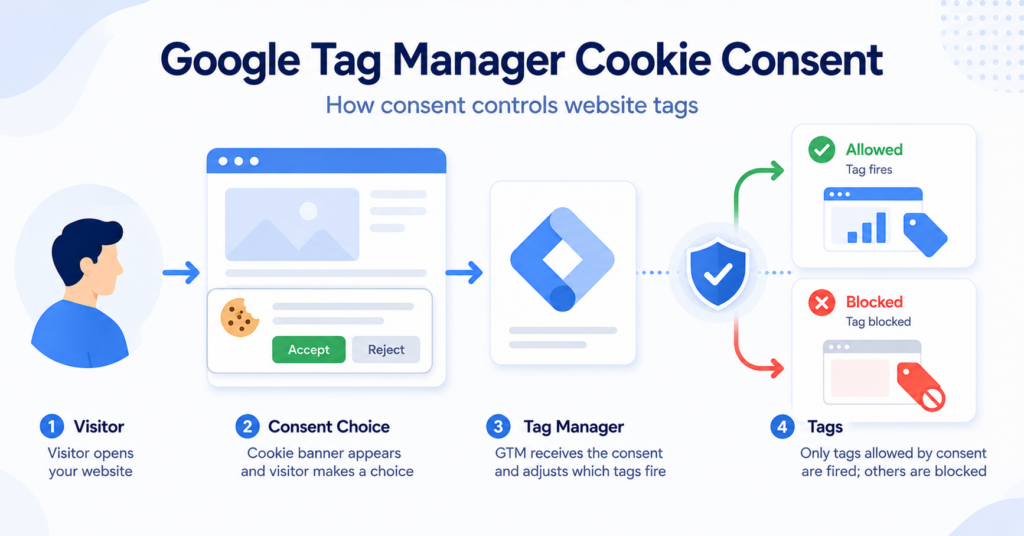
Google Tag Manager can load analytics, advertising, and other tracking tags on your website. But those tags may need to behave differently depending on a visitor’s consent choice.
Google Tag Manager cookie consent helps connect your consent setup with the tags managed through GTM.
In this guide, you’ll learn how GTM works with cookie banners, Consent Mode, consent states, and tag firing — and how to test whether your setup is working correctly.
Google Tag Manager does not collect cookie consent by itself. A cookie banner or consent management platform collects the visitor’s choice, while GTM can use that consent information to control or adjust how analytics, advertising, and other tags behave.
What Is Google Tag Manager Cookie Consent?
Google Tag Manager cookie consent is the process of connecting a visitor’s consent choice with the tags managed through GTM.
For example, your website might use GTM to manage:
- Google Analytics
- Google Ads
- conversion tracking
- marketing pixels
- other analytics or advertising scripts
Some of these tools may use cookies or other browser storage. Your consent setup therefore needs to determine how those tags should behave before and after a visitor makes a choice.
If Google Tag Manager itself is new to you, start with our beginner’s guide to Google Tag Manager.
Google Tag Manager is not a cookie banner or consent management platform. It manages tags, while your cookie banner or CMP collects the visitor’s consent choice.
Why Does Cookie Consent Matter in Google Tag Manager?
A GTM container can contain many different tags, and those tags do not all have the same purpose.
For example, a website might contain:
| Tag | Typical Purpose | Consent May Matter? |
|---|---|---|
| Google Analytics | Website analytics | Yes |
| Google Ads | Advertising and conversions | Yes |
| Marketing pixel | Advertising and remarketing | Yes |
| Security tag | Security or fraud prevention | Depends on purpose and setup |
If every tag fires immediately when the page loads, non-essential tracking may begin before the visitor has made a consent choice.
A proper GTM consent setup helps you avoid treating every tag the same way.
How Google Tag Manager Cookie Consent Works
A typical setup contains several separate parts.
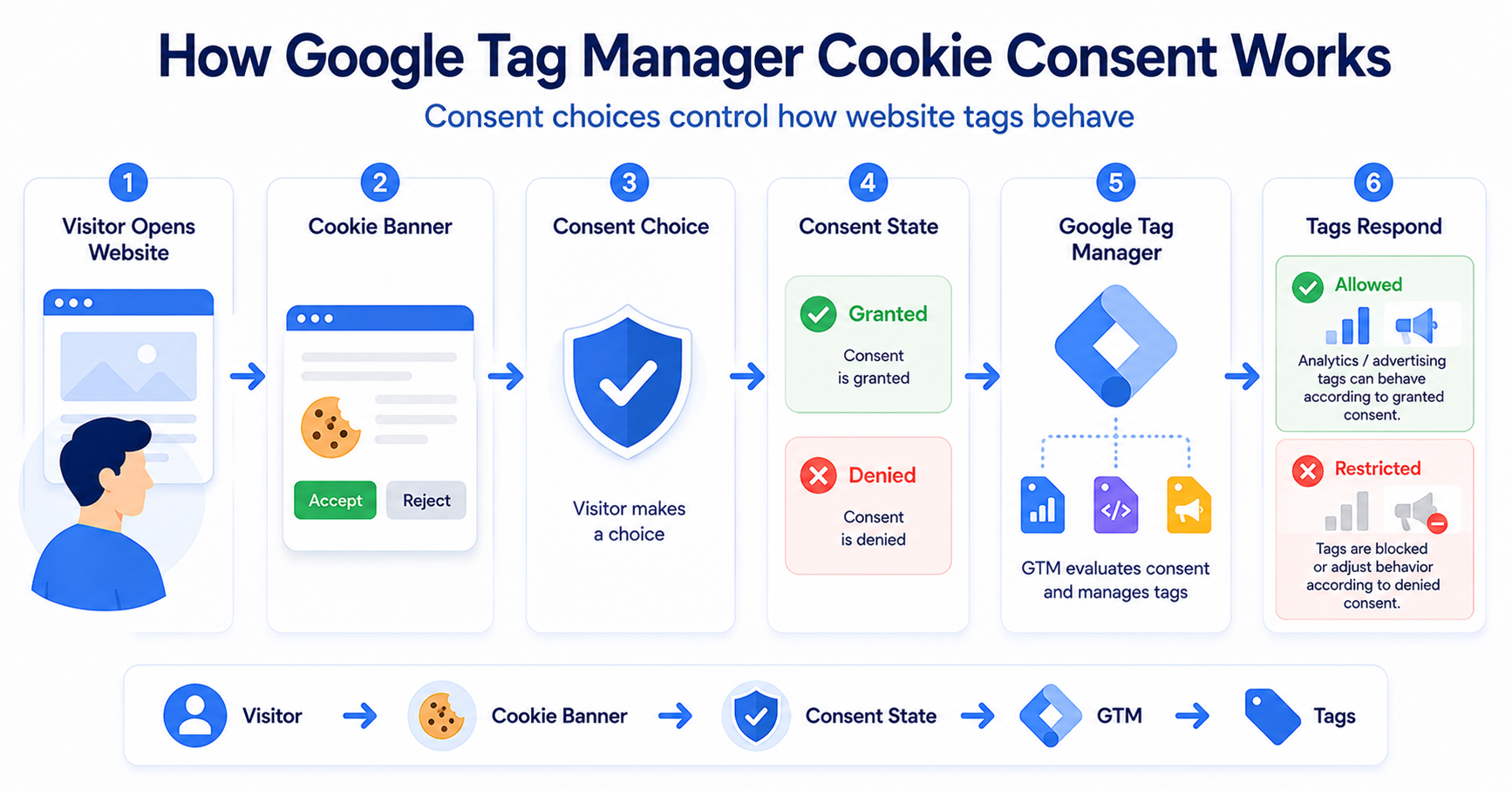
The overall flow looks like this:
Visitor → Cookie Banner → Consent Choice → Consent State → Google Tag Manager → Tags Adjust or Fire
Each part has a different job.
| Component | Main Job |
|---|---|
| Cookie banner / CMP | Collect the visitor’s consent choice |
| Consent state | Represent what the visitor accepted or rejected |
| Google Tag Manager | Manage tags and consent-related settings |
| Google Consent Mode | Communicate consent states to supported Google tags |
| Analytics / advertising tags | Measure activity or advertising performance |
A visitor opens your website and rejects analytics cookies.
Your consent platform updates the analytics consent state. Google Tag Manager and supported tags can then behave according to that denied state instead of treating the visitor as if analytics consent had been granted.
Cookie Banner vs Google Tag Manager
One of the most common beginner mistakes is assuming that GTM itself handles the entire cookie consent process.
It does not.
The easiest way to understand the difference is:
| Tool | What It Does |
|---|---|
| Cookie banner | Shows consent options to the visitor |
| CMP | Manages and stores consent preferences |
| Google Tag Manager | Manages website tags |
| Consent Mode | Communicates consent states to supported Google tags |
The cookie banner collects the decision. GTM helps your tag setup react to that decision.
If you are still deciding what your banner needs to include, see our Cookie Banner Requirements guide.
Google Tag Manager and Google Consent Mode
Google Consent Mode gives supported Google tags a standardized way to understand a visitor’s consent state.
Some of the most important consent types include:
analytics_storage— controls analytics-related storagead_storage— controls advertising-related storagead_user_data— controls sending user data to Google for advertising purposesad_personalization— controls personalized advertising
Google Tag Manager also supports consent-related settings for tags inside your container.
Supported Google tags can have built-in consent checks, meaning they can automatically adjust their behavior based on relevant consent states.
Want to understand what these consent signals actually do?
Basic vs Advanced Consent Mode in Google Tag Manager
Consent Mode can be implemented in two main ways: basic and advanced.
| Setup | Before Consent | After Consent |
|---|---|---|
| Basic Consent Mode | Google tags are prevented from loading until the visitor interacts with the consent banner | Tags can load after the required consent is granted |
| Advanced Consent Mode | Google tags can load with default consent states and adjust their behavior | Consent states are updated after the visitor makes a choice |
With basic Consent Mode, Google states that no data is sent to Google before the visitor interacts with the consent banner.
With advanced Consent Mode, supported Google tags can load before consent while respecting the default denied consent state. Depending on the setup, limited cookieless signals may still be sent.
“Tag loaded” and “normal cookie-based tracking is allowed” are not always the same thing. In advanced Consent Mode, supported Google tags can change their behavior based on denied consent states.
How Do Tags Respond to Consent?
This depends on the type of tag.
Google tags that support Consent Mode include built-in consent checks. These tags can automatically modify their behavior based on the relevant consent states.
For example:
| Tag Type | Relevant Consent Example |
|---|---|
| Google Analytics | analytics_storage |
| Google Ads | ad_storage, ad_user_data, ad_personalization |
| Third-party marketing tag | May require additional consent logic |
This last row is important.
You should not assume that every third-party tag automatically understands Google Consent Mode. Some custom or third-party tags may require additional GTM consent checks, triggers, or an integration provided by your consent platform.
Built-In Consent Checks vs Additional Consent Checks
Google Tag Manager provides two concepts that are easy to confuse.
Built-In Consent Checks
Supported tags contain their own logic for responding to specific consent states.
For example, Google Analytics and Google Ads tags can use built-in consent checks.
Additional Consent Checks
GTM also lets you require specific consent types before a tag is allowed to fire.
This can be useful for tags that do not already have the required built-in behavior.
Do not automatically add extra consent blocking to Google tags that already use built-in Consent Mode checks. Google specifically recommends avoiding unnecessary additional consent checks on supported Google tags because this can interfere with how Consent Mode is designed to work.
What Is the Consent Initialization Trigger?
Google Tag Manager includes a special trigger called:
Consent Initialization – All Pages
This trigger is designed for tags that set or update consent information, such as a consent management platform integration or a tag that establishes default consent states.
It runs before other page-load triggers, including normal Initialization triggers.
This helps make consent information available before other tags begin processing.
The Consent Initialization trigger is intended for consent-management functions. It should not be used simply because you want an unrelated tag to fire very early.
Common Google Tag Manager Cookie Consent Setup
The exact setup depends on your consent platform, but the general process usually looks like this.
- Install a cookie banner or consent management platform.
- Set appropriate default consent states.
- Connect the consent platform with Google Tag Manager or Google Consent Mode.
- Review the tags inside your GTM container.
- Check which tags have built-in consent support.
- Configure additional consent requirements where genuinely needed.
- Test the setup before publishing.
Many consent platforms provide a direct GTM integration or a Tag Manager template, which can reduce the amount of manual configuration required.
If your website uses Google Analytics through GTM, also read our guide to Google Analytics cookie consent.
Do You Need to Block Tags in Google Tag Manager?
Sometimes, but not every tag should be handled in exactly the same way.
For supported Google tags, Consent Mode can change tag behavior based on the visitor’s consent state.
For third-party or custom tags, you may need to prevent the tag from firing until the required consent has been granted.
The correct approach depends on:
- what the tag does
- whether it uses cookies or other storage
- whether it supports Consent Mode
- which consent category it belongs to
- how your CMP integrates with GTM
This is why simply creating one generic “block all tags” rule is not always the best solution.
How to Test Cookie Consent in Google Tag Manager
Testing is one of the most important parts of a GTM consent setup.
Google recommends using Tag Assistant to verify Consent Mode implementations.
A practical testing process is:
- Open your website in a private or incognito window.
- Start a GTM Preview or Tag Assistant session.
- Check the default consent state before interacting with the banner.
- Reject analytics and marketing cookies.
- Check which tags fire and which consent states are shown.
- Repeat the test after accepting cookies.
- Check browser storage for analytics or marketing cookies.
For Consent Mode, check whether the relevant states change correctly after the visitor interacts with the banner.
Examples include:
analytics_storagead_storagead_user_dataad_personalization
Always test at least three states: before making a choice, after accepting, and after rejecting. A setup can appear correct after Accept while still loading unnecessary tags before consent.
You can also use our Cookie Scanner as a starting point for identifying cookies and tracking technologies that appear on your website.
Common Google Tag Manager Cookie Consent Mistakes
Most GTM consent problems come from configuration rather than from Google Tag Manager itself.
Common mistakes include:
- setting default consent too late
- analytics tags firing before the consent setup is ready
- assuming every third-party tag supports Consent Mode automatically
- adding unnecessary additional consent checks to supported Google tags
- installing Google Analytics both directly and through GTM
- forgetting to update consent after the visitor clicks Accept or Reject
- testing with cookies already stored from previous visits
- not checking the final configuration with Tag Assistant
Your GA4 tag inside GTM appears to respect analytics consent correctly, but Google Analytics is also installed separately through a WordPress plugin.
The GTM configuration may be correct while the second Analytics installation still loads independently. This is why you should test the website itself, not only the GTM container.
Conclusion
Google Tag Manager cookie consent is about making sure the tags managed through GTM behave according to a visitor’s consent choice. The cookie banner collects the choice, while GTM and Consent Mode help pass and apply that information to supported tags.
The most important step is testing the real website. Check default consent states, Accept and Reject behavior, tag firing, and actual browser cookies before considering the setup complete.
Next Step: Does Google Tag Manager Use Cookies?
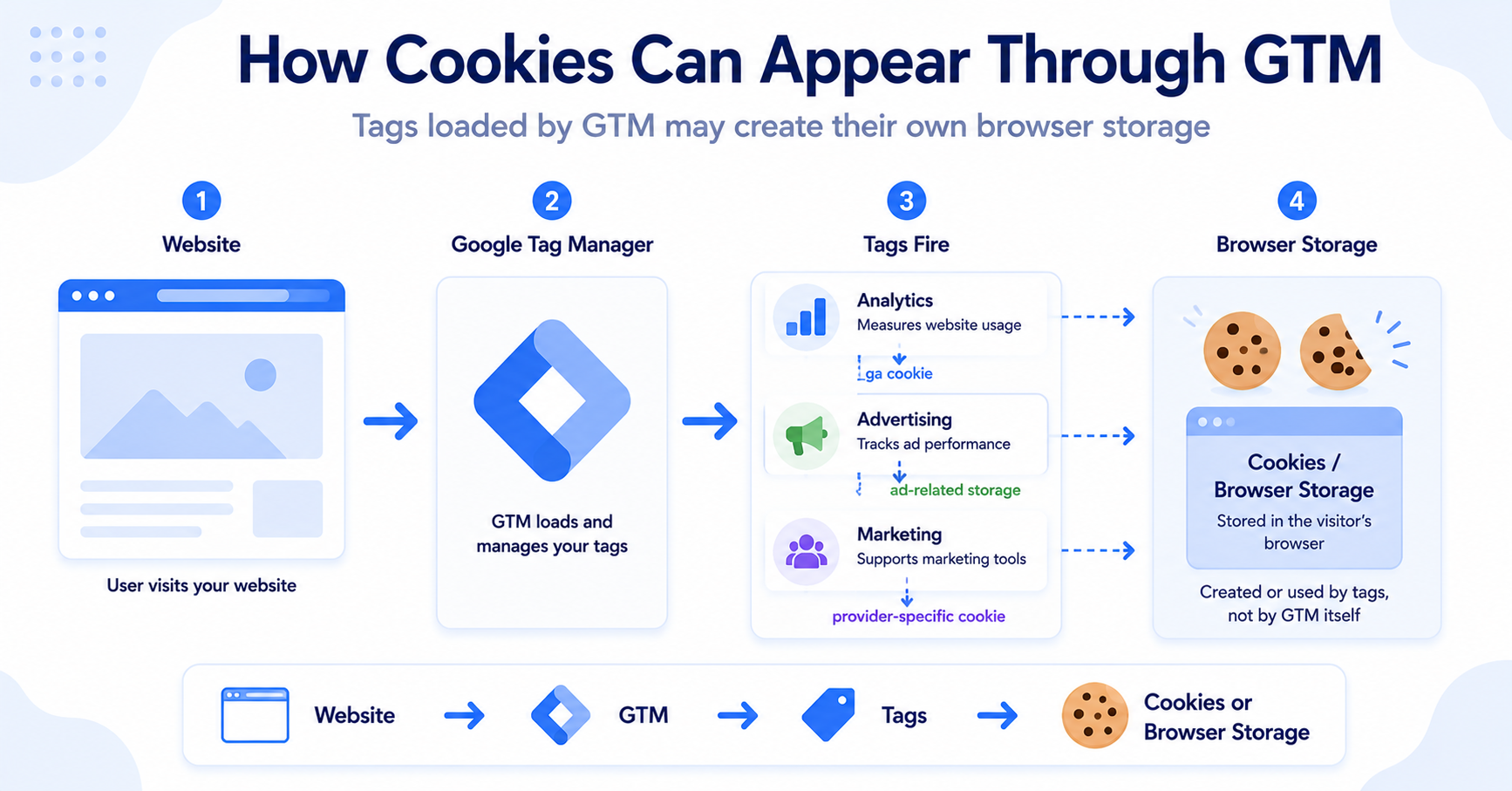
Now that you understand how consent works with GTM, the next step is to understand whether Google Tag Manager itself creates cookies and how the tags inside a GTM container can affect browser storage.

Frequently Asked Questions
Common questions about this topic
Not by itself. A cookie banner or CMP collects the visitor’s consent choice. Google Tag Manager can then use consent states and tag settings to help control how tags behave.
No. GTM is a tag management system. Whether cookies are created depends on the tags that run and how consent has been configured.
Using GTM does not remove the need for consent where consent is required. The important question is which tags and tracking technologies your GTM container loads.
Yes. GTM includes consent features such as the Consent Initialization trigger, built-in consent checks, additional consent checks, and a Consent Overview page.
Yes. Tags can be configured with consent requirements or triggers so they only fire when the required consent state is granted. Supported Google tags may instead use built-in Consent Mode behavior.