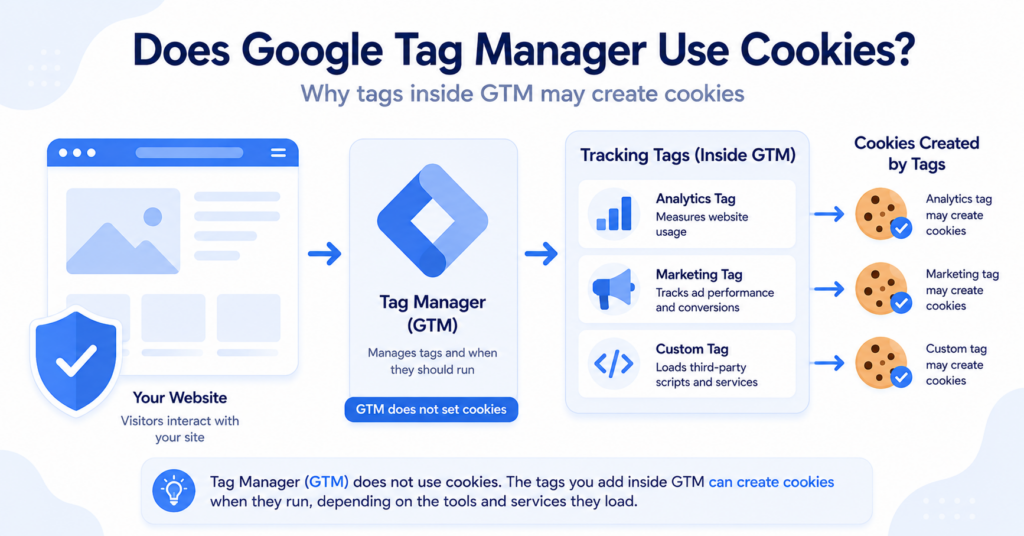
Google Tag Manager manages tracking and marketing tags on websites, but does Google Tag Manager itself use cookies?
A standard GTM web container does not normally create visitor tracking cookies simply because it is installed. However, the analytics, advertising, marketing, and other tags loaded through the container may use cookies or other browser storage.
This guide explains the difference between GTM and the tags it manages, how to identify which tag created a cookie, and why consent settings may still be required when using Google Tag Manager.
Google Tag Manager does not normally create visitor tracking cookies simply because a standard web container is installed. Its main job is to load and manage tags.
However, the analytics, advertising, marketing, and other tags running through GTM may use cookies, local storage, or other identifiers. When cookies appear on a GTM-based website, identify the tag or service responsible instead of assuming that the GTM container created them.
Does Google Tag Manager Use Cookies?
A standard Google Tag Manager web container does not normally need to create visitor tracking cookies simply because it is installed on a website. Its main purpose is to manage and execute configured tags.
Those tags can include:
- Google Analytics;
- Google Ads;
- conversion tracking;
- marketing pixels;
- heatmap and behavior tools;
- chat and support tools.
These individual services may create cookies, use other browser storage, or send network requests when their tags run.
This guide focuses mainly on a standard client-side Google Tag Manager web container. Server-side GTM setups work differently because some requests are routed through a server container, but the tags and services used in that setup can still process identifiers and consent signals.
If you see cookies after installing GTM, do not automatically assume that the GTM container created them. First check which tags are configured and which tags actually fired.
What Does Google Tag Manager Actually Do?
Google Tag Manager is a tag management system. Instead of adding every tracking script directly to the website code, you can install one GTM container and manage many tags through the Tag Manager interface.
GTM mainly works with:
- Tags — the analytics, advertising, or other tools you want to run;
- Triggers — the rules that determine when a tag should run;
- Variables — the values that tags and triggers can use.
For example, you could configure an Analytics tag to run on page views or a conversion tag to run only after someone completes a purchase.
If you want a full beginner explanation, read our guide to what Google Tag Manager is and how it works.
Why Do Cookies Appear When Google Tag Manager Is Installed?
Cookies usually appear because a tag inside the GTM container creates or accesses them. The basic process is:
Website → GTM container → Tag runs → Service may create a cookie
The GTM container provides the delivery and management layer. The tag determines what happens after it runs.
| Component | Main Role | Possible Cookie Behavior |
|---|---|---|
| GTM web container | Loads and manages configured tags | Does not normally create visitor tracking cookies simply by being installed |
| Google Analytics tag | Measures website use | Can use analytics cookies such as _ga |
| Advertising tag | Supports advertising and conversion measurement | May use advertising cookies or identifiers |
| Third-party marketing tag | Provides a provider-specific tracking feature | May use cookies, local storage, or other browser storage |
You install Google Tag Manager and add a GA4 tag inside the container. Later, you see a _ga cookie in the browser.
The cookie is associated with Google Analytics measurement. GTM is the method used to load and manage the Analytics tag.
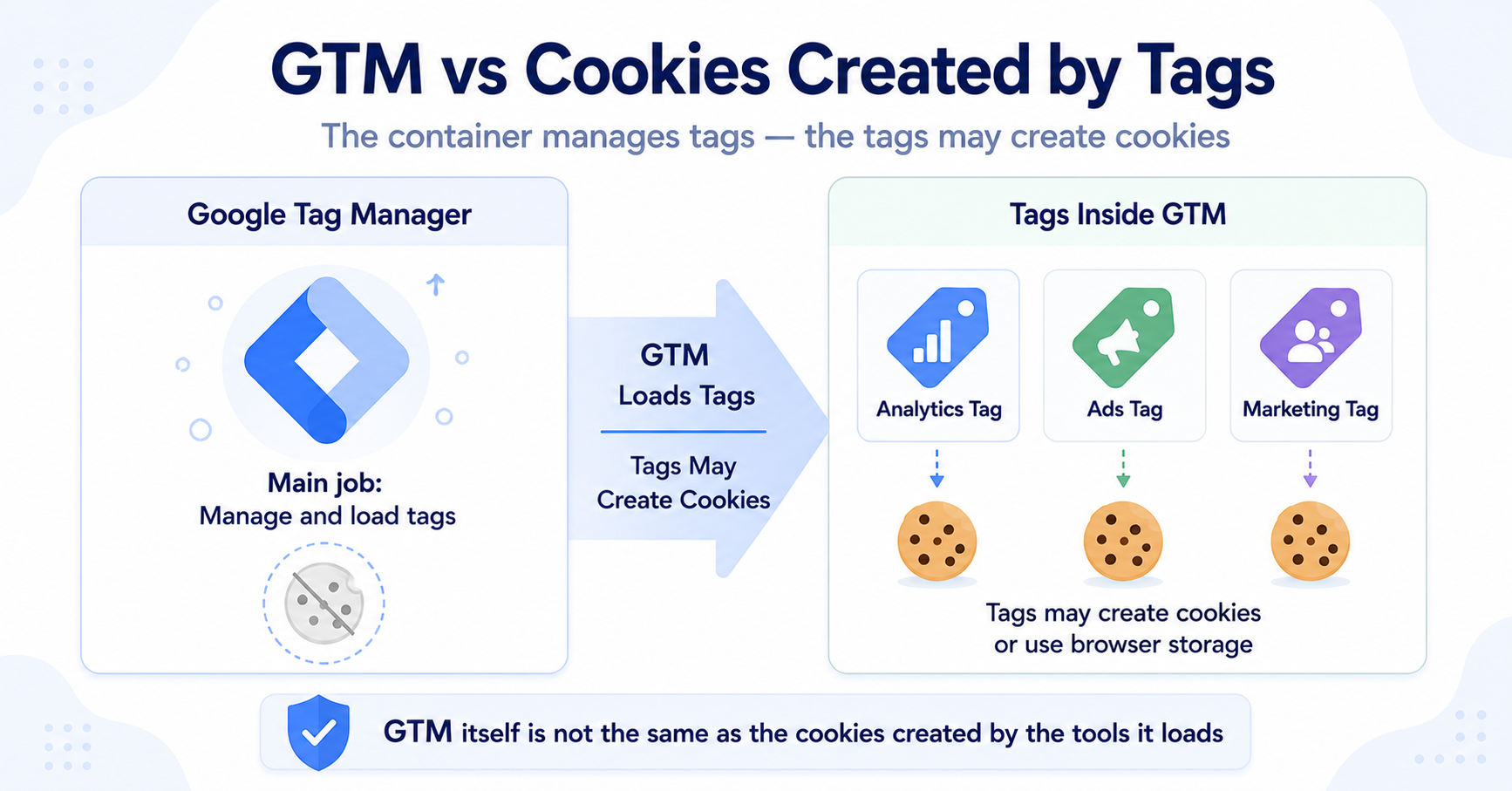
GTM Cookies vs Cookies Created by Tags
The most useful distinction is between the container and the tools configured inside it.
| Source | Can It Use Cookies? | Example |
|---|---|---|
| GTM web container | Not normally for visitor tracking simply because the container is installed | Container code and data layer |
| Google Analytics | Can use first-party analytics cookies | _ga |
| Advertising services | May use advertising storage or identifiers | Provider-specific advertising technologies |
| Other third-party tags | May use cookies or other browser storage | Heatmaps, chat tools, or marketing platforms |
When you audit a GTM-based website, ask “Which tag or service created this cookie?” instead of assuming that GTM created every cookie found on the page.
Does Google Analytics Through GTM Use Cookies?
Google Analytics 4 loaded through GTM can use first-party analytics cookies such as _ga when its configuration and the applicable consent state allow that storage.
Another common GA4 cookie begins with _ga_. The complete cookie name can include a property-specific identifier, so it is better to describe this as a cookie that begins with _ga_ instead of presenting one changing suffix as universal.
GTM is the delivery and management layer. Google Analytics is the service associated with the analytics cookie and measurement behavior.
For a detailed explanation, read Does Google Analytics Use Cookies?.
Can Third-Party Tags in GTM Set Cookies?
Yes. GTM can load third-party tags, and those tags may use cookies or other browser storage.
Examples include:
- advertising platforms;
- social media pixels;
- heatmap tools;
- A/B testing tools;
- chat widgets;
- affiliate tracking tools;
- conversion tracking platforms.
Depending on the service and configuration, a tag may use cookies, local storage, session storage, browser identifiers, or server-side identifiers. Checking cookies alone may therefore not reveal every tracking technology used on a website.
Are Cookies Loaded Through GTM First-Party or Third-Party?
It depends on the tag and how the service is configured. Standard GA4 cookies such as _ga are commonly set as first-party cookies on the website domain being visited.
Other services may set cookies through the visited domain, communicate with external domains, or use different forms of browser storage. GTM itself does not determine whether a cookie is first-party or third-party. That behavior comes from the tag or service being loaded.
Read our comparison of first-party and third-party cookies to understand who sets each type and how they differ.
Does Using GTM Mean You Need a Cookie Banner?
Not automatically. Installing a GTM container does not by itself determine whether a website needs a cookie banner.
What matters is what the container loads, what those technologies do, where the website’s visitors are located, and which rules apply. A GTM container could include analytics tags, advertising tags, marketing pixels, conversion tracking, or tools that do not use visitor tracking at all.
If the website uses tags that require consent, its banner or consent management platform should communicate the visitor’s choice to the tag setup and prevent or adjust the relevant behavior as required.
Learn how Google Tag Manager cookie consent can connect banner choices with tag behavior.
How Does Consent Affect Cookies Created by GTM Tags?
Consent settings can change whether supported tags are allowed to use storage or process data in a particular way.
Google Consent Mode includes consent types such as:
analytics_storage;ad_storage;ad_user_data;ad_personalization.
Google Consent Mode does not display a banner or collect consent from the visitor. It receives consent states from a banner or consent management platform and changes how supported Google tags behave.
The implementation method also matters. In basic consent mode, relevant Google tags are blocked until the visitor grants consent. In advanced consent mode, Google tags may load with denied consent settings and send limited cookieless signals.
For this reason, checking only whether a cookie appears does not reveal every request or data flow. You should also inspect network requests and confirm that the default consent states and later updates match your intended setup.
Google’s official documentation explains that consent mode requires a default consent state and an update based on the visitor’s interaction with the consent interface. See Google’s guide to setting up consent mode on websites.
For a beginner-friendly explanation, read our guide on how Google Consent Mode works.
Do not assume that every tag inside GTM automatically follows Google Consent Mode. Supported Google tags have built-in consent behavior, but third-party tags may require additional configuration, consent checks, or blocking rules.
How to Check Which Cookies GTM Tags Create
Use a clean private or incognito browser session so cookies from earlier visits do not affect the results.
- Open the website in a private or incognito window.
- Open Developer Tools.
- Go to Application → Storage and inspect Cookies, Local Storage, and Session Storage.
- Check what exists before interacting with the consent banner.
- Open the Network panel and clear the existing requests.
- Trigger the page view, click, form submission, or purchase action you want to test.
- Check which GTM tags fired and which network requests appeared.
- Compare the new storage entries and requests with the tags configured in GTM.
If the website uses a cookie banner, repeat the test before making a choice, after accepting, and after rejecting. Also test whether changing the consent choice updates tag behavior.
GTM Preview mode can show which tags fired and when, but combine it with browser storage and Network panel checks. One tool alone may not reveal the complete behavior.
You can use our Cookie Scanner as a starting point for identifying cookies and tracking technologies.
If your website uses a consent banner, follow our guide on how to test a cookie banner to compare storage and network behavior in different consent states.
How to Find Which GTM Tag Created a Cookie
Finding a cookie is only the first step. You may also need to identify the tag or installation method responsible for it.
Use GTM Preview mode together with browser developer tools and check:
- which tags fired;
- when each tag fired;
- which network requests appeared;
- which storage entries appeared after the tag fired;
- whether the same script is also installed outside GTM.
Cookie names can provide clues. For example, _ga commonly points toward Google Analytics. Provider-specific prefixes may identify other services, but cookie names alone are not always enough.
If a cookie remains after disabling a tag, inspect the website code, plugins, theme settings, and other integrations for a duplicate installation.
Common Google Tag Manager Cookie Mistakes
- assuming GTM itself created every cookie;
- not checking which tags are configured inside the container;
- installing the same Analytics or advertising tool through more than one method;
- assuming that deleting a GTM tag removes another copy of the same script;
- checking cookies but ignoring local storage, session storage, and network requests;
- testing only after accepting the cookie banner;
- forgetting to begin with a clean browser session;
- assuming that every third-party tag respects Consent Mode automatically.
You remove an Analytics tag from GTM but continue to see _ga cookies. This may mean Analytics is also installed through a plugin, website integration, theme setting, or code added directly to the site.
Conclusion
A standard Google Tag Manager web container does not normally create visitor tracking cookies simply because it is installed. The cookies and other identifiers found on the website are usually connected to analytics, advertising, marketing, or third-party tags loaded through the container.
To understand your setup, review the tags inside GTM and compare their firing behavior with browser storage, network requests, and consent states. Do not rely only on cookie names or assume that every tag automatically follows the same consent settings.
Once you know which tags can use cookies or other identifiers, the next task is to control when those tags are allowed to run.
Recommended Next Step: Set Up GTM Cookie Consent
Identifying which GTM tags can create cookies is only the first step. You also need to connect those tags with the choices made through your cookie banner or consent management platform.
The next guide explains how consent settings, triggers, and Google Consent Mode can control analytics and advertising behavior inside Google Tag Manager.

Frequently Asked Questions
Common questions about this topic
A standard GTM web container does not normally create visitor tracking cookies simply because it is installed. However, tags loaded through the container may use cookies or other storage. Preview, debugging, consent, and specialized configurations may also use browser storage for their own functions.
Google Tag Manager is a tag management system. The tags and services loaded through the container determine whether first-party cookies, third-party resources, local storage, or other identifiers are used.
Google Analytics 4 loaded through GTM can use first-party analytics cookies such as <code>_ga</code>. Whether those cookies are created depends on the Analytics configuration, consent state, and implementation method.
Yes. GTM can manage and load tags without requiring visitor tracking cookies for its core tag management function. However, the tags inside the container may use cookies or send requests depending on their configuration.
Consent is not required simply because a GTM container exists. What matters is which tags and technologies it loads, what data they collect, where visitors are located, and which rules apply. Tags that require consent should be controlled according to the visitor’s choice.