Your iubenda Privacy and Cookie Policy should describe the services your website actually uses. The initial setup may suggest services, but it is worth checking the final list yourself, especially when you add a new tool to your website.
In this guide, I’ll use Google Analytics 4 (GA4) as an example. I’ll show you where to review the services already listed, how to add a missing service, and how to check that it appears in the generated policy. Follow the same process for the other services your own website uses.
To add a service to your iubenda policy:
- Open Privacy and Cookie Policy in your iubenda dashboard.
- Review the services already listed.
- Find a missing service manually or scan your website for suggestions.
- Check the website owner and contact information.
- Review the generated policy to confirm the service appears.
In our example, an iubenda scan identified Google Analytics 4 as a missing service. Check each suggested service against the tools your own website actually uses.
Step 1 – Open the Privacy and Cookie Policy Editor
Sign in to iubenda and open the dashboard for your website. Find the Privacy and Cookie Policy card and click “Edit” beneath it.
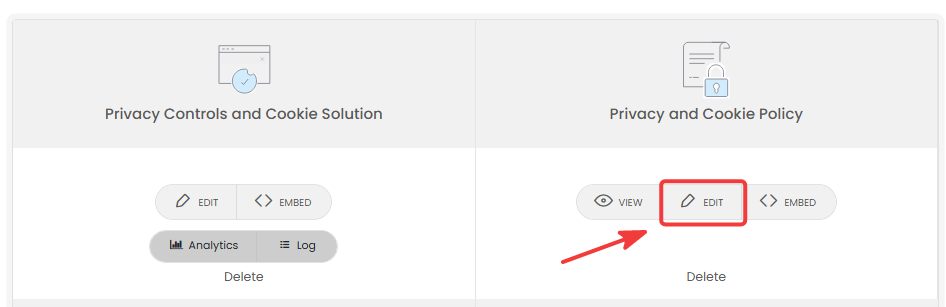
Make sure you choose this card. Privacy Controls and Cookie Solution opens the consent banner settings; the service list we need is inside Privacy and Cookie Policy.
Step 2 – Review the Services in Your Policy
The editor opens on Services collecting personal data. Review the list and compare it with the tools actually running on your website. If a service is already listed, you do not need to add it again.
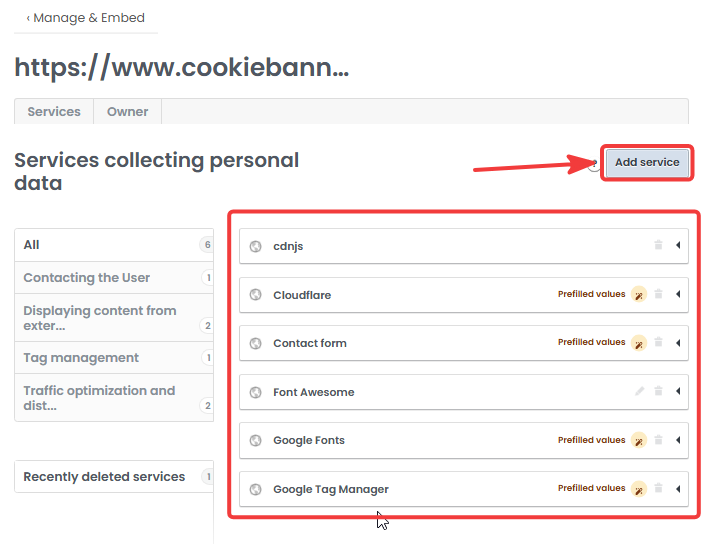
To look for a service that is missing from your policy, click “Add service” near the top right.
Step 3 – Find a Missing Service
The Add a service window offers two practical ways to find a service:
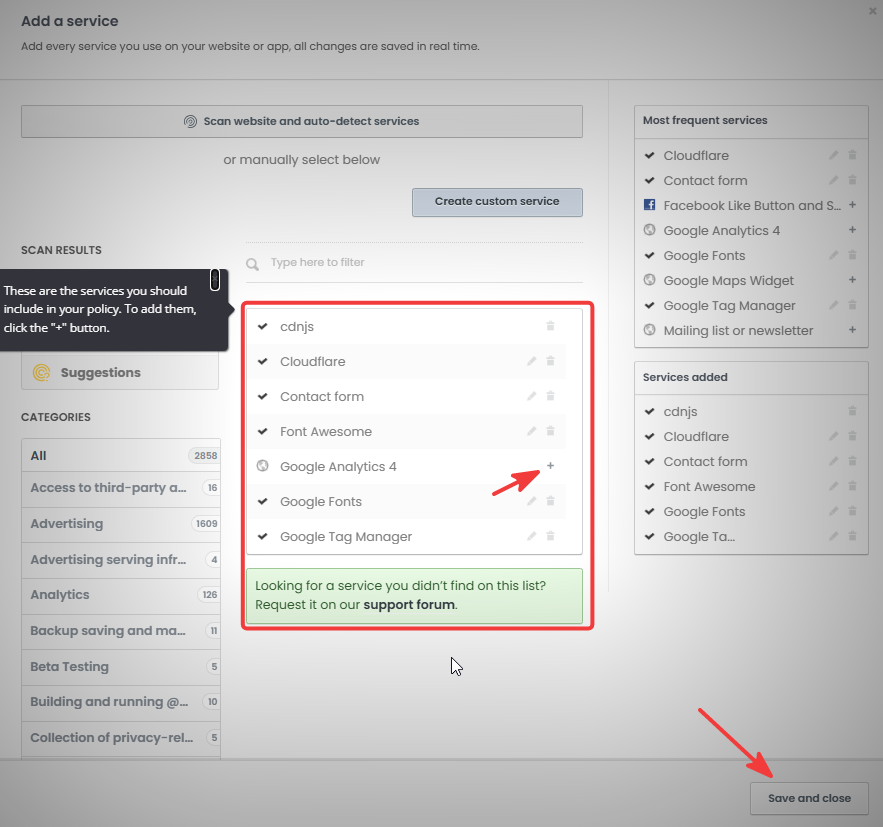
- If you already know its name, type it into the search field. You can also use the categories on the left to browse services by type. When you find the correct service, click the + beside it.
- If you are unsure what your website uses, click “Scan website and auto-detect services” to get suggestions to review.
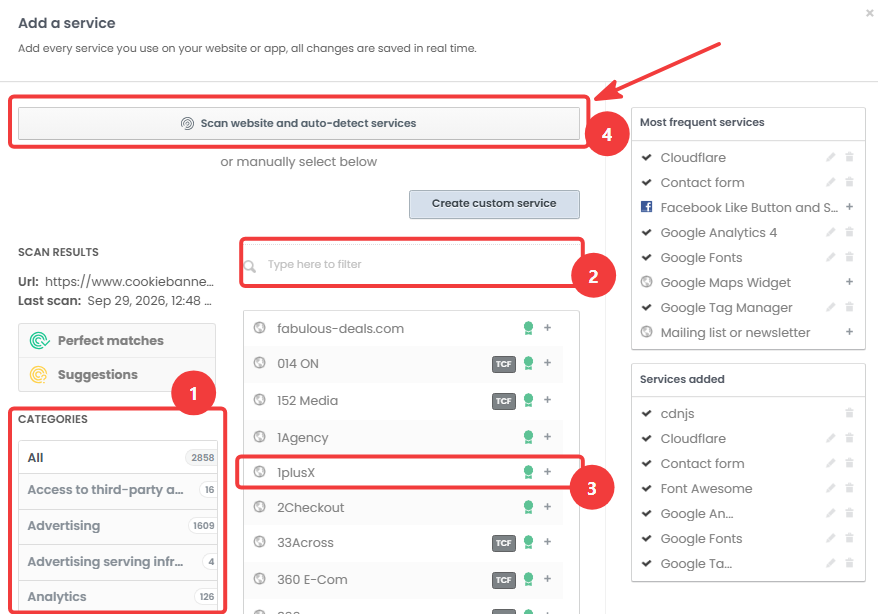
We used iubenda’s website scan for this example. A scan suggestion is not a reason to add a service automatically: first confirm that the service really runs on your website and is not already in the policy.
Step 4 – Review the Scan Result and Add Google Analytics 4
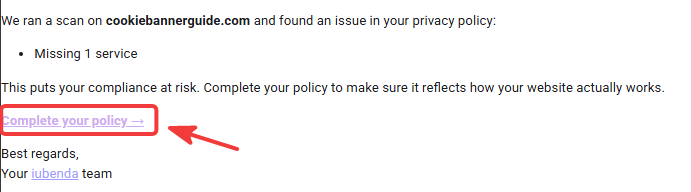
After the scan, iubenda notified us that one service was missing from our policy. We clicked “Complete your policy” in that message to open the suggested services.
The suggested services view showed Google Analytics 4 as missing. We confirmed that GA4 was in use on our website, then clicked the “+” beside it. Click “Save and close” at the bottom of the window to return to the policy editor.
If iubenda asks for additional information about a service, check those fields against how you actually use it before continuing.
In our setup, adding the GA4 service clause required an upgrade from iubenda Free to Essentials. Availability depends on your plan and the services already included in your policy, so check what your own account allows before choosing a plan.
Step 5 – Check the Updated Service List
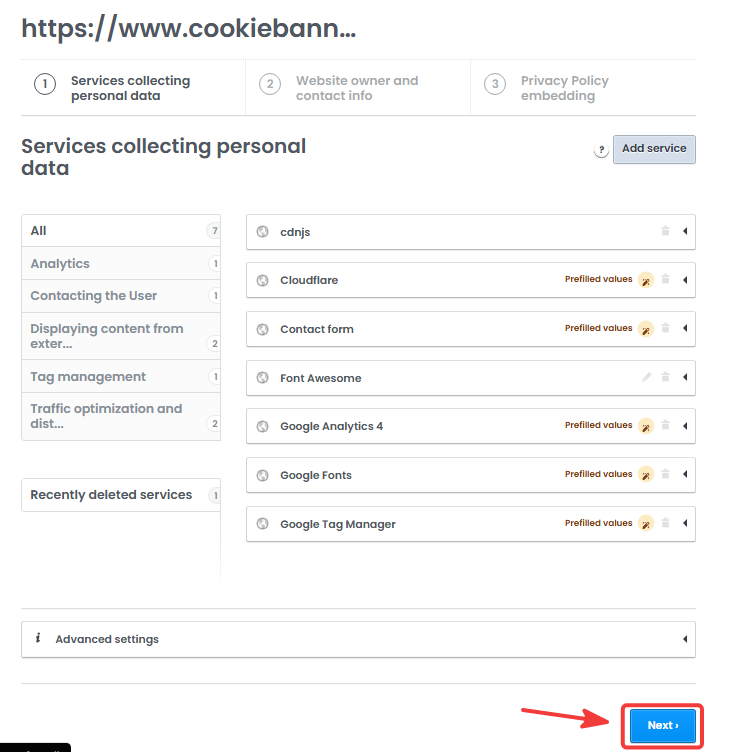
Back on Services collecting personal data, confirm that Google Analytics 4 appears in the list. Review the other entries too: they should reflect the services your website actually uses. When the list looks right, click “Next” at the bottom of the page.
Step 6 – Review the Website Owner Details
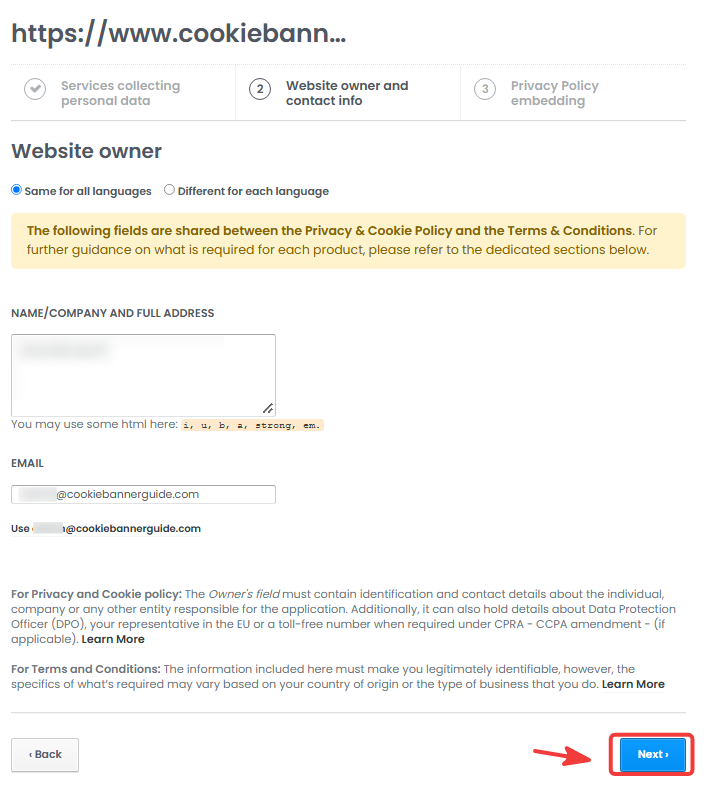
The next screen is Website owner and contact info. Check the Name/company and full address field and the Email field. They should identify the person or organization responsible for your website and provide the correct contact details.
In our screenshot, the identifying details are hidden. Enter your own information rather than copying another website’s details. If the same owner information applies to every policy language, you can leave Same for all languages selected. Then click “Next”.
Step 7 – Review the Generated Privacy Policy
iubenda now shows a preview of the generated policy. Read through it before continuing. Check the website name, owner details and descriptions of the services you selected.
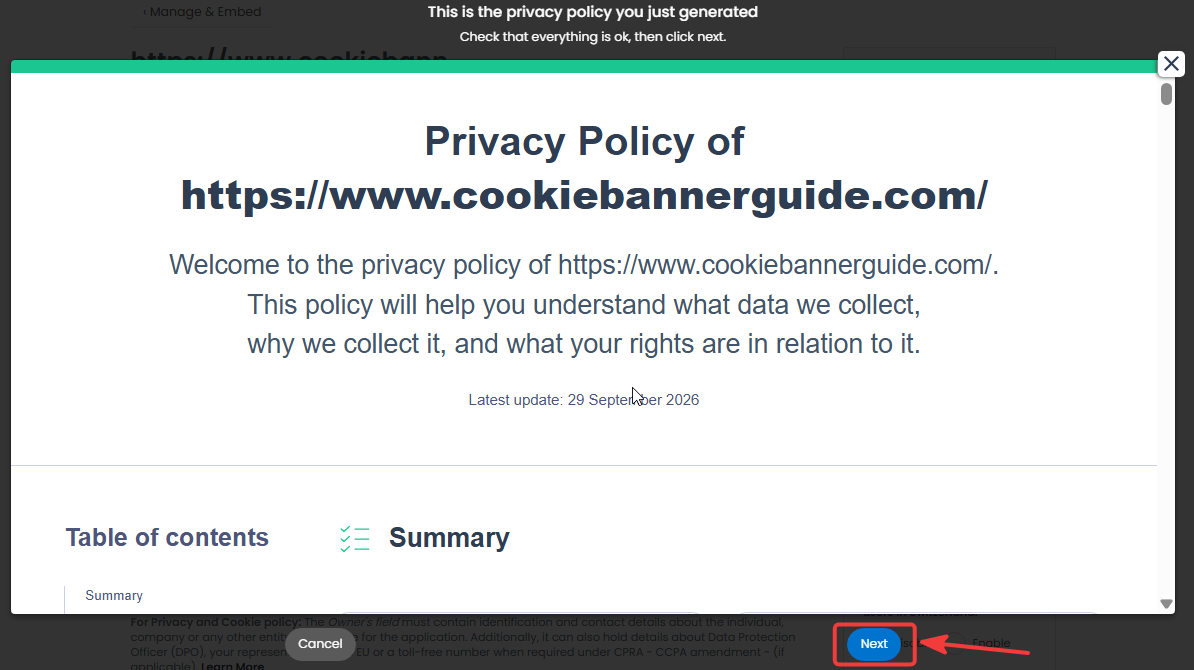
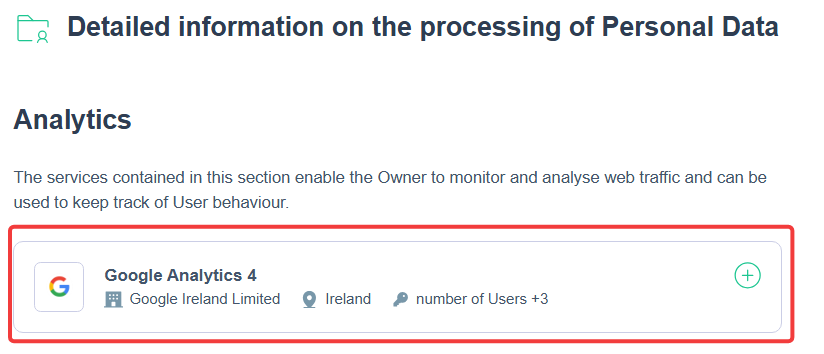
To confirm the GA4 example, scroll to Detailed information on the processing of Personal Data and find the Analytics section. In our preview, Google Analytics 4 appears there.
Finally, open the policy through the link on your live website. Check that visitors can reach the document and that the service information appears there too. If you add or remove website services later, return to this editor and update the policy.
Listing Google Analytics 4 in the policy describes the service; it does not install GA4 or confirm that it waits for cookie consent. Test the service separately on your live website.
Recommended Next Step
After checking that your website’s services appear in the policy, test what loads before a visitor makes a choice and what changes after they accept or reject cookies.

Frequently Asked Questions
Common questions about this topic
Open Privacy and Cookie Policy → Edit → Add service. Search by name or browse the categories, click the + beside the correct service, and select Save and close.
No. Review the scan suggestions, confirm which services your website actually uses, and add any missing services to the policy.
You do not need to add it again. Check that its details reflect how your website uses the service.
In our setup, adding the GA4 clause required an upgrade from Free to Essentials. What your account allows depends on its plan and existing policy services, so check the options shown in your editor.
No. Adding the service describes it in the policy. Test your live website separately to check when GA4 loads after a visitor accepts or rejects cookies.