When you installed iubenda on WordPress, you already chose your website’s location, visitor regions, and initial consent settings. You do not need to set them up again to follow this guide.
Here, I’ll show you where to review those choices and how to change them if your website’s needs have changed. We’ll also look at the automated GDPR configuration, the optional manual settings, and how to check the banner after saving.
To review your iubenda consent settings:
- Open Privacy Controls and Cookie Solution.
- Check where your website operates and where its visitors are.
- Open the GDPR settings and review the automated configuration.
- Use manual configuration only if you need to change specific options.
- Save the settings and check the banner on your live website.
Your region and consent choices should reflect your own website. Saving a configuration does not, by itself, confirm that tracking follows visitors’ choices.
Step 1 – Open Your iubenda Consent Settings
Sign in to iubenda and open the dashboard for the website you want to configure. Find the Privacy Controls and Cookie Solution card and click “Edit” beneath it. This opens the settings for your consent banner.
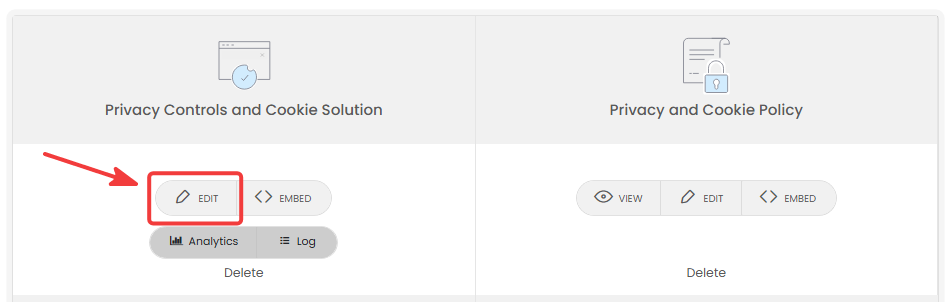
On the same dashboard, you may also see Privacy and Cookie Policy. That is where you review your policy and its listed services. For the consent settings in this guide, use the Privacy Controls and Cookie Solution card.
Step 2 – Open the Site/App Settings
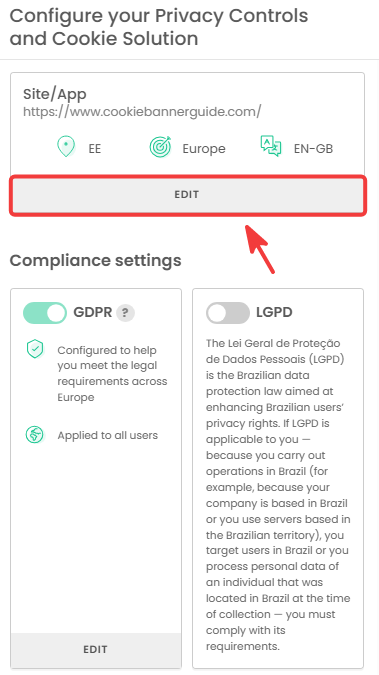
In Configure your Privacy Controls and Cookie Solution, look at the Site/App card near the top of the settings panel. It shows a summary of your website’s location, visitor regions, and selected language. Click “Edit” in that card to review the location choices.
Step 3 – Choose Where You Operate and Where Your Visitors Are
Under Where are you based and operating?, select the country that matches your website or business. In our example, this is Estonia.
Next, review Where are your users?. Choose Worldwide, Only in my country, or Select countries according to the visitors your website serves. Our example uses Select countries with Europe selected. Do not copy that choice if your website also serves visitors elsewhere.
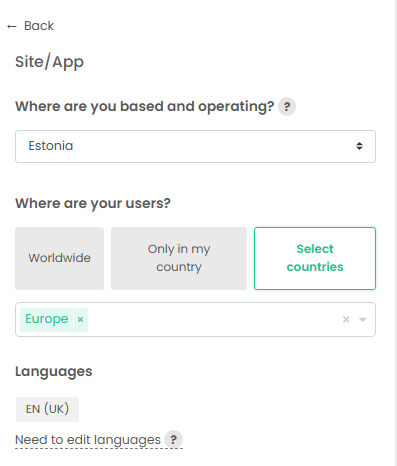
The Languages area also appears on this screen. Our example shows EN (UK). Check that your selected language suits your visitors; we’ll cover banner text and translations separately.
When you have reviewed these choices, click “Back” to return to the main configuration panel.
Step 4 – Review the GDPR Settings
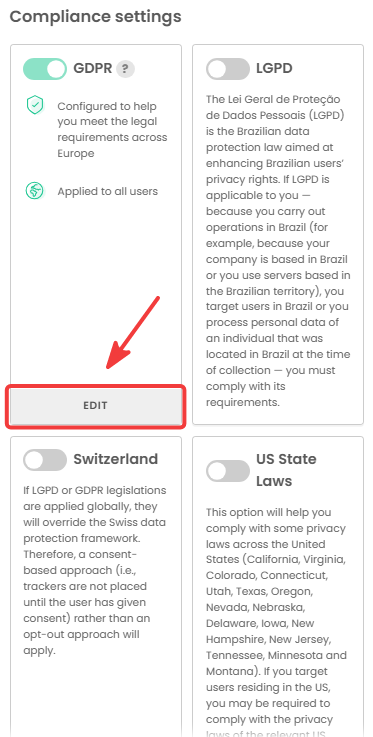
Scroll to Compliance settings. In our example, GDPR is enabled and the card says it is applied to all users. Other regional options, including LGPD and US State Laws, appear in the same area.
Review the options relevant to the visitors your site serves. To inspect the GDPR banner settings, click “Edit” at the bottom of the GDPR card.
Step 5 – Choose Automated or Manual Configuration
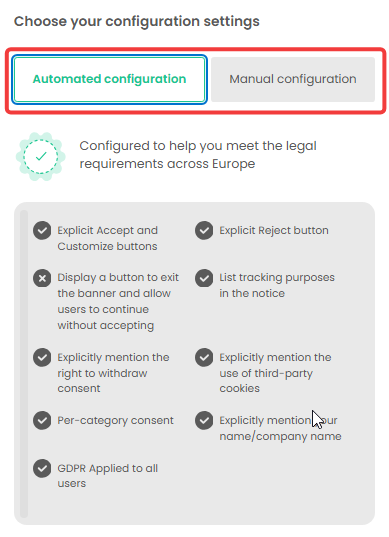
The GDPR editor gives you two choices: Automated configuration and Manual configuration. For most beginners, the automated option is a sensible starting point. In our example, it includes an explicit reject button, accept and customize options, and consent by category.
If you have a specific reason to adjust the banner’s consent options, open “Manual configuration”. This view lets you review individual choices, such as whether to show a reject button, mention withdrawal of consent, and list tracking purposes in the notice.
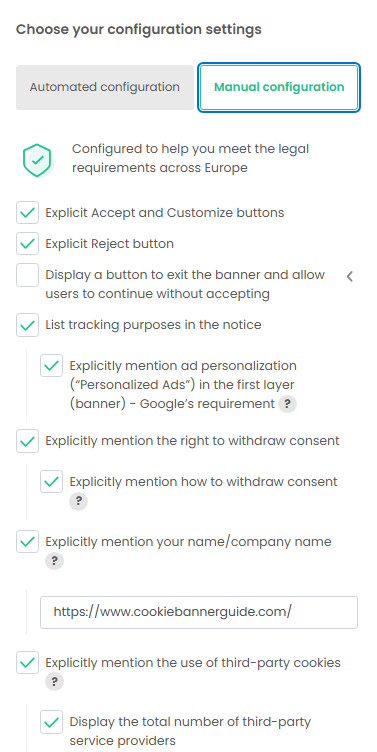
You do not need to switch to Manual configuration to complete this guide. It is an alternative to the automated setup. If you open it only to see the available controls, return to Automated configuration before saving. If you deliberately change a manual option, check how that change affects your live banner.
Step 6 – Save and Check the Live Banner
When you have finished reviewing the GDPR options, click “Back” to return to Configure your Privacy Controls and Cookie Solution. Scroll to the bottom of the settings panel and click “Save”.
Open your WordPress website in a new private browser window. Check that the banner appears for a new visitor and that the visible buttons let you accept, reject, or review your choices. After choosing an option, refresh the page to see whether the banner remembers it. Also check that visitors have a way to reopen their privacy preferences.
A visible banner does not prove that analytics or other optional services wait for consent. Test what loads before and after a visitor accepts or rejects cookies.
Recommended Next Step
Your consent settings are saved. The next step is to test the live banner and check whether optional services follow each visitor’s choice.

Frequently Asked Questions
Common questions about this topic
Open your website in the iubenda dashboard and click Edit under Privacy Controls and Cookie Solution. This opens the settings for the consent banner.
For most beginners, Automated configuration is a good starting point. Use Manual configuration if you need to review or change individual GDPR banner options. After saving, check the result on your live website.
Choose the region or countries your website actually serves. The Europe selection in this guide reflects our example website; it may not match yours.
No. Open the website in a new private browser window and test the banner’s choices. Also check whether optional tracking services wait for the appropriate consent.
No. Privacy Controls and Cookie Solution contains the banner and consent settings covered here. Privacy and Cookie Policy is where you review the policy and its listed services.