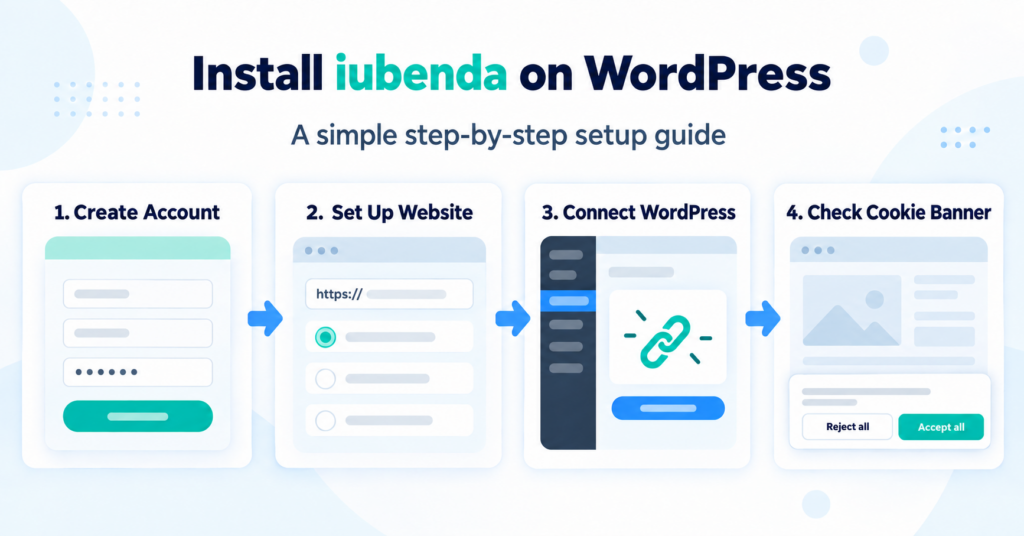
Installing iubenda on WordPress involves more than activating a plugin. You also need to choose the regions your website serves, add the services it uses, and configure how the consent banner behaves.
In this guide, I’ll walk through the setup I used for my WordPress site. My example targets European visitors, but you can follow the same installation steps for a site serving the United States or other regions. Choose the locations, privacy settings and services that match your own website. I started with the Free plan and later upgraded to Essentials when I needed to add Google Analytics 4 to my Privacy and Cookie Policy. Finally, I’ll show how I tested whether Analytics runs after a visitor accepts and stays blocked after they reject.
To install iubenda and display a cookie consent banner on WordPress:
- Create an iubenda account before connecting WordPress
- Add your website and choose the regions and languages you serve
- Review the suggested banner and Privacy & Cookie Policy
- Connect iubenda to your WordPress website
- Check the services in your policy and test the banner’s consent choices
Allow additional time to review your website’s services and check that tracking follows each visitor’s choice.
What You Need Before Starting
- a working WordPress website and administrator access;
- an email address for your iubenda account;
- a list of services your site uses, such as Google Analytics, embedded fonts and contact forms;
- access to your existing cookie plugin, if you need to deactivate it.
If another cookie banner is active, disable it when the iubenda integration goes live so visitors do not see two consent prompts.
Step 1 – Create an iubenda Account
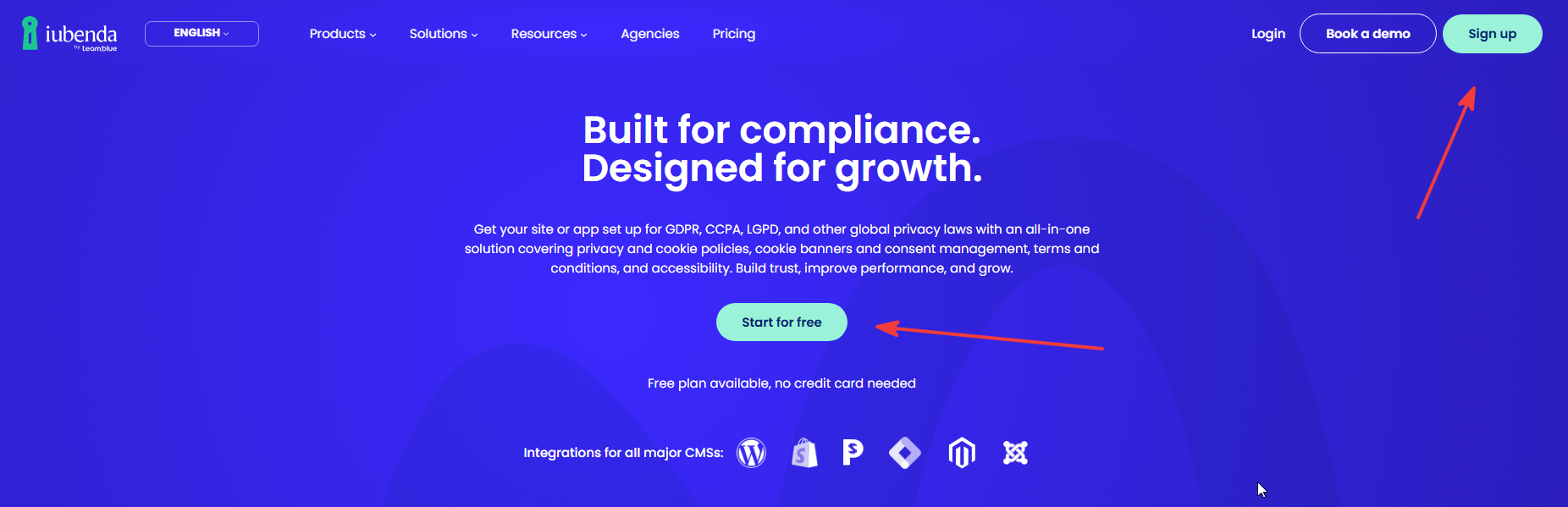
Go to the iubenda website and click “Start for free”. Creating the account first lets you finish the setup in iubenda before connecting your WordPress website.
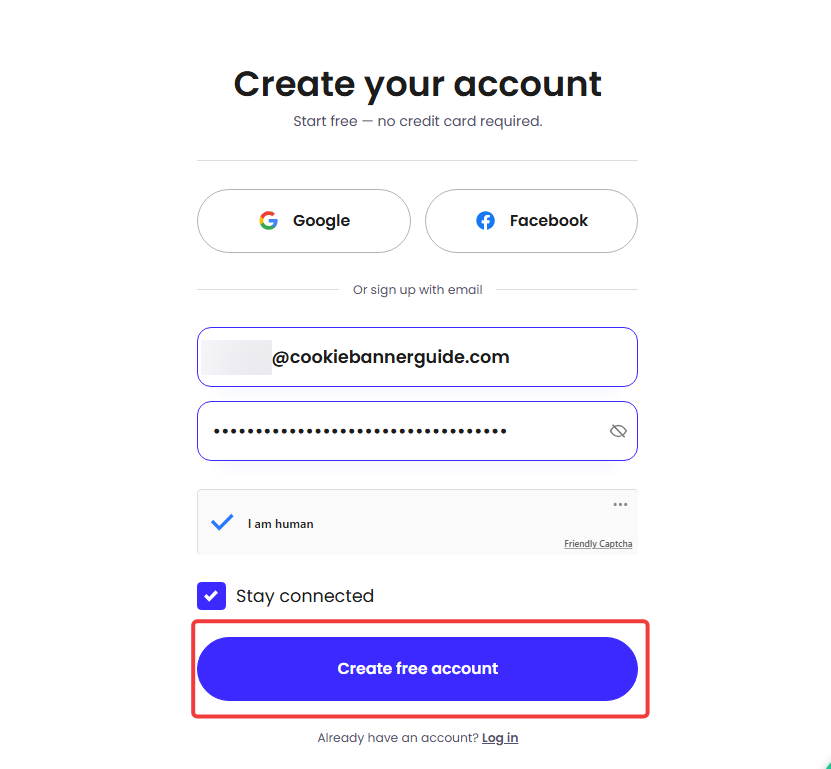
Enter your email address, create a password, complete the security check and select “Create free account”. You can start without selecting a paid plan.
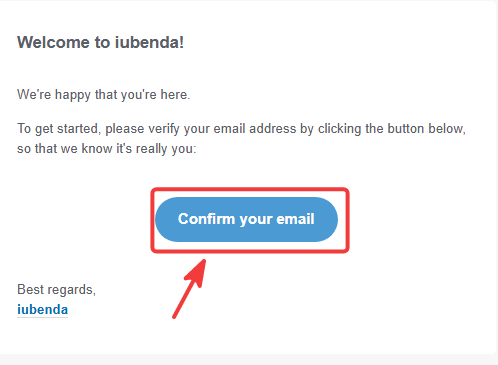
Review the terms and accept them if you agree. iubenda then sends a verification email to the address you entered. Open that message and select “Confirm your email”.
After confirming your address, sign in to iubenda to continue the website setup.
Step 2 – Add Your WordPress Website
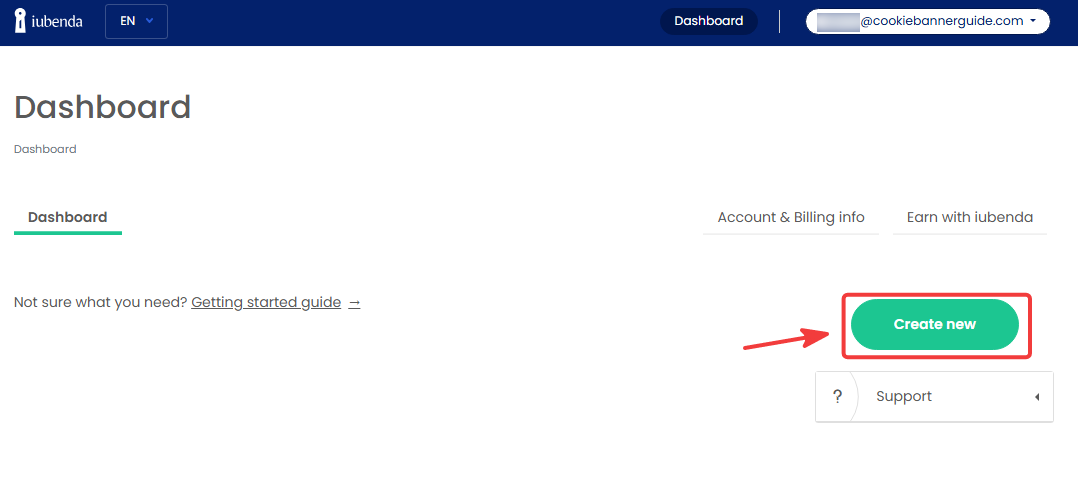
From the iubenda dashboard, select “Create new” to start a configuration for your WordPress website.
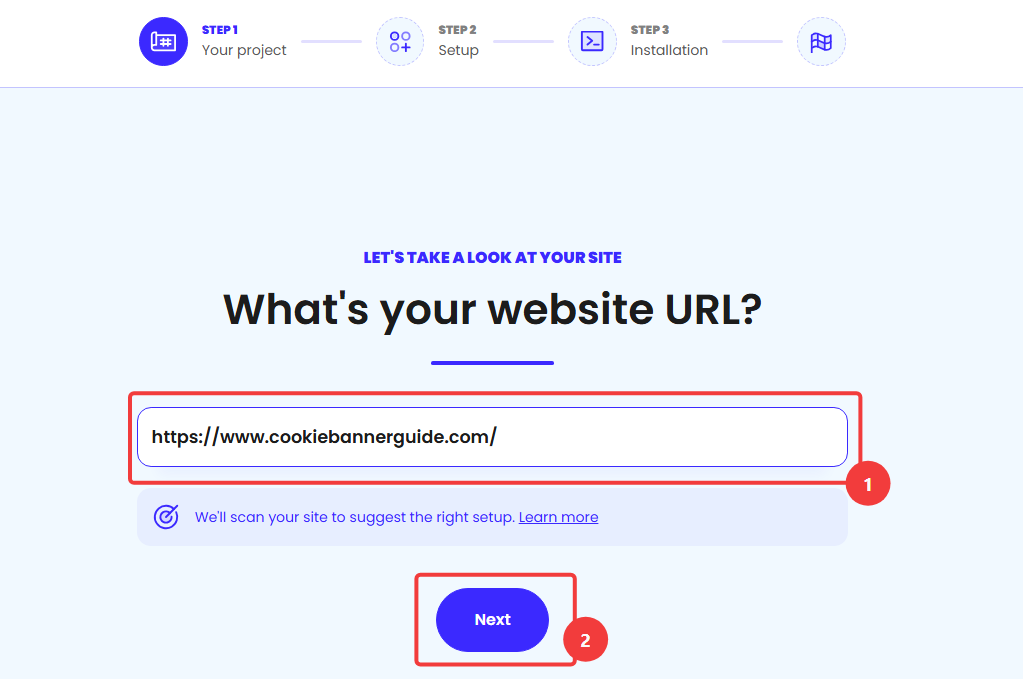
Enter the full website URL, including https://, and select “Next”. iubenda will use the address to suggest a starting configuration.
Step 3 – Choose Your Location, Audience and Languages
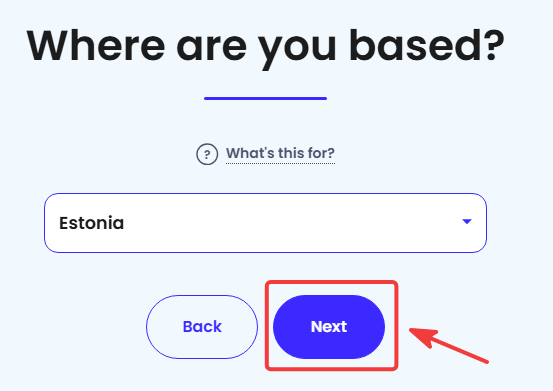
Choose the country where you are based and operate. We selected Estonia for the website in this example.
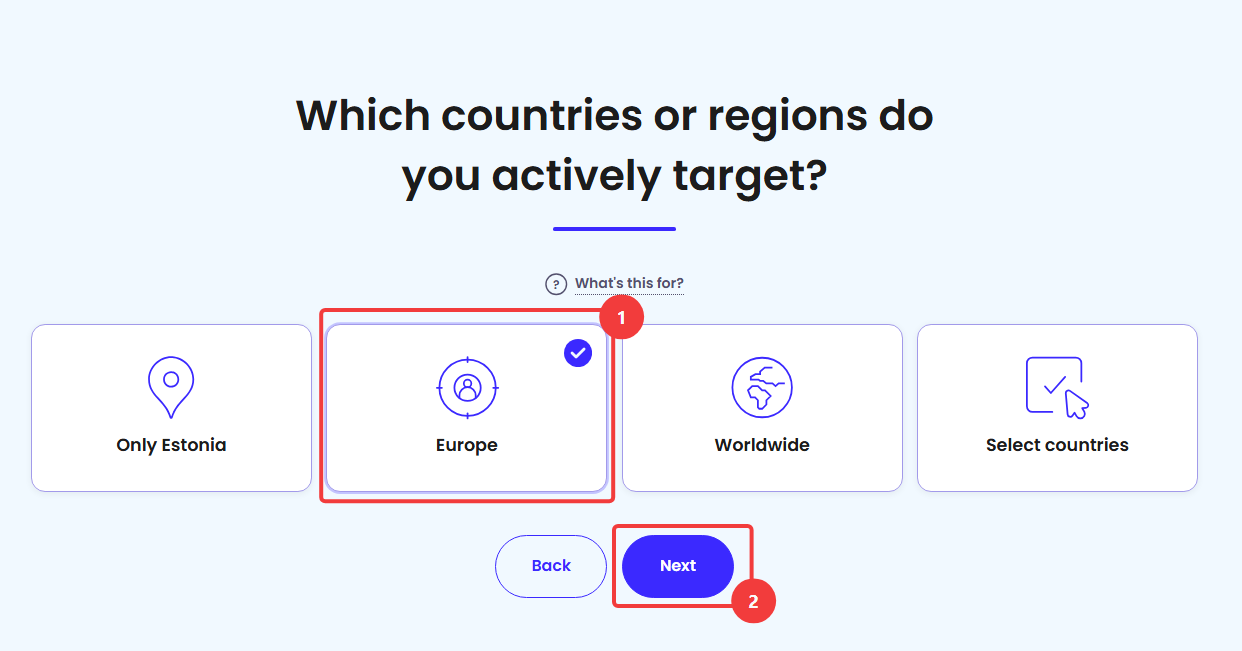
Next, choose the countries or regions your website actively targets. We selected “Europe”; choose your own audience rather than copying this selection automatically.
Now select the languages in which visitors can read your website. We chose English (UK), matching our site. Select “Next” to continue.
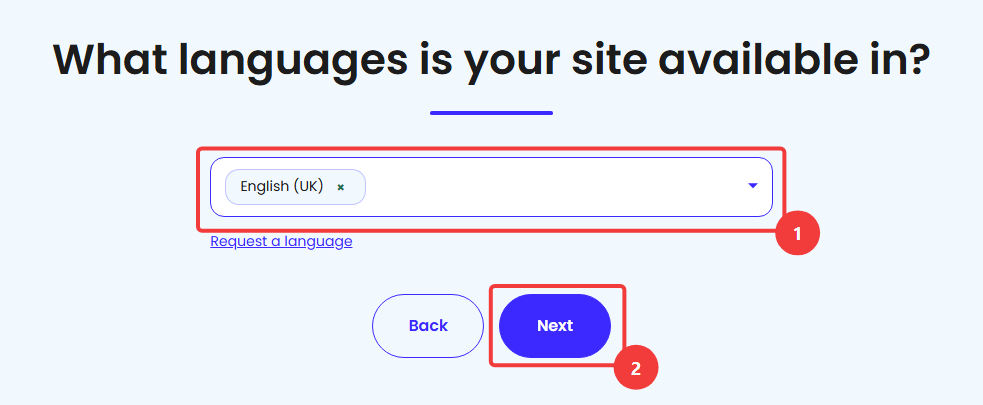
Serving visitors in the United States? iubenda also offers options for US state privacy laws. This guide follows the European setup; select and configure additional regions only if they match your real audience and processing activities.
Step 4 – Review the Suggested Products and Business Details
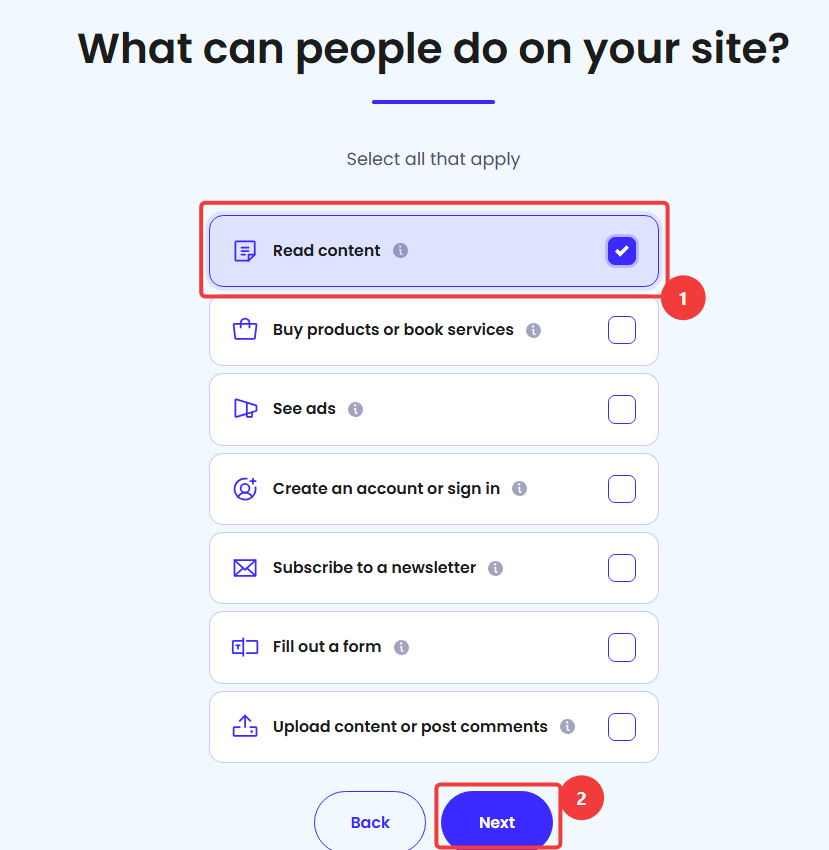
Tell iubenda what visitors can do on your site. We selected “Read content” for this content website. Also select other activities that actually apply, such as forms, subscriptions or purchases, then click “Next”.
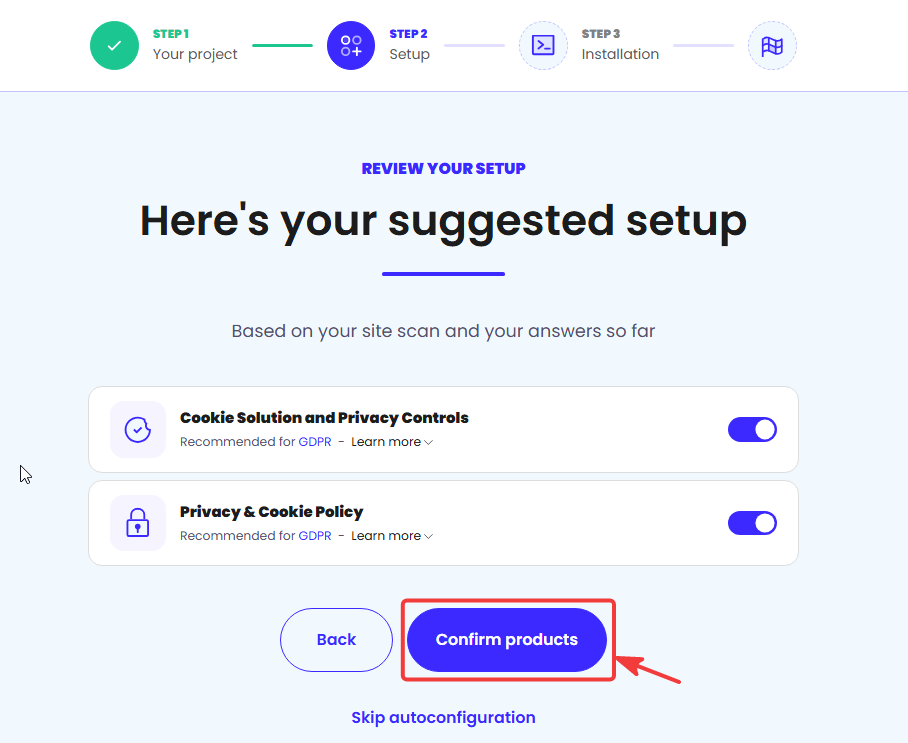
iubenda will suggest products based on your answers. For this example, the setup suggested “Cookie Solution and Privacy Controls” and “Privacy & Cookie Policy”. Review the suggestions, then select “Confirm products”.
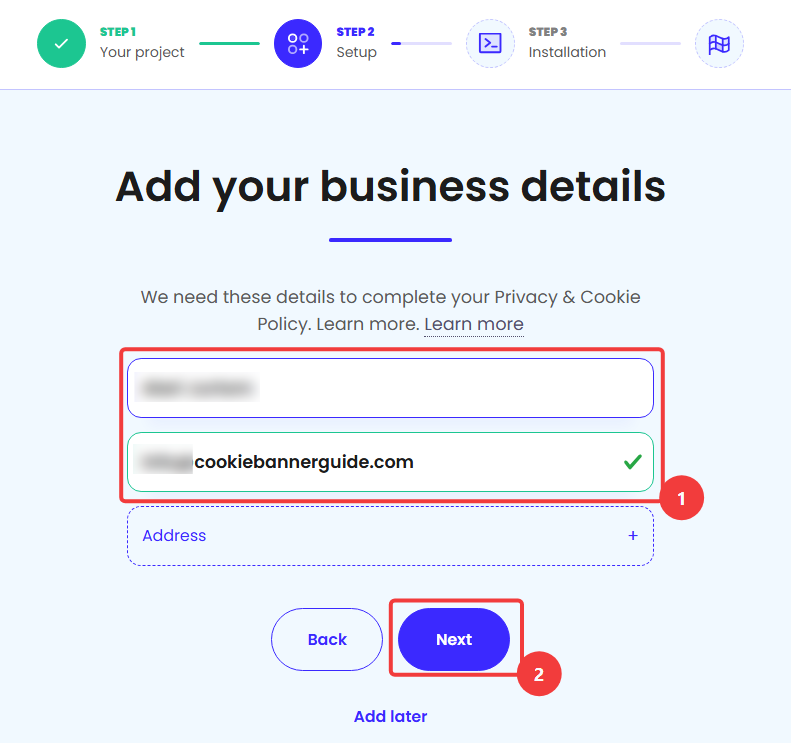
Enter the owner or business details requested for your generated policy, then select “Next”. Use accurate details and review the policy once setup is complete; the onboarding preview is only a starting point.
Step 5 – Choose a Starting Banner Layout
Select a banner position and appearance in the setup wizard. The preview provides a starting point, and you can adjust the actual banner later. For a European audience, make sure visitors can clearly accept, reject or review their choices and that optional categories are not switched on before they choose them.
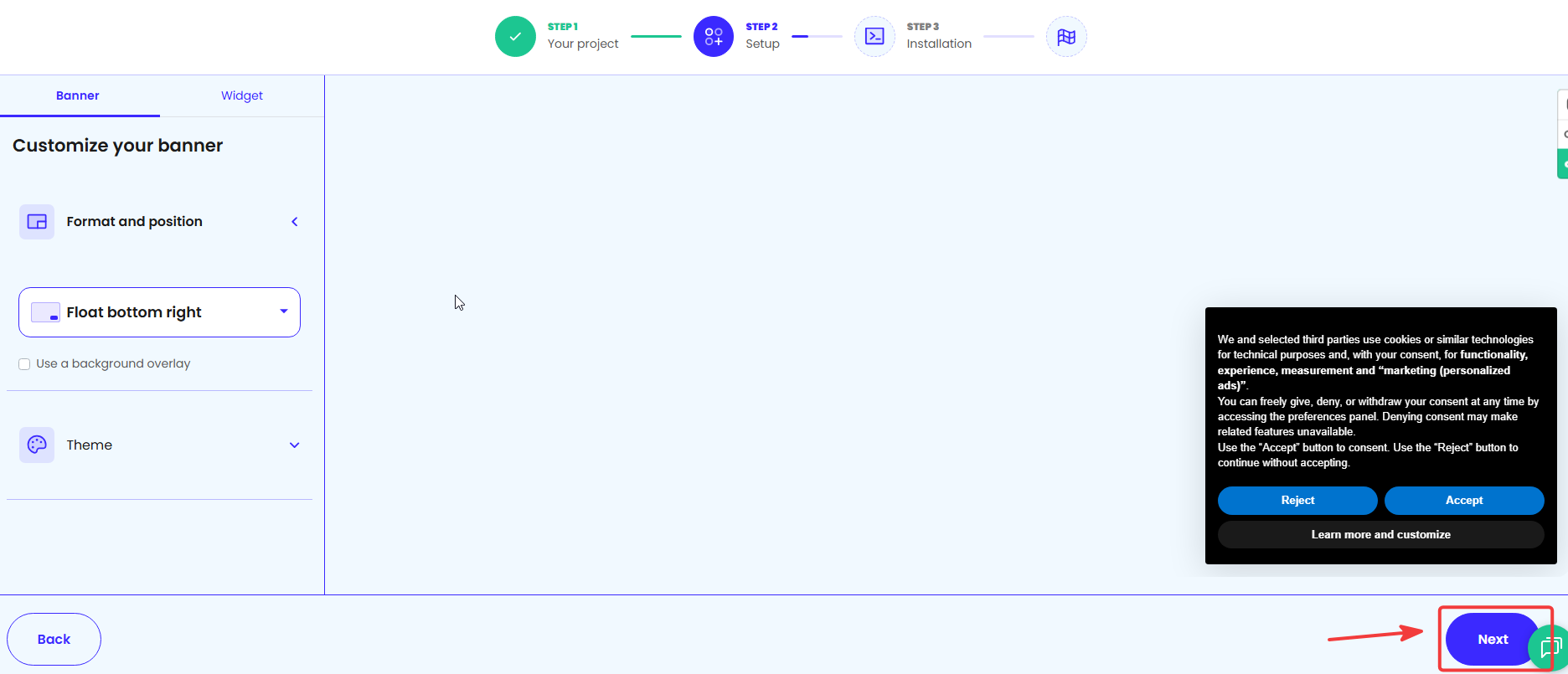
For the controls beyond this initial layout, see our guide to customizing the iubenda cookie banner on WordPress.
Step 6 – Review the Configuration and Select WordPress
Review iubenda’s configuration summary. In our onboarding, the scan mentioned GA4 among detected services and recommended the Free plan. Treat this as a suggested starting point: detected services still need to be checked in the finished Privacy and Cookie Policy, and tracking needs to be tested on the live site.
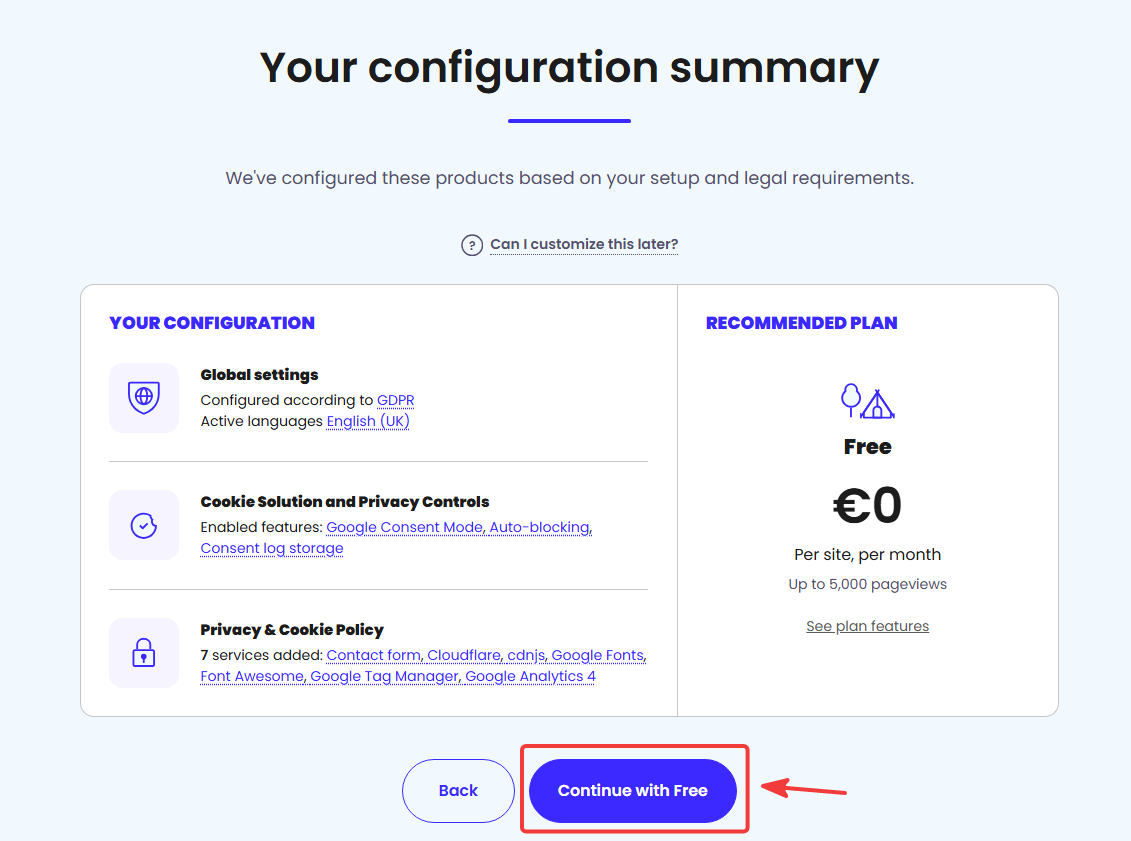
Continue with Free if you want to start there. Under installation methods, choose “Quick install” and “WordPress”. The account plan can be changed later; you do not install a separate “Essentials plugin”.
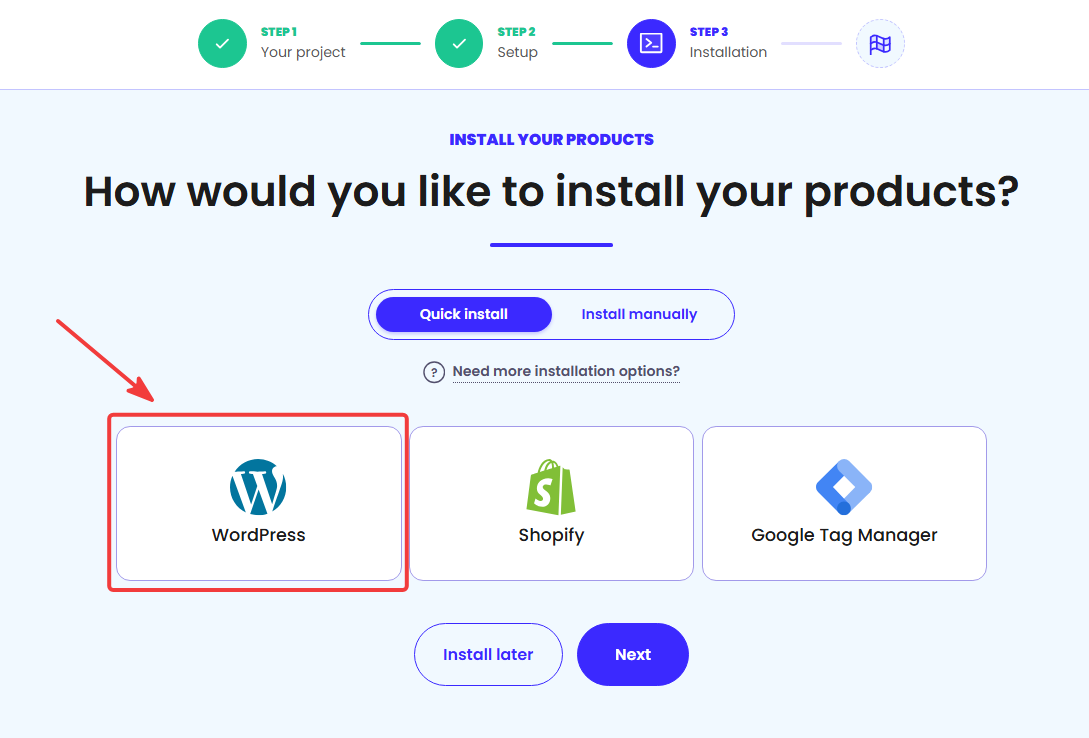
Step 7 – Connect iubenda to WordPress
iubenda will suggest a WordPress admin URL. Check that it points to your login page; if you use a custom login URL, enter that instead. Select “Confirm and proceed”.
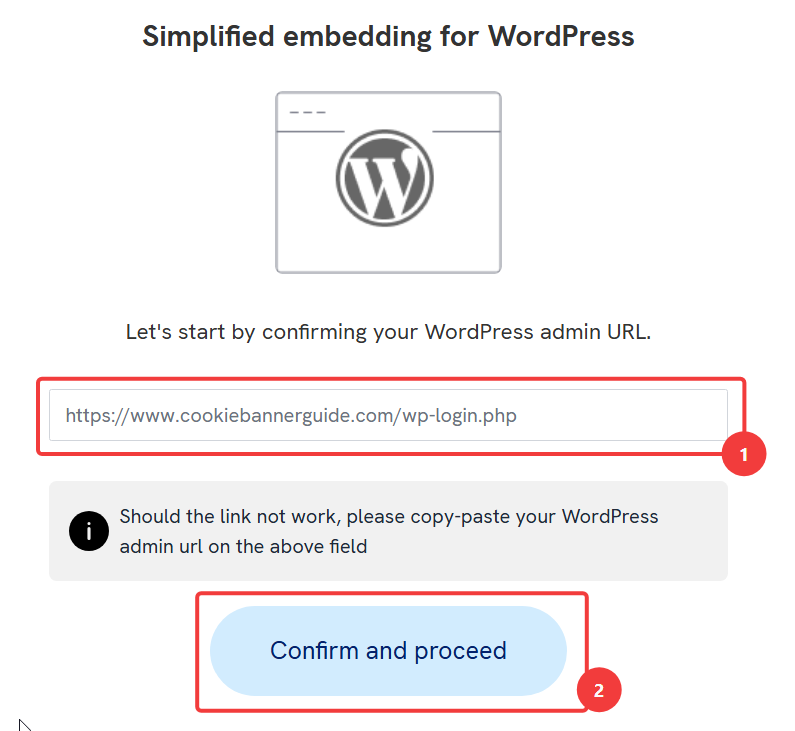
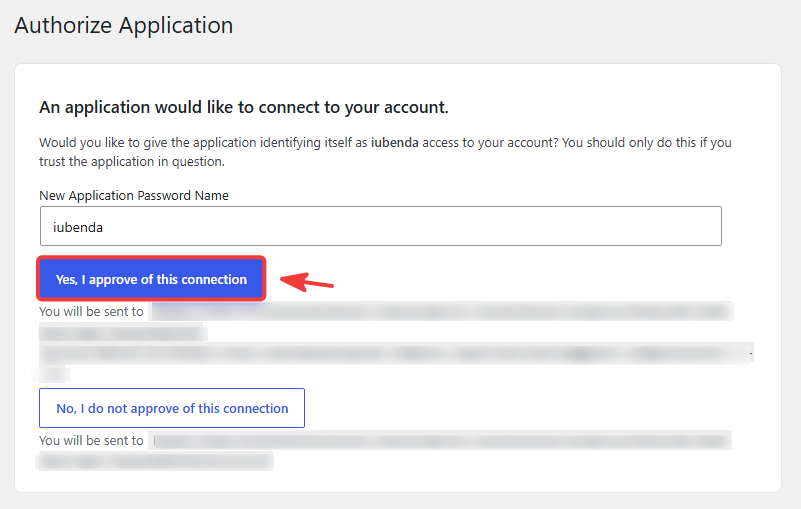
Sign in to WordPress with an administrator account. You may then see a WordPress Authorize Application screen for the connection you just started.
Check that the application identifies itself as iubenda, then select “Yes, I approve of this connection” to complete the WordPress connection. WordPress creates an application password for the integration; never publish that password or an unredacted authorization URL.
After installation, confirm that the iubenda plugin is active and that your website displays one iubenda banner. If a previous cookie plugin is still active, disable its banner so visitors are not shown competing consent controls. You can also review your iubenda consent settings on WordPress after the initial setup.
Step 8 – Check the GDPR Banner and Policy Services
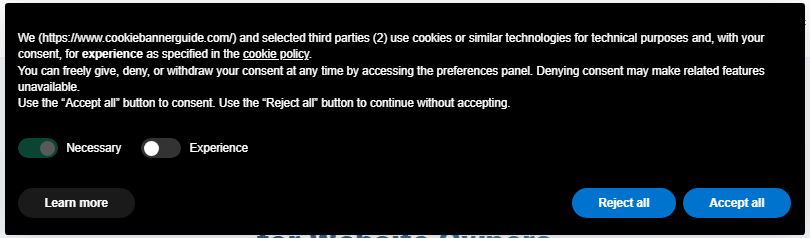
Open your website in a fresh private browser window and check that the iubenda banner appears. In our example, visitors could select “Reject all”, “Accept all” or “Learn more”. The optional Experience category was initially off.
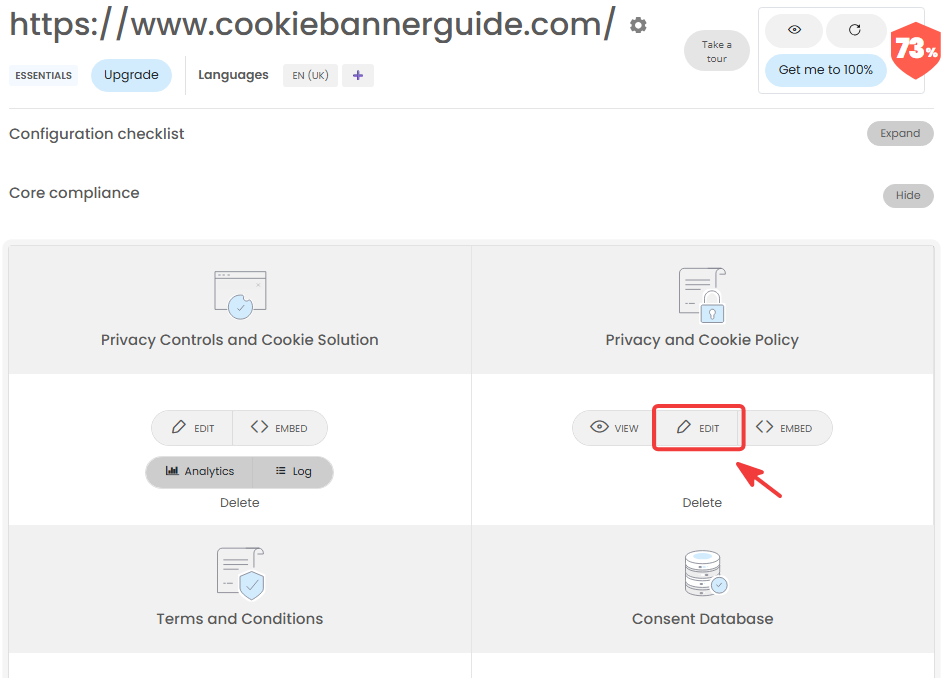
Next, return to your iubenda dashboard. Scroll down to the Core compliance section. You will see separate panels for Privacy Controls and Cookie Solution and Privacy and Cookie Policy. In the Privacy and Cookie Policy panel, click “Edit” — the button highlighted in the image below. Choose the policy panel, not the “Edit” button under Privacy Controls and Cookie Solution.
In the policy editor, open Services and compare the listed services with the tools your website actually uses. Our initial scan mentioned Google Analytics 4, but it did not appear in the finished policy. Add any missing service that your site uses and correct entries that do not match your setup.
For the full process, see how to add services to your iubenda Privacy and Cookie Policy.
When we tried to add the GA4 clause, iubenda required an upgrade for our account. If the service you need is available on your plan, add it and continue to Step 10; otherwise, follow Step 9.
Step 9 – Upgrade to Essentials If Your Policy Needs It
If a service you use is unavailable on your current plan, select “Upgrade” in the iubenda dashboard. For our example, the Google Analytics 4 policy clause required an upgrade.

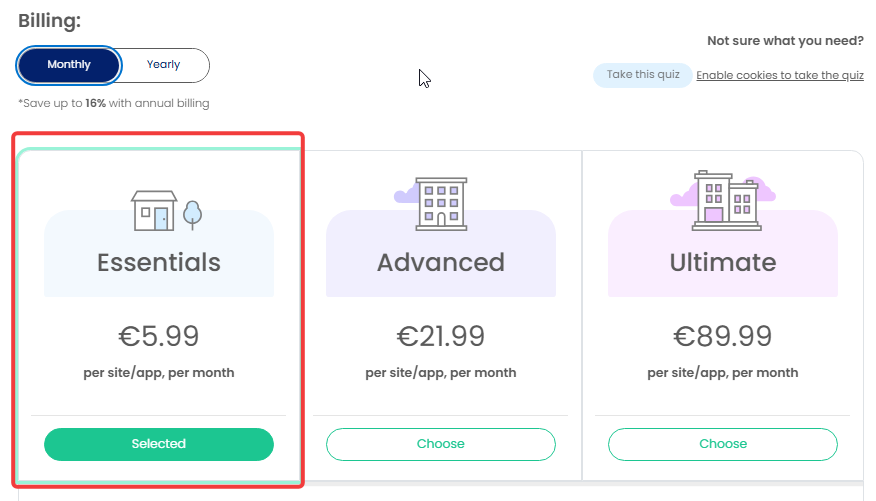
Compare the plan features and billing options for your own website. We selected “Essentials” for this example.
After upgrading, return to Privacy and Cookie Policy → Edit → Services. Add Google Analytics 4 if your site uses it, then check that it appears in the generated policy. The plan change does not add the service for you or verify how tracking behaves.
Step 10 – Test Consent and Google Analytics 4
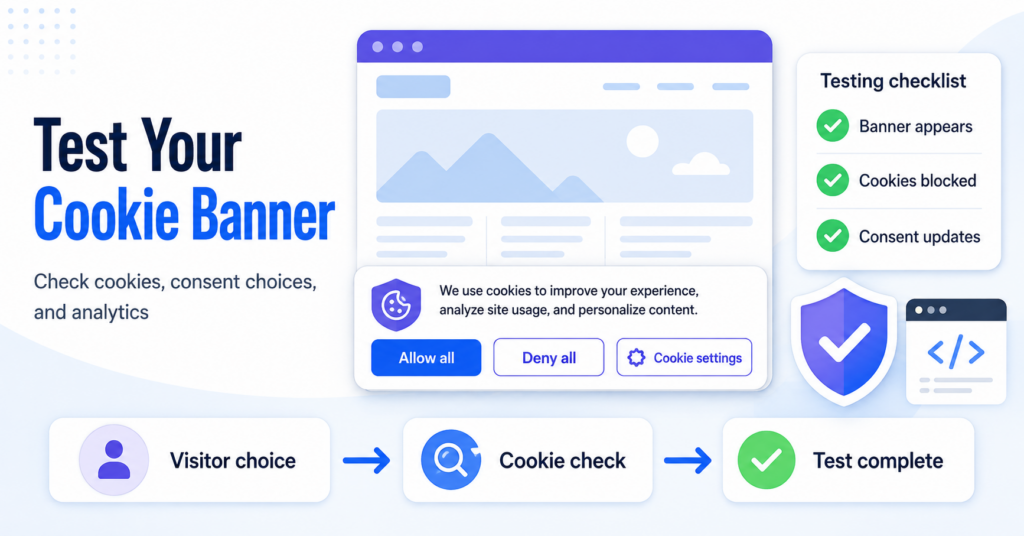
Open your website in a fresh private browser session. Check that the banner appears and that its policy link and preference controls open correctly. For a fuller testing checklist, follow our guide: How to Test a Cookie Banner and Check If It Works.
To check GA4 specifically, open your browser’s developer tools and filter the Network tab for collection requests such as collect.
- Before making a choice, check whether GA4 sends a collection request. In our setup, iubenda blocked GA4 before consent.
- Choose “Accept all” and check again. GA4 should run after the relevant consent is given.
- Close every private browser window, start a fresh private session and choose “Reject all”. Check again: GA4 should remain blocked.
In our test, GA4 ran after acceptance and remained blocked after rejection. Google Site Kit was connected to Analytics, while its separate Consent Mode switch was off so iubenda could handle consent. If you load GA4 through a different method, test that setup on your own website.
This test checks GA4 in our setup. It does not prove that every other embedded service, cookie or script on your website follows consent. Test each service your site actually uses.
Recommended Next Step
Your iubenda banner is connected to WordPress, and GA4 behaved as expected in our accept and reject tests. Check the policy link, preference controls and any other tracking services your website uses.

Frequently Asked Questions
Common questions about this topic
Yes. In this example, I created the account and connected iubenda to WordPress while using the Free plan. Check the finished banner and policy before deciding whether the plan includes everything your website needs.
In my setup, adding the Google Analytics 4 service clause to the generated Privacy and Cookie Policy required an upgrade to Essentials. Check what your own plan allows; a service appearing in iubenda’s initial scan does not mean it has been added to the finished policy.
Do not assume it does. Test your live website before consent, after accepting and after rejecting. In my setup, GA4 ran after acceptance and remained blocked after rejection.
You can follow the same account creation and WordPress connection steps. When iubenda asks where you operate and which regions you target, select the options that match your website. Review the resulting privacy settings and banner for those regions.
When the iubenda banner goes live, disable the previous banner so visitors do not see two consent prompts. Then check the live website in a fresh private browser session.