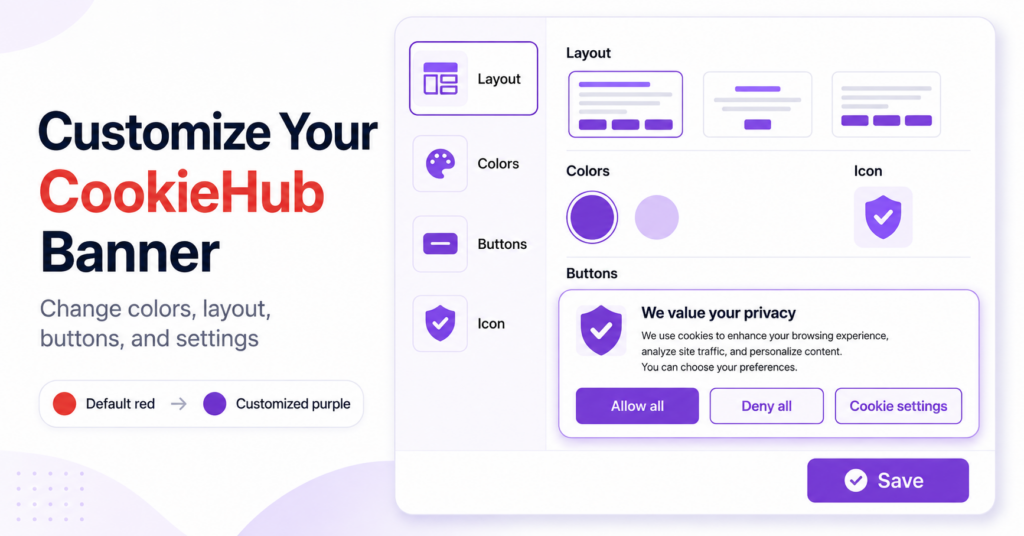
CookieHub allows you to customize the appearance and behaviour of your cookie consent banner without editing your website’s code.
You can change the banner layout, position, colors, buttons, preference center, and cookie settings icon. CookieHub shows a live preview while you make the changes, allowing you to review the design before publishing it.
Before customizing the design, complete the steps in our CookieHub settings guide.
To customize your CookieHub banner, follow these steps:
- Open the CookieHub customization panel
- Choose a banner theme and position
- Select which consent buttons are visible
- Change the primary and text colors
- Configure the preference center
- Choose the cookie settings icon
- Save and publish the changes
- Check the finished banner on your website
Open the CookieHub customization panel
Log in to CookieHub and select the domain you want to edit.
Click the red Customize button at the top of the domain dashboard.
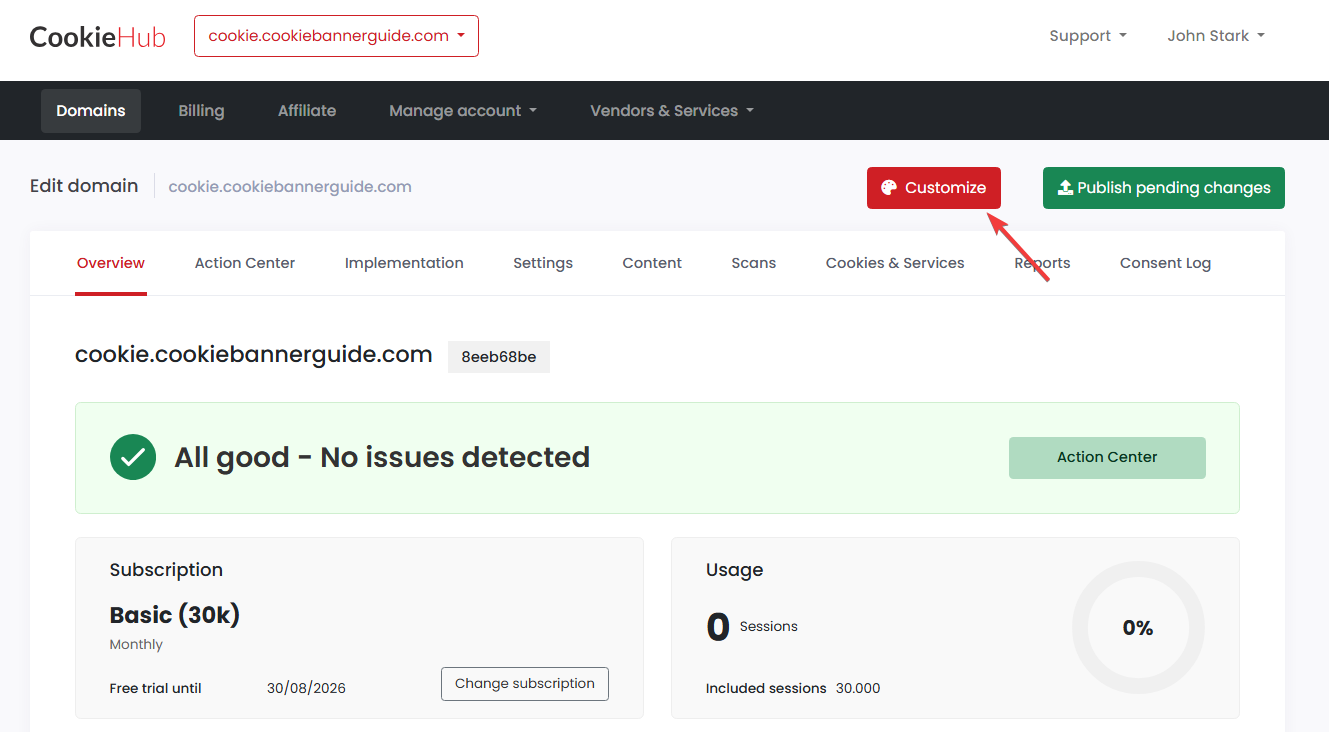
The CookieHub customization panel opens in a separate editor. It includes four main sections:
- Cookie banner/notice – controls the first banner shown to visitors
- Preference center – controls the detailed cookie settings window
- Icon – controls the icon visitors use to reopen their preferences
- Custom CSS – provides advanced design control
The left side of the editor contains the available settings. The right side shows a live preview of the banner or preference center.
Choose a CookieHub banner theme
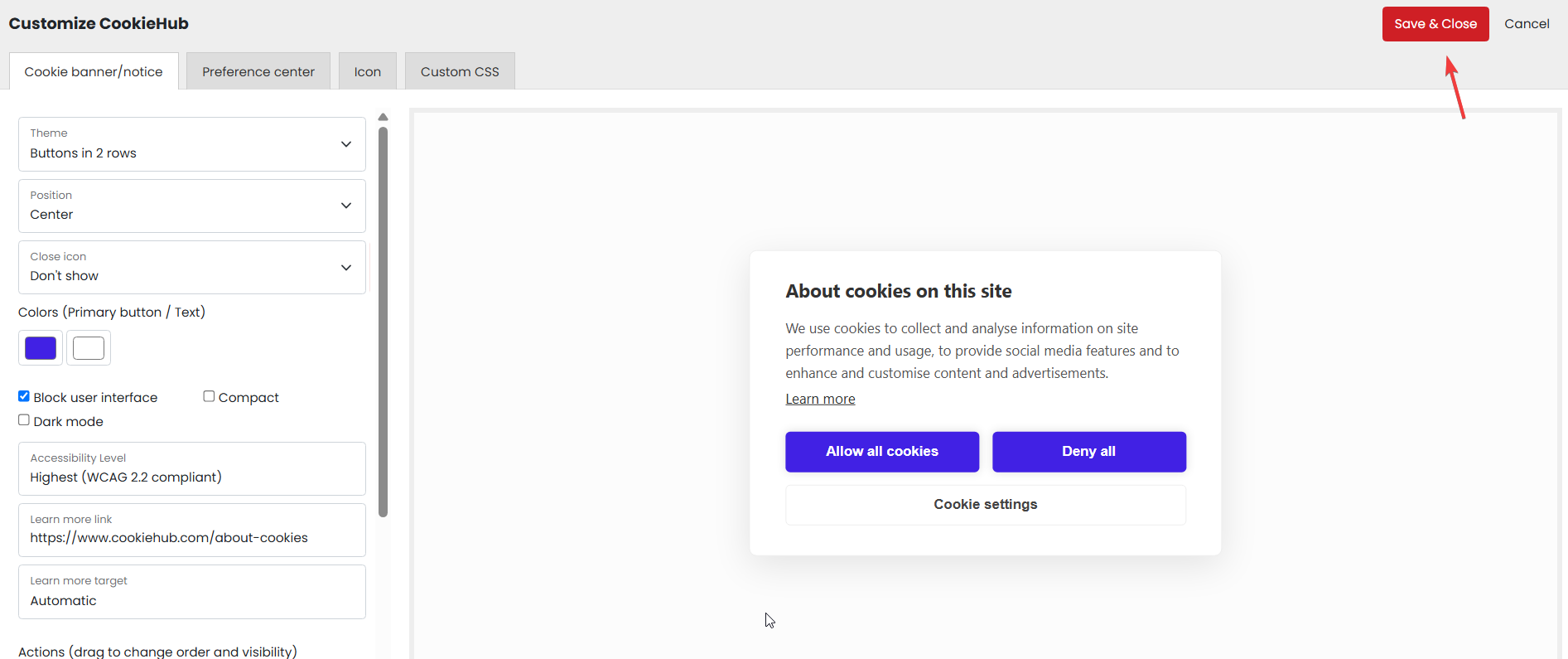
Open the Cookie banner/notice tab and begin with the Theme setting.
The selected theme controls the basic structure of the banner, including how the consent buttons are arranged.
In this example, the selected theme is:
Buttons in 2 rowsThis layout places Allow all and Deny all next to each other. Cookie settings appears below them as a wider secondary button.
The two-row layout works well because:
- Allow all and Deny all are equally easy to find
- the detailed Cookie settings button remains clearly visible
- the banner does not become too wide
- the layout works well on both desktop and smaller screens
You can test the other available themes in the preview before deciding. Changing the theme does not change your cookie categories or consent records.
Select the banner position
The Position setting controls where the first banner appears on the visitor’s screen.
The available positions may change depending on the selected theme.
In this example, the banner position is set to:
CenterA centered banner is difficult to miss and gives visitors a clear consent choice before they continue using the website.
Other layouts may be better suited to the bottom, side, or corner of the page. Select a position that does not cover important content or website controls.
Check the banner on both desktop and mobile. A layout that looks compact on a desktop screen may cover too much content on a phone.
Configure the close icon
The Close icon setting determines whether an X icon appears in the banner and what happens when a visitor clicks it.
Depending on the configuration, CookieHub can use the close icon to:
- dismiss the banner without recording a positive choice
- deny optional cookies
- allow all cookies
- remain hidden
For the opt-in configuration used in this guide, the recommended starting option is:
Don't showThis requires visitors to make their choice using the clearly labelled consent buttons.
Do not configure the close icon to allow all cookies unless you have a specific and properly reviewed reason for doing so. Closing a banner should not be confused with actively selecting Allow all cookies.
Change the CookieHub banner colors
The Colors section contains two color selectors:
- Primary button color – controls the primary buttons, toggles, and other accent elements
- Text color – controls the text displayed on the colored elements
In this example, the original CookieHub red has been changed to purple so that the banner better matches the website design.
CookieHub updates the preview immediately after a new color is selected.
Use a primary color that matches your website, but make sure the button text remains easy to read.
Use the same primary color as your website’s main buttons. Keep the text white or another strongly contrasting color so that every consent option remains readable.
Configure the banner display options
The Cookie banner/notice tab also includes options that change how the banner appears and how visitors interact with the page behind it.
Block user interface
When Block user interface is enabled, CookieHub places an overlay over the website and prevents visitors from interacting with the page until they make a consent choice.
This makes the banner more noticeable but also interrupts access to the page.
In this example, Block user interface is enabled.
Compact
The Compact option reduces spacing and makes the banner elements slightly smaller.
It can be useful when the normal banner takes up too much space. Leave it disabled when the standard layout already fits the website.
Dark mode
Dark mode changes the banner from a light design to a darker color scheme.
Enable it when it matches your website and still provides sufficient contrast. In this example, Dark mode remains disabled.
| Option | Example setting | What it changes |
|---|---|---|
| Block user interface | Enabled | Prevents interaction with the page until a choice is made |
| Compact | Disabled | Reduces spacing and the overall size of the banner |
| Dark mode | Disabled | Changes the banner to a dark color scheme |
Review the accessibility level
The Accessibility Level setting controls additional accessibility behaviour used by the CookieHub interface.
The example configuration uses:
Highest (WCAG 2.2 compliant)The highest available setting is a sensible starting choice. You should still check that your selected colors have good contrast and that the banner is usable with a keyboard.
Accessibility is not determined by this setting alone. Custom colors, Custom CSS, website overlays, and other design choices can still affect usability.
Configure the Learn more link
The Learn more link appears in the CookieHub banner and preference center. It gives visitors access to additional information about cookies.
CookieHub may use its own general information page by default. For a live website, the Learn more link should usually point to your cookie policy or another page that clearly explains which cookies and tracking technologies your website uses.
You can also link to your privacy policy when it contains sufficiently detailed information about cookies.
The Learn more target setting determines how the link opens.
If Automatic is selected, CookieHub determines the link behaviour automatically. You may also choose a specific target if you want the information to open in the same or a new browser tab.
Before publishing the banner, replace the default Learn more URL with the most relevant cookie or privacy information page for your website.
Choose which banner buttons are visible
Scroll down to the Actions section. This section controls which consent actions appear in the banner.
The available actions should be easy to understand and should not make rejecting optional cookies unnecessarily difficult. Review our guide to cookie banner requirements when deciding which consent buttons to display.
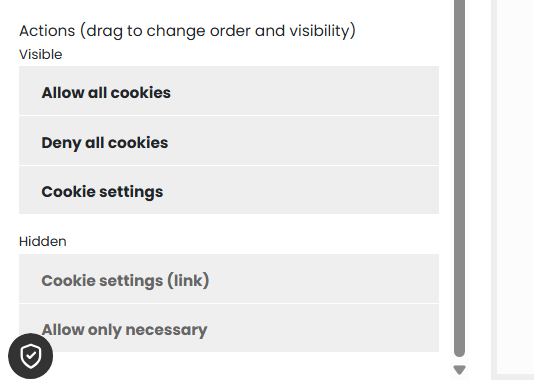
The available actions can include:
- Allow all cookies
- Deny all cookies
- Cookie settings
- Cookie settings as a text link
- Allow only necessary
Drag an action between the Visible and Hidden sections to show or hide it.
You can also drag visible actions up or down to change their order.
The example banner displays:
- Allow all cookies
- Deny all cookies
- Cookie settings
This gives the visitor three clear paths: allow all categories, reject optional categories, or manage categories individually.
Deny all or Allow only necessary?
Deny all and Allow only necessary may result in similar choices when all optional categories are refused. However, the wording shown to visitors is different.
Use one clear rejection option rather than displaying several buttons that perform nearly the same action.
Button order
Place the main choices where visitors can find them without opening another window.
Avoid hiding the rejection option while making Allow all cookies significantly easier to find.
Customize the preference center
Open the Preference center tab to customize the detailed cookie settings window.
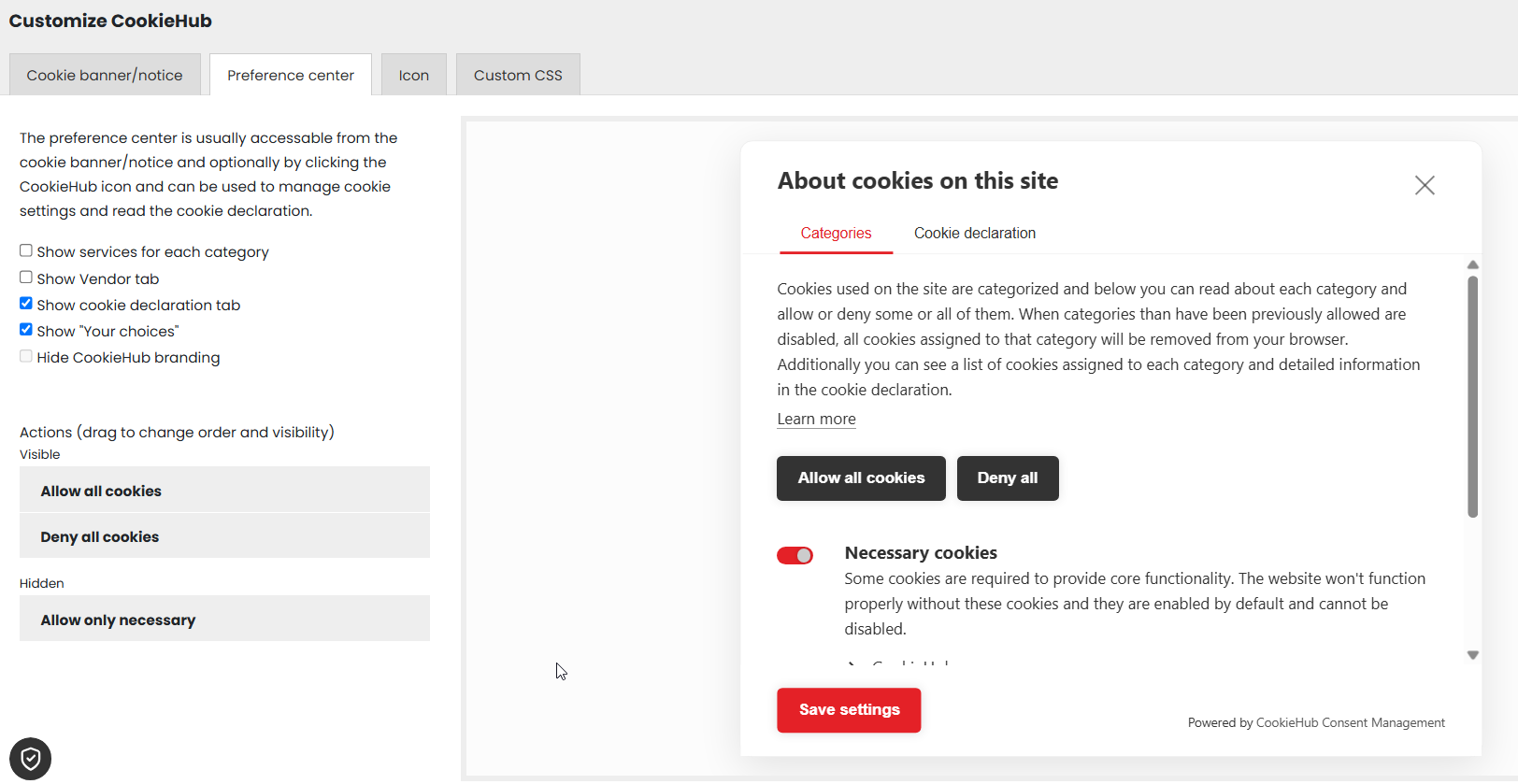
The preference center allows visitors to:
- read about cookie categories
- allow or deny optional categories
- view the cookie declaration
- review their existing consent choices
- save updated settings
Show services for each category
Enable this option if you want CookieHub to display the services associated with each cookie category.
This can provide additional information but may also make the preference center longer and more detailed.
Show Vendor tab
The Vendor tab displays information about third-party vendors included in the CookieHub configuration.
Enable it when your setup includes vendor information that visitors should be able to review.
Show cookie declaration tab
The cookie declaration tab shows the cookies detected and documented for the website.
Recommended setting: Enabled.
This gives visitors access to more detailed information about the cookies and storage items used by the website.
Show “Your choices”
This option allows returning visitors to review information about their existing consent selection.
Recommended setting: Enabled.
Hide CookieHub branding
Depending on your CookieHub subscription, you may be able to remove CookieHub branding from the preference center.
This is optional and does not affect the consent functionality.
Preference center actions
The Preference center tab also includes an Actions section.
You can decide whether the detailed window shows actions such as:
- Allow all cookies
- Deny all cookies
- Allow only necessary
Keep the actions consistent with the choices shown in the first banner layer.
After changing the preference center, test every tab and scroll through the full window. Check that category descriptions, buttons, and cookie details remain readable on a small screen.
Configure the cookie settings icon
Open the Icon tab to configure the control that allows visitors to reopen their cookie settings.
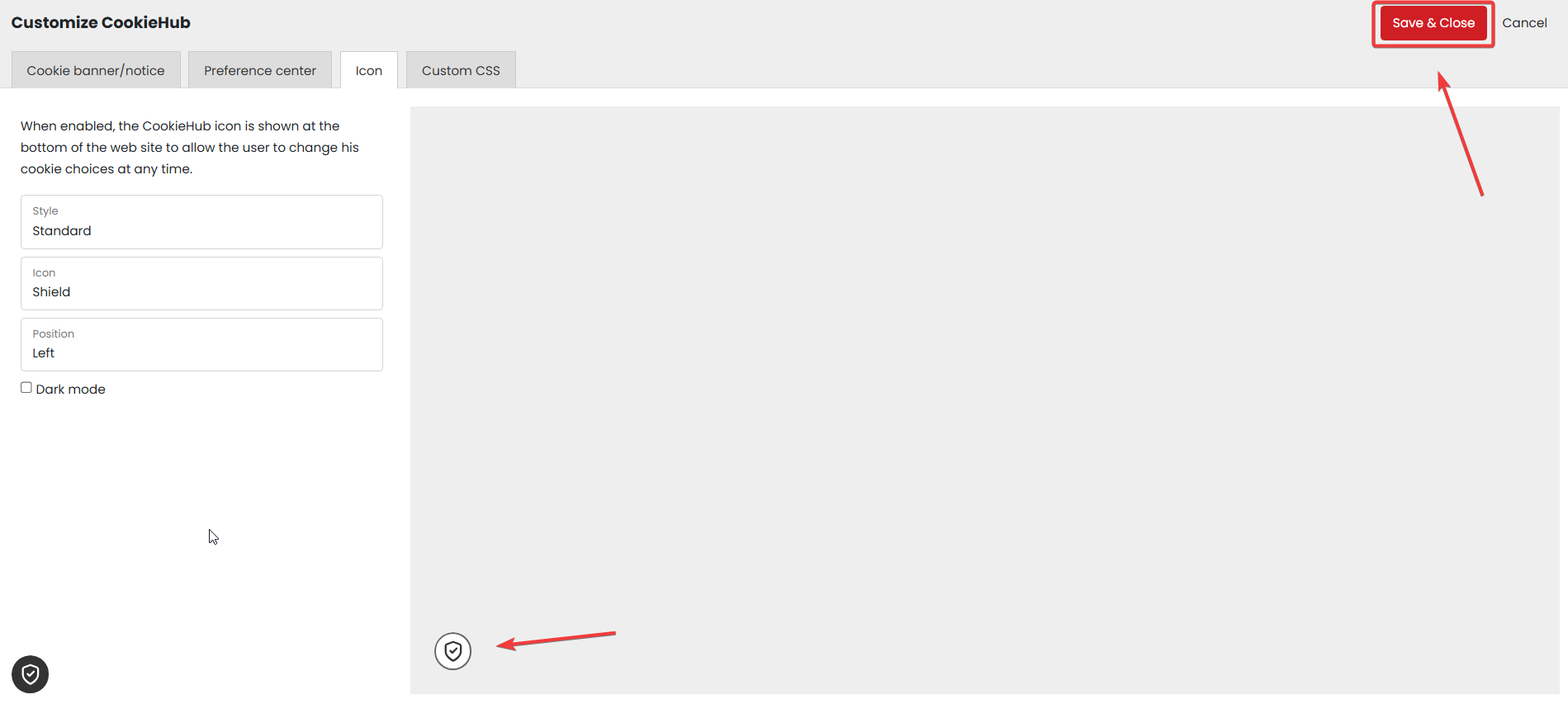
When enabled, the icon remains visible near the bottom of the website. Visitors can click it to open the preference center and change their earlier consent choices.
Style
The Style setting controls the visual style of the CookieHub icon.
The example uses:
StandardIcon
The Icon setting determines which symbol is displayed.
The example uses the Shield icon, which clearly communicates privacy and consent settings.
Position
The Position setting controls whether the icon appears on the left or right side of the website.
The example uses:
LeftSelect a position that does not overlap:
- chat widgets
- accessibility controls
- back-to-top buttons
- mobile navigation
- other fixed website elements
Icon dark mode
Dark mode changes the appearance of the settings icon. Enable it only when it provides better contrast against your website background.
Visitors should have an easy way to reopen the preference center and change or withdraw their earlier choice. Make sure the settings icon or another cookie settings link remains available on the live website.
Use Custom CSS for advanced changes
The Custom CSS tab allows advanced users to make additional visual changes that are not available through the standard controls.
Custom CSS may be useful for changing:
- spacing
- fonts
- borders
- button sizes
- other detailed design properties
Most website owners do not need Custom CSS. CookieHub’s standard theme, color, and layout options are usually enough to create a suitable banner.
Incorrect Custom CSS can make consent buttons difficult to see or cause layout problems on mobile devices. Test every custom rule after CookieHub or your website theme is updated.
Save and publish the customized banner
When you are satisfied with the preview, click Save & Close in the top-right corner.
This closes the customization panel and saves the design. You must then return to the CookieHub domain dashboard and click Publish pending changes.
The new design may not appear immediately. Wait a few minutes, clear any website cache, and perform a hard refresh before checking the result.
If your WordPress website uses a caching or optimization plugin, clear its cache after publishing the CookieHub changes.
Check the Banner Design on Your Website
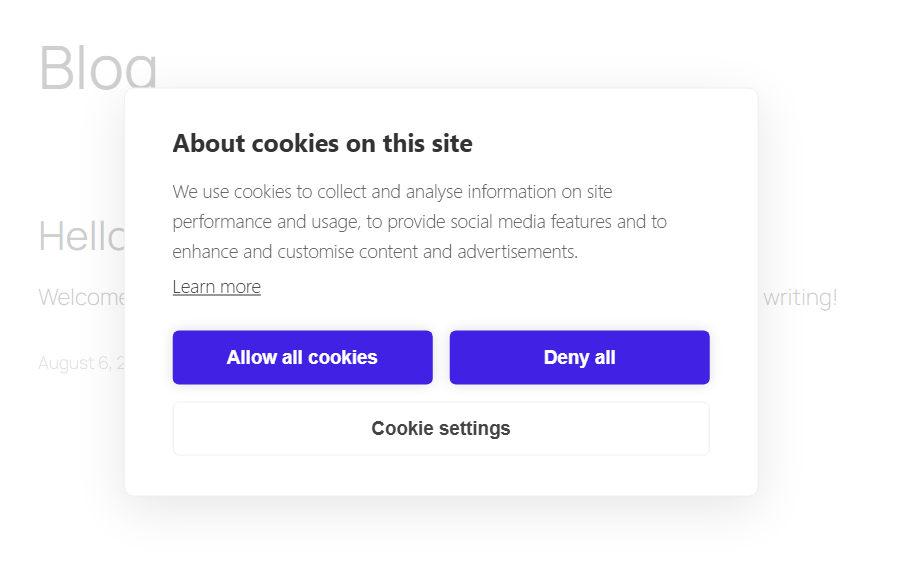
Open the website in a new private or incognito window. This prevents an earlier consent choice stored in your browser from hiding the banner.
Confirm that:
- The banner appears in the selected position.
- The new colors are visible.
- The text remains easy to read.
- Allow all cookies works.
- Deny all works.
- Cookie settings opens the preference center.
- The cookie settings icon appears in the correct position.
- The design works on desktop and mobile.
Test Cookie Blocking and Consent Choices
A correct design is only the first check. You should also confirm that the banner controls analytics, advertising, and other non-essential services according to the visitor’s consent choice.
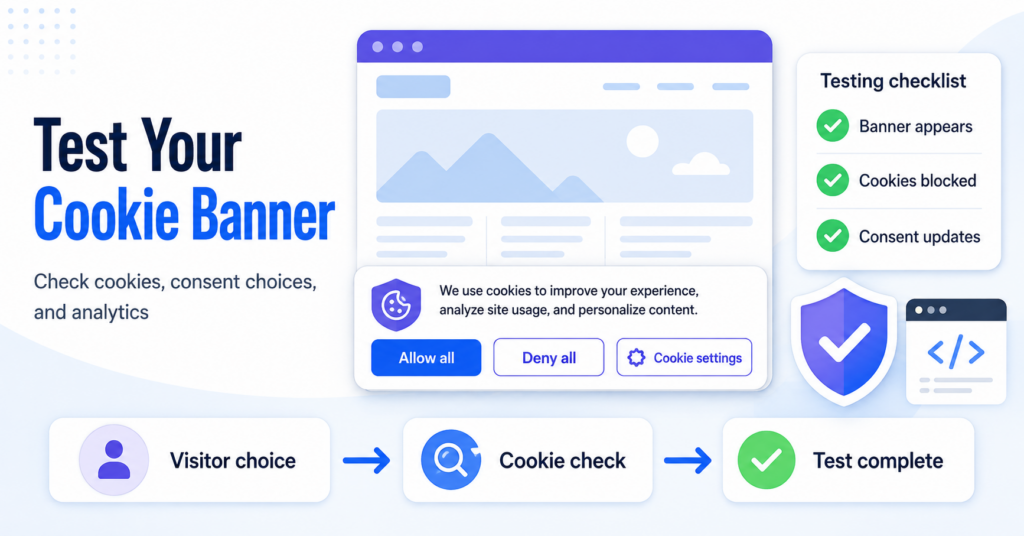
Use our complete cookie banner testing guide to check the banner in a private browser window and verify what happens after allowing, denying, or changing consent.
Recommended Next Step
A correct banner design is only the first check. You should also confirm that the banner controls analytics, advertising, and other non-essential services according to the visitor’s consent choice.
The next guide shows you how to test what happens before consent, after selecting Deny all, after selecting Allow all, and when a visitor changes an earlier choice.

Frequently Asked Questions
Common questions about this topic
Yes. Use the Colors settings in the Cookie banner/notice tab to change the primary accent and text colors.
Yes. The available positions depend on the selected banner theme.
It is not required. For a clear opt-in configuration, you can hide the close icon and require visitors to use the labelled consent buttons.
Yes. Drag the actions up or down in the Visible section to change their order. You can also move actions between Visible and Hidden.
Yes. Keep the CookieHub settings icon or another preference-center link available so visitors can reopen their cookie settings.
No. Most banner designs can be created using CookieHub’s built-in themes, colors, positions, and display options.
Make sure you clicked Save & Close and then published the pending changes. Clear your website cache and check the page in a private browser window.