After installing CookieHub on WordPress, the next step is to review its consent, integration, regional, language, and cookie category settings.
The default configuration provides a useful starting point, but it may not match the services, languages, or privacy requirements of your website. In this guide, we will configure the most important CookieHub settings and explain when each option should be enabled.
If CookieHub is not installed yet, follow our CookieHub WordPress installation guide first.
For a typical WordPress website, use this CookieHub configuration as a starting point:
- Enable Consent Log
- Enable Automatic Updates
- Enable Automatic Cookie Blocking
- Use Explicit Consent / opt-in
- Enable only the integrations your website uses
- Keep optional cookie categories unchecked by default
- Configure the banner language to match your website
- Save, publish, and test the configuration
Open the CookieHub settings
Log in to your CookieHub account and select the domain you want to configure. Open the Settings tab from the domain navigation.
The settings area is divided into five sections:
- General
- Integration
- Regional settings
- Languages
- Categories
You can move between these sections using the menu on the left side of the page.
The settings in this guide provide a practical starting point. The correct configuration still depends on your website, visitors, tracking services, and applicable privacy requirements. This guide is educational and is not legal advice.
Configure the general settings
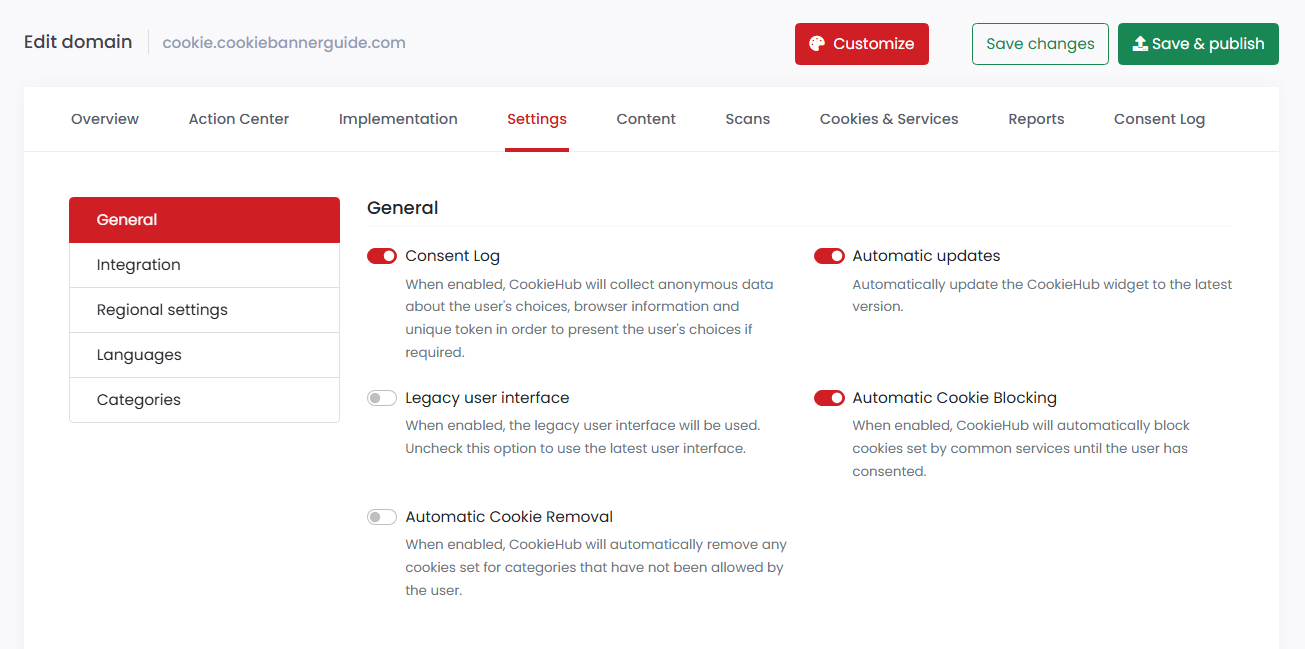
The General section controls CookieHub’s main behaviour. It includes consent logging, widget updates, automatic cookie blocking, and cookie removal.
Consent Log
When Consent Log is enabled, CookieHub collects anonymous information about visitors’ consent choices. This may include browser information and a unique token that CookieHub can use to retrieve the visitor’s earlier choice.
Recommended setting: Enabled.
Keeping a consent log can help you review whether a visitor’s consent choice was recorded. However, having a consent log does not by itself guarantee that the complete setup is compliant.
Automatic Updates
Automatic Updates allows CookieHub to update its website widget to the latest available version.
Recommended setting: Enabled.
This helps your website continue using current CookieHub features and improvements without requiring every widget update to be published manually.
Legacy User Interface
This option changes the CookieHub banner and preference interface to its older design.
Recommended setting: Disabled.
Leave it disabled when creating a new setup so that your website uses CookieHub’s latest interface.
Automatic Cookie Blocking
Automatic Cookie Blocking attempts to stop cookies from common supported services until the visitor allows the relevant category.
Recommended setting: Enabled.
This is an important part of an opt-in configuration. However, automatic blocking may not recognize every custom or third-party script used on your website.
You must still test the website and confirm that optional cookies are not created before the visitor provides the required consent.
Automatic Cookie Removal
Automatic Cookie Removal removes cookies belonging to categories that the visitor has not allowed. It can be useful when a visitor changes or withdraws an earlier consent choice.
Suggested starting setting: Disabled.
You can enable it after testing how the option affects your website. Cookie removal does not replace cookie blocking. Optional cookies should still be prevented from being created before consent whenever consent is required.
Enable Automatic Cookie Blocking first and test the website in a private browser window. Consider Automatic Cookie Removal separately after confirming that it does not interfere with necessary website functions.
Configure integrations and consent storage
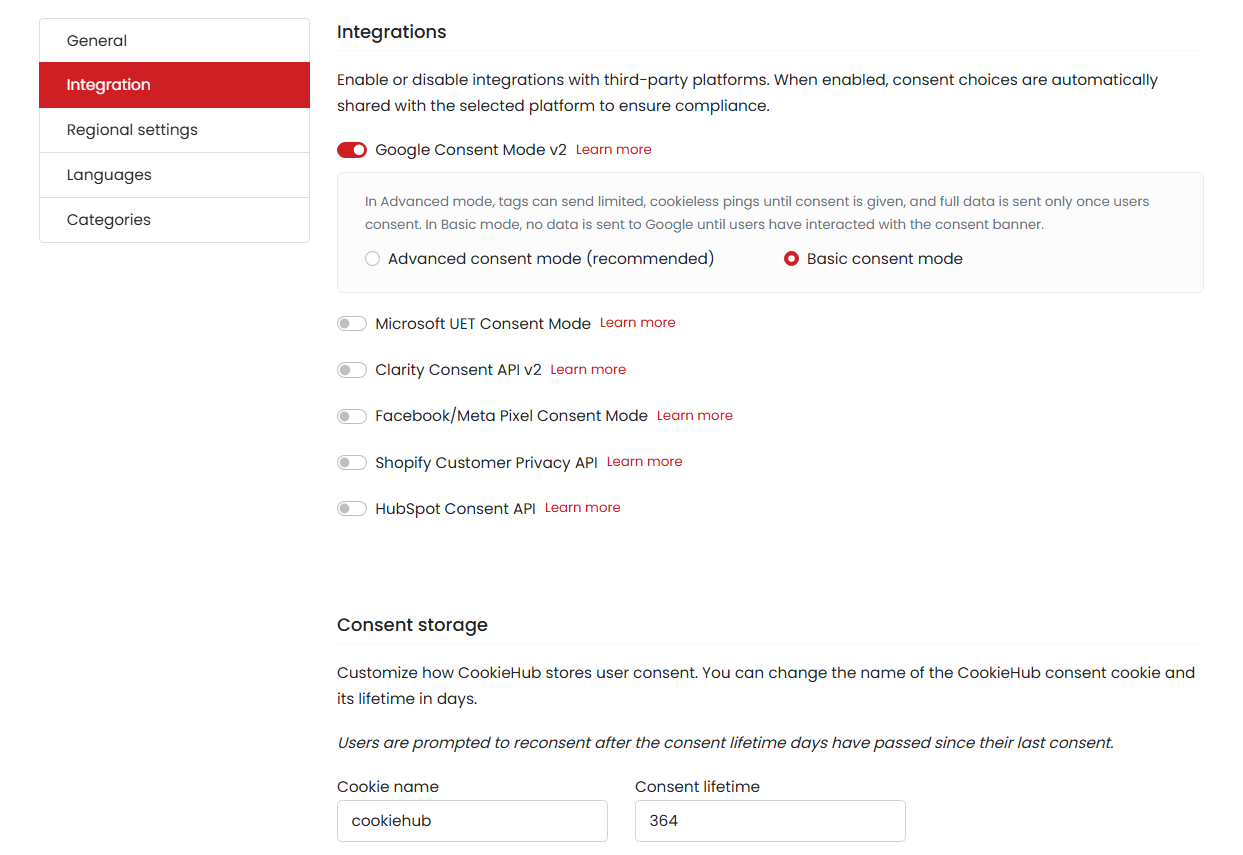
The Integration section connects CookieHub’s consent choices with supported analytics, advertising, ecommerce, and customer management platforms.
Only enable integrations for services that are actually used on your website.
Google Consent Mode v2
Enable Google Consent Mode v2 if your website uses compatible Google services such as:
- Google Analytics 4
- Google Ads
- Floodlight
- Google tags installed directly or through Google Tag Manager
If you are new to this integration, read our guide explaining what Google Consent Mode is and how it works before choosing between Basic and Advanced Consent Mode.
CookieHub can update Google’s consent state when a visitor accepts or rejects different cookie categories.
Recommended setting: Enable it if your website uses compatible Google services. If your website does not use Google tracking or advertising tags, it can remain disabled.
Basic consent mode
In Basic Consent Mode, compatible Google tags remain blocked until the visitor interacts with the consent banner.
No data is sent to Google before that interaction. If the visitor grants the required consent, the relevant tags can load and send data. If consent is denied, the tags remain blocked.
This is a straightforward and privacy-focused starting point for website owners who do not want Google tags sending requests before a consent decision.
Advanced consent mode
In Advanced Consent Mode, compatible Google tags may load before consent but send limited, cookieless signals while consent is denied.
After the visitor grants consent, the tags can operate according to the consent provided. CookieHub marks Advanced Consent Mode as recommended because it can provide additional measurement information.
| Mode | Before consent | Best suited for |
|---|---|---|
| Basic Consent Mode | Google tags remain blocked and no data is sent before the visitor interacts with the banner. | Privacy-focused and simpler setups |
| Advanced Consent Mode | Compatible tags may send limited cookieless signals | Websites that need additional measurement and modelling |
Advanced Consent Mode does not mean that normal analytics or advertising cookies are automatically allowed before consent. However, compatible Google tags may still send limited cookieless requests while consent is denied.
Choose the mode only after understanding how your Google tags behave.
Does CookieHub require a Google Tag Manager ID?
You do not enter your Google Tag Manager container ID, such as GTM-XXXXXXX, in the CookieHub dashboard.
If CookieHub is installed using the WordPress plugin, Google Tag Manager must be installed separately. CookieHub then communicates the visitor’s choices to compatible Google tags through Google Consent Mode.
If you install CookieHub through Google Tag Manager instead, you add your eight-character CookieHub Domain Code to the official CookieHub CMP template inside GTM.
Use only one CookieHub installation method. If CookieHub is already installed through the WordPress plugin, do not also install the CookieHub CMP template through Google Tag Manager.
You can learn more about the second installation method in the official CookieHub Google Tag Manager guide.
Important: When CookieHub itself is installed through Google Tag Manager, the Google Consent Mode setting and the choice between Basic and Advanced implementation are managed inside the CookieHub GTM tag rather than in the CookieHub dashboard.
Microsoft UET Consent Mode
Enable this option only if your website uses the Microsoft Advertising Universal Event Tracking tag.
If Microsoft Advertising is not installed, leave it disabled.
Clarity Consent API v2
This integration is intended for websites using Microsoft Clarity. It allows CookieHub to share the relevant consent choice with Clarity.
If Microsoft Clarity is not installed, leave it disabled.
Facebook/Meta Pixel Consent Mode
Enable this integration if your website uses Meta Pixel and you want it to respond to consent choices recorded by CookieHub.
Enabling the integration does not remove the need to check how Meta Pixel is installed and when it loads.
Shopify Customer Privacy API
This option is intended for Shopify websites using Shopify’s Customer Privacy API.
It is not normally needed for a standard WordPress installation and can remain disabled.
HubSpot Consent API
Enable this integration if your website uses HubSpot services that need to respond to the visitor’s consent choices.
If HubSpot is not installed, leave it disabled.
Cookie name
The Cookie name field defines the name of the cookie CookieHub uses to store the visitor’s consent choice.
The default name is:
cookiehubMost website owners should leave the default name unchanged. Changing it without a specific reason may cause existing visitors to be asked for consent again.
Consent lifetime
Consent lifetime determines how many days CookieHub remembers the visitor’s choice.
After this period expires, the visitor may be asked to provide consent again.
Recommended starting value: 364 days.
You can select a shorter period when required by your consent policy or applicable requirements.
Configure regional settings
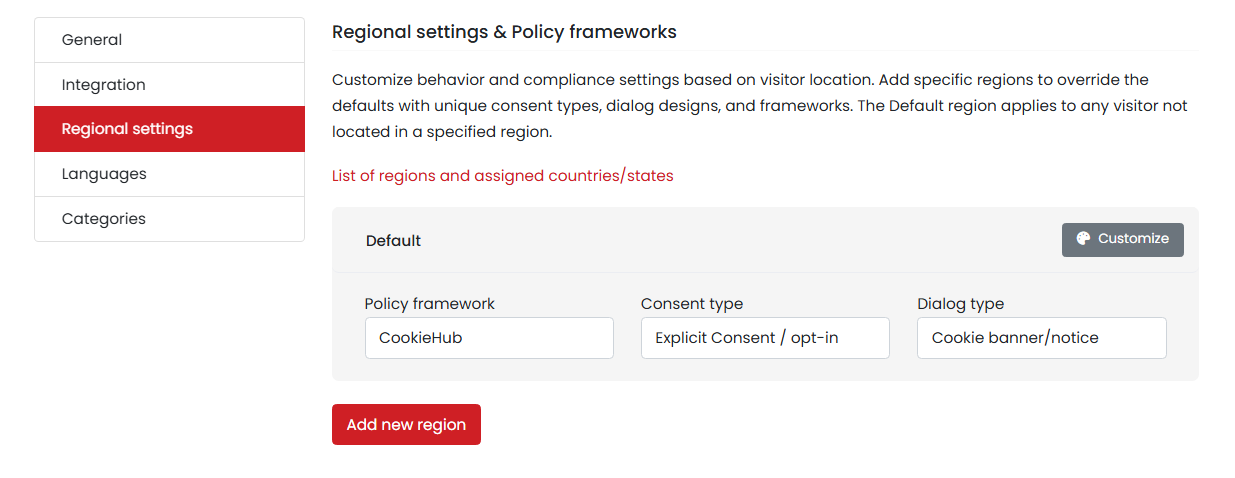
Regional settings allow CookieHub to apply different consent models depending on a visitor’s location.
The Default region applies to visitors who are not assigned to another configured region.
Policy framework
The Policy framework determines the set of consent rules used for the region.
For a general CookieHub configuration, leave this set to:
CookieHubConsent type
For websites serving visitors in the European Union, a conservative starting point is:
Explicit Consent / opt-inWith explicit consent, optional services should not become active until the visitor makes an affirmative choice.
Dialog type
The Cookie banner/notice option displays CookieHub’s standard consent banner or notice to the visitor.
This is the appropriate starting choice for most WordPress websites.
Customize the regional configuration
Click Customize to review the banner and consent controls used for the region.
For an EU-focused opt-in banner, make sure visitors have clear options to allow cookies, deny optional cookies, and open detailed cookie settings.
The layout, buttons, colors, and visual appearance will be covered in our separate CookieHub customization guide.
Add a new region
Use Add new region when visitors from a particular country or region should receive a different consent configuration.
For example, you may create separate configurations for:
- European visitors using explicit opt-in
- United States visitors using an applicable opt-out framework
- specific countries or states with different requirements
If you want to apply the stricter explicit opt-in approach globally, you may not need to add another region.
A website serving visitors throughout Europe can use CookieHub with Explicit Consent / opt-in as its default configuration. A business with visitors in both Europe and the United States may choose to create separate regional configurations.
Configure the banner languages
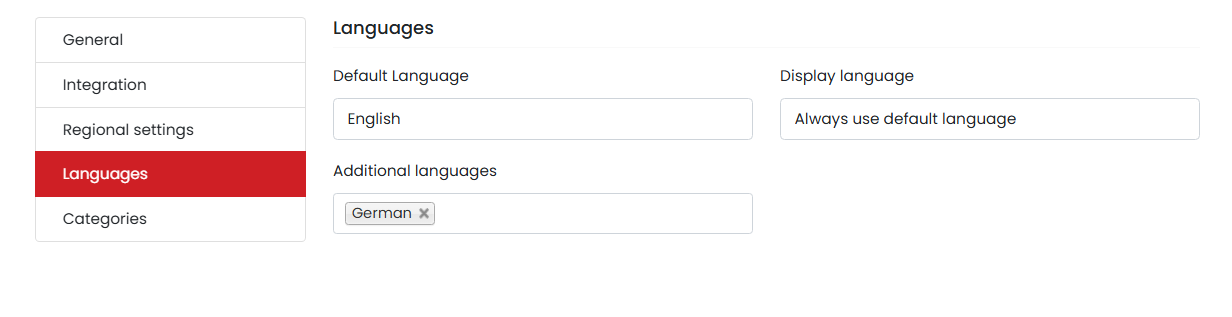
The Languages section controls which languages are available and how CookieHub selects the language shown to a visitor.
Default language
The Default language is used when CookieHub cannot identify another matching language.
Set this to the main language of your website. For an English-language website, select English.
Additional languages
Add only the languages available on your website and for which you want to provide translated banner content.
Adding German, for example, makes German available to CookieHub. However, adding it does not automatically mean that German-speaking visitors will see the German banner.
Display language
The Display language setting determines how CookieHub selects the language shown in the banner.
| Option | How it works |
|---|---|
| Always use default language | Always displays the language selected as the default. |
| Automatically detect | Allows CookieHub to select a matching language using its available detection methods. |
| Match browser language | Uses the preferred language reported by the visitor’s browser. |
| Match HTML tag language | Uses the language specified in the website’s HTML lang attribute. |
| Match URL prefix | Uses a language code at the beginning of the URL, such as /en/ or /de/. |
If your website is available only in English, use Always use default language and remove any unnecessary additional languages.
For a multilingual WordPress website, Match HTML tag language can be a practical option when WPML, Polylang, or another translation plugin correctly updates the page’s HTML language.
After adding a language, open CookieHub’s Content tab. Select the language and review the banner labels, button text, category descriptions, and other translated content.
More information about language detection is available in the official CookieHub language documentation.
Configure the cookie categories
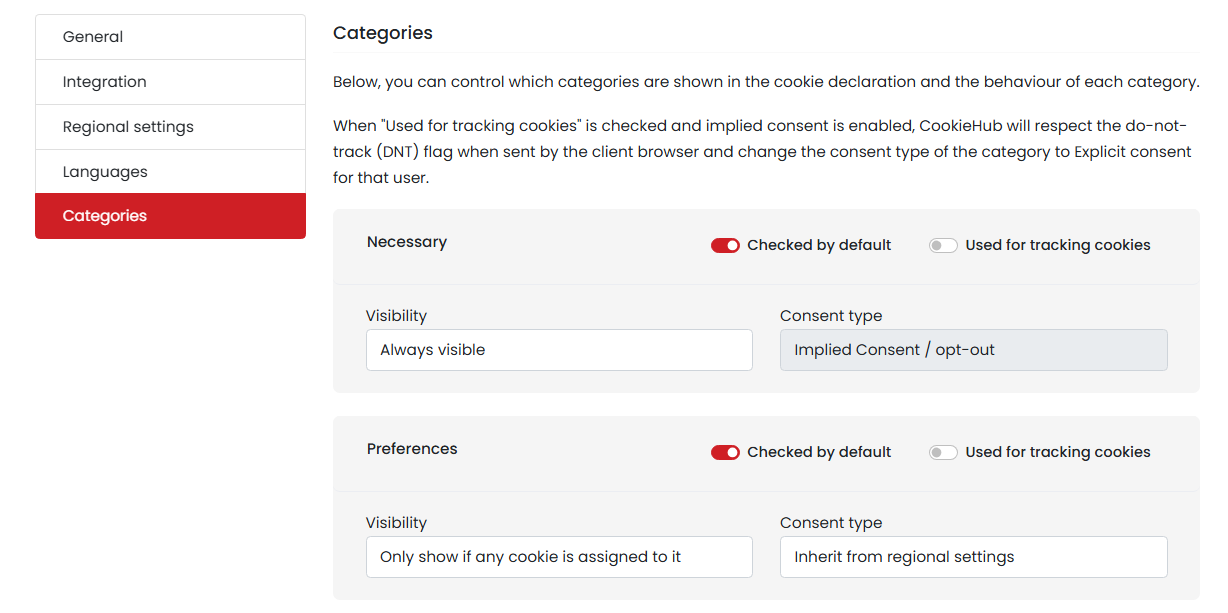
The Categories section controls which cookie categories appear in the preference center and how each category behaves.
If you are unsure how necessary and optional categories should behave, review our guide to cookie banner requirements.
CookieHub includes five standard categories:
- Necessary
- Preferences
- Analytics
- Marketing
- Uncategorized
Checked by default
This option determines whether a category is already selected when the visitor opens the detailed cookie settings.
For an explicit opt-in configuration, optional categories should not be checked by default. The visitor must actively choose to allow them.
The Court of Justice of the European Union has confirmed that a pre-ticked checkbox is not sufficient for active cookie consent. You can read the Planet49 decision summary for more information.
Used for tracking cookies
Enable this option for categories used to track visitor activity, such as Analytics and Marketing.
CookieHub can also use this classification when responding to supported browser privacy signals.
Visibility
Visibility determines whether a category is always displayed or shown only when CookieHub has assigned at least one cookie to it.
- Always visible: the category appears even when it does not contain any detected cookies.
- Only show if any cookie is assigned to it: the category remains hidden when it is empty.
Consent type
The Consent type controls whether the category follows the regional configuration or uses its own consent model.
For optional categories, Inherit from regional settings is normally the simplest choice. When the region uses Explicit Consent / opt-in, the category follows that configuration.
Necessary
Necessary cookies support essential website functions such as security, network management, login status, or consent storage.
Recommended configuration:
- Checked by default: Enabled
- Used for tracking cookies: Disabled
- Visibility: Always visible
- Consent type: Necessary cookies remain available because the website may not function correctly without them
Do not move analytics, advertising, or preference cookies into the Necessary category simply to avoid asking the visitor for consent.
Preferences
Preference cookies remember optional choices such as language, layout, video settings, or other personalized functionality.
Recommended EU opt-in configuration:
- Checked by default: Disabled
- Used for tracking cookies: Usually disabled
- Visibility: Only show if any cookie is assigned to it
- Consent type: Inherit from regional settings
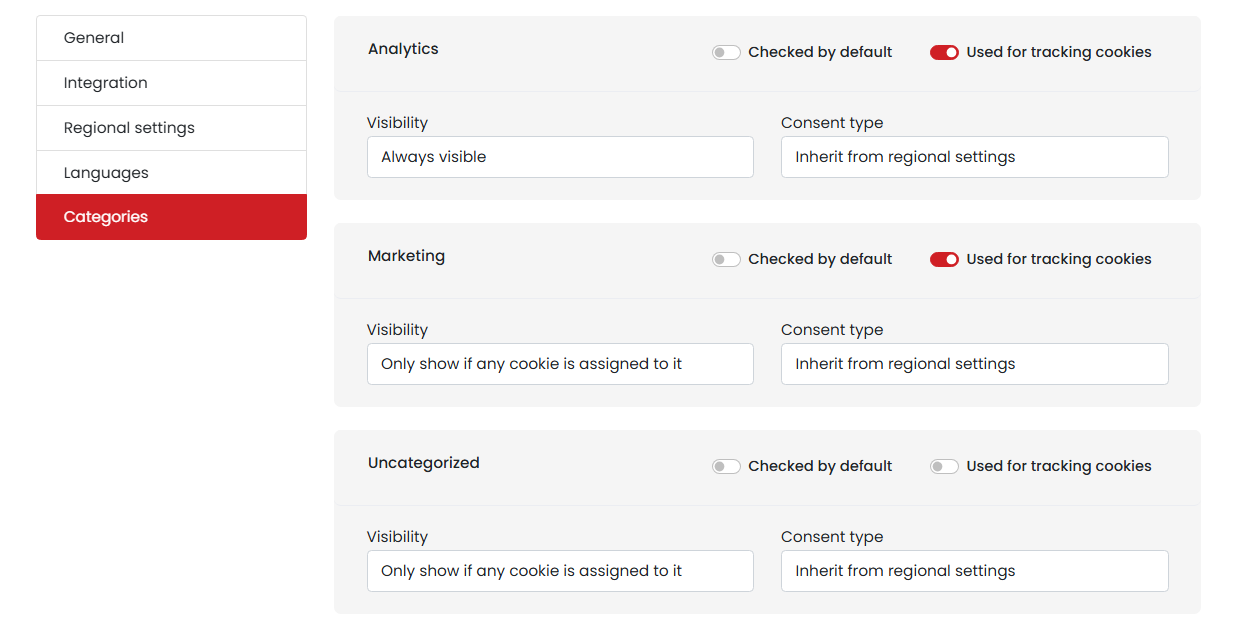
Analytics
Analytics cookies help measure website traffic, page views, visitor behaviour, and website performance.
Recommended EU opt-in configuration:
- Checked by default: Disabled
- Used for tracking cookies: Enabled
- Visibility: Always visible or only show when assigned
- Consent type: Inherit from regional settings
Marketing
Marketing cookies can be used for advertising, conversion measurement, retargeting, and building advertising audiences.
Recommended EU opt-in configuration:
- Checked by default: Disabled
- Used for tracking cookies: Enabled
- Visibility: Only show if any cookie is assigned to it
- Consent type: Inherit from regional settings
Uncategorized
Uncategorized contains cookies and storage items that CookieHub has detected but has not yet placed in a confirmed category.
Recommended configuration:
- Checked by default: Disabled
- Used for tracking cookies: Disabled until reviewed
- Visibility: Only show if any cookie is assigned to it
- Consent type: Inherit from regional settings
Review every uncategorized item. Identify its purpose and move it to Necessary, Preferences, Analytics, or Marketing when appropriate.
Unknown cookies should not automatically be treated as necessary.
Recommended category configuration
| Category | Checked by default | Used for tracking | Suggested visibility |
|---|---|---|---|
| Necessary | Enabled | Disabled | Always visible |
| Preferences | Disabled | Usually disabled | Only show when assigned |
| Analytics | Disabled | Enabled | Always visible or show when assigned |
| Marketing | Disabled | Enabled | Only show when assigned |
| Uncategorized | Disabled | Disabled until reviewed | Only show when assigned |
Save and publish the settings
CookieHub provides two saving options at the top of the settings page:
- Save changes saves the current configuration without immediately publishing it to the live website.
- Save & publish saves the configuration and publishes it to the CookieHub widget used on your website.
Use Save changes while reviewing multiple sections. When the complete configuration is ready, click Save & publish.
If CookieHub shows pending changes, they will not be applied to the live banner until they are published.
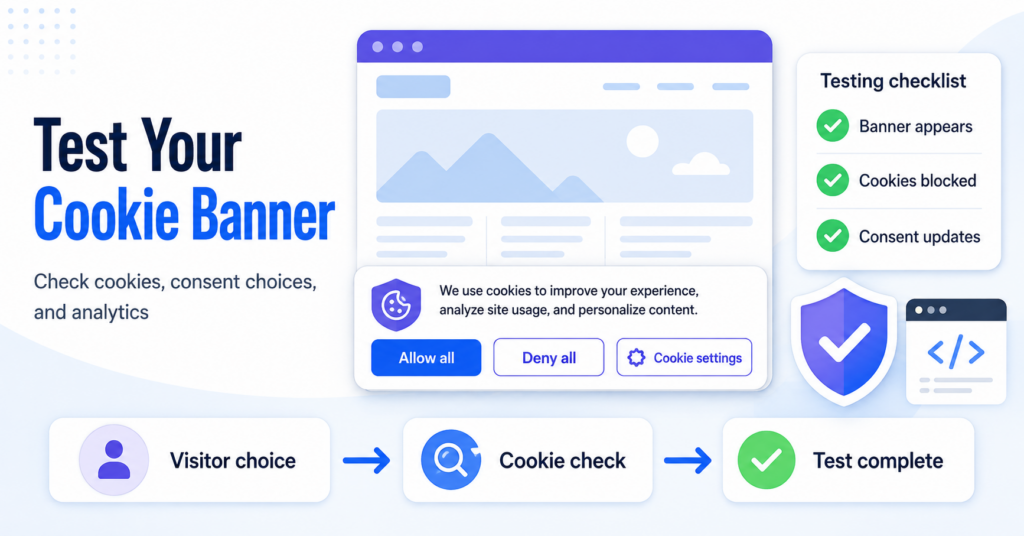
Test the CookieHub configuration
Publishing the settings is not the final step. You should test the banner and confirm that your website respects the visitor’s choice.
- Save and publish all pending CookieHub changes.
- Clear any website or caching-plugin cache that could serve an older configuration.
- Open the website in a new private or incognito window.
- Confirm that the CookieHub banner appears for a new visitor.
- Open Cookie settings and make sure optional categories are not preselected.
- Select Deny all and confirm that non-essential cookies and storage entries are not created.
- Start a new private session, select Allow all, and confirm that approved services can load.
- Use the CookieHub settings link or icon to change the earlier choice.
- Check the banner on both desktop and mobile devices.
CookieHub’s scanner and Action Center can help identify configuration problems, but you should also perform a manual browser test.
Want to confirm that CookieHub is blocking and allowing cookies correctly?
Customize your CookieHub banner
Your main CookieHub configuration is now ready. You have reviewed the general settings, enabled the relevant integrations, selected a regional consent model, configured banner languages, and defined how each cookie category should behave.
The next step is to customize the banner’s layout, buttons, colors, and content. After publishing the design, test the banner again on the live website.
Recommended Next Step
Your main CookieHub configuration is now ready. You have reviewed the integrations, regional consent model, languages, consent storage, and cookie category settings.
The next guide shows you how to customize the banner layout, buttons, colors, text, and preference center before publishing the final design.

Frequently Asked Questions
Common questions about this topic
No. Many default settings provide a useful starting point. You should still review the integrations, regional consent type, language selection, and category defaults to make sure they match your website.
Enable it if your website uses compatible Google services such as Google Analytics or Google Ads. It is not required when your website does not use Google tags.
No. You do not enter a GTM-XXXXXXX container ID in these CookieHub settings. Google Tag Manager is installed separately, or CookieHub can be implemented through the official CookieHub CMP template inside GTM.
Basic Consent Mode is a simpler and more privacy-focused starting point. Advanced Consent Mode allows compatible Google tags to send limited cookieless signals while consent is denied and may provide additional measurement information.
For a European explicit opt-in configuration, optional Preferences should normally remain unchecked until the visitor actively selects them.
A common starting value is 365 days. A different period may be appropriate depending on your consent policy and applicable requirements.
If Display language is set to Always use default language, CookieHub will always use the selected default. Select a suitable language detection method for a multilingual website.
Yes. Test accepting, denying, and changing consent in a private browser window. Confirm that optional cookies and tags do not operate before the required consent.