Need to clear cookies in Chrome to fix a login problem or reset a website’s saved data? Follow the steps below for a computer, Android, or iPhone. If only one site is causing trouble, you can remove its data without clearing cookies from other websites.
To clear cookies in Chrome on a computer, open the three-dot menu and choose Delete browsing data, select All time and Cookies and other site data, then click Delete data. Leave other categories unchecked to keep your history and cached files.
Jump to the instructions for a computer, one website, Android, or iPhone and iPad.
The screenshots show Chrome with English menus in dark mode. Menu labels and layouts may vary slightly between versions.
How to Clear All Cookies in Chrome on Windows and Mac
Use this method to delete all cookies in Google Chrome on Windows or Mac. It clears cookies and other site data in your current Chrome profile when you select All time. If only one website is causing problems, try removing that website’s data first.
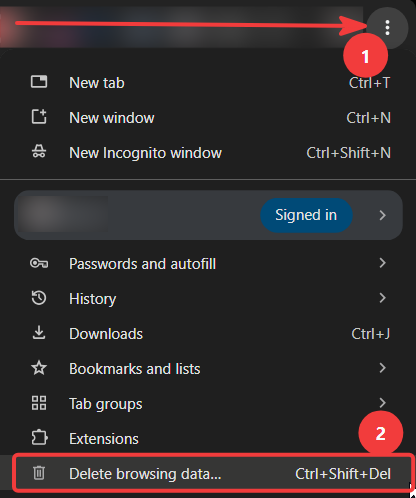
1. Open Delete Browsing Data
- Open Chrome.
- Click the three-dot menu in the upper-right corner.
- Select Delete browsing data.
2. Choose Which Data to Delete
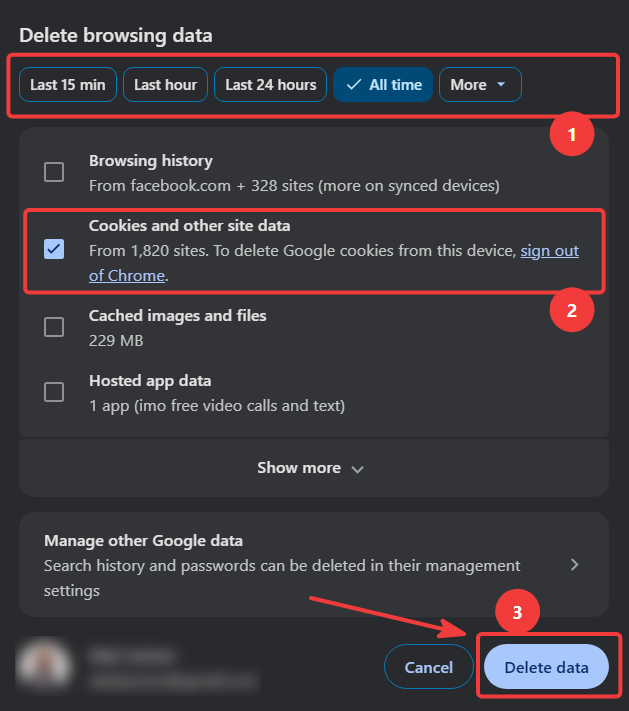
- Set Time range to All time to clear all cookies. Choose a shorter period if that is all you need.
- Select Cookies and other site data.
- Uncheck other categories you want to keep, such as Browsing history and Cached images and files.
- Expand Show more if additional categories are hidden, and check your selections.
- Click Delete data.
Reopen the website you want to test. You may need to sign in again or choose your preferences.
Clearing cookies can sign you out of websites and reset locally saved preferences. It does not necessarily sign you out of your Google Account while you remain signed in to Chrome.
How to Clear Cookies for One Website in Chrome
You can clear cookies for a specific site in Chrome without clearing cookies for every website. Use this method when one website has a login problem or you want to reset its saved data. Other websites’ data stays in place.
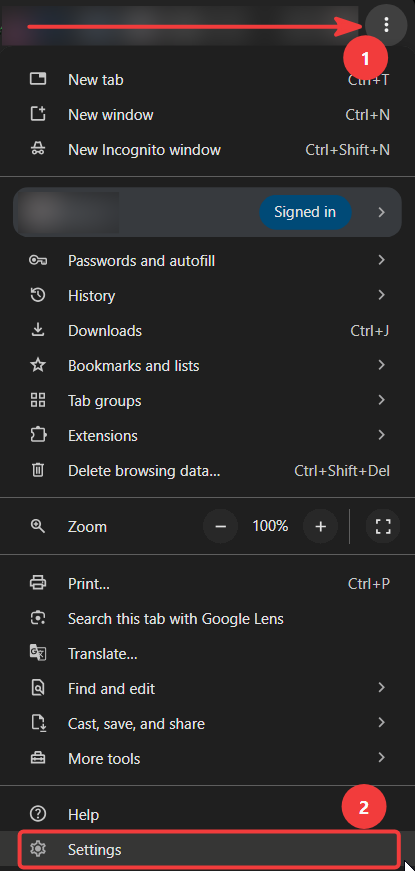
1. Open Chrome Settings
- Click the three-dot menu in the upper-right corner.
- Select Settings.
2. Open the Cookie Settings
- Select Privacy and security in the sidebar.
- Open Third-party cookies.
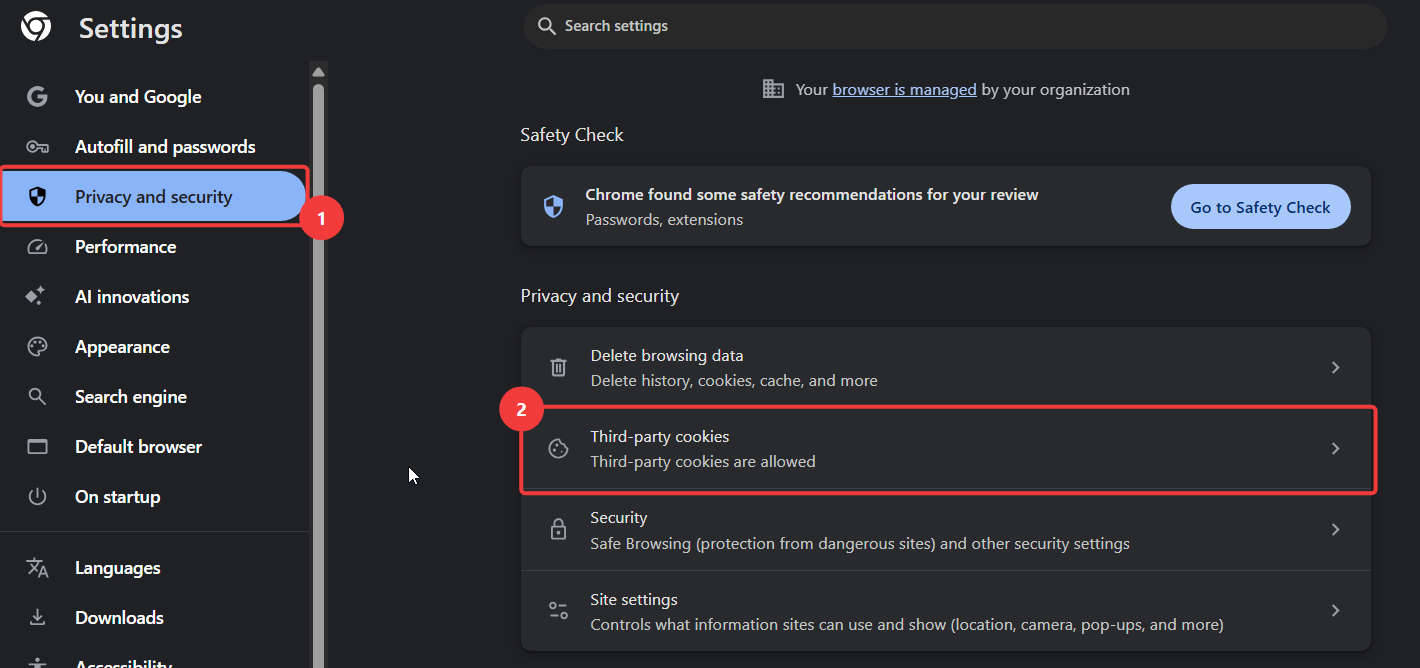
3. Open the Website Data List
Scroll down and click See all site data and permissions.
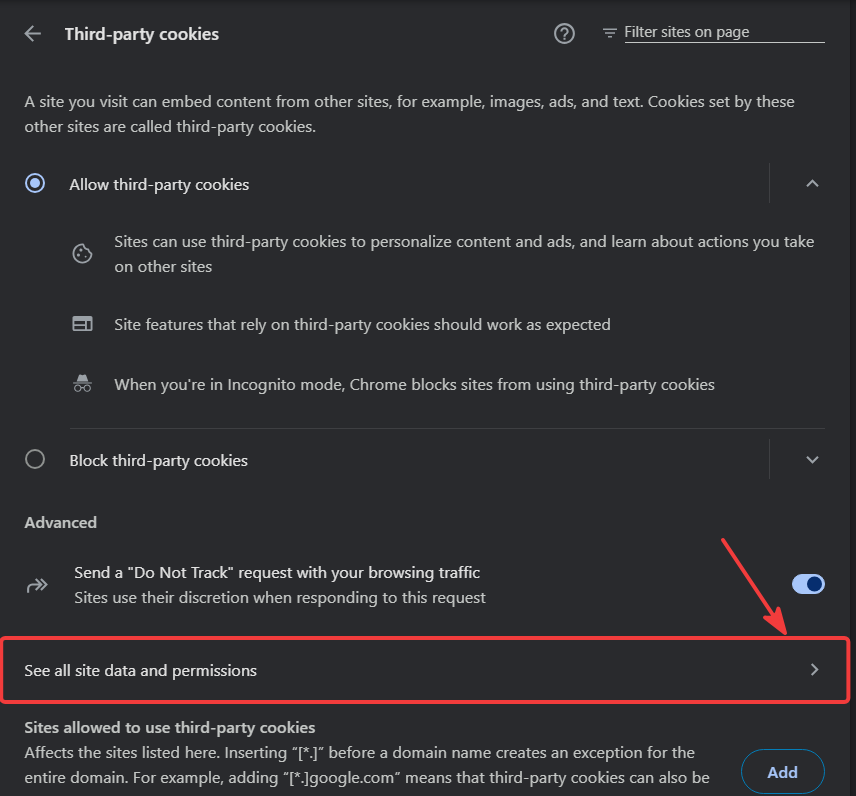
Although this route passes through the Third-party cookies settings, the next screen lists website data more broadly. You do not need to change your cookie-blocking settings.
4. Find the Website
- Use Filter sites on page to search for the website’s domain, such as cookiebannerguide.com.
- Find the matching website.
- Click the trash icon beside its entry.
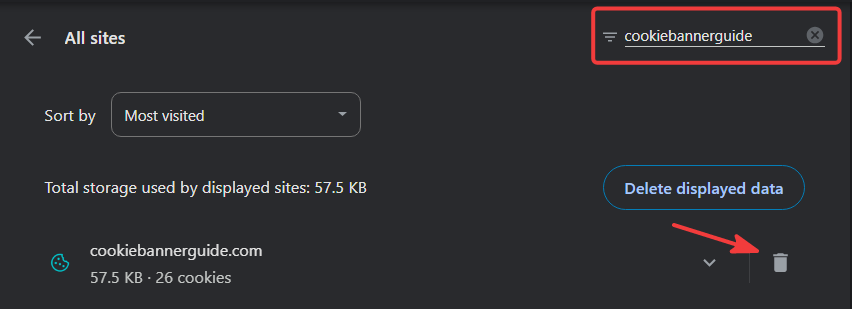
Use the trash icon beside the intended website. Avoid the button for deleting all website data if you only want to reset one site.
5. Confirm the Deletion
- Read Chrome’s confirmation message.
- Click Delete to proceed.
- Reload the website and sign in again if necessary.

This option removes more than cookies. The confirmation shown here also includes offline data and your chosen website permissions. It covers the selected domain, sites under it, and its installed app. Save any unfinished work before confirming.
How to Clear Cookies in Chrome on Android
To clear cookies in Chrome on an Android phone or tablet, use the browsing-data menu and select the cookie category. The steps below let you remove cookies while keeping your history and cache.
- Open Chrome and tap the three-dot menu.
- Tap Delete browsing data.
- If a compact deletion panel appears, tap More options to choose the data types.
- Set Time range to All time to clear all cookies.
- Select Cookies and site data.
- Uncheck other categories you want to keep.
- Tap Delete data and complete any confirmation that appears.
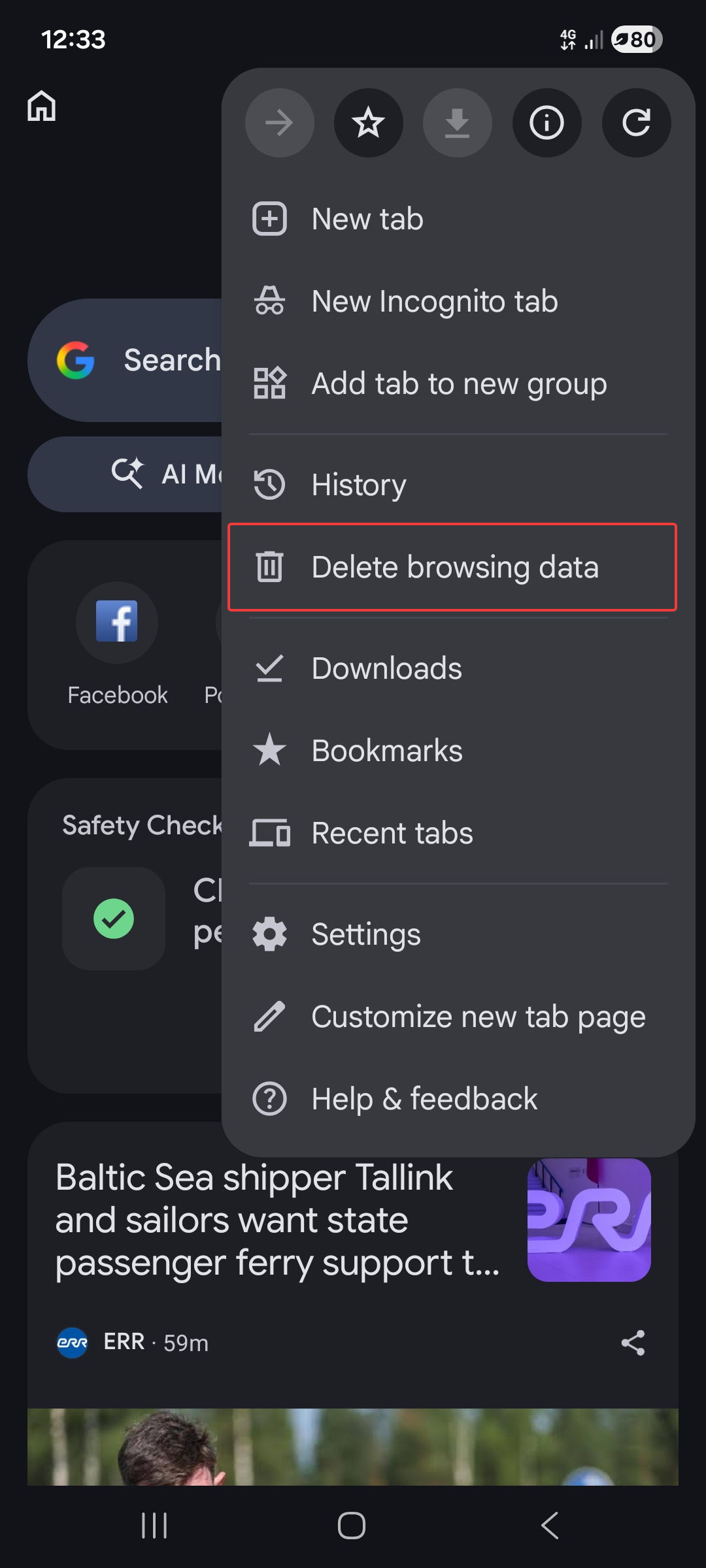
You can also reach the deletion settings through Settings → Privacy and security → Delete browsing data.
How to Clear Cookies for One Site in Chrome on Android
- Open the website in Chrome.
- Tap the site information icon beside its address.
- Select Cookies and site data.
- Tap the delete icon beside the stored data and confirm if prompted.
How to Clear Cookies in Chrome on iPhone and iPad
To clear Chrome cookies on an iPhone or iPad, use the Chrome app’s browsing-data options. Clearing Safari’s data does not clear cookies stored in Chrome.
- Open Chrome and tap the three-dot menu.
- Tap Delete Browsing Data.
- Next to Time Range, choose All Time to remove cookies from every time period.
- Tap Browsing Data to choose the categories.
- Select Cookies, Site Data and uncheck the other categories you want to keep.
- Tap Confirm, then Delete Browsing Data.
If your version uses the settings route instead, open Settings → Privacy and Security → Delete Browsing Data. Select the cookie category, uncheck other categories, and confirm deletion.
Google documents these routes in its iPhone browsing-data guide and iPhone cookie guide.
What Happens When You Delete Cookies in Chrome?
Website cookies help websites remember sessions and choices. Removing them may fix a session-related problem, but it can also reset useful information.
- Sign-ins: You may be logged out and need to sign in again.
- Preferences: Language, display settings, and other locally stored choices may reset.
- Shopping carts: A cart linked to your browser session may reset. A cart saved to your account may remain.
- Consent choices: A cookie banner may appear again if its saved choice is removed.
- Website storage: Chrome’s cookie-and-site-data option also removes other forms of local website storage.
Deleting cookies does not erase information already held by a website or advertising service. It also does not prevent websites from saving new cookies during later visits.
Cookies, Cache and History: What Gets Deleted?
Chrome’s browsing-data dialog treats these as separate categories. Select only the categories you want to remove.
| Data type | Purpose | Deleted with cookies alone? |
|---|---|---|
| Cookies and other site data | Store sessions, preferences, and local website data. | Yes, within the selected scope. |
| Cached images and files | Store downloaded page resources. | No. This is a separate category. |
| Browsing history | Record the pages you visited. | No. This is a separate category. |
| Saved passwords | Store sign-in details in your password manager. | No. Cookie deletion can log you out without deleting a saved password. |
The table refers to the Delete browsing data dialog. The website-specific deletion shown earlier also removes the permissions and offline data listed in its confirmation.
Start with one website when the problem affects only that site. Clearing cookies across all websites creates extra sign-ins and resets without necessarily fixing the original problem.

Frequently Asked Questions
Common questions about this topic
Clearing cookies alone does not delete saved passwords. You may still be signed out because a website’s login-session cookie was removed.
Yes. Select the cookie-and-site-data option and leave browsing history unchecked. Check any additional options before confirming.
The website may store your consent choice in a cookie or other local storage. If that record is removed, it may ask you to choose again.
Websites can save new cookies when you visit or reload them. Deleting existing cookies is different from blocking future cookies.
For login or session problems, try removing that website’s data first. For outdated images or page resources, clearing cached files may help. Neither action guarantees a fix.