This guide shows a practical CookieScript configuration for a WordPress website with European visitors. Use it to adapt the banner to your website’s services and consent requirements after installation.
For the European setup used in this guide:
- select Explicit consent mode;
- show clear Accept All and Decline All choices;
- add your Privacy Policy link;
- review banner and cookie behavior;
- configure Google Consent Mode v2 if you use Google tags;
- save your changes and check the banner controls.
Estimated settings review: 10–15 minutes. Allow additional time for cookie classification and consent testing.
What You Need Before Starting
Before changing the settings, make sure CookieScript is already connected to WordPress and the banner appears on your website. You also need access to the CookieScript dashboard and the URL of your Privacy Policy.
If CookieScript is not connected yet, follow our CookieScript WordPress installation guide first.
Open your CookieScript dashboard, select the correct banner, and go to Settings. Click Save after making changes.
Step 1 – Configure the Main CookieScript Settings
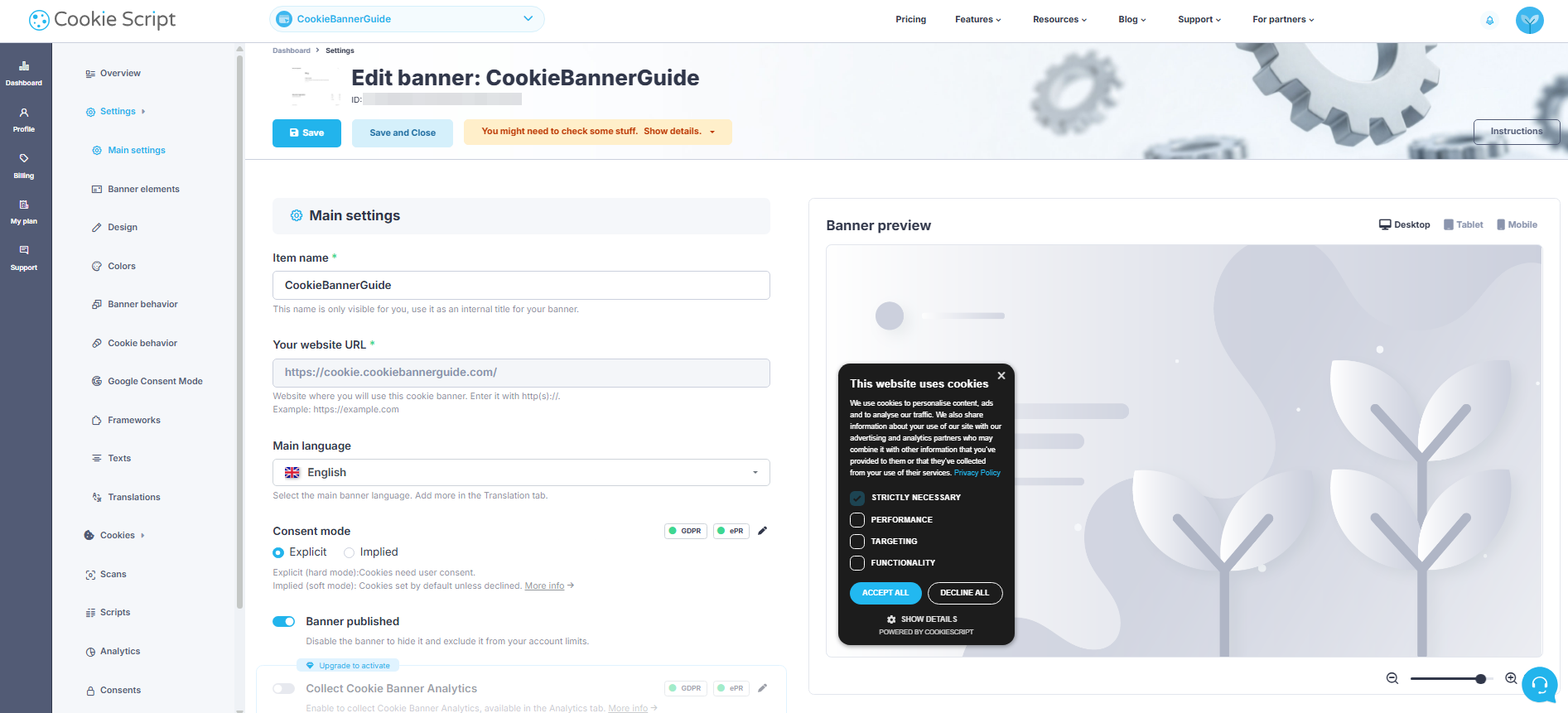
Open Main settings. Confirm that the item name, website URL, and main language belong to the correct website.
For this European example, select Explicit consent mode and apply the settings to GDPR and ePrivacy Directive. Explicit mode asks visitors to actively choose whether to allow optional cookies. You still need to verify that the services on your website respect that choice.
Keep Banner published enabled. This keeps the banner available while you configure it.
Do not select every privacy regulation automatically. Choose the regions that match your visitors and review the requirements that apply to your website.
Step 2 – Configure Consent Buttons and Cookie Categories
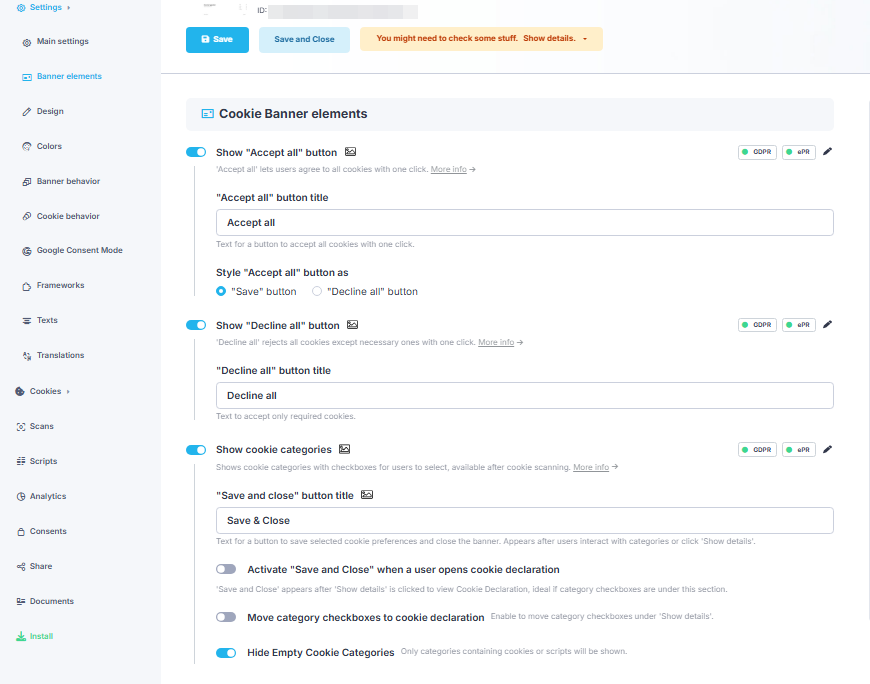
Open Banner elements. Enable both the Accept all and Decline all buttons so visitors receive two clear choices.
Enable Show cookie categories to let visitors choose between categories such as Performance, Targeting, and Functionality. The example enables Hide Empty Cookie Categories to keep the choice panel concise. Before hiding an empty category, check that your cookie and script records are complete; an empty report category does not prove that the website uses no related tracking.
Use clear button labels and make both choices easy to find. For changes to colors, layout or translations, follow our guide to customizing the CookieScript banner.
Step 3 – Configure Consent Details and the Cookie Badge
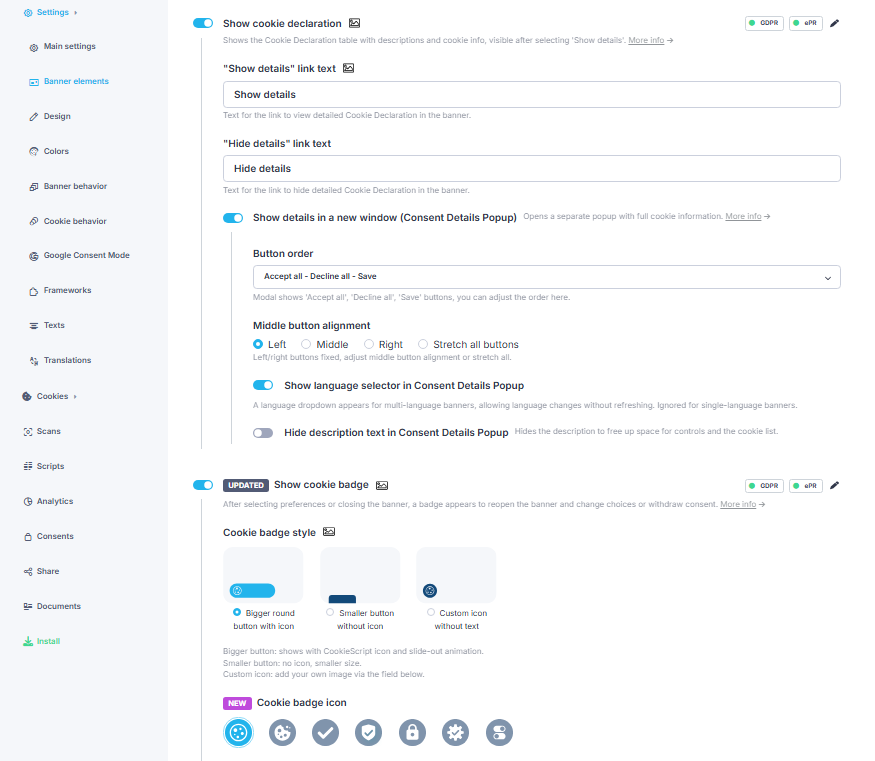
Keep Show cookie declaration enabled. The Show details link then allows visitors to review available categories and cookie information.
Enable Show details in a new window if you want the complete declaration to open in a separate Consent Details Popup. If your banner uses multiple languages, check that visitors can access the intended translations.
Keep Show cookie badge enabled. After the banner closes, the badge gives visitors a way to reopen their consent choices and change them later.
Step 4 – Add the Privacy Policy and Set the Close Button Action
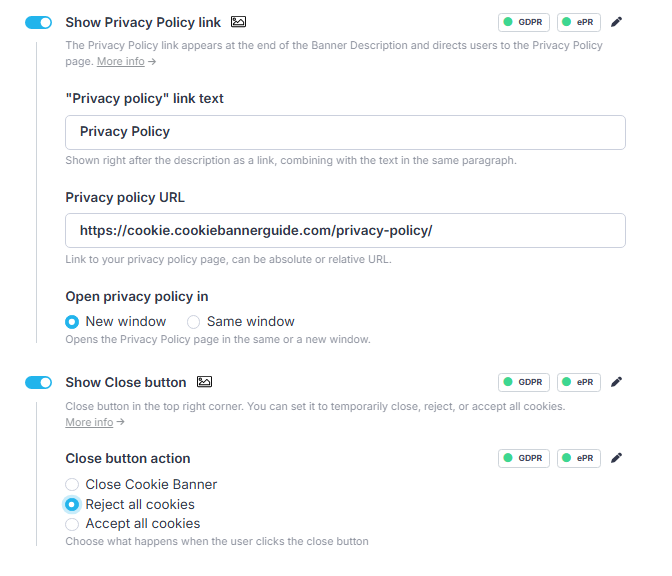
Enable Show Privacy Policy link and enter the complete address of your Privacy Policy. Test the URL to make sure it opens the correct page.
You can open the policy in a new window so the visitor does not lose the current banner view. Use a clear link title such as Privacy Policy.
If you display the X-shaped close button, set Close button action to Reject all cookies. This prevents closing the banner from being treated as permission to use optional cookies.
Step 5 – Review the Banner Behavior
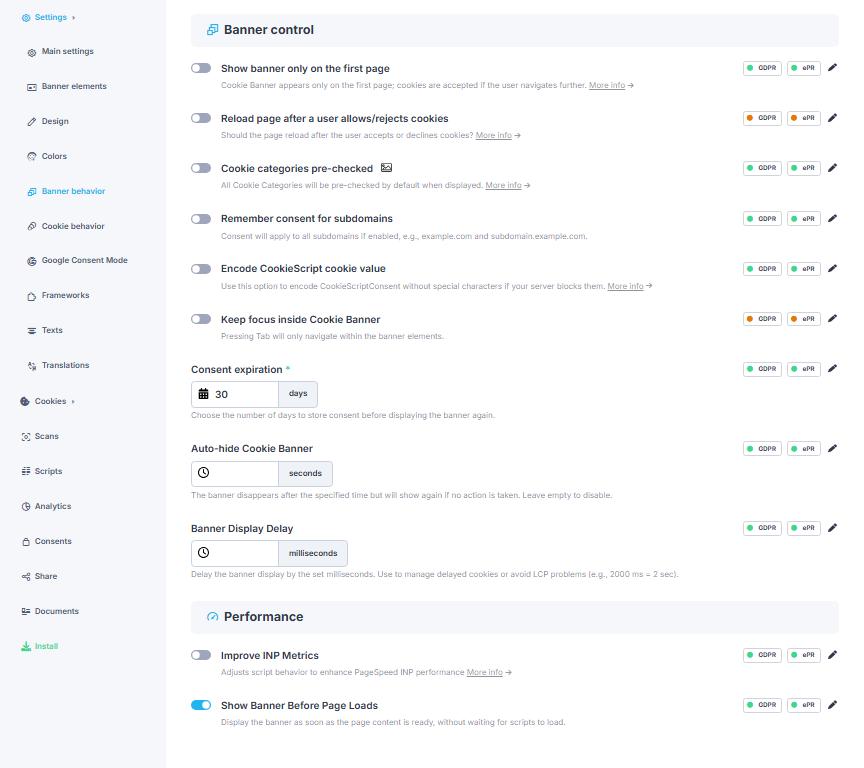
Open Banner behavior. Keep Cookie categories pre-checked disabled so optional categories are not selected before the visitor chooses them.
The screenshot uses a consent duration of 30 days. This is an example, not a universal recommendation; choose a duration appropriate to your requirements and consent setup. After this period, CookieScript can display the banner again and request a new choice. Leave Auto-hide Cookie Banner and Banner Display Delay empty if you want the banner to remain available without a delay.
Keep Show Banner Before Page Loads enabled. Enable Remember consent for subdomains only when the same disclosed services and consent choices apply across those sites. Test each relevant subdomain after saving.
Step 6 – Review Cookie Behavior
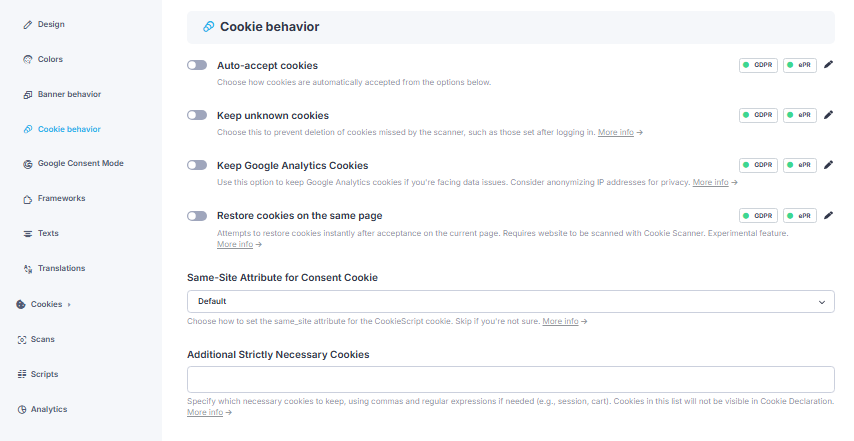
Open Cookie behavior. For a privacy-first starting point, leave Auto-accept cookies disabled. In this example, Keep unknown cookies and Keep Google Analytics Cookies remain disabled. Investigate unknown cookies and check that analytics follows the visitor’s choice. These options alone do not prove that every tracking script is blocked before consent.
Keep the consent cookie’s SameSite attribute set to Default unless your website requires a different value. Leave Additional Strictly Necessary Cookies empty unless you have identified a cookie that is genuinely required for a requested website function.
Do not mark a cookie as strictly necessary only to keep analytics or advertising running. Use our guide to identifying a cookie’s purpose and choosing its category before adding it to the necessary list.
Step 7 – Configure Google Consent Mode v2 if Needed
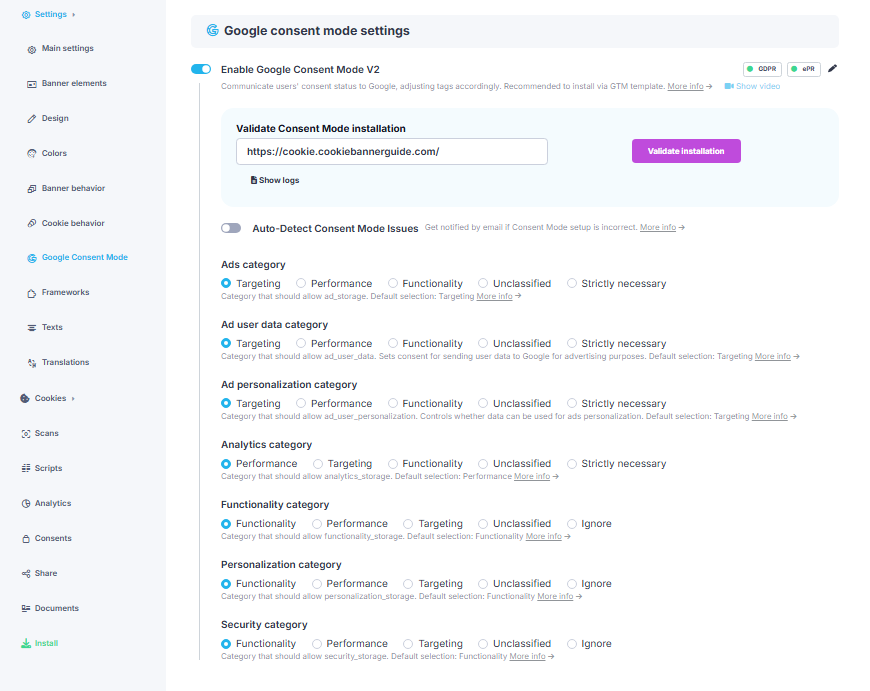
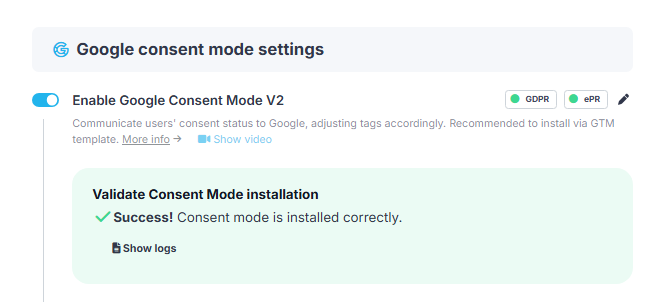
If your website uses Google Analytics, Google Ads or related Google tags, open Google Consent Mode and enable Google Consent Mode V2 for the integration used here. If your website does not use Google tags, skip this section and the Consent Mode validation below. You still need to save and test the banner.
Review which CookieScript category controls each consent signal. In this example, advertising storage, advertising user data and ad personalization use Targeting, while analytics storage uses Performance. Review the functionality and personalization signals according to the features used on your own website.
The screenshot also places security storage under Functionality. Do not copy that mapping automatically: security_storage relates to security functions such as authentication and fraud prevention. Check which service uses it and choose a mapping appropriate to that purpose. Google describes these signals in its consent type reference.
Check the WordPress plugin’s Consent Mode settings as well as the dashboard configuration. Keep one consistent integration rather than adding a second banner through GTM. Google explains how consent defaults and updates work in its Consent Mode documentation.
Step 8 – Save, Validate and Check the Banner
Click Save at the top of the settings page before checking the live website, so you test the saved configuration.
If you enabled Google Consent Mode, enter the website address in its validation field and click Validate installation. The successful result shown below reads Consent mode is installed correctly. This check concerns the Consent Mode installation; it does not certify every cookie, script or banner setting.
If validation fails, check the installation method and Google tag setup using CookieScript’s validation troubleshooting guide. Do not add a duplicate banner just to obtain a successful result.
Open the website in a fresh private browser session and test Accept All, Decline All, Show Details and the Privacy Policy link. Check the close button if enabled, then use the cookie badge to reopen preferences and change the saved choice. Start a fresh session when comparing a new visitor’s accept and reject choices, and repeat the checks on mobile.
For a more complete check, follow our cookie banner testing guide. It explains how to test a new visitor session and check what happens before and after consent.
Recommended Next Step
Next, review your CookieScript scan results and check the detected cookies, descriptions and categories. Resolve unknown entries before completing a full consent test.

Frequently Asked Questions
Common questions about this topic
This guide uses Explicit mode for a European setup. The appropriate setting depends on your visitors, applicable requirements, and how your website uses optional cookies.
This guide keeps optional cookie categories unchecked. Visitors can then actively select the categories they want to allow.
The badge lets visitors reopen the consent controls after the original banner has closed. They can review or change their saved preferences without clearing browser data.
No. It is mainly relevant when the website uses Google tags, such as Google Analytics or Google Ads. Enabling it does not replace the need to configure and test the consent banner correctly.
Review those sections after saving the main settings. Check the detected cookies, investigate unknown entries and confirm their categories before treating the setup as complete. The next guide explains the CookieScript scanning and cookie management process.