A CookieScript scan provides a starting list of cookies and browser storage, but the results still need review. This guide shows how to investigate unknown entries and update your cookie records using a WordPress test website.
To scan and manage cookies with CookieScript:
- run a website scan and check which pages it covered;
- review detected cookies in every category;
- research and correct unclassified entries;
- review local and session storage;
- confirm the updated information in the cookie declaration.
Scan completion and research time vary with your website’s size and the number of unknown items. A completed scan is the starting point for review, not proof that the setup is complete.
What You Need Before Running a Scan
CookieScript should already be installed and active. If needed, first review your CookieScript banner settings. The scanner needs access to the pages you want to check; this example uses a publicly accessible WordPress website.
A new or nearly empty WordPress website may contain very few cookies. A working website may also use services such as Google Analytics, embedded videos, contact forms, advertising tools, or ecommerce features. These services give the scanner more items to detect and review.
The test website includes Google Analytics and a YouTube embed to demonstrate different results. Your own report may contain fewer items. Do not add tracking services just to reproduce the example.
Step 1 – Open CookieScript Scanner and Start a New Scan
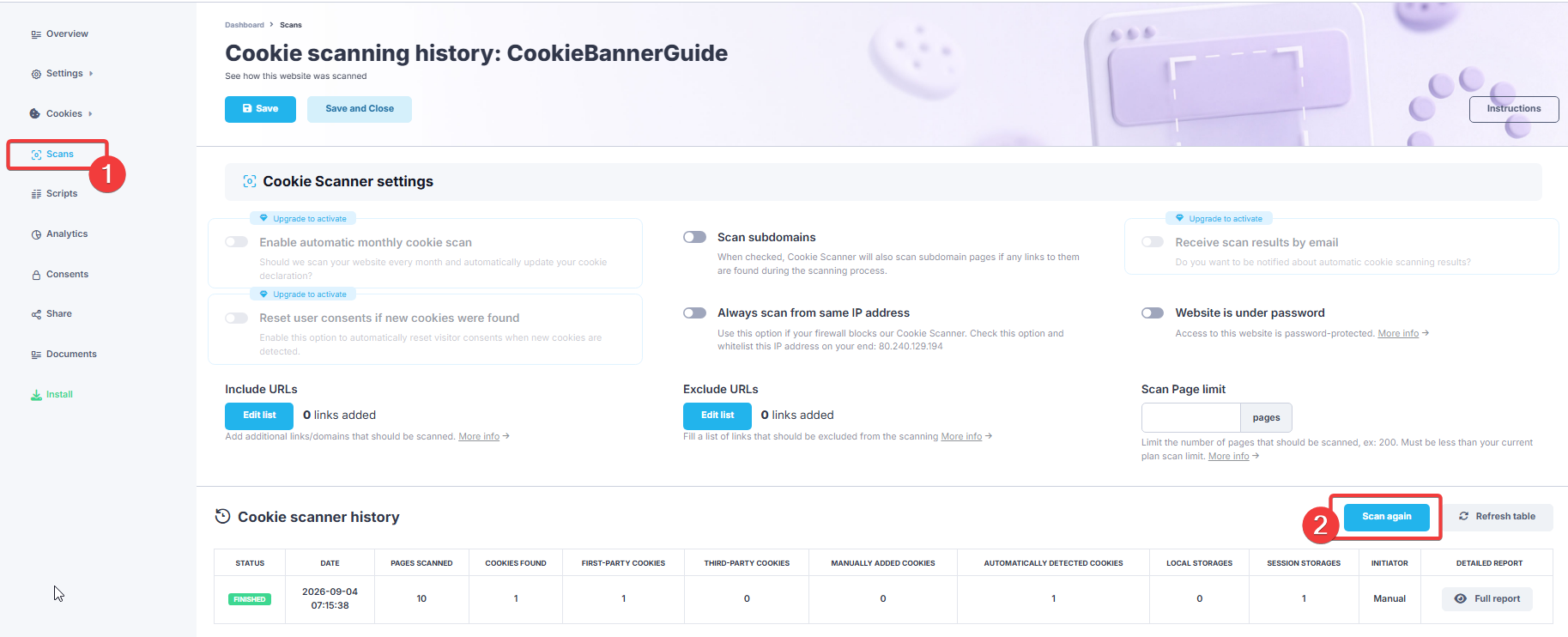
Sign in to CookieScript, open the banner connected to your WordPress website, and select Scans from the left menu.
The scanner page contains optional settings for subdomains, password-protected websites, included URLs, excluded URLs, and page limits. Check that the selected scope includes the pages and subdomains you need to review. Page limits, excluded URLs and restricted access can affect the result.
Scroll to Cookie scanner history and click Scan again. CookieScript may limit how frequently a manual scan can be started, depending on your current plan.
Step 2 – Review the Completed Scan
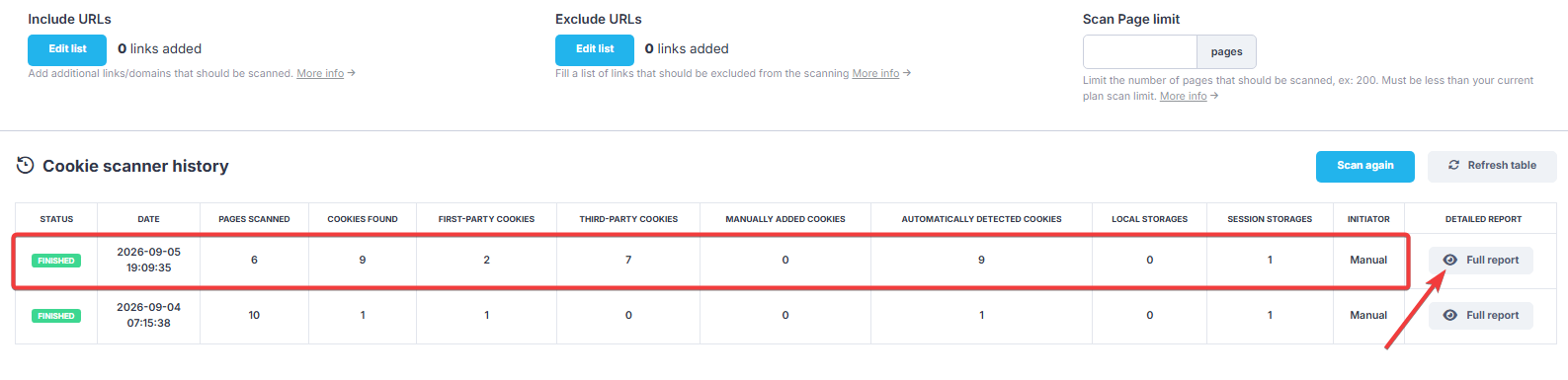
Wait until the scan status changes to Finished. The result table shows when the scan ran and summarizes what CookieScript found.
In this example, the new scan checked six pages and detected nine cookies. The earlier scan found one cookie; Google Analytics and the YouTube embed were added before the later scan. These counts describe this test website, not the result you should expect on every site.
Review the number of first-party cookies, third-party cookies, automatically detected cookies, local storage entries, and session storage entries. Then click Full report on the newest scan.
Compare the newest result with earlier scans to spot changes. Also review important pages manually: items that depend on login, video playback, form interaction or a different visitor region may not appear in every automated scan.
Step 3 – Check the Cookie Report Summary
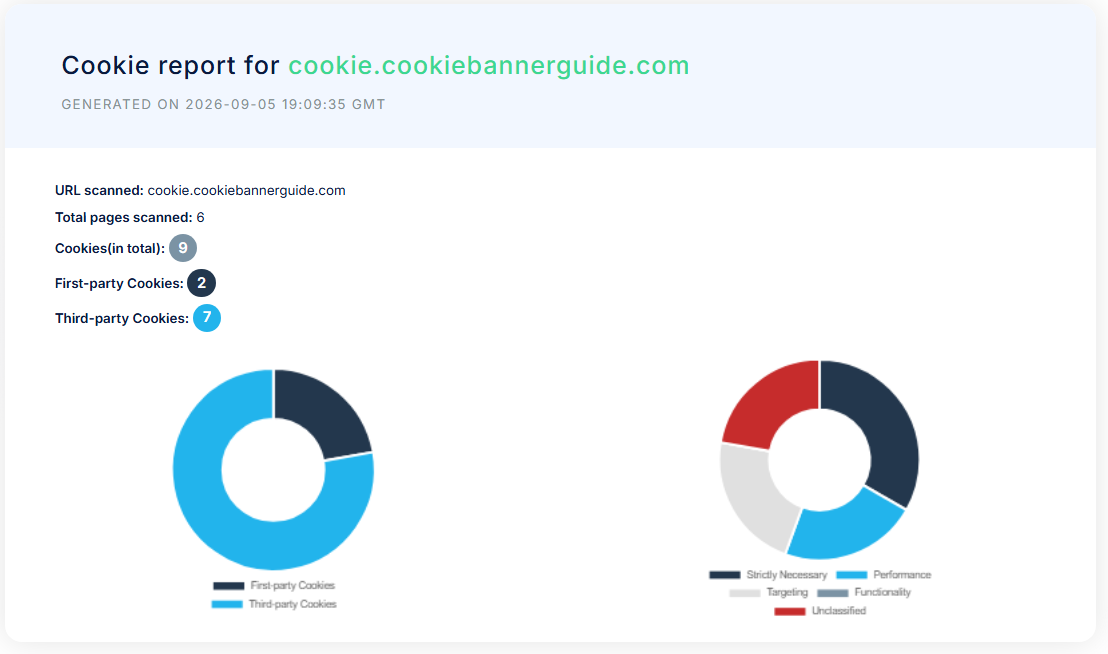
The full report opens with a summary of the scanned domain, number of pages, total cookies, and the split between first-party and third-party cookies.
The first chart compares first-party and third-party cookies. The second chart shows how the detected cookies are distributed across CookieScript categories, including Strictly Necessary, Performance, Targeting, Functionality, and Unclassified.
Use this summary to identify categories that need closer attention. An Unclassified result means CookieScript detected the cookie but could not confidently provide a completed classification.
Step 4 – Review Necessary and Performance Cookies
Scroll through every category in the full report. For each cookie, check its name, domain, path, type, expiration period, and description.
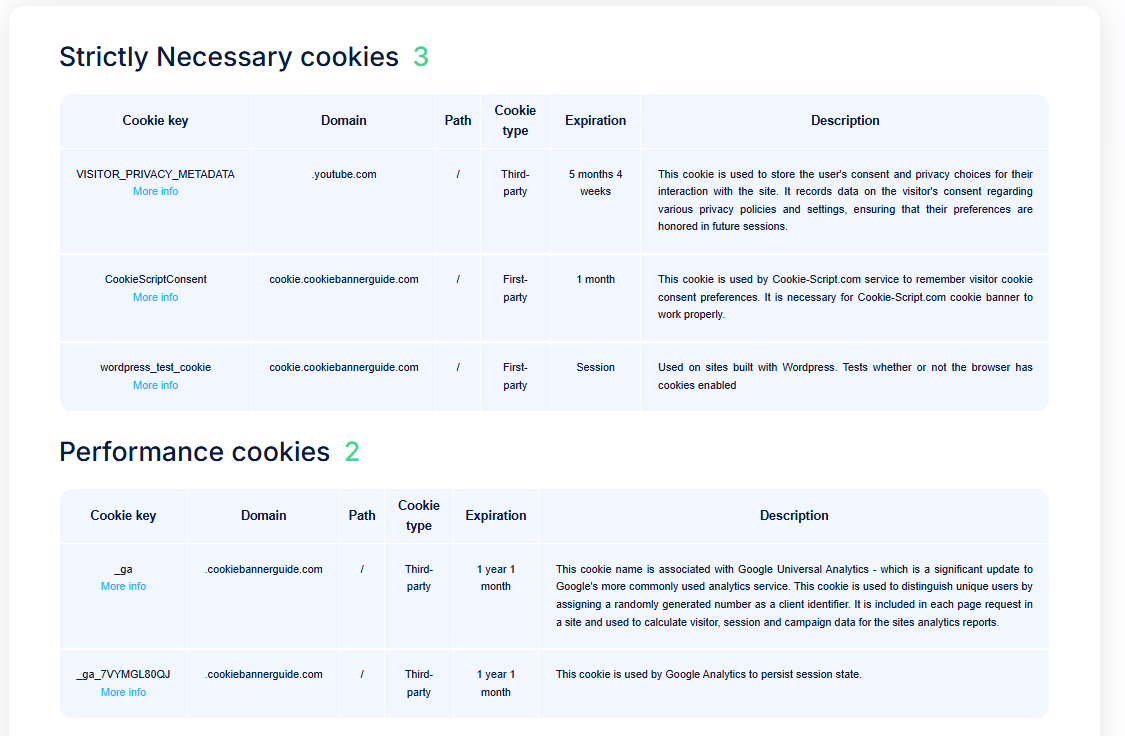
The Strictly Necessary section in this example contains CookieScript’s consent cookie, the WordPress test cookie, and a YouTube privacy preference cookie. The Performance section contains the Google Analytics cookie _ga and a property-specific cookie whose name begins with _ga_.
These are the categories shown in the example report, not a verified classification for every website. In particular, a cookie from an embedded service is not automatically necessary for your page. Check the provider’s description and the function the visitor requested.
Step 5 – Find Targeting and Unclassified Cookies
Continue through the report and look for Targeting, Functionality, and Unclassified sections. Targeting cookies commonly come from advertising, embedded media, or services that can track interactions across websites.
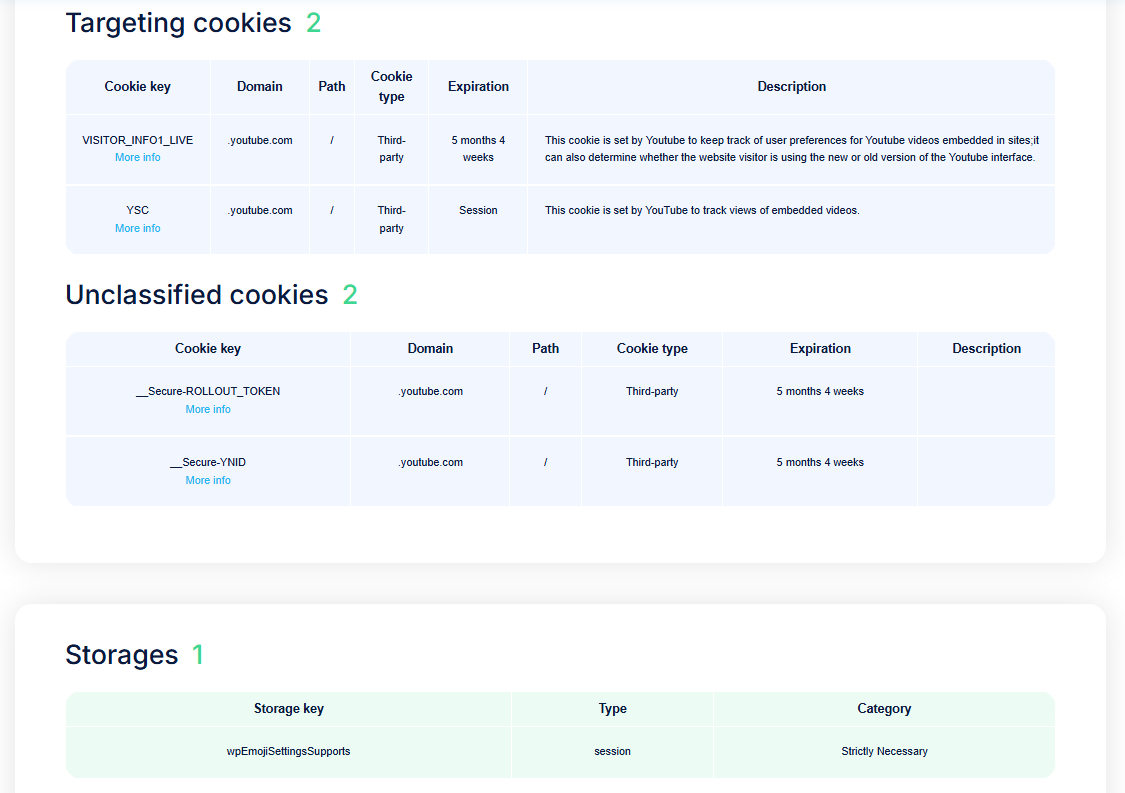
In the captured scan, CookieScript placed VISITOR_INFO1_LIVE and YSC under Targeting. Treat these as report results to review, not a universal rule. Google describes YSC as a session security cookie, so the report label alone is not enough to establish its purpose. It also found two YouTube cookies without a category or description: __Secure-ROLLOUT_TOKEN and __Secure-YNID.
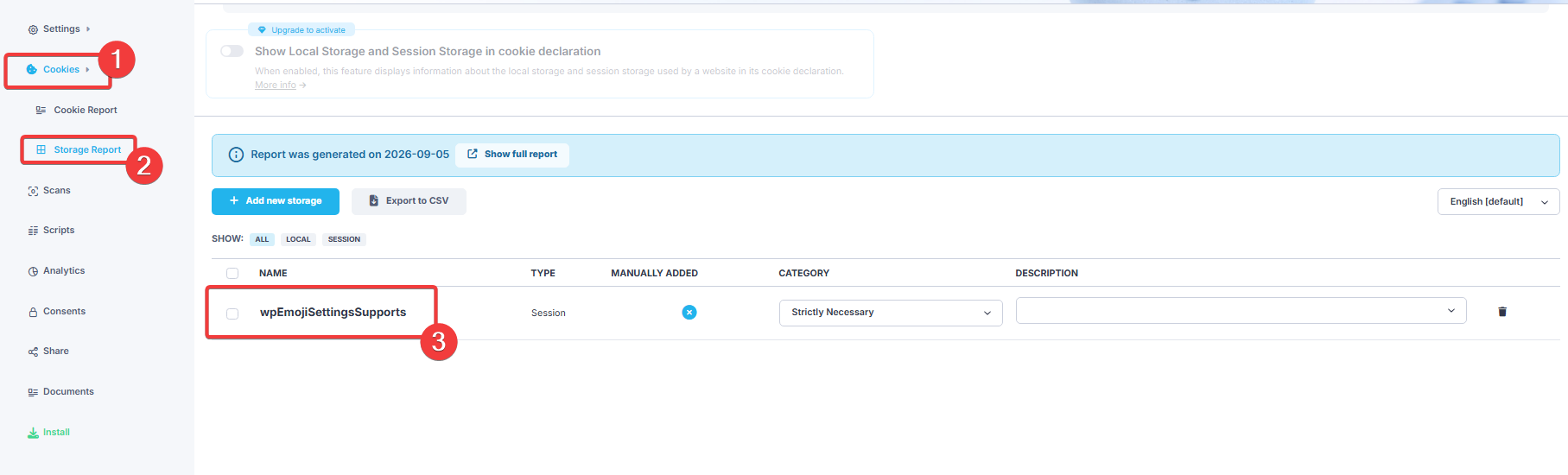
The report also lists detected browser storage. The example contains one session storage item called wpEmojiSettingsSupports.
Step 6 – Open the Editable Cookie Report
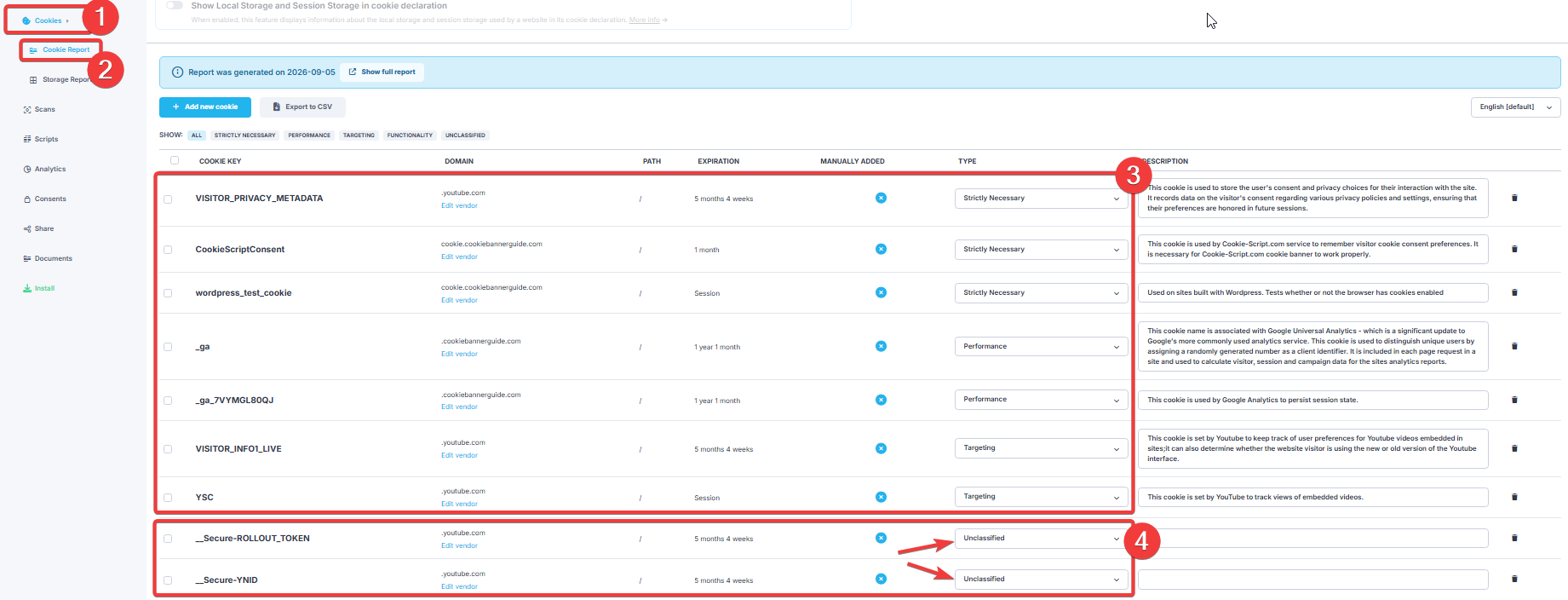
Return to the CookieScript dashboard and open Cookies → Cookie Report. Unlike the read-only full scan report, this page lets you manage the detected cookie records.
You can filter the list by category, change a cookie category, edit its description, update vendor information, add a missing cookie manually, or export the report as a CSV file.
Deleting a row from the report does not prevent the real cookie from being created. To stop a cookie, you must remove or correctly block the plugin, embed, or script that sets it.
Step 7 – Research and Categorize Unclassified Cookies
Do not choose a category from the cookie name alone. Start by checking the domain and any available description. The domain often identifies the service responsible for the cookie.
Search for the exact cookie name in the provider’s official documentation. Use a cookie database as a lead, then compare it with the domain and behavior on your website. For a complete research process, follow our guide to identifying a cookie’s source, purpose and category.
The table below summarizes CookieScript’s category labels. A label is not a legal exemption; check the actual purpose before deciding how consent should control the item.
| Category | Typical purpose | Common examples |
|---|---|---|
| Strictly Necessary | Supports a service or core function requested by the visitor | Consent preferences, security, login, and shopping cart |
| Functionality | Stores preferences or enables enhanced website features | Language, interface, and media player preferences |
| Performance | Measures website usage or performance | Analytics, page views, and usage statistics |
| Targeting | Supports advertising, profiling, or cross-site tracking | Advertising platforms, tracking pixels, and some media embeds |
| Unclassified | The purpose has not yet been confirmed | New or undocumented cookies |
Use Google’s cookie documentation to check the YouTube examples:
__Secure-ROLLOUT_TOKEN: Google lists this under Analytics and describes its use for feature launches and measuring their impact. For that documented purpose, Performance is a better match than Functionality in CookieScript.__Secure-YNID: Google identifies this as a replacement forVISITOR_INFO1_LIVEand describes functionality, analytics and, depending on settings, advertising uses. Do not assign Targeting solely because of the old cookie’s name; check which purposes apply to your embed.
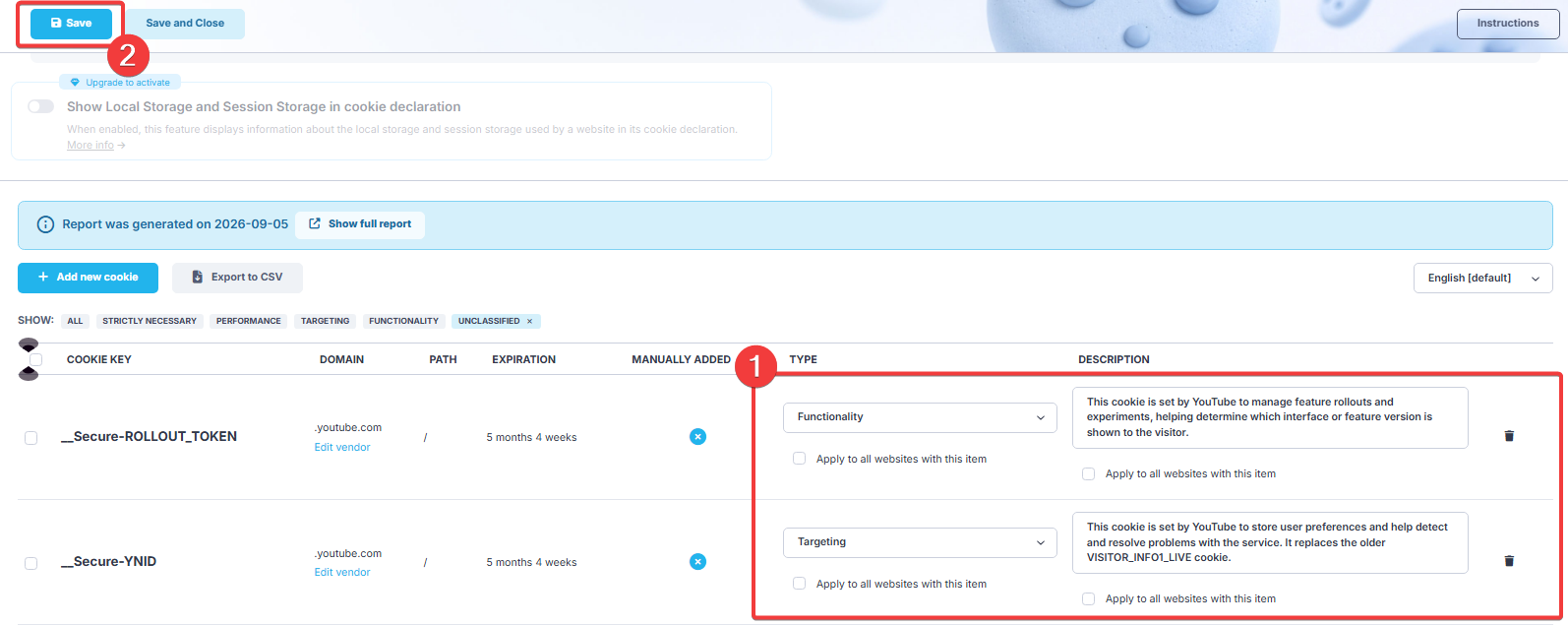
The screenshot below records an earlier manual edit and shows __Secure-ROLLOUT_TOKEN under Functionality. That example needs correction based on the documented analytics purpose. Use the screenshot to locate the editing controls, not as a category list to copy.
Add a short, plain-language description explaining what each cookie does. Leave Apply to all websites with this item unchecked unless you intentionally want the same change applied to every website in your CookieScript account.
Click Save after completing the changes.
If the purpose is still unknown, keep the record Unclassified while researching it. Do not assume that this label blocks the cookie: check the responsible script or embed and prevent optional tracking from running before the relevant consent. If you cannot establish its purpose or control its behavior, disable the source until you can review it. A first-party cookie is not automatically necessary.
Step 8 – Review Local and Session Storage
Open Cookies → Storage Report. This section lists detected Local Storage and Session Storage entries. If these are unfamiliar, see how browser storage differs from cookies.
The report shown here lists wpEmojiSettingsSupports as WordPress session storage and places it under Strictly Necessary. Review that result rather than accepting the category automatically.
Confirm the item’s source and purpose in the WordPress version used by your website. If it stores an emoji-support check, explain that function in the description and assess why it is needed. Being first-party, temporary or created by WordPress does not by itself establish that storage is strictly necessary.
Step 9 – Verify the Updated Cookie Declaration
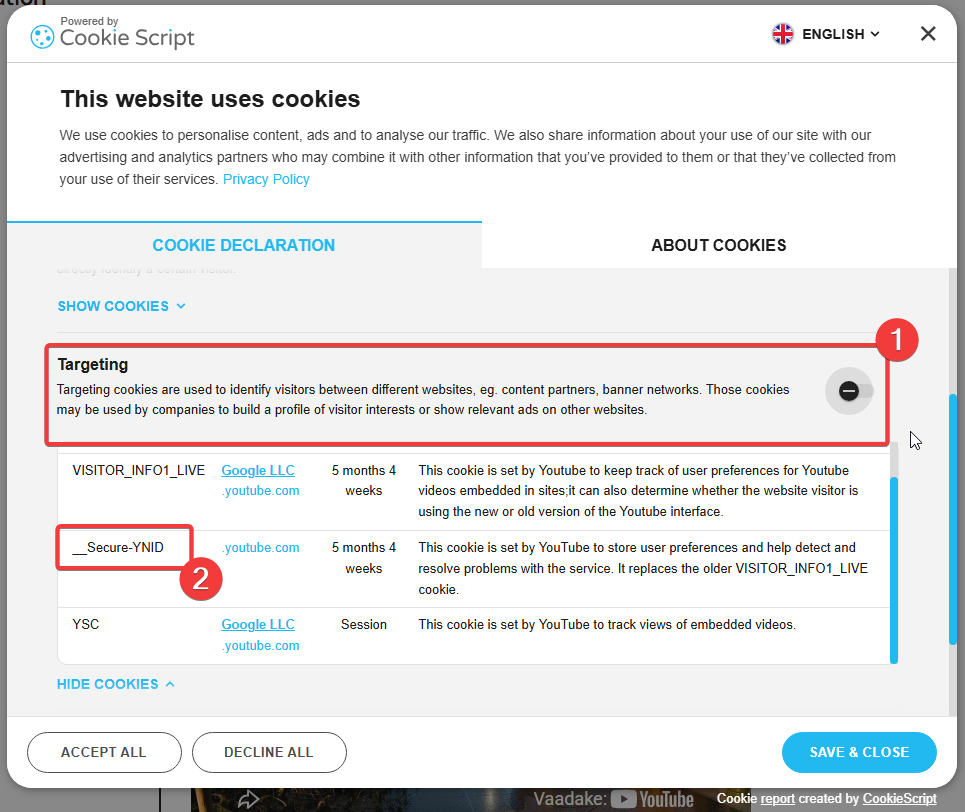
Open your website in a fresh incognito window and display the CookieScript cookie declaration. Expand the category that contains the edited cookie.
Confirm that the cookie name, provider, expiration period, category, and description match the changes saved in Cookie Report. The example shows __Secure-YNID under Targeting after an edit. This verifies that the saved entry appears in the declaration; it does not independently verify that the category is correct.
Check the other categories on desktop and mobile. Updating the declaration and controlling the script are separate checks. If optional cookies appear before the relevant consent, review the script or embed that creates them and repeat the test after correcting its consent behavior.
When Should You Run Another Cookie Scan?
Run a new scan whenever a change to the website could introduce, remove, or modify cookies. Useful times to scan include:
- after installing or removing a WordPress plugin;
- after adding analytics, advertising, chat, or payment tools;
- after embedding videos, maps, or social media content;
- after changing the website theme or tracking configuration;
- after finding an unexpected cookie during manual testing;
- as part of a regular cookie compliance review.
You do not need to repeat a scan immediately after every description edit. A new scan is most useful when the technologies running on the website have changed or when you want to check for newly detected items.
Before You Finish
- Check that the scan covered the important pages and services.
- Keep a record of the source and reasoning used for manual classifications.
- Investigate unresolved entries and verify how their sources are controlled.
- Confirm that the cookie declaration reflects the saved records.
Recommended Next Step
Next, test the banner in fresh visitor sessions. Check cookie and tracking behavior before consent, after rejection, after acceptance and after changing a saved choice.

Frequently Asked Questions
Common questions about this topic
CookieScript automatically recognizes and categorizes many common cookies. New, uncommon, or insufficiently documented cookies may remain Unclassified and require manual research.
Check its domain, identify the service that creates it and research its purpose using reliable documentation. Keep the record Unclassified if the purpose remains unknown, but do not assume that this label blocks the cookie. Check the responsible script or embed and disable it temporarily if you cannot establish its purpose or control its behavior.
No. Deleting the report entry does not stop the website or a third-party service from creating the cookie. The responsible script, embed, or plugin must be removed or blocked correctly.
The website may have gained a new plugin, analytics tool, embedded service, or advertising script. Scan results can also vary when different pages or service interactions are detected.
CookieScript can list detected Local Storage and Session Storage items in Storage Report. Their source, category, and purpose should be reviewed alongside regular cookies.
Scan after changes that may affect cookies and perform periodic reviews even when the website appears unchanged. The availability and frequency of automatic scans depend on the CookieScript plan.