This guide shows how to customize CookieScript’s appearance and banner text using a WordPress example. You will also learn how to add translations and check that the banner matches each page’s language.
To customize the CookieScript banner:
- choose a banner layout and position;
- select a light or dark color theme;
- review the Consent Details Popup;
- edit the banner title and description;
- add translations for multilingual websites;
- save and test the finished banner.
Allow around 10–15 minutes for basic design changes, plus time to review translations and test the result.
What You Need Before Starting
Before customizing the banner, make sure CookieScript is installed and connected to your WordPress website. The banner should already appear when you open the website in a fresh incognito window. If it is not connected yet, follow our CookieScript WordPress installation guide.
Review your CookieScript consent buttons and cookie behavior settings before focusing on appearance. Then open the CookieScript dashboard and select the banner you want to edit. The preview on the right updates as you change most design and text options.
Step 1 – Choose the Banner Layout and Position
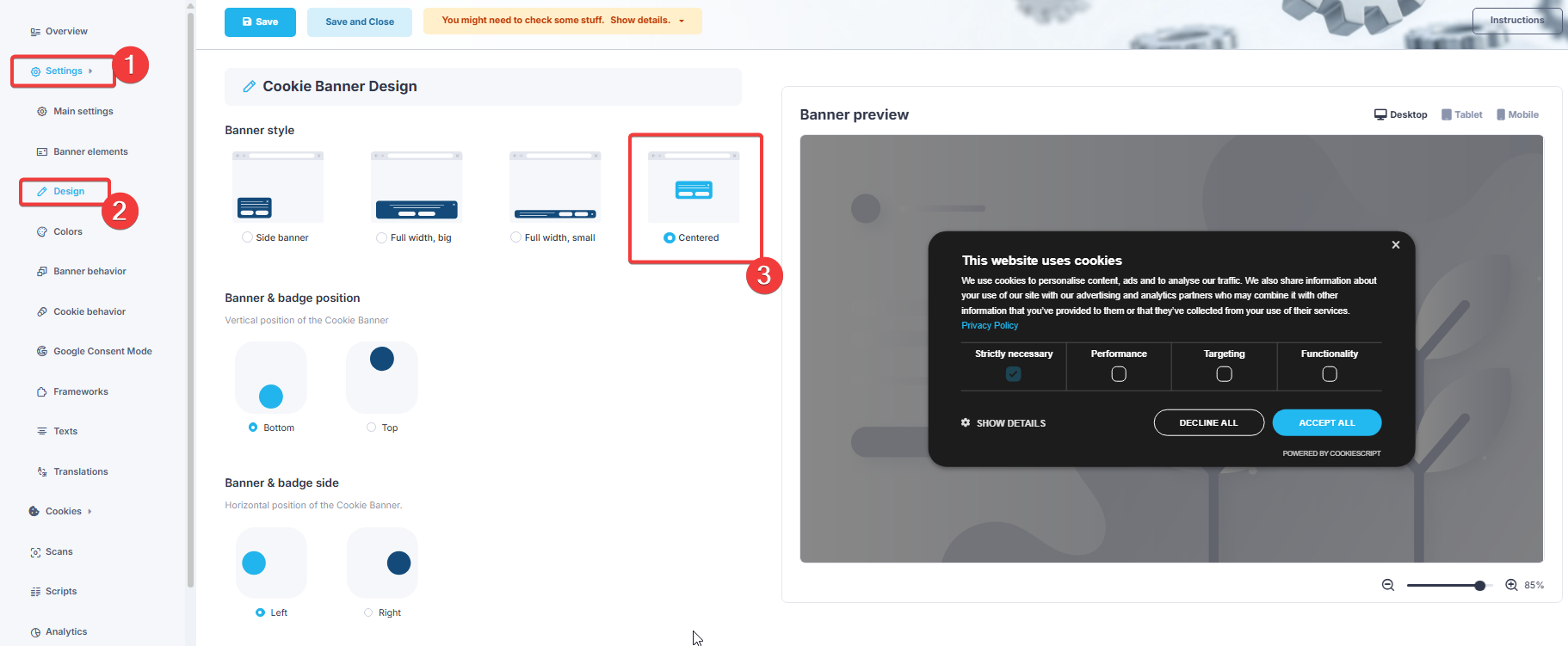
Open Settings → Design. CookieScript provides several starting layouts, including a side banner, two full-width options, and a centered banner.
The example selects the Centered layout. Treat the banner layout and the position controls as separate choices: check where the main panel appears, then dismiss it and check the cookie badge.
The screenshot also shows Bottom and Left position values. Do not interpret these as an instruction to move a centered panel to the bottom-left corner. Use the preview and the saved website to check which element those controls affect in your selected layout.
Use the desktop, tablet, and mobile preview controls to check how the selected layout fits different screen sizes.
Keep Accept All and Decline All easy to find and read. Also check that visitors can reach the preference controls and that the cookie badge does not cover another important button.
Step 2 – Select the Cookie Banner Colors
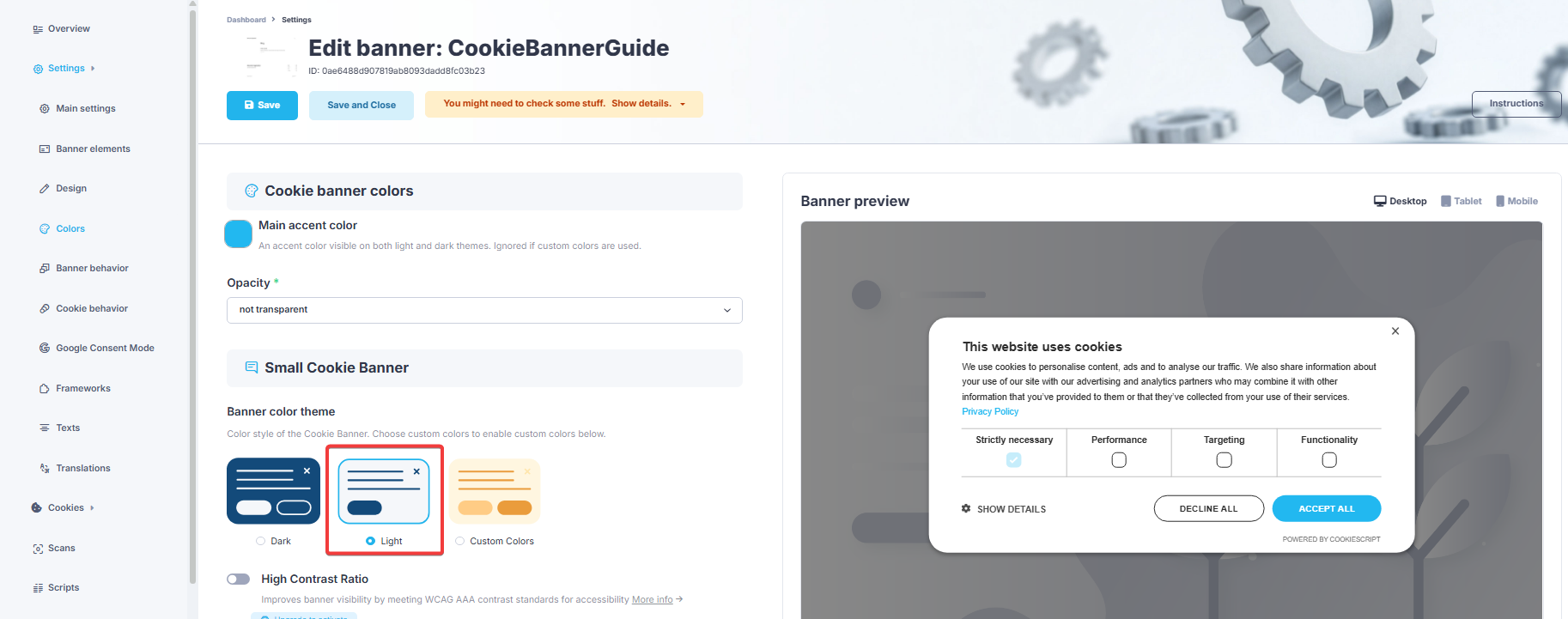
Open Colors. Start by selecting the main accent color used for buttons and other interactive elements. Choose a color that remains visible against both light and dark areas.
The example uses the Light banner theme with no transparency. This creates a clean white banner with a blue accent button and dark text.
You can also choose the Dark theme or use Custom Colors. Some advanced color and contrast controls may display an upgrade notice, depending on your CookieScript plan.
Step 3 – Review the Consent Details Popup Design
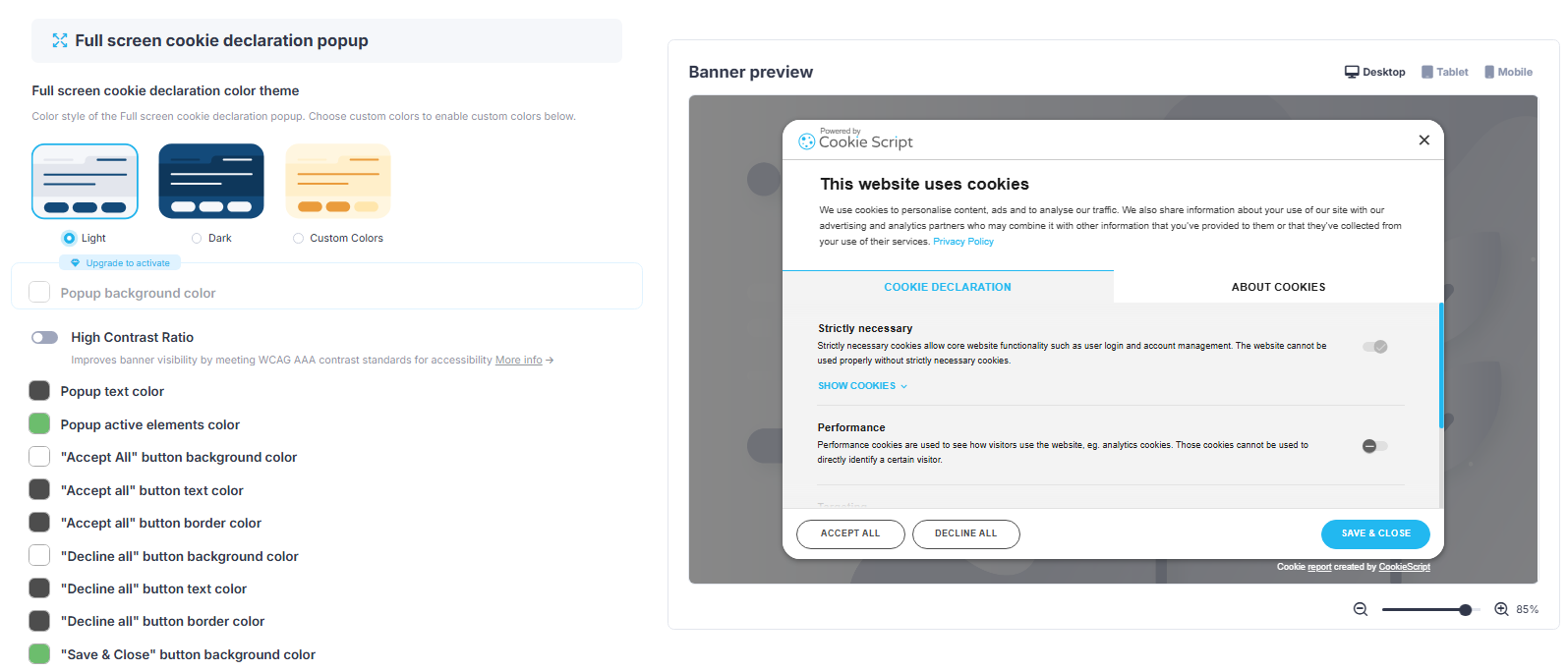
Scroll to Full screen cookie declaration popup. This is the detailed view visitors see when they open the complete cookie declaration.
Select a popup theme that matches the main banner. The example uses the Light theme. Review the text, active element, and button colors in the preview to make sure the content remains readable.
Use the controls available in your account; an upgrade notice identifies a restricted option. Check our CookieScript plan comparison before upgrading for a design feature.
Step 4 – Edit the Cookie Banner Text
Open Texts. The Banner title is the first message visitors see, so keep it short and direct. The screenshot adds – test temporarily to demonstrate how the preview updates while you type.
Review the main banner description and make sure it accurately explains how the website uses cookies. Review any Google Consent Mode text that applies to your setup, and give the cookie badge a clear accessible label such as “Cookie settings”.
The preview updates when you edit the fields. Remove any temporary test wording before saving, then check that the final title and description fit without making the banner difficult to scan.
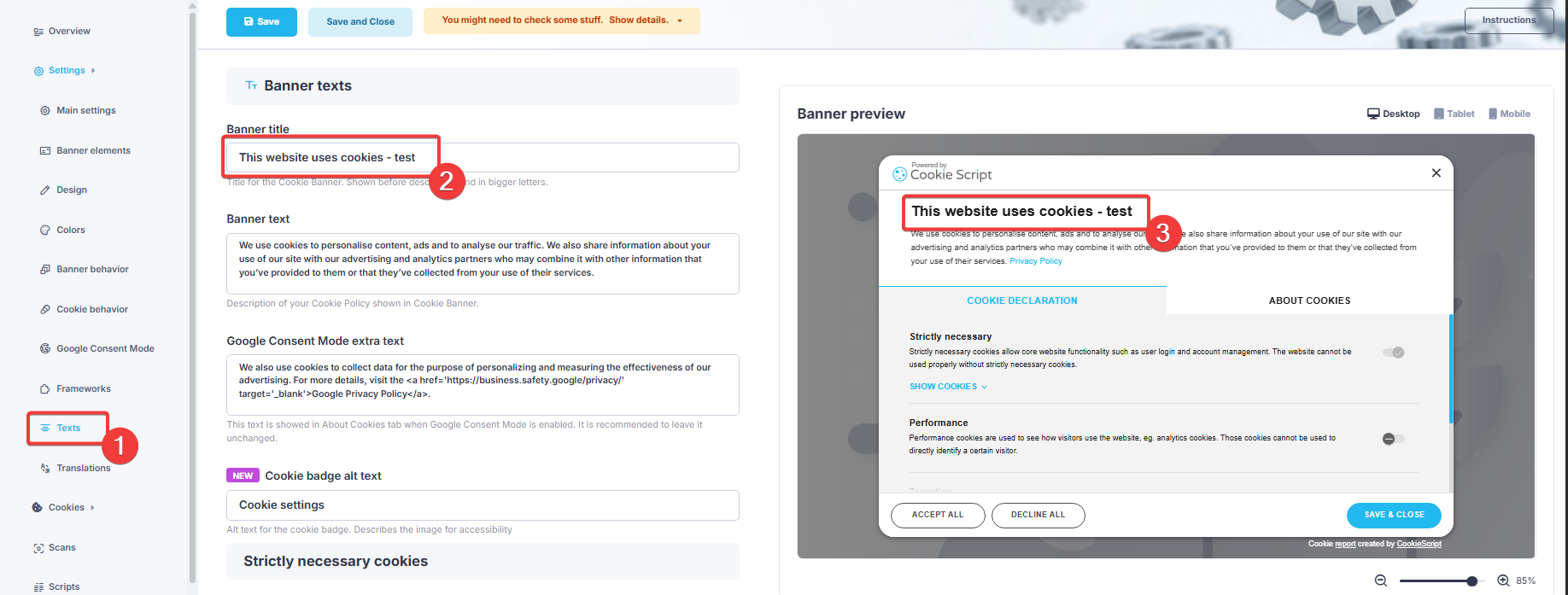
Do not copy a generic description without reviewing it. The banner text should match the cookies and tracking services actually used by your website.
Step 5 – Enable Additional Banner Languages
If your website is available in more than one language, open Translations and enable Additional languages.
A single-language website can leave this option disabled. In that case, CookieScript always displays the default banner text configured under Texts.
Add the required translations first, then choose how CookieScript should select among them. For the HTML-tag and URL methods below, the page language is the input; changing only the browser’s interface language is not a useful test.
CookieScript provides four language detection options:
| Detection method | How it works | When to use it |
|---|---|---|
| Auto detect | CookieScript first checks the page’s <html lang=""> value. If no language is found there, it checks the current page URL for a language code. |
Use this when your multilingual website may identify its language through either the HTML tag or the URL. |
| HTML tag only | CookieScript uses only the language code in the page’s HTML tag, such as <html lang="de">. |
A practical choice when WPML or another multilingual plugin sets the correct HTML language attribute on each page. |
| Webpage URL only | CookieScript checks the page URL for a language code. For example, example.com/de/ can activate the German translation. |
Use this when each language has a clear language code in its URL and the HTML language tag is unavailable or unreliable. |
| Disabled | CookieScript does not automatically switch between translations. | Use this for a single-language website or when you want the original banner language to be displayed on every page. |
For example, with English as the original language, a German translation added and HTML tag only selected, <html lang="de"> identifies a German page and <html lang="en"> identifies an English page. For WPML, verify the language attribute on your actual pages before relying on this method.
CookieScript explains these options in its website language detection guide.
After selecting the language detection method, click Add new translation.
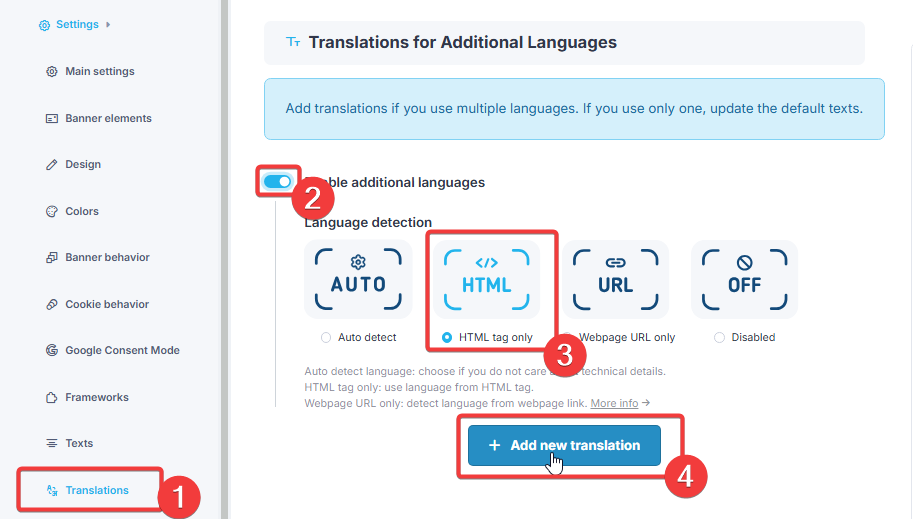
Step 6 – Add a New CookieScript Translation
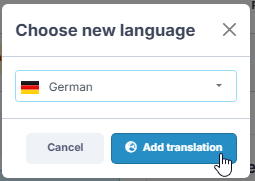
Choose the language you want to display from the dropdown. This example adds German.
Click Add translation. CookieScript provides prepared translations for supported languages, so the standard banner title, description, consent buttons and other common fields are filled automatically.
Repeat this for each language your website supports. Adding a translation makes it available; the detection method selected in Step 5 determines when it is used.
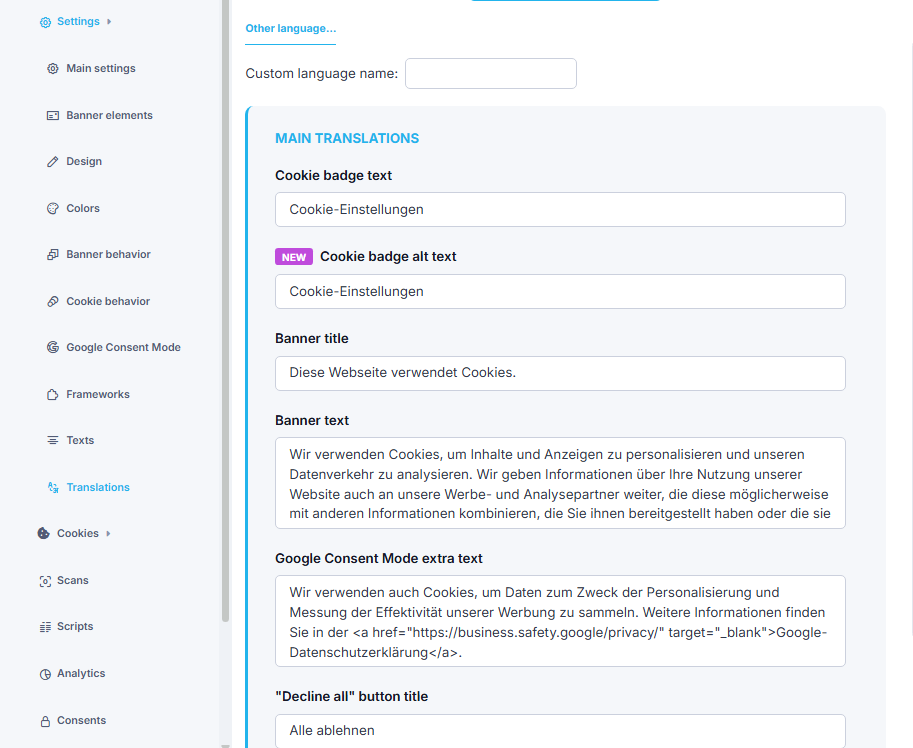
Step 7 – Review the Translated Banner Text
After adding the language, CookieScript displays the translation fields for that language. These can include the cookie badge text, banner title, banner description, Google Consent Mode text, cookie category descriptions and consent button labels.
Review every field before saving. Prepared translations provide a useful starting point, but they may not match your website’s tone or terminology exactly.
Pay particular attention to:
- Website and company names
- Privacy Policy wording
- Cookie category names
- Custom banner messages
- Google Consent Mode text
- Accept, decline and settings button labels
If a specific field has no translated value, CookieScript may display the original text for that field. This can result in a banner containing more than one language, so review the complete translation rather than checking only the banner title.
CookieScript’s translation instructions provide additional information about adding and saving banner languages.
Step 8 – Save and Test the Customized Banner
Click Save after completing the design, text and translation changes. Open the website in a fresh incognito window and confirm that the customized banner appears.
Check the desktop, tablet and mobile layouts. Test the banner title, Privacy Policy link, consent buttons, Show Details view, close button and cookie badge.
For a multilingual website, visit each language version and check the banner title, description, buttons and cookie details. Test both a fresh visitor session and the preference panel after saving a consent choice. A saved choice may remain valid when the visitor changes language, so the banner does not have to reappear automatically.
If the wrong language appears:
- Confirm that you added and saved the required translation.
- With HTML tag only, inspect the page’s opening HTML tag and check that its language matches the page.
- With URL detection, check that the current URL contains the expected language code.
- If the installation explicitly forces a banner language, review that setting; CookieScript documents that a script-level language override takes priority over automatic detection.
Also use the keyboard to reach the consent buttons, preference controls and cookie badge. Check that focus is visible and text remains readable when zoomed.
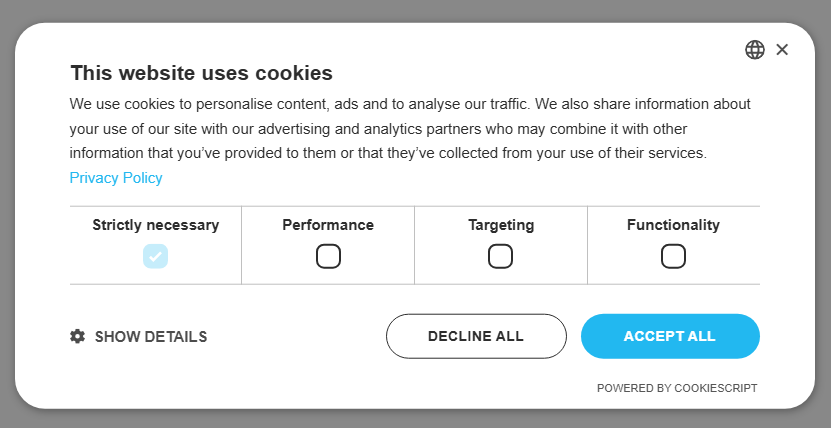
Use our cookie banner testing guide for a more complete consent test.
Recommended Next Step
Next, review your CookieScript scan results and check the cookie categories and descriptions shown to visitors. If you have already completed that review, use the testing guide above to verify the finished setup.

Frequently Asked Questions
Common questions about this topic
Yes. The CookieScript dashboard provides visual controls for layouts, themes, colors, text, and translations. Most changes can be reviewed in the built-in preview.
The dashboard shows which controls are available for your current plan. Settings marked with an upgrade notice require a higher plan, while standard themes can be used without advanced color controls.
Yes. You can add multiple banner translations and choose how CookieScript detects the active website language. Each added translation should be reviewed before publishing.
HTML tag detection is a practical option when WPML correctly updates the HTML language attribute on every translated page. Test each language version after saving.
The colors and wording can remain consistent, but the layout must also fit a smaller screen. Use the mobile preview and test the real website on a phone.