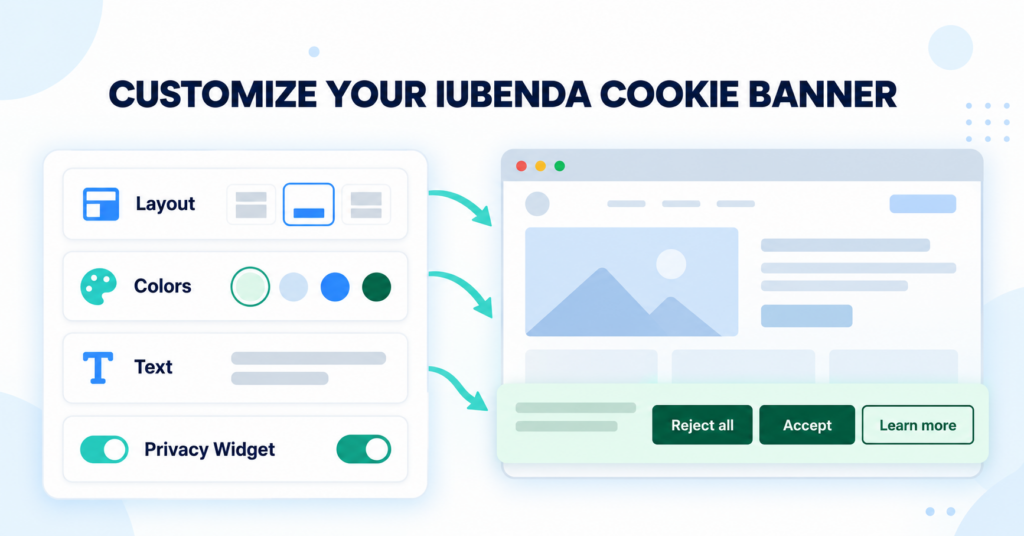
Once your iubenda banner is working on WordPress, you can adjust how it looks and what it says. In this guide, I’ll show you where to change its position, theme, text and button labels, and how to set up the privacy widget so visitors can reopen their preferences. I’ll use my own setup as an example and check the saved result on the live website.
To customize your iubenda cookie banner on WordPress:
- open the Privacy Controls and Cookie Solution settings;
- choose the banner format and position;
- review the text and button labels;
- select a theme and adjust the privacy widget;
- save your changes and check the banner on your website.
What You Need Before Starting
This guide starts with iubenda already connected to WordPress and a banner appearing on your website. Sign in to your iubenda account and open the website whose banner you want to customize.
If iubenda is not yet connected to your website, follow our iubenda WordPress installation guide first.
The screenshots show the settings used for our website. Choose a layout, text and colors that fit your own site. The preview helps you make changes, but check the saved result on the live website as well.
Step 1 – Open the iubenda Banner Settings
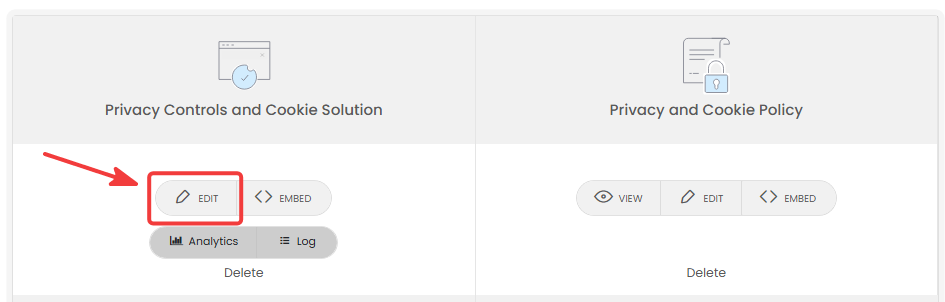
On your website’s iubenda dashboard, find the Privacy Controls and Cookie Solution panel and click “Edit”. The Privacy and Cookie Policy panel beside it has a separate Edit button for the policy document; that is not the one you need for banner design.
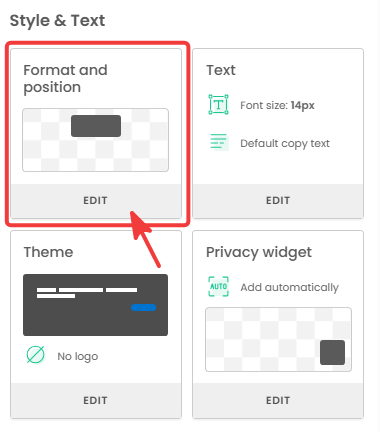
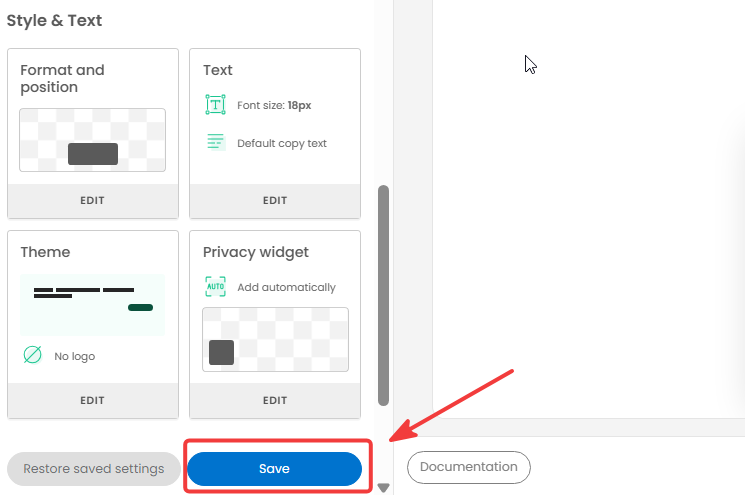
In the configuration screen, scroll to Style & Text. You will see separate cards for Format and position, Text, Theme and Privacy widget.
Step 2 – Choose the Banner Format and Position
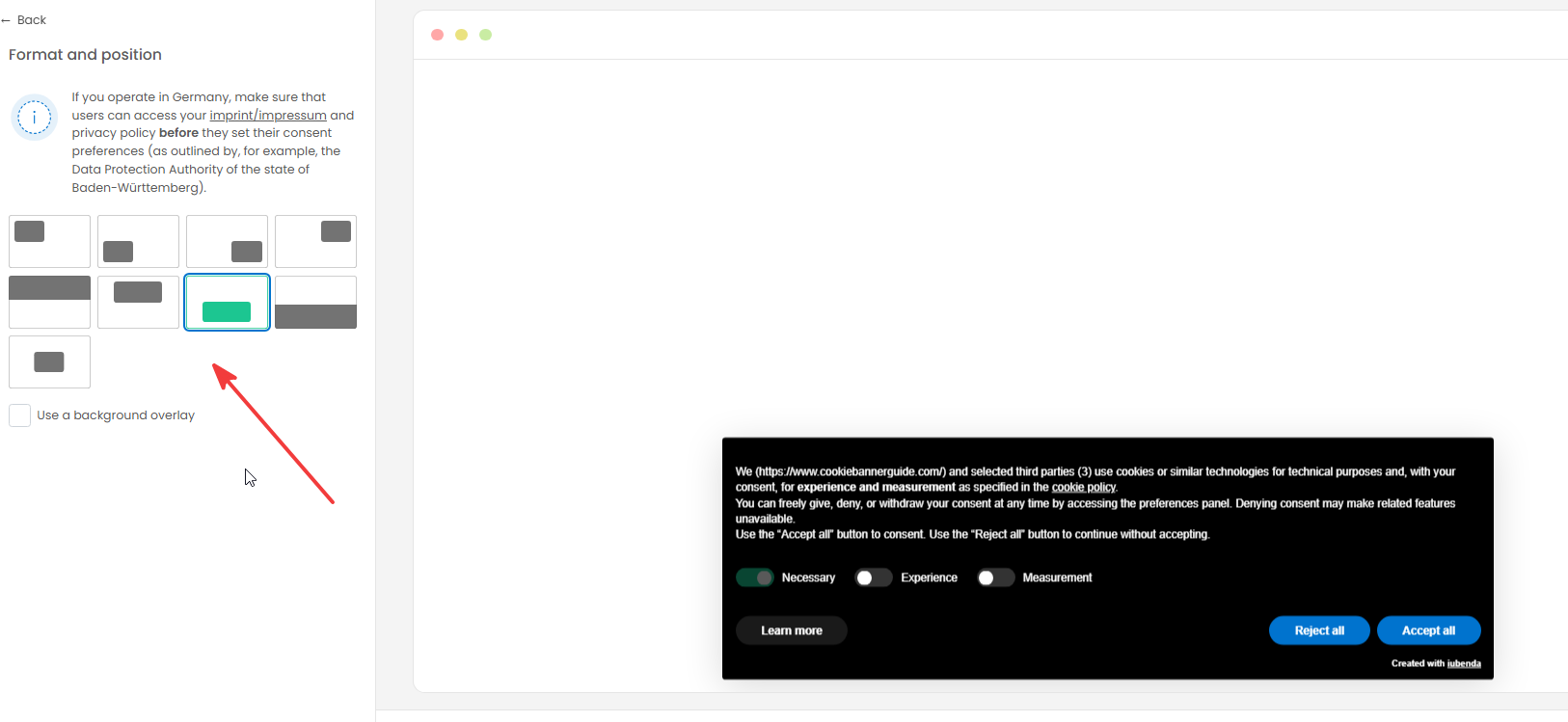
Under Format and position, click “Edit”. Select one of the layout tiles on the left and watch the preview on the right. The selected tile shows where the banner will appear and whether it uses a compact or wider layout.
Our example uses a wide banner near the bottom of the page. You can also enable Use a background overlay if you want the rest of the page shaded while the banner is open. Check the preview before deciding whether that effect suits your website.
Step 3 – Review the Banner Text and Button Labels
Go back to Style & Text and open Text → Edit. Here you can adjust the font size, enable a banner title, enter custom body text and change button labels such as Accept, Reject and Learn more and customize. Watch the preview as you make changes so the text remains easy to read.
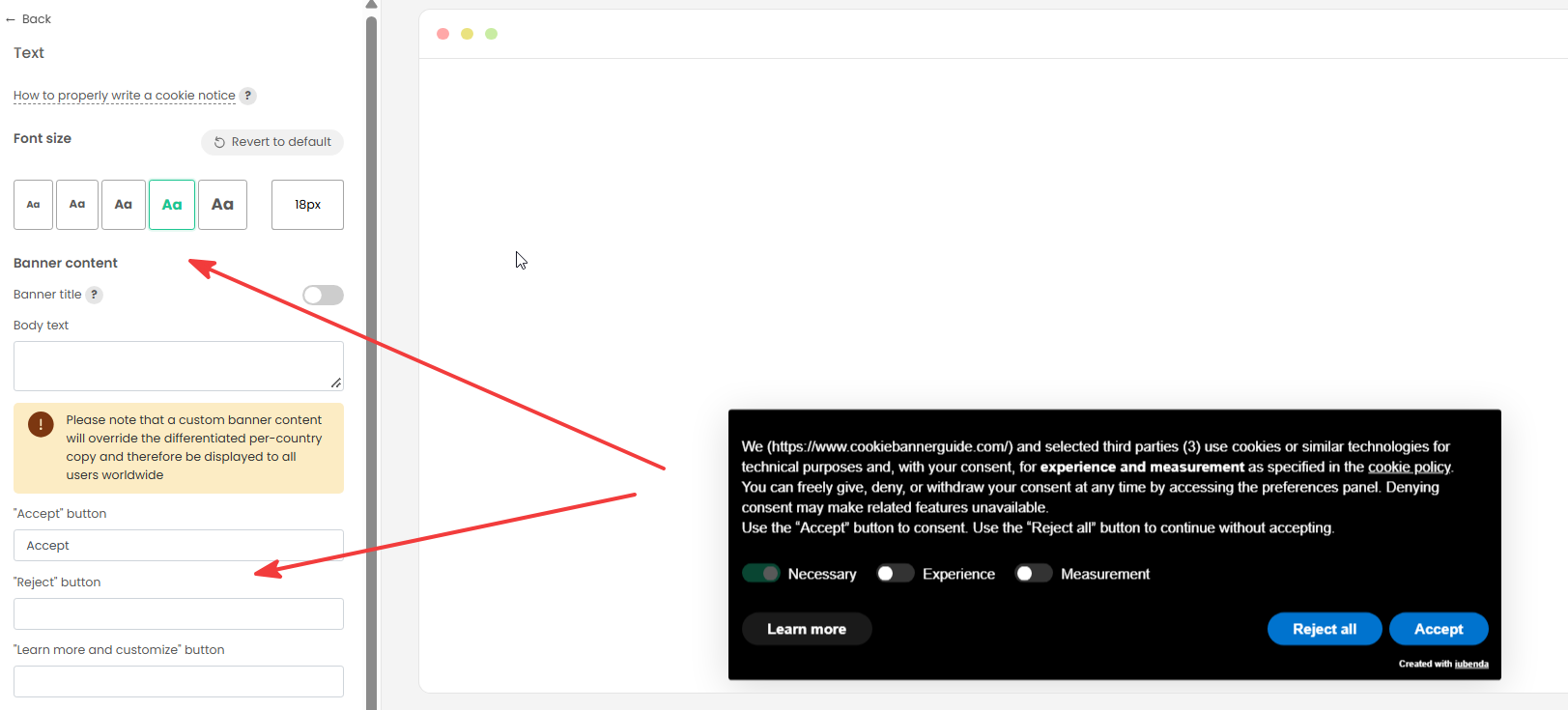
The Text screen warns that custom banner body text overrides iubenda’s different default wording for different countries and is shown to all users. Review that effect before replacing the body text, especially if your website serves visitors in more than one region.
Our example keeps the default body text and changes the visible button label to Accept. You do not need to fill every field: leave a label unchanged when the existing wording already works for your visitors.
Step 4 – Select a Theme and Review the Logo
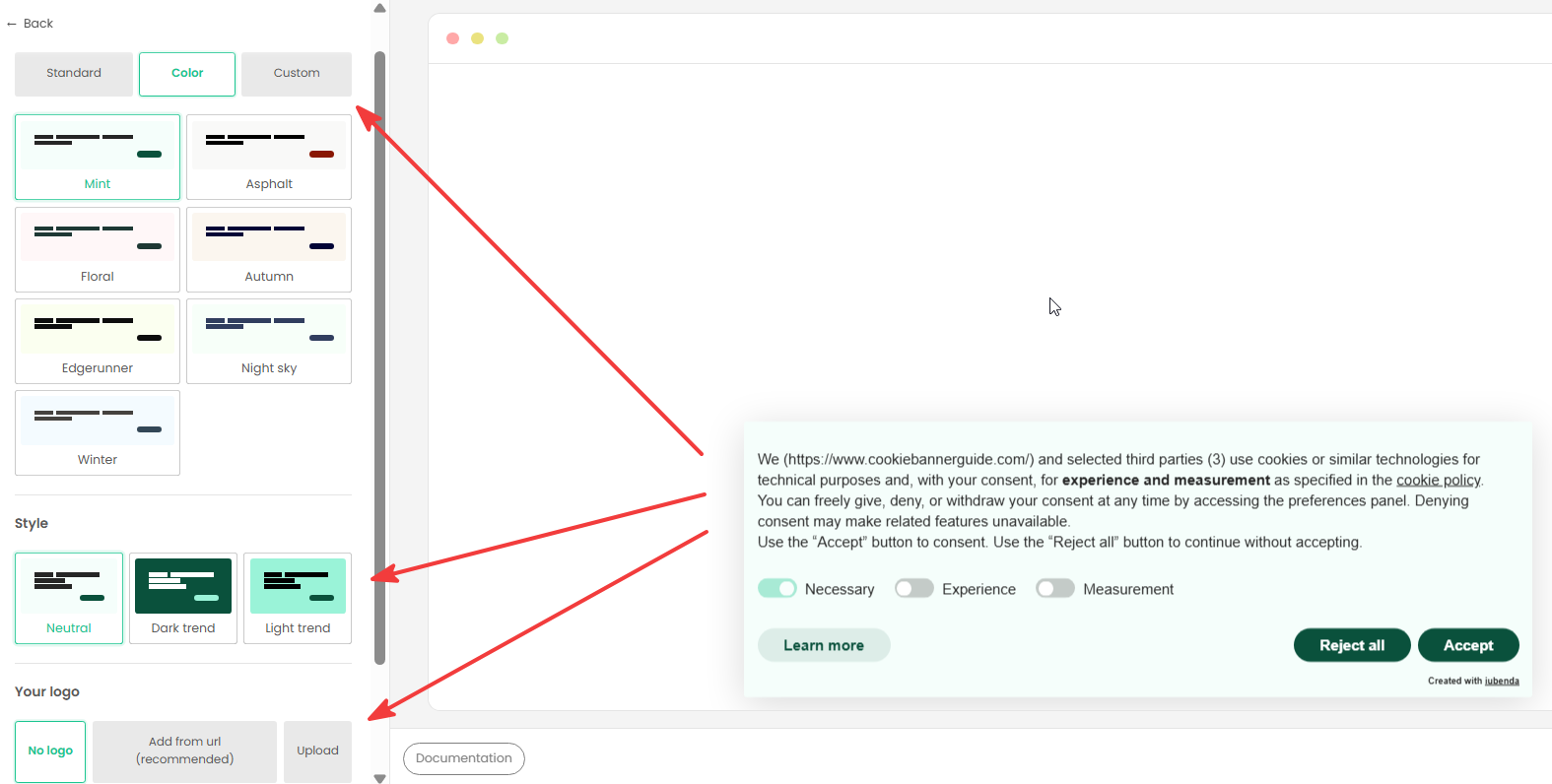
Return to Style & Text and open Theme → Edit. You can choose a standard theme, select one of the prepared color themes or explore the custom options available in your account. The preview shows how the banner background, text and buttons look together.
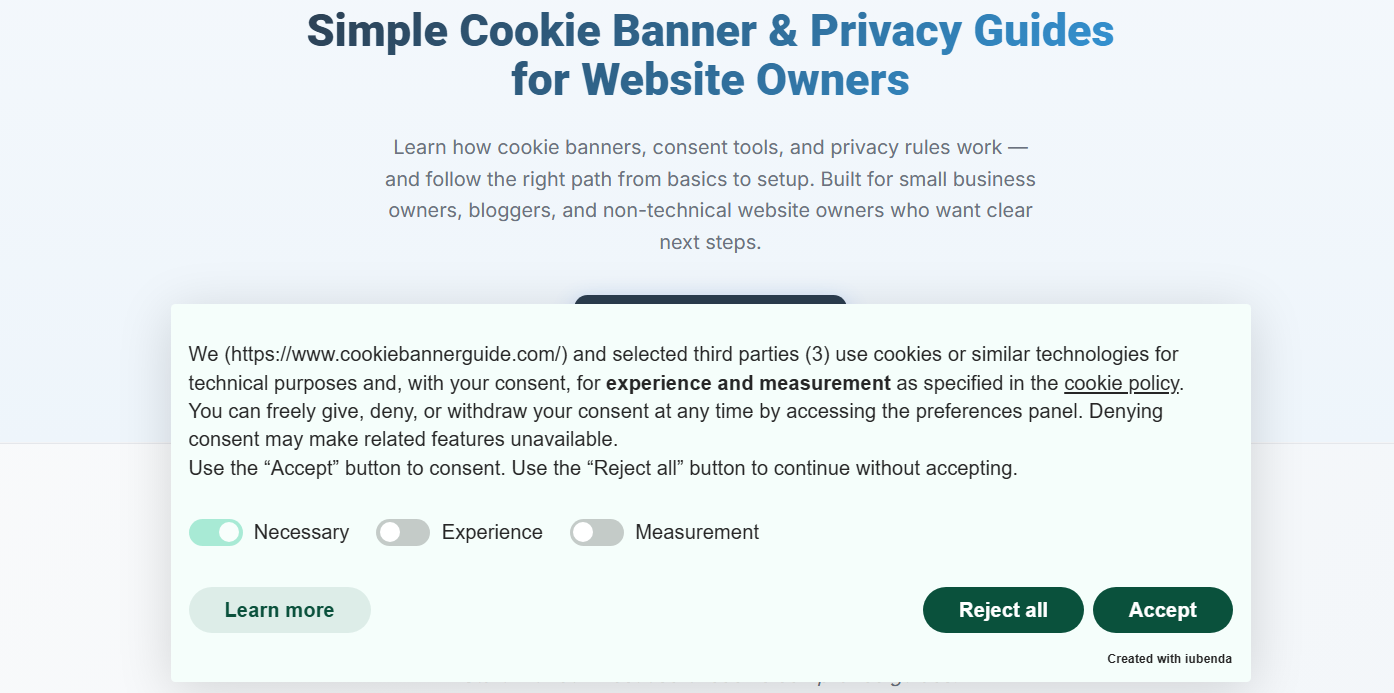
In this example, we selected the Mint color theme and kept the Neutral style. The banner uses a pale background and dark green buttons. Check that the text and every button remain readable with the colors you choose.
The same screen also lets you choose whether to show a logo. We left No logo selected. Add one only if it makes the banner clearer for your visitors and still fits comfortably on smaller screens.
Step 5 – Set the Privacy Widget Position
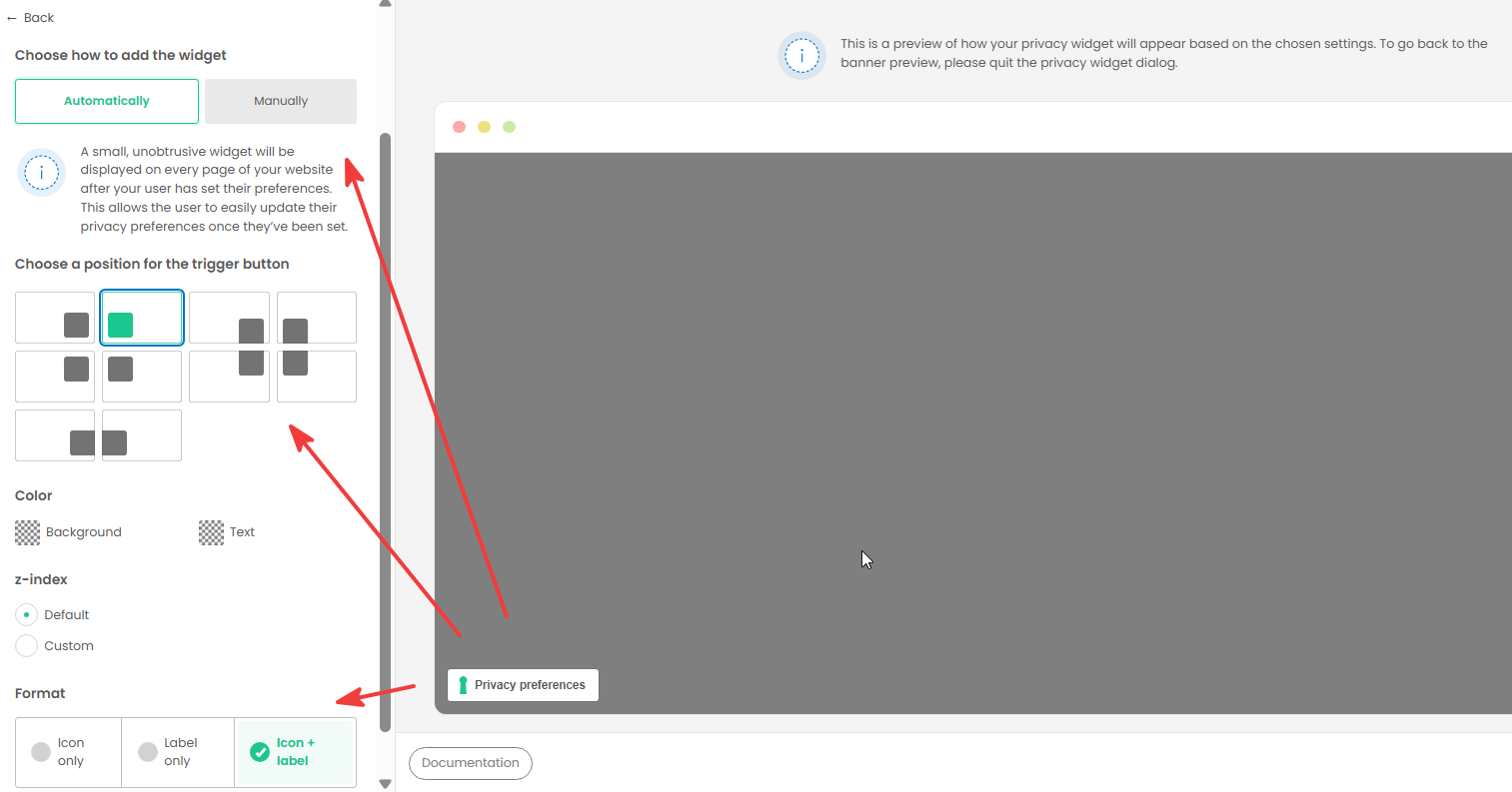
Back under Style & Text, click Privacy widget → Edit. The widget gives visitors a way to reopen their privacy preferences after they have made an initial choice.
Our example uses Automatically, which adds the widget to the website without placing a separate link manually. Choose a position that does not cover navigation, chat buttons or other important controls. You can also choose whether the trigger displays an icon, a label or both. We selected Icon + label so its purpose is clear.
Step 6 – Save and Check the Banner on Your Website
Return to the main Style & Text view and click “Save” at the bottom. Saving is necessary for the changes to reach your website; the preview alone does not confirm that the live banner has changed.
Open your website in a fresh private browser window. Check that the saved position, colors, text and button labels match your choices. The image below shows our customized iubenda banner on the live WordPress site.
After making a consent choice, also check that the privacy widget appears in the position you selected and opens the preference controls. If you want to test whether scripts and cookies follow the visitor’s choice, use our cookie banner testing guide.
Recommended Next Step
Your banner now has the appearance and wording you selected. Next, review your iubenda consent settings to check which choices visitors see and where those settings apply.

Frequently Asked Questions
Common questions about this topic
Open your website in the iubenda dashboard and select Edit under Privacy Controls and Cookie Solution. In Style & Text, you can change the banner’s position, text, theme and privacy widget.
Yes. Open Style & Text → Text → Edit and review the button label fields. Check the preview after changing a label so the button remains clear and easy to read.
Only after reviewing what the new text will replace. iubenda warns that custom body text overrides its different default wording for different countries and is shown to all users. If the default message fits your setup, you can leave it in place.
It is a control that lets visitors reopen their privacy preferences after making a choice. You can choose its position and whether it shows an icon, a label or both.
the live banner. The editor preview alone does not show whether your changes have reached the website.