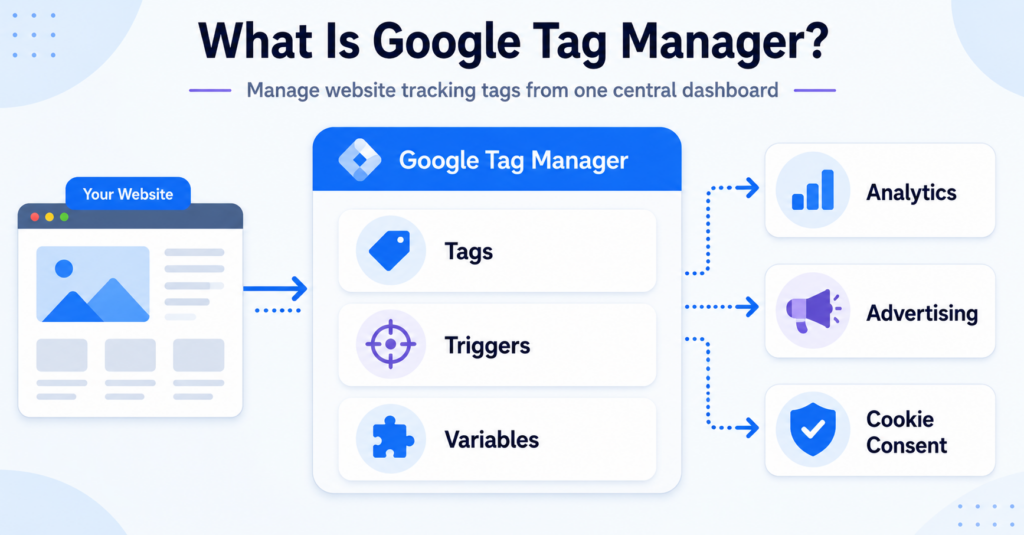
Google Tag Manager is a free tool that helps website owners manage analytics, advertising, and other tracking tags from one central dashboard.
Instead of adding every tracking script directly to your website, you can install Google Tag Manager once and manage many of your tags through its online interface.
This beginner’s guide explains what Google Tag Manager is, how it works, what tags and triggers mean, and how GTM relates to Google Analytics, cookies, and cookie consent.
Google Tag Manager, commonly called GTM, is a tag management system.
It lets you add, organize, test, and update website tracking tags without manually editing your website code every time.
GTM does not replace Google Analytics or a cookie banner. It helps control when and how those tools are loaded.
What Is Google Tag Manager?
Google Tag Manager is a tag management system created by Google.
It provides an online dashboard where website owners, marketers, and developers can manage tracking and measurement tools connected to a website.
Normally, installing a tracking service requires adding a piece of code directly to the website. If a website uses several services, it may contain separate scripts for analytics, advertising, conversions, forms, videos, and other features.
Google Tag Manager provides one central place for managing many of these scripts.
Once the main GTM container has been installed on the website, supported tags can often be added or updated through the GTM dashboard.
Google Tag Manager is not an analytics reporting tool.
It is a management system that helps load and control analytics, advertising, and other website tags.
What Is a Tag?
A tag is a piece of code or a tracking configuration that sends information to another service.
For example, a website may use tags for:
- Google Analytics page views
- Google Ads conversions
- Meta Pixel events
- LinkedIn advertising measurement
- Form submissions
- Button clicks
- File downloads
- Video engagement
Without a tag management system, these tracking codes may be added separately through the website theme, plugins, templates, or custom code.
With GTM, many of them can be organized inside one container.
Imagine that you want to measure how many visitors successfully submit your contact form.
You could create a Google Analytics event tag in GTM and configure it to run when the form is successfully submitted.
The event can then be sent to Google Analytics and displayed in your reports.
How Does Google Tag Manager Work?
Google Tag Manager works through a container.
A container is the main GTM configuration connected to your website. It contains the tags, triggers, variables, and other settings used for that website.
The basic process looks like this:
- Create a Google Tag Manager account.
- Create a container for your website.
- Add the GTM container code to your website.
- Create tags inside the GTM dashboard.
- Choose when each tag should run.
- Test the setup before publishing it.
- Publish the container changes.
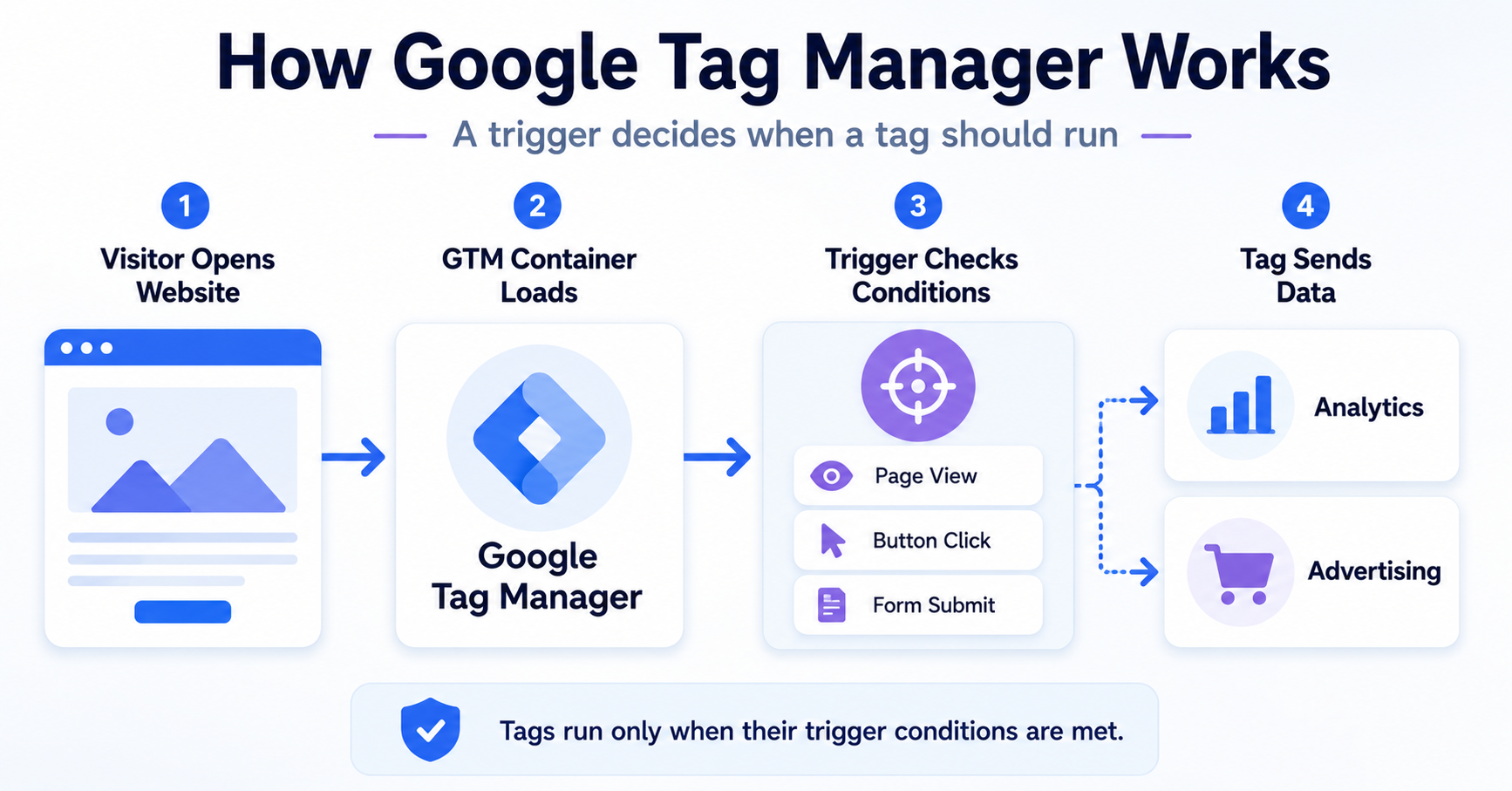
When someone visits your website, the GTM container checks the rules you have configured.
If the conditions for a tag are met, GTM can activate that tag. If the conditions are not met, the tag should not run.
Saving a change inside the GTM workspace does not automatically make it live.
You normally need to test and publish the container before visitors receive the updated configuration.
The Main Parts of Google Tag Manager
Google Tag Manager uses four important concepts:
- Tags
- Triggers
- Variables
- The data layer
Tags
A tag defines what should happen.
For example, a tag may send a page view, purchase, form submission, or button click to an analytics or advertising platform.
Triggers
A trigger defines when a tag should run.
Common triggers include:
- A page is viewed
- A specific button is clicked
- A form is submitted
- A link is clicked
- A visitor reaches a certain scroll depth
- A purchase is completed
- A custom website event occurs
For example, a conversion tag could use a trigger that runs only after a visitor reaches an order confirmation page.
Variables
A variable provides information that can be used by a tag or trigger.
A variable may contain information such as:
- The current page URL
- The text of a clicked button
- A product ID
- An order value
- A form name
- A visitor’s consent status
The Data Layer
The data layer is used to pass structured information from a website to Google Tag Manager.
For example, an online store could send the following information to the data layer after a purchase:
- Transaction ID
- Order value
- Currency
- Product names
- Product IDs
GTM can then use this information inside tags, triggers, and variables.
Tag: What should happen?
Trigger: When should it happen?
Variable: What information should be used?
Data layer: How is structured website information provided to GTM?
What Can You Use Google Tag Manager For?
Google Tag Manager can be used for many types of website measurement and marketing tracking.
Google Analytics
You can use GTM to install Google Analytics and send events such as page views, purchases, downloads, button clicks, and form submissions.
Google Tag Manager controls the tag, while Google Analytics receives the measurement data and displays it in reports.
Advertising Conversions
GTM can help send conversion information to advertising platforms when a visitor completes an important action.
This may include:
- Completing a purchase
- Submitting a lead form
- Calling a business
- Creating an account
- Downloading a document
Marketing Pixels
Businesses may use GTM to manage marketing tags from services such as Meta, LinkedIn, Pinterest, or TikTok.
The exact setup depends on the platform, tag type, and consent configuration being used.
Button and Link Tracking
GTM can detect selected button and link clicks.
For example, you may want to measure clicks on:
- A Buy Now button
- An email address
- A telephone number
- An external affiliate link
- A PDF download
Form Tracking
Google Tag Manager can help measure form interactions and successful submissions.
However, the correct setup depends on how the form works. Some forms reload the page, while others use JavaScript or AJAX and may require a different tracking method.
Cookie Consent
GTM can also work together with a cookie banner or Consent Management Platform.
Consent settings can help determine how supported tags behave based on the visitor’s cookie choices.
Google Tag Manager vs Google Analytics
Google Tag Manager and Google Analytics are different tools.
| Google Tag Manager | Google Analytics |
|---|---|
| Manages tracking tags | Collects and reports analytics data |
| Controls when configured tags run | Shows website traffic and event reports |
| Does not provide normal traffic reports | Provides visitor, event, and conversion reports |
| Can be used to install Google Analytics | Can be installed directly or through GTM |
A simple way to understand the difference is:
- Google Tag Manager helps manage and send tracking instructions.
- Google Analytics receives measurement data and turns it into reports.
GTM can detect that a visitor clicked a checkout button and send an event to Google Analytics.
Google Analytics can then display that event inside its reports.
Google Tag Manager vs Adding Code Manually
Tracking scripts can usually be installed directly on the website or managed through a tag management system.
| Manual Installation | Google Tag Manager |
|---|---|
| Each script is added directly to the website | Many tags are managed through one container |
| Code changes may require a developer | Some changes can be made through the GTM dashboard |
| Scripts may be spread across plugins and templates | Tags can be organized in one workspace |
| Testing depends on the website setup | GTM includes preview and debugging tools |
| May be simpler for one basic script | More useful when several tags are needed |
Google Tag Manager reduces the need to edit website code for every tracking change.
However, it does not completely remove the need for technical knowledge.
Advanced ecommerce tracking, custom data layers, consent configurations, and custom JavaScript may still require help from a developer or analytics specialist.
Google Tag Manager is not a replacement for a developer.
An incorrect configuration can create duplicate data, break tracking, or load optional tags before the visitor has given consent.
Does Google Tag Manager Use Cookies?
Google Tag Manager should not be confused with the individual services loaded through it.
GTM manages tag configurations. The analytics, advertising, and marketing services activated by those tags may create or access cookies.
For example:
- A Google Analytics tag may use analytics cookies.
- An advertising tag may use advertising cookies or identifiers.
- A conversion tag may store measurement information.
- A tag that does not store visitor information may not use cookies.
Whether cookies are created depends on the tags, services, settings, and consent configuration used on the website.
Installing GTM does not automatically activate every possible tracking service.
The website owner chooses which tags are added and when they are allowed to run.
Learn more about the difference between first-party and third-party cookies, or use our cookie scanner to check which cookies are detected on your website.
Google Tag Manager and Cookie Consent
Google Tag Manager is often used together with cookie consent tools.
A cookie banner collects the visitor’s choices. GTM can then use consent information to help control the behavior of configured tags.
A simplified consent process may look like this:
- A visitor opens the website.
- The cookie banner displays consent choices.
- The visitor accepts or rejects optional categories.
- The consent tool communicates the visitor’s choice.
- Tags behave according to the configured consent settings.
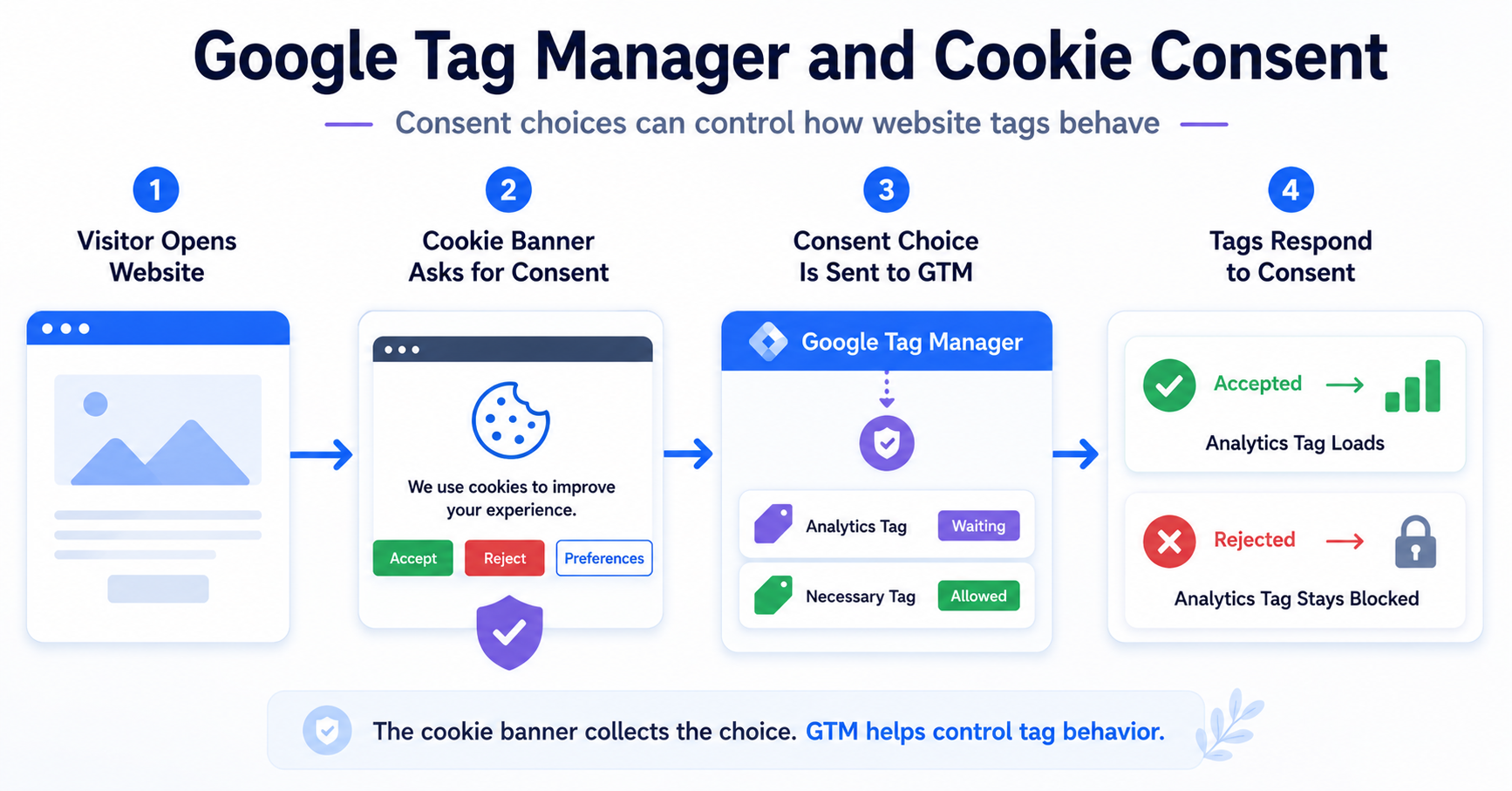
For example, a website may allow necessary website functions before consent but wait before activating selected analytics or advertising tags.
The exact behavior depends on:
- The cookie consent platform
- The GTM configuration
- The individual tags
- The consent settings
- The privacy rules that apply to the website
Google Tag Manager does not make a website compliant by itself.
The website owner is responsible for choosing an appropriate consent solution, configuring tags correctly, and following applicable privacy requirements.
Read our guide to cookie banner requirements to understand what a consent banner may need to include.
Google Tag Manager and Google Consent Mode
Google Tag Manager is commonly used when implementing Google Consent Mode.
Google Consent Mode communicates a visitor’s consent status to supported Google tags. Those tags can then adjust their behavior based on the consent signals they receive.
Google Consent Mode is not a cookie banner.
The cookie banner or Consent Management Platform collects the visitor’s choice. Consent Mode communicates the relevant consent status to supported Google tags.
Cookie banner: Asks the visitor for consent.
Google Consent Mode: Communicates consent status to supported Google tags.
Google Tag Manager: Helps manage tags and consent-related configurations.
These tools can work together, but each one has a different purpose.
Is Google Tag Manager Free?
The standard version of Google Tag Manager is free to use.
You need a Google account to create a Tag Manager account and website container.
However, other tools connected through GTM may have separate costs. You may need to pay for:
- A Consent Management Platform
- An analytics service
- Advertising campaigns
- Professional tracking setup
- Server-side tagging infrastructure
Using GTM does not make these additional services free.
Do You Need Google Tag Manager?
Not every website needs Google Tag Manager.
A small website using only one simple analytics service may be able to install it directly through a WordPress plugin or website integration.
GTM becomes more useful when a website needs several tracking tools or more advanced rules.
Google Tag Manager may be useful when you:
- Use several analytics or marketing services
- Need to track forms, buttons, downloads, or purchases
- Want to manage tags from one dashboard
- Need more control over when tags run
- Use Google Consent Mode
- Work with a cookie consent platform
- Want to test changes before publishing them
You may not need Google Tag Manager when you:
- Use only one simple analytics integration
- Do not need custom event tracking
- Already use a suitable website platform integration
- Do not have the knowledge or support needed to maintain GTM safely
Google Tag Manager is usually most useful when your website needs more than one basic tracking script.
- Do you use several analytics or advertising tools?
- Do you need custom event or conversion tracking?
- Do you want to manage tags from one dashboard?
- Do you need consent-based tag controls?
- Can you test and maintain the setup correctly?
Use Google Tag Manager when you need a central and flexible way to manage several tracking tags.
For a very small website using one basic analytics service, a direct integration may be simpler.
Common Google Tag Manager Mistakes
Google Tag Manager is powerful, but incorrect configurations are common.
Adding the Same Tracking Code Twice
A tracking service may already be installed through a WordPress plugin, theme setting, or website integration.
Adding the same service again through GTM can create duplicate page views, conversions, or events.
Publishing Without Testing
A tag may run on the wrong page, activate several times, or fail completely.
Use GTM’s preview and debugging tools before publishing changes.
Loading Optional Tags Before Consent
Adding a cookie banner does not automatically guarantee that every tag is controlled correctly.
The banner, consent configuration, and GTM tags must work together.
Using an All Pages Trigger for Every Tag
Not every tag should run on every page.
A purchase conversion tag should normally run only after a confirmed purchase, not during every page view.
Forgetting to Document Changes
Use clear names for tags, triggers, and variables.
A name such as “GA4 – Contact Form Submission” is easier to understand than “Tag 7.”
Final Thoughts
Google Tag Manager is a central system for managing website tags.
Instead of inserting every analytics or advertising script separately, you can use a GTM container to organize tags and define when they should run.
Its main building blocks are tags, triggers, variables, and the data layer.
GTM can make tracking easier to maintain, especially when a website uses several services. However, it still needs to be configured and tested carefully.
It does not replace Google Analytics, a cookie banner, or a Consent Management Platform. These tools perform different tasks, although they can work together.
- Google Tag Manager is a tag management system.
- It helps manage analytics and marketing tags.
- A tag defines what should happen.
- A trigger defines when it should happen.
- A variable provides information used by tags and triggers.
- GTM is not the same as Google Analytics.
- GTM does not replace a cookie consent solution.
- Changes should always be tested before publishing.

Frequently Asked Questions
Common questions about this topic
GTM stands for Google Tag Manager.
No. Google Tag Manager manages tracking tags and their rules. Google Analytics receives measurement data and displays it in reports.
No. Google Analytics is one service that can be configured through GTM, but GTM can also manage other supported analytics, advertising, and measurement tags.
GTM manages and activates tag configurations. The individual analytics or advertising tags loaded through GTM may collect visitor information.
The services activated through GTM may create cookies. Whether cookies are created depends on the tags and settings used on the website.
Yes. The standard version of Google Tag Manager is free. Connected services, professional setup, and server-side infrastructure may have separate costs.
Basic tags can often be configured without writing much code. Advanced tracking, data layers, consent setups, and custom events may require technical knowledge.
No. A cookie banner collects the visitor’s consent choices. GTM helps manage tags but does not replace a consent banner.
Yes. GTM can be used to manage supported tags and consent-related settings used with Google Consent Mode.