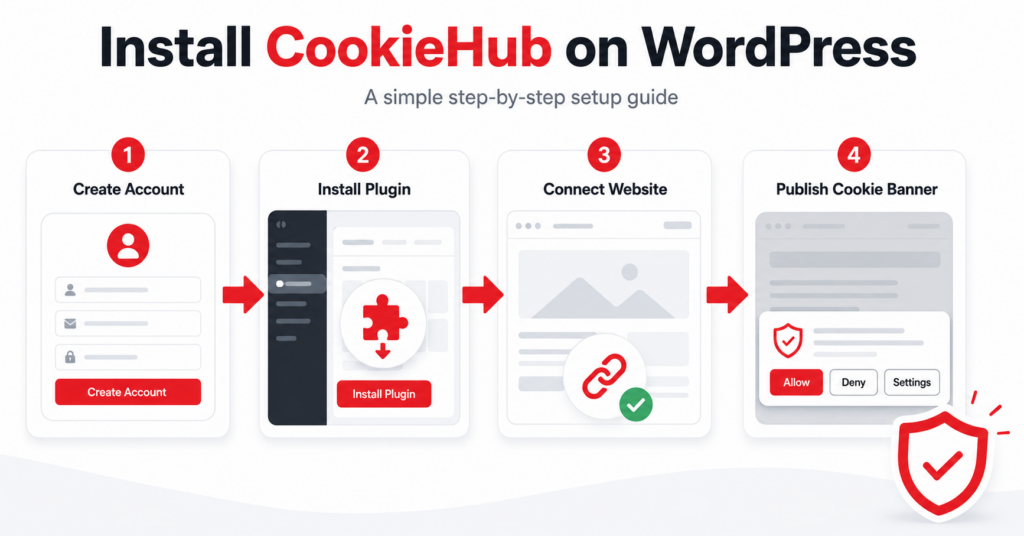
Installing CookieHub on WordPress is straightforward when you complete the steps in the correct order. You first create a CookieHub account, install the official plugin, connect your domain, and then publish and test the consent banner.
This beginner-friendly guide shows the complete process using the current CookieHub dashboard and WordPress plugin. No coding is required.
To install CookieHub on WordPress, create a CookieHub account and add your website. Install and activate the official WordPress plugin, copy the eight-character domain code from CookieHub, and paste it into the plugin settings. Publish the changes, review the cookie scan, and test the banner on your live website.
What You Need Before Starting
Before you begin, make sure you have:
- a working WordPress website;
- administrator access to WordPress;
- access to your website email address;
- permission to install WordPress plugins.
This guide uses the official CookieHub WordPress plugin. If you install CookieHub through Google Tag Manager or by adding the script manually, do not also install it through the plugin. Using more than one implementation method can cause conflicts.
Step 1 – Start Your CookieHub Free Trial
Open the CookieHub website and click Start Free Trial or Get Started for Free.
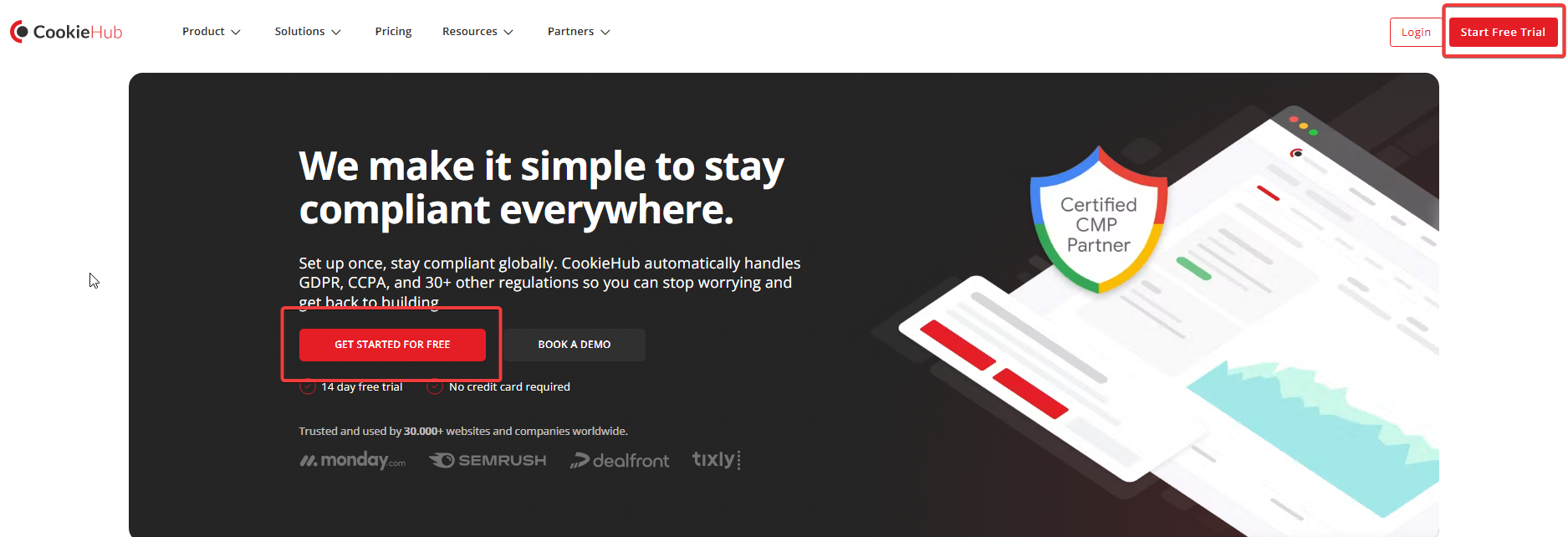
Creating the account first is important because the WordPress plugin will later ask for your CookieHub domain code.
Step 2 – Create Your CookieHub Account
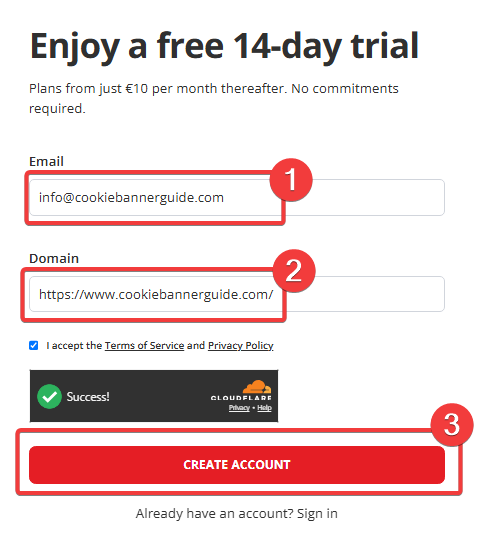
Enter your email address and website domain in the registration form. Accept the Terms of Service and Privacy Policy, complete the security check, and click Create Account.
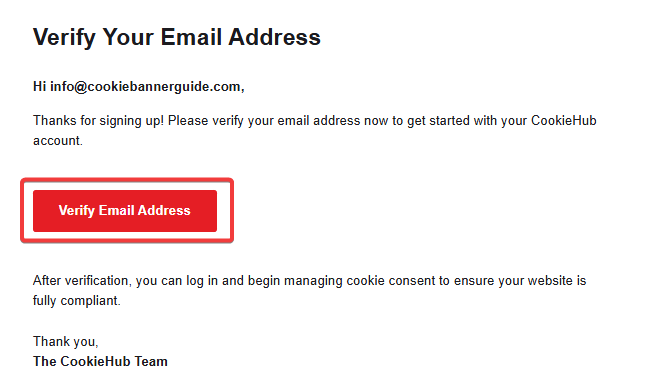
CookieHub will send a confirmation message to the email address you entered. Open the message and click Verify Email Address.
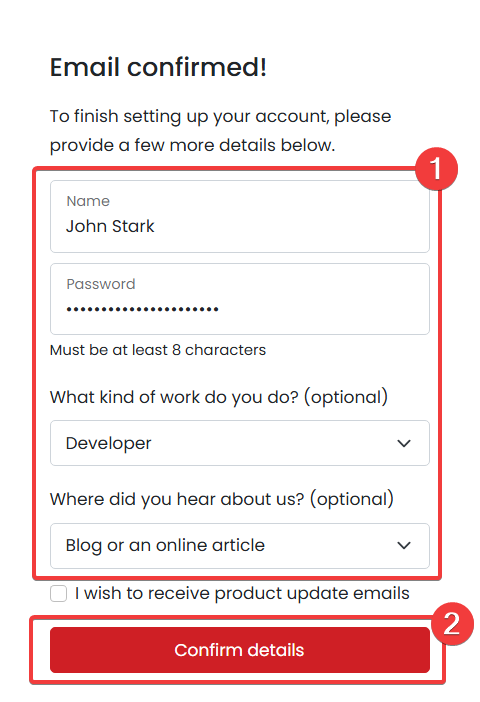
After confirming your email, enter your name and create a secure password. The questions about your work and how you found CookieHub are optional. Click Confirm details to continue.
Step 3 – Select Your Billing Country
Select the correct country for your account. CookieHub uses this information to apply the correct VAT treatment to future invoices.
If you are registering as a business, you can also enter your company name, registration number, and VAT or tax number. Individual users can leave these optional fields empty and click Save.
You do not need to add a payment card at this stage.
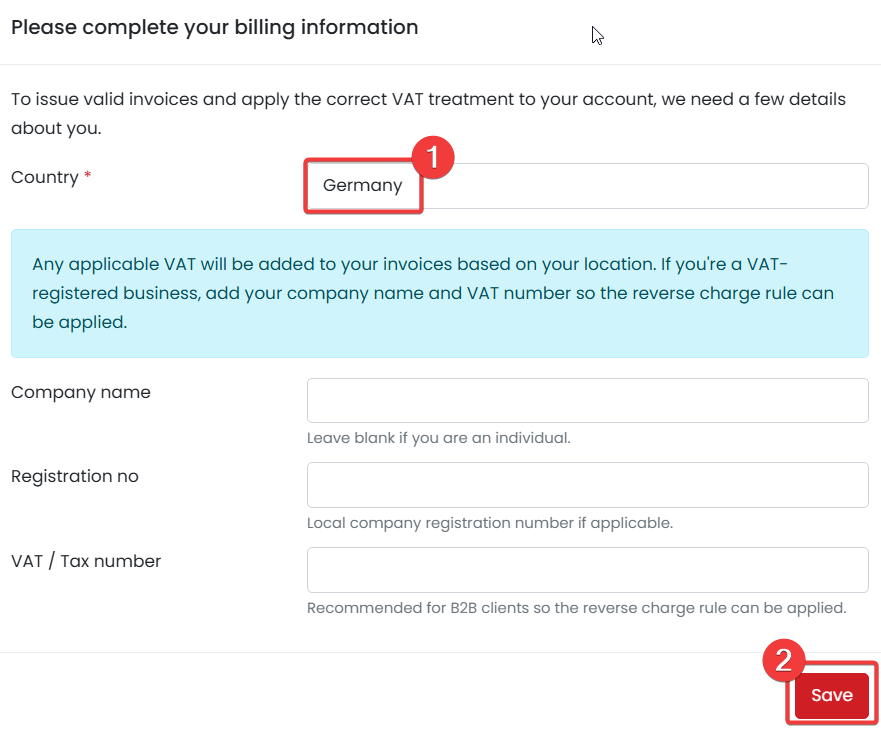
Use the real country connected to the person or business paying for CookieHub. The country shown in this screenshot is only an example.
Step 4 – Install the CookieHub WordPress Plugin
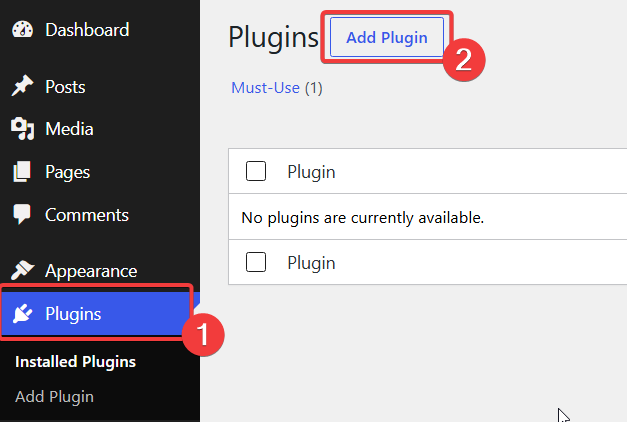
Log in to your WordPress dashboard. Go to Plugins → Add Plugin.
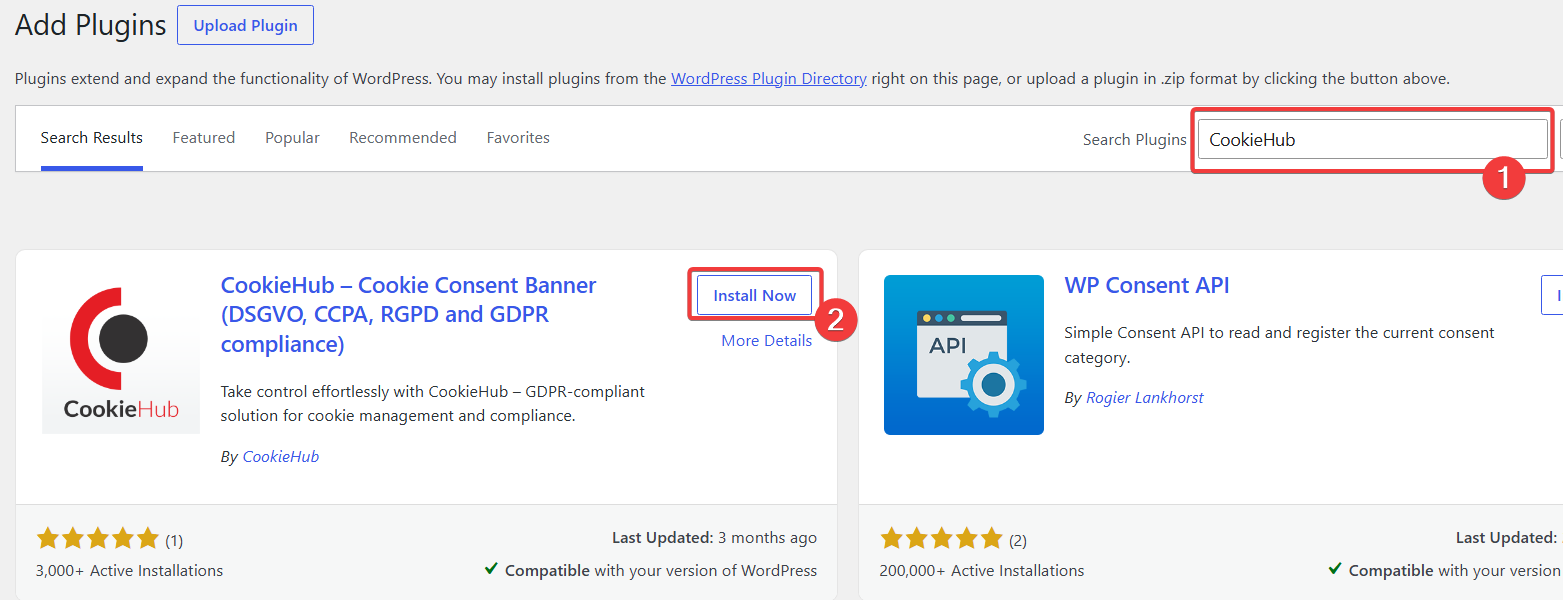
Enter CookieHub in the plugin search box. Find the official plugin created by CookieHub and click Install Now.
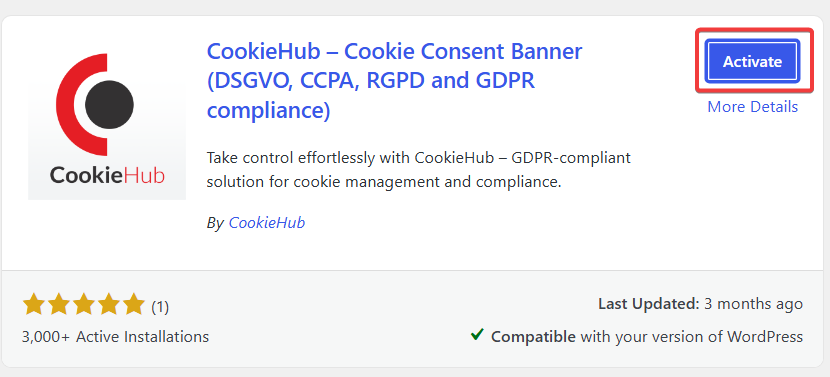
Once the installation finishes, click Activate.
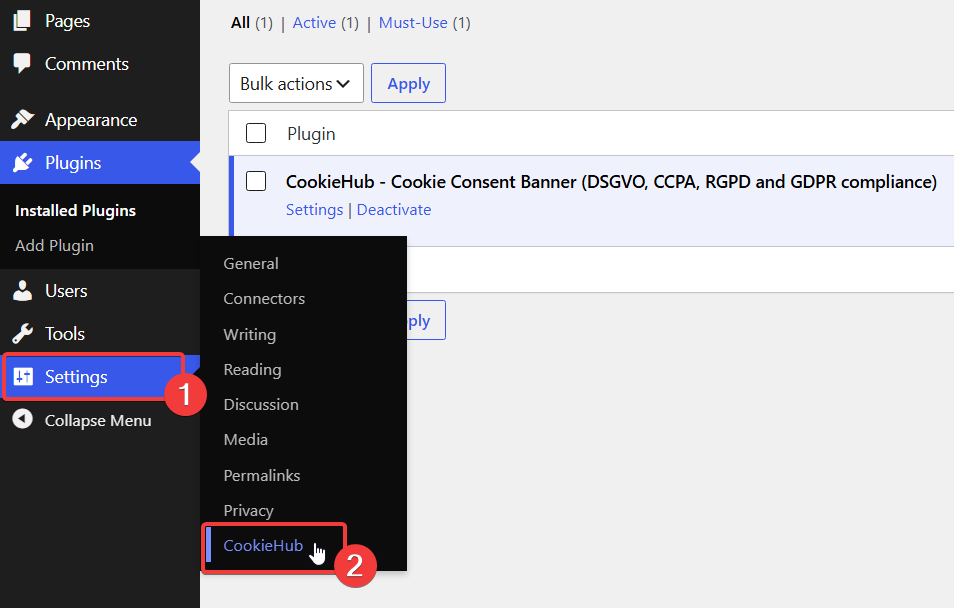
After activation, open Settings → CookieHub. You can also use the Settings link shown below the plugin name on the Installed Plugins page.
Step 5 – Copy Your CookieHub Domain Code
Return to your CookieHub account and open the Domains page. Find your website and copy the code shown in the Code column.
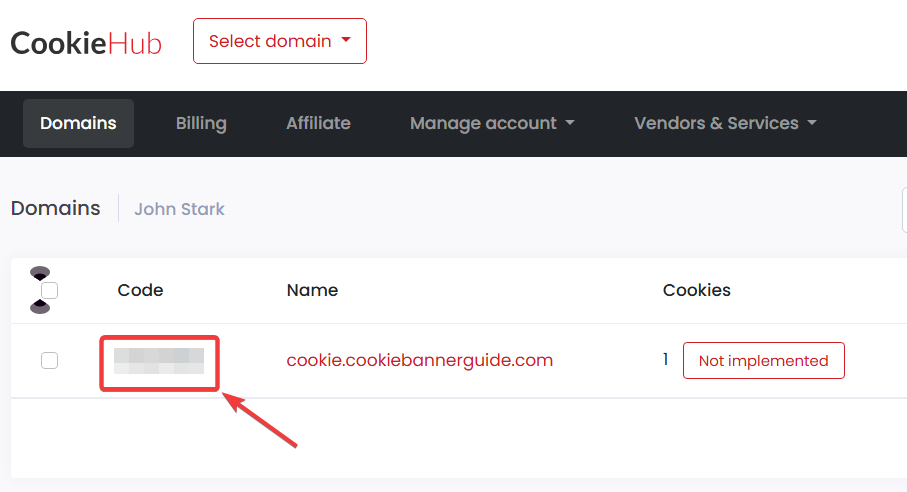
The domain code is a unique eight-character identifier. It connects the WordPress plugin to the correct website in your CookieHub account.
Step 6 – Connect CookieHub to WordPress
Return to Settings → CookieHub in WordPress. Paste the domain code into the field under Already have an account? and click Save.
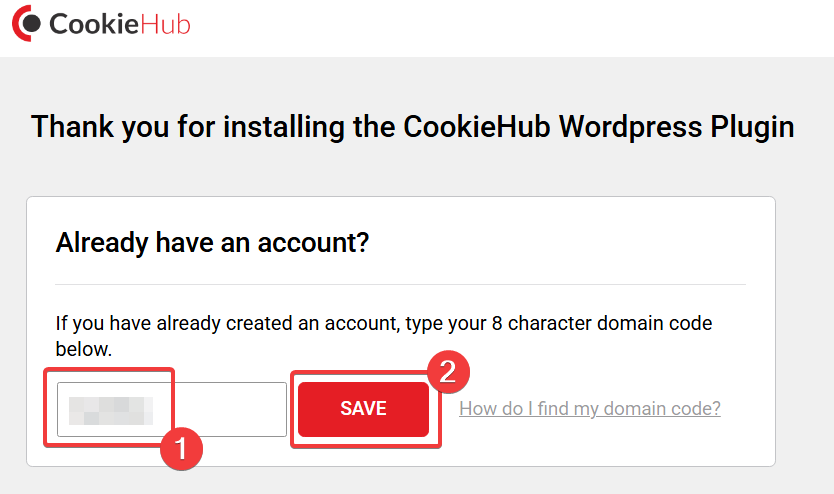
CookieHub should now be connected to your WordPress website. You do not need to paste a separate script into the theme when using the plugin.
Step 7 – Publish the CookieHub Changes
Open the domain in your CookieHub dashboard. If you see Publish pending changes, click it to make the current configuration active.
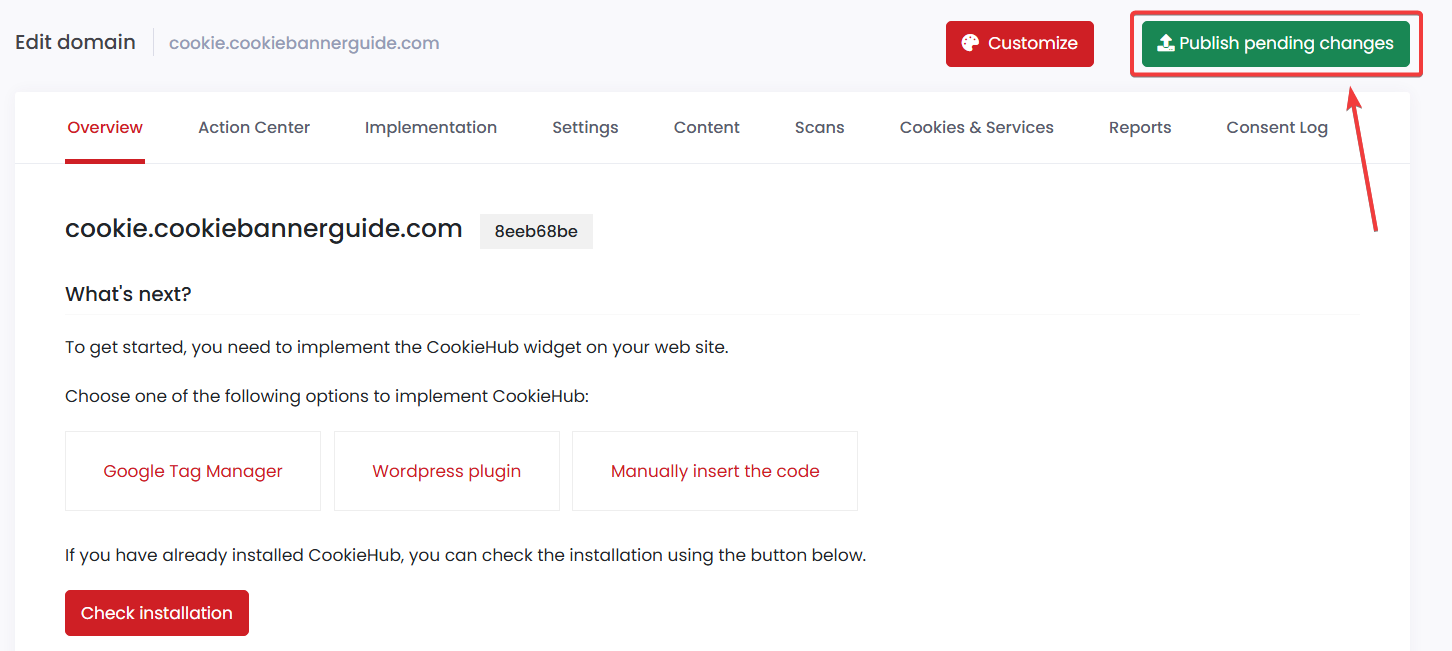
The Overview page also shows the available implementation methods. Because this guide uses the WordPress plugin, do not add the Google Tag Manager or manual implementation at the same time.
Step 8 – Check the CookieHub Action Center
Open the Action Center after CookieHub has scanned your website. It summarizes the health of your setup and highlights issues that may require attention.
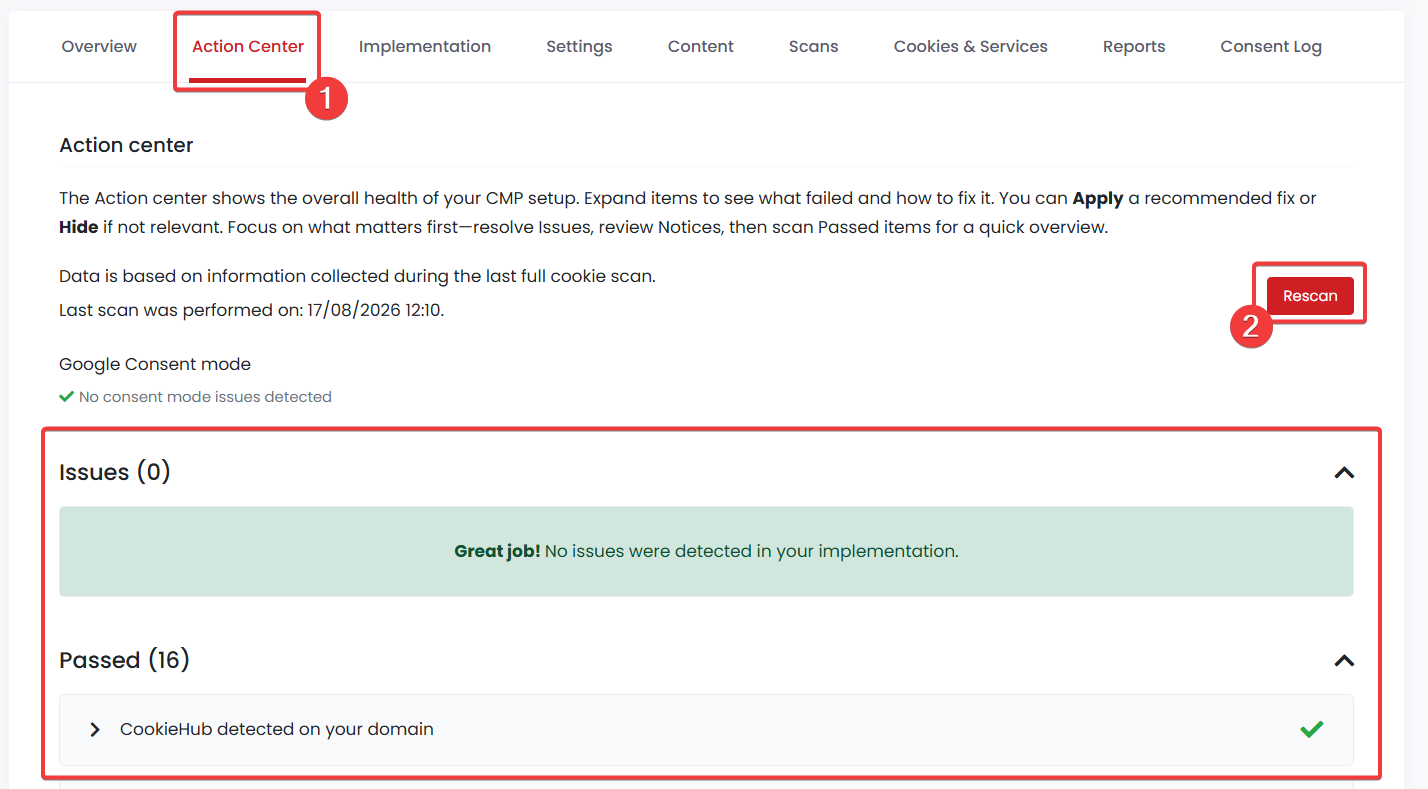
Resolve items listed under Issues first. You can then review notices and passed checks. Use Rescan after changing your setup or adding new tracking tools.
Step 9 – Review the Essential CookieHub Settings
CookieHub is now connected to WordPress, but the default configuration may not match the services, languages, visitor locations, and cookie categories used by your website.
Before relying on the banner, review the consent settings, integrations, regional behaviour, languages, consent storage, and cookie category defaults. Only enable integrations for services that are actually running on your website.
Our complete settings guide explains every important CookieHub option and provides a practical starting configuration for a WordPress website.
Step 10 – Review the First Cookie Scan
Open the Scans tab to confirm that CookieHub has completed its first scan. The scan checks your website for cookies and browser storage entries and uses the results to create the cookie declaration.
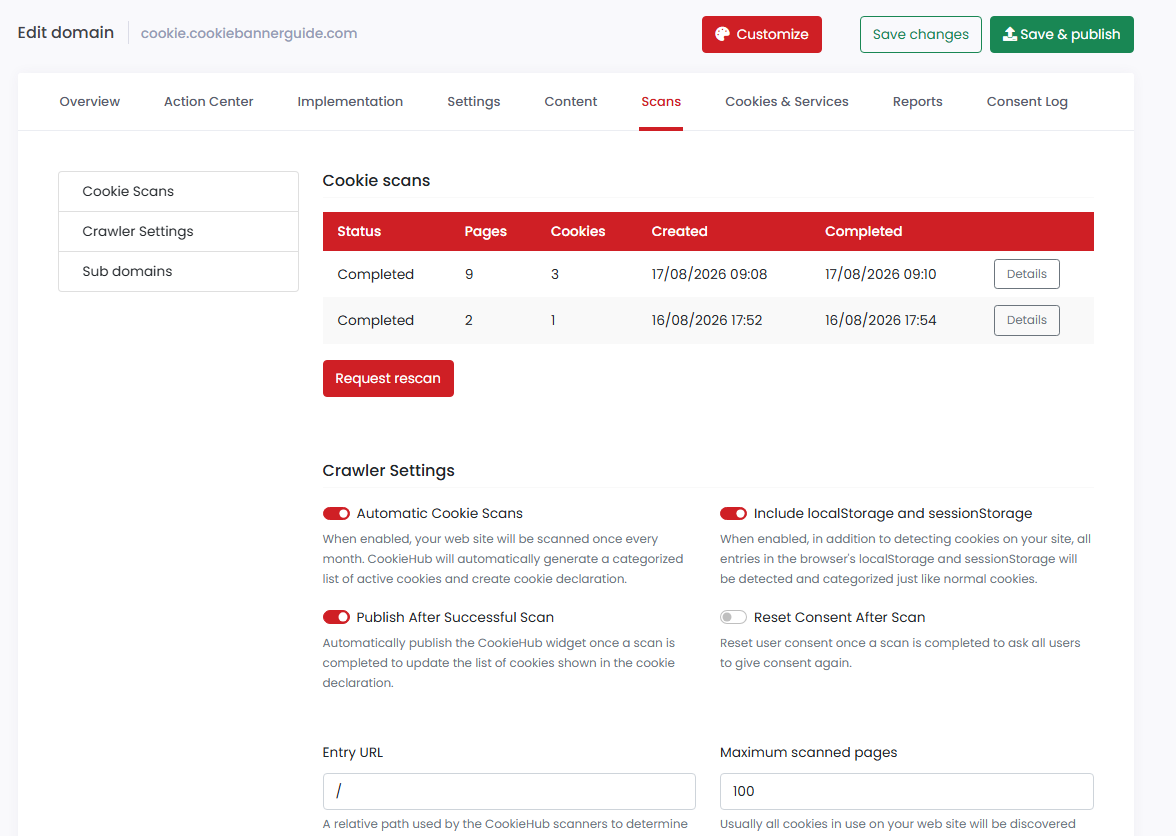
You can request a new scan after installing analytics, advertising tools, plugins, or other services that may add cookies to your website.
Next, open Cookies & Services and review the cookies CookieHub detected. Check that each cookie has been assigned to the correct service and category.
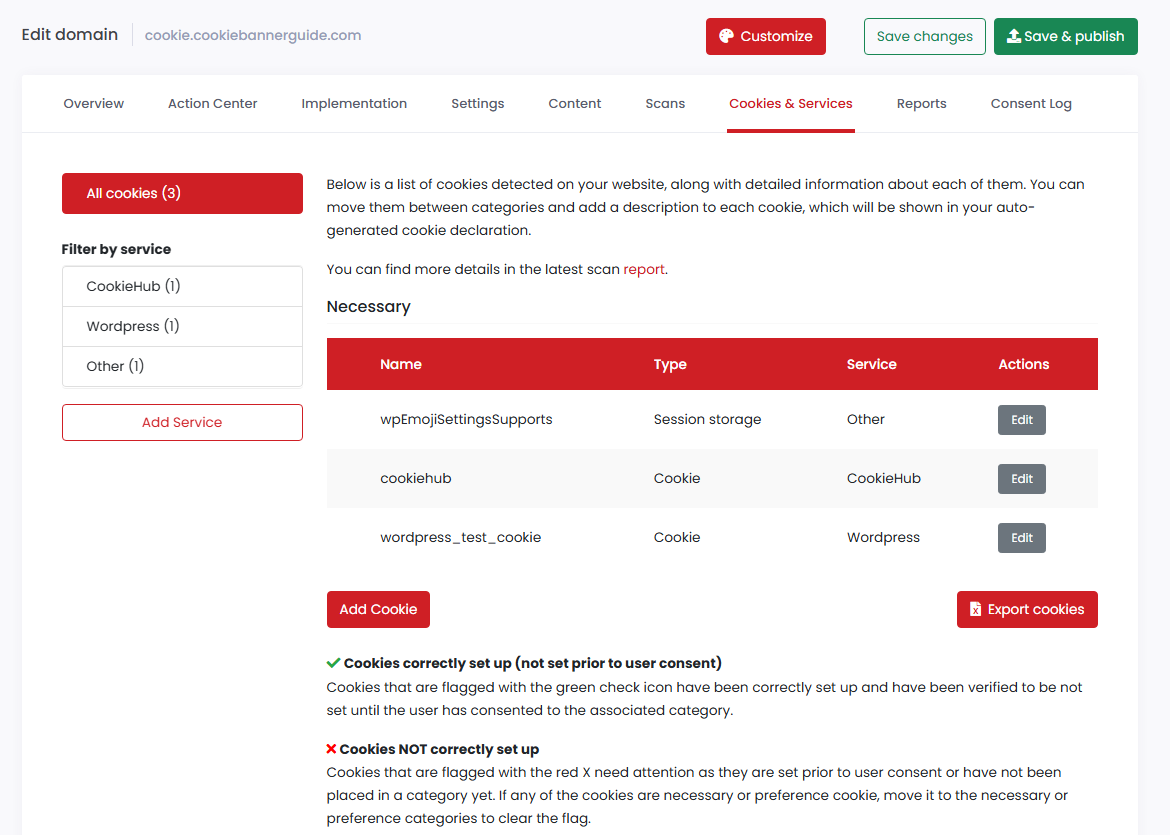
Pay particular attention to cookies marked with a warning. A warning may indicate that a cookie is being set before consent, has been assigned to the wrong category, or requires an additional blocking adjustment
Step 11 – Customize the CookieHub Banner (Optional)
Click Customize at the top of the domain dashboard to change how the banner and preference center look.
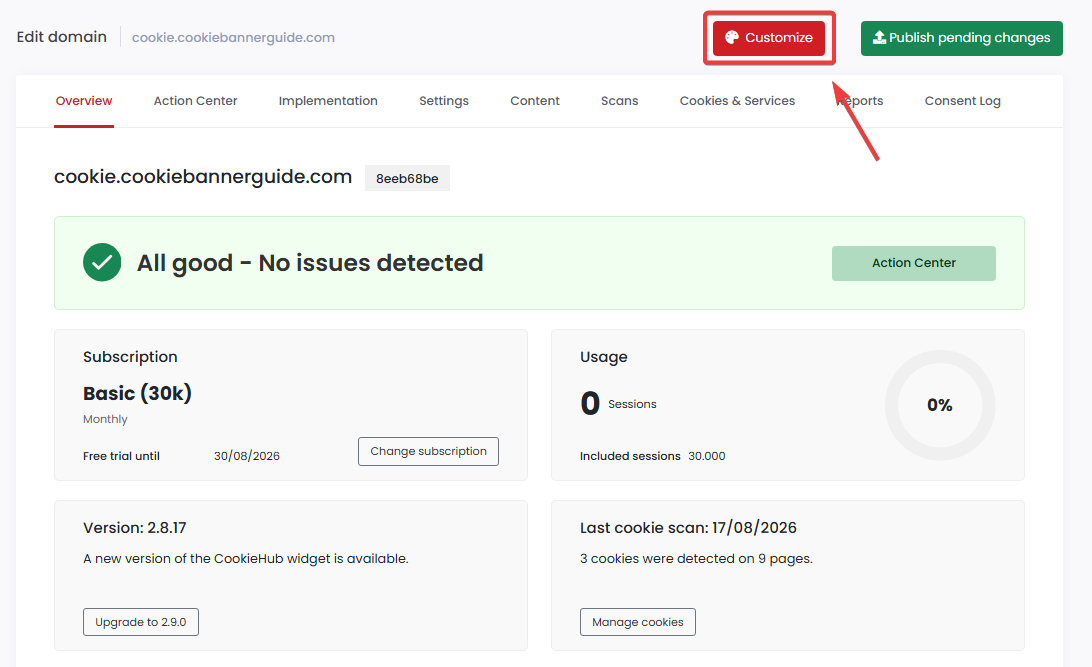
The customization area lets you adjust the layout, colors, visible actions, button order, and preference center. For the initial installation, you can keep the default design and return to these options later.
Your CookieHub banner is installed, but the default design may not match your website. Follow the next guide to change the colors, layout, buttons, preference center, and settings icon step by step.
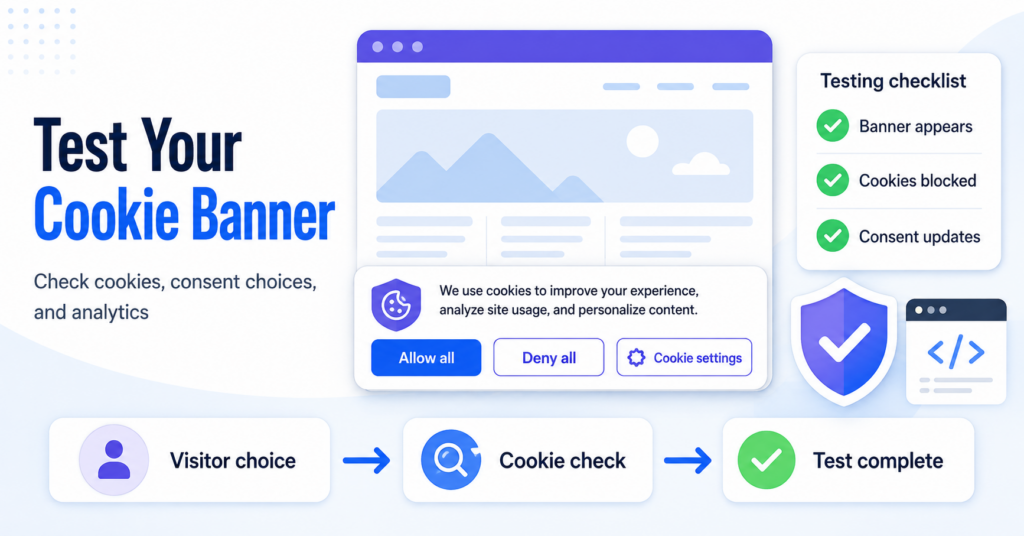
Step 12 – Test the CookieHub Banner
Do not consider the setup finished until you have checked the banner on the live website. First, save and publish all pending changes. Clear your website cache, then open the site in a new incognito or private browser window.
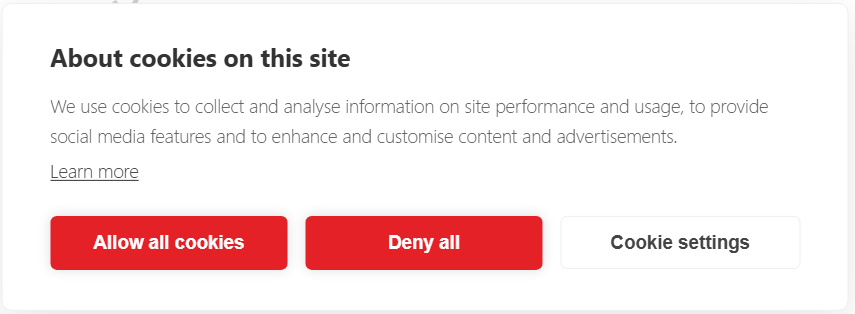
Check that:
- the CookieHub banner appears for a new visitor;
- the Allow all cookies, Deny all, and Cookie settings actions work;
- the preference center opens correctly;
- the selected language matches the website language;
- non-essential cookies do not load before the required consent;
- visitors can change their cookie preferences later.
Seeing the banner is not enough. You should also verify that analytics, advertising, and other non-essential services follow the visitor’s consent choice.
Final Thoughts
CookieHub provides a practical WordPress setup for website owners who want cookie scanning, consent controls, and a customizable banner in one dashboard.
The main installation is simple: create an account, install the official plugin, enter the domain code, and publish the configuration. The most important final step is testing. A banner should not only appear—it should also control cookies and services according to the visitor’s choice.
Recommended Next Step
CookieHub is now installed and connected to your WordPress website. The next step is reviewing the consent, integration, regional, language, and cookie category settings.
The next guide explains which CookieHub settings matter, when different integrations should be enabled, and how to prepare the configuration before customizing the banner design.

Frequently Asked Questions
Common questions about this topic
No. The official WordPress plugin connects to CookieHub using a domain code, so most website owners can complete the installation without editing code.
Log in to CookieHub and open the Domains page. The eight-character code appears beside the website in the Code column.
Yes. Enable the required languages in CookieHub and choose how the banner should detect them. The WordPress plugin can use the active WordPress or WPML language.
No. Use one implementation method. Installing CookieHub more than once can cause the banner or consent signals to behave incorrectly.
No. Enable only the integrations used by your website. For example, Google Consent Mode is relevant when your site uses supported Google services.
Test the website in an incognito window, try every consent action, and verify that non-essential cookies respect the visitor’s choice. The CookieHub Action Center and scan results can help identify problems.