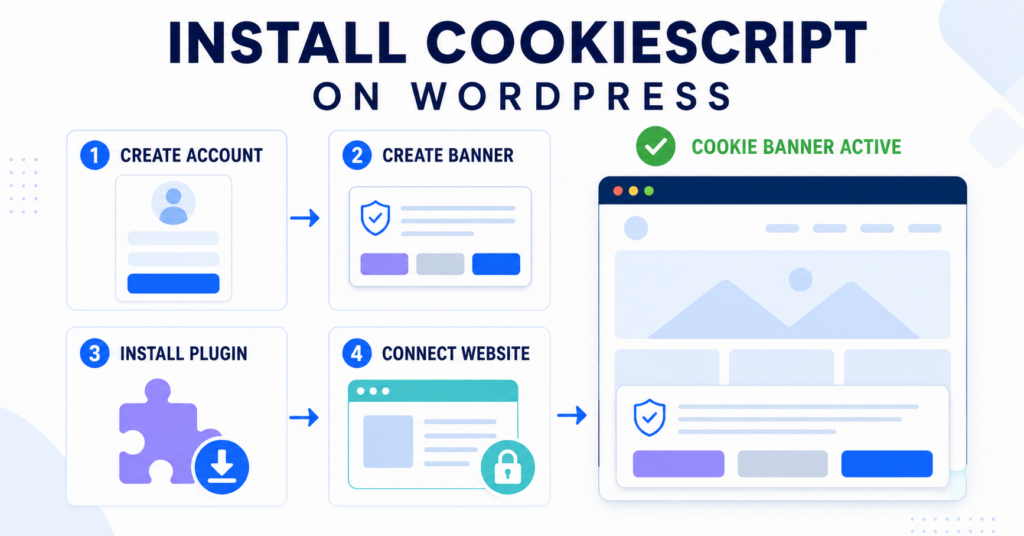
This guide shows you how to install CookieScript on WordPress using the official plugin and a CookieScript account. Follow the steps to connect your banner and check its basic controls without editing theme code.
To install CookieScript and display a cookie consent banner on WordPress:
- Create a CookieScript account
- Add your website and create a basic cookie banner
- Install and activate the Cookie-Script.com WordPress plugin
- Copy and paste your CookieScript Source Link
- Save the connection settings and check that the banner appears
Estimated basic installation time: 15–20 minutes. Allow additional time to review settings, scan results and tracking behavior.
What You Need Before Starting
Before you begin, make sure you have:
- a working WordPress website;
- administrator access to WordPress;
- permission to install plugins;
- an email address for creating your CookieScript account;
- the URL of your Privacy Policy, if you already have one.
Creating your account first lets you manage the banner, settings and scan results from the CookieScript dashboard. Do not also install the same banner through Google Tag Manager or by manually adding its script to your theme. Using more than one installation method can load CookieScript twice and cause unexpected behavior.
Step 1 – Create a CookieScript Account
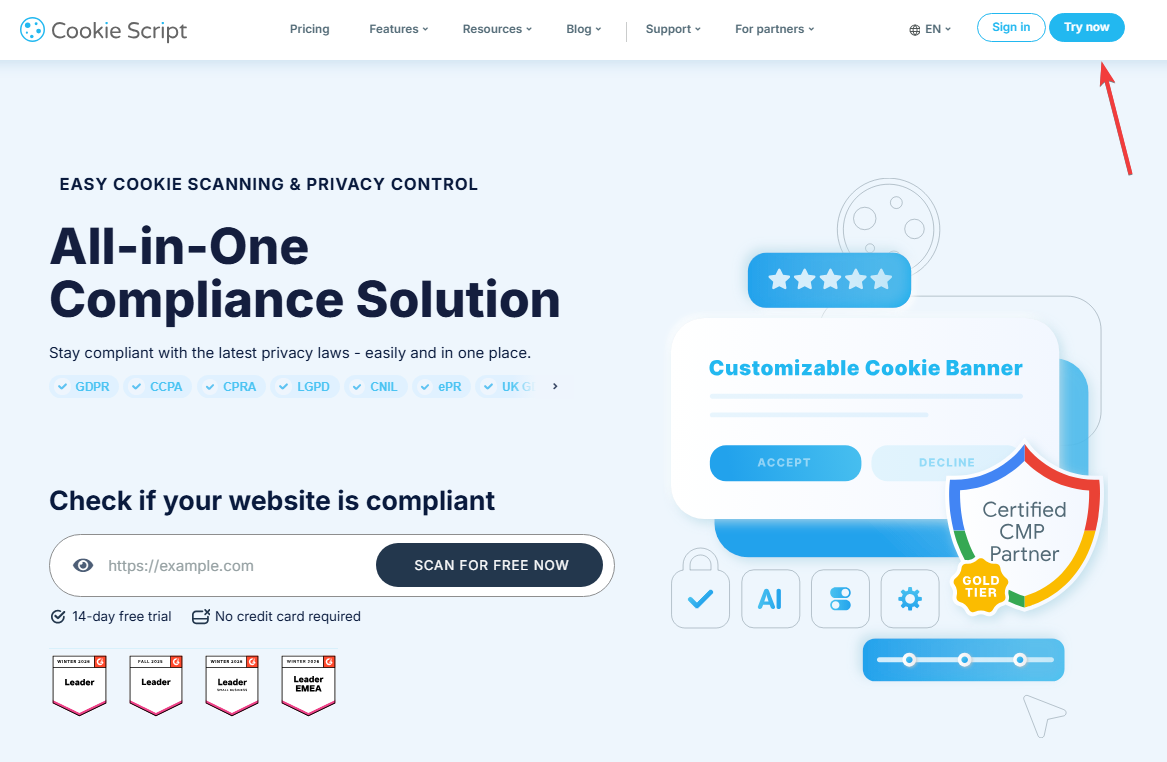
Open the CookieScript website and click Try now.
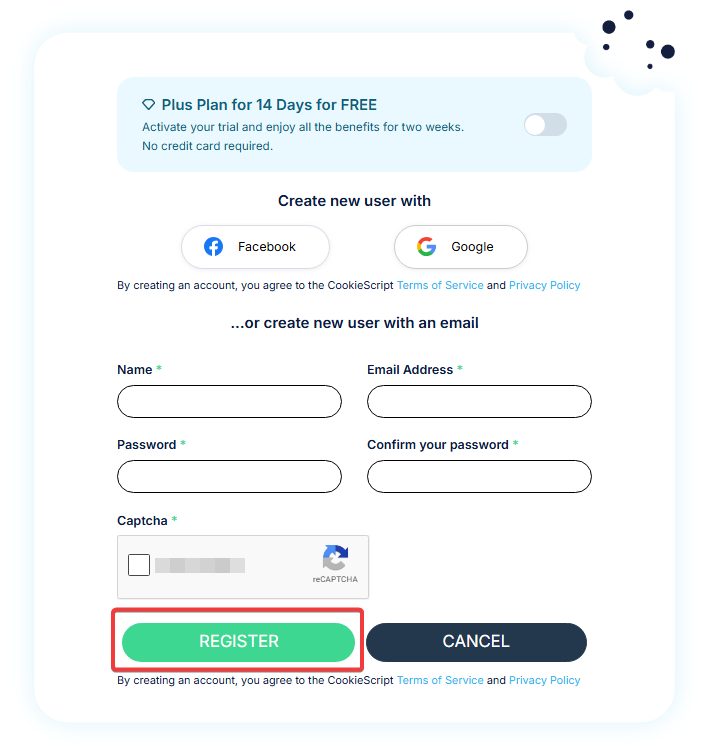
Enter your name, email address, and a secure password. Complete the security check and click Register. In the registration screen shown below, the optional 14-day Plus trial can remain disabled if you want to begin with the Free plan. Compare the available features in our CookieScript pricing guide.
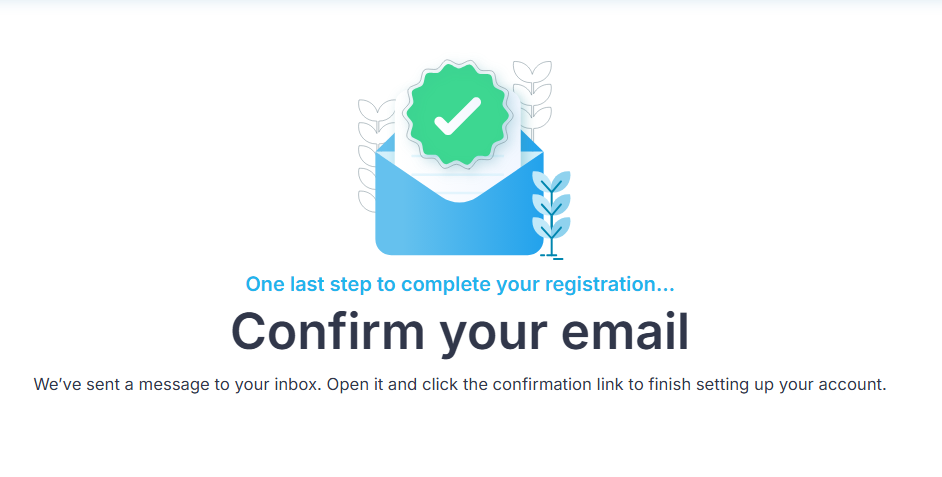
CookieScript will send a confirmation message to your inbox. Open the email and use the confirmation link to activate your new account.
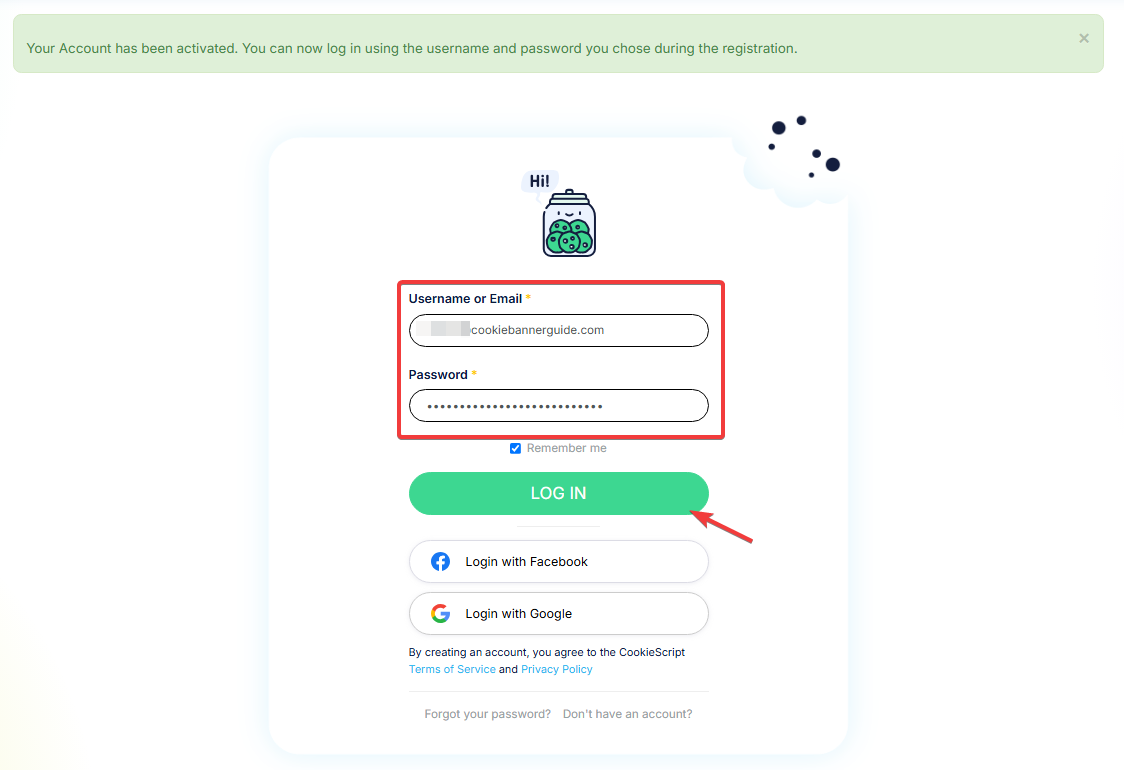
After activation, return to CookieScript and log in with the username or email address and password used during registration.
Step 2 – Add Your WordPress Website
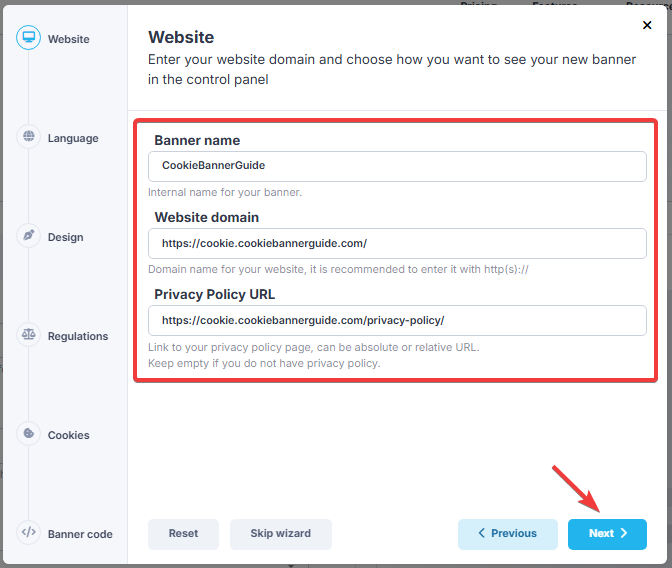
After signing in, CookieScript opens a setup wizard for your first banner. Enter an internal banner name and the full website domain, including https://.
Add the URL of your Privacy Policy if the page already exists. CookieScript allows you to leave this field empty, but a working policy link helps visitors understand how your website uses cookies and personal data. Click Next.
Step 3 – Choose the Banner Language
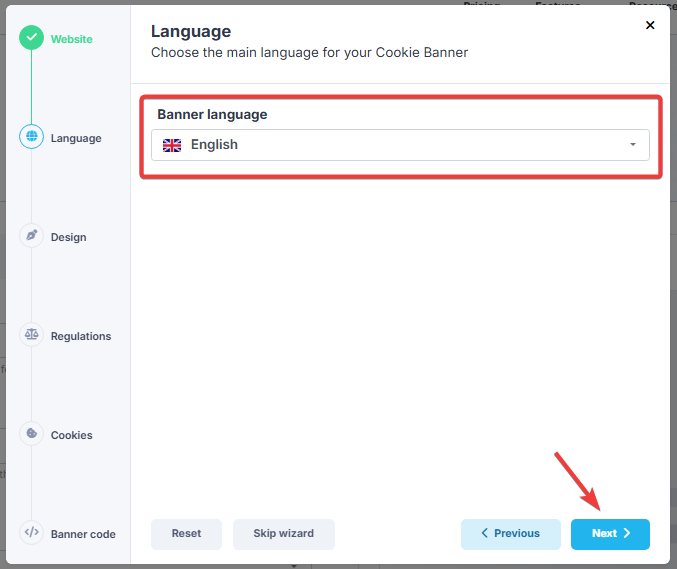
Select the main language used on your website. This determines the default language of the cookie banner. The example uses English.
You can add more languages later from the CookieScript dashboard. For the basic installation, choose one main language and click Next.
Step 4 – Select a Basic Banner Design
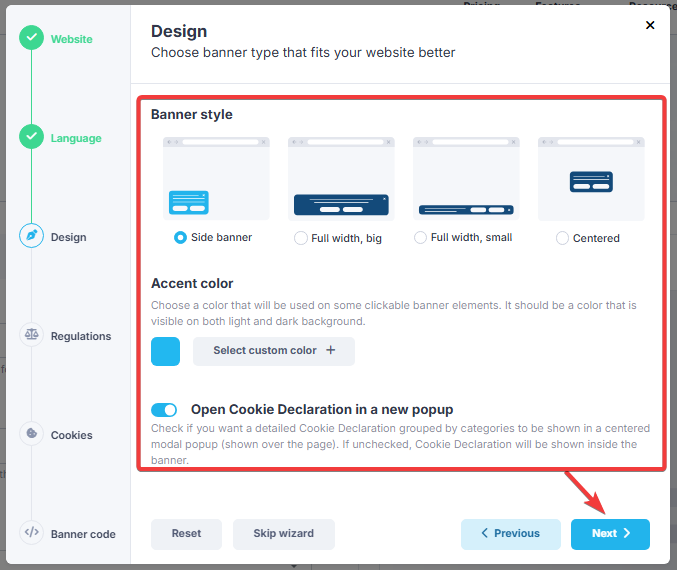
Choose a starting layout for the banner. The example uses the default side banner with CookieScript’s standard accent color.
You do not need to finalize the design during installation. You can later customize the banner’s layout, text and languages, then check its mobile appearance. Click Next when you have selected the basic layout.
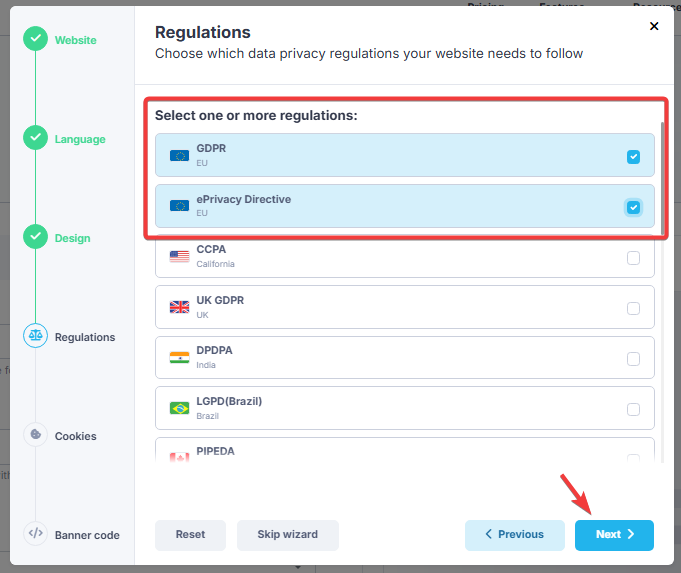
Step 5 – Select the Privacy Regulations
Choose the regulations that match your website and audience. For this basic European setup, select GDPR and the ePrivacy Directive.
CookieScript also supports additional regional options. Do not select every regulation automatically. Multi-region behavior should be configured according to where your visitors are located and how your website processes data.
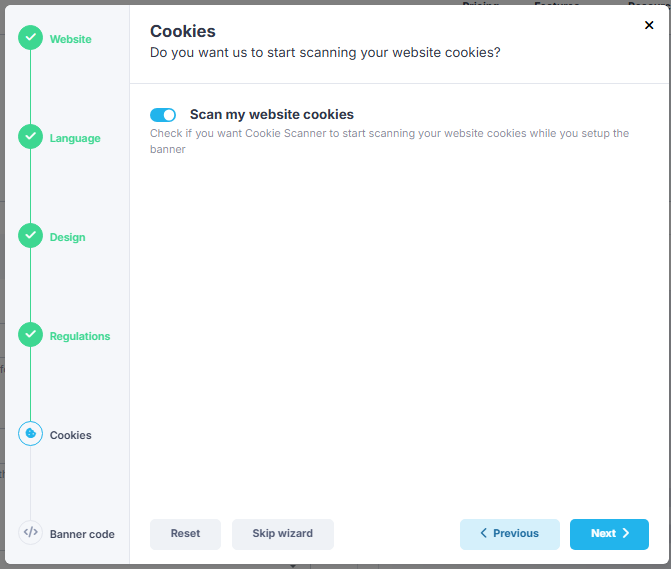
Step 6 – Start the Cookie Scan
Leave Scan my website cookies enabled if you want CookieScript to begin checking the website while you complete the setup.
The scan helps identify cookies used by the website. After installation, review and categorize your CookieScript scan results before treating the configuration as complete. Click Next.
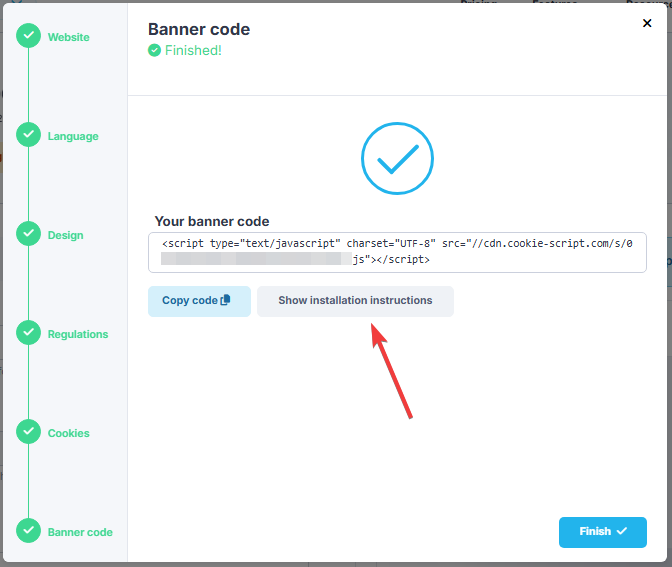
Step 7 – Finish the CookieScript Setup Wizard
CookieScript will now generate a unique banner code for your website. You do not need to paste the complete script tag into WordPress when using the official plugin.
Click Show installation instructions. This opens the installation page where you can select WordPress and copy the Source Link needed by the plugin.
Step 8 – Install the CookieScript WordPress Plugin
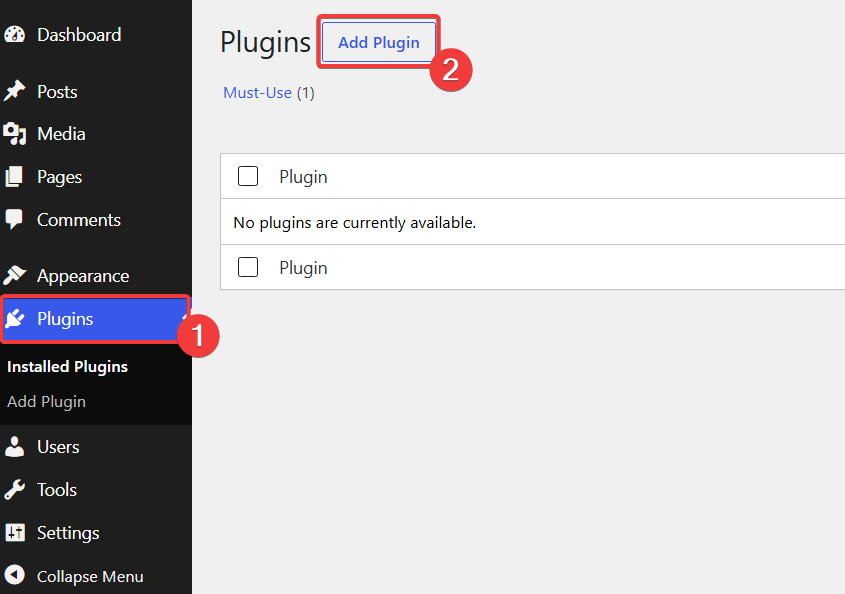
Log in to your WordPress dashboard. Open Plugins and click Add Plugin.
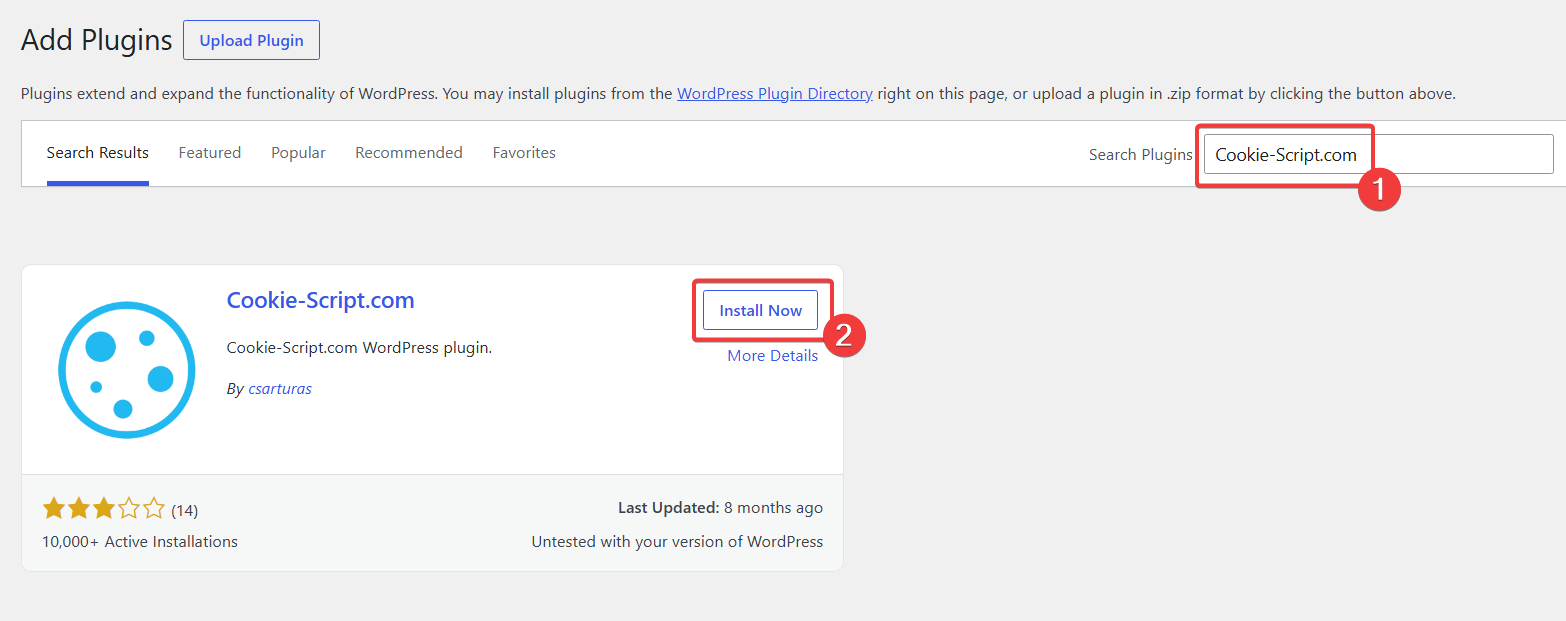
Search for Cookie-Script.com. Find the plugin created by csarturas and click Install Now.
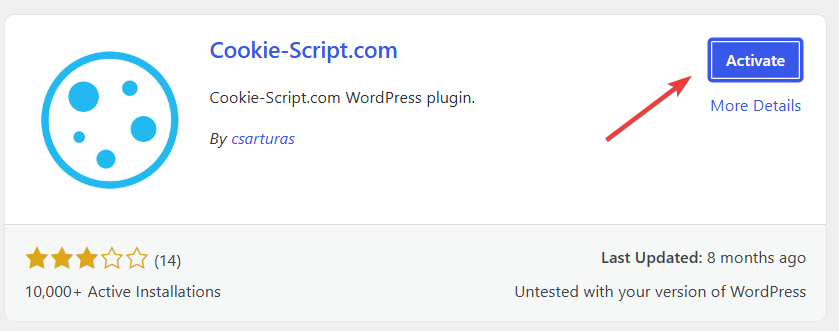
When WordPress finishes installing the plugin, click Activate.
Step 9 – Open the CookieScript Plugin Settings
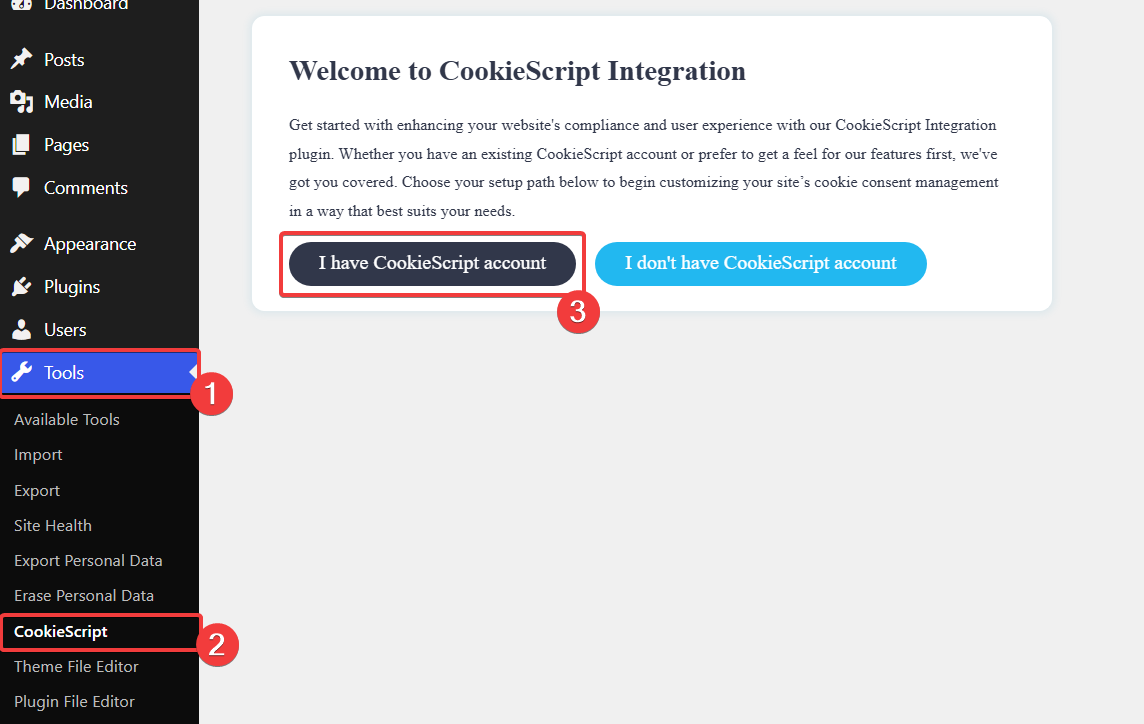
After activation, go to Tools → CookieScript. The plugin asks whether you already have a CookieScript account.
Because you created the account and banner first, select I have CookieScript account.
Step 10 – Copy the CookieScript Source Link
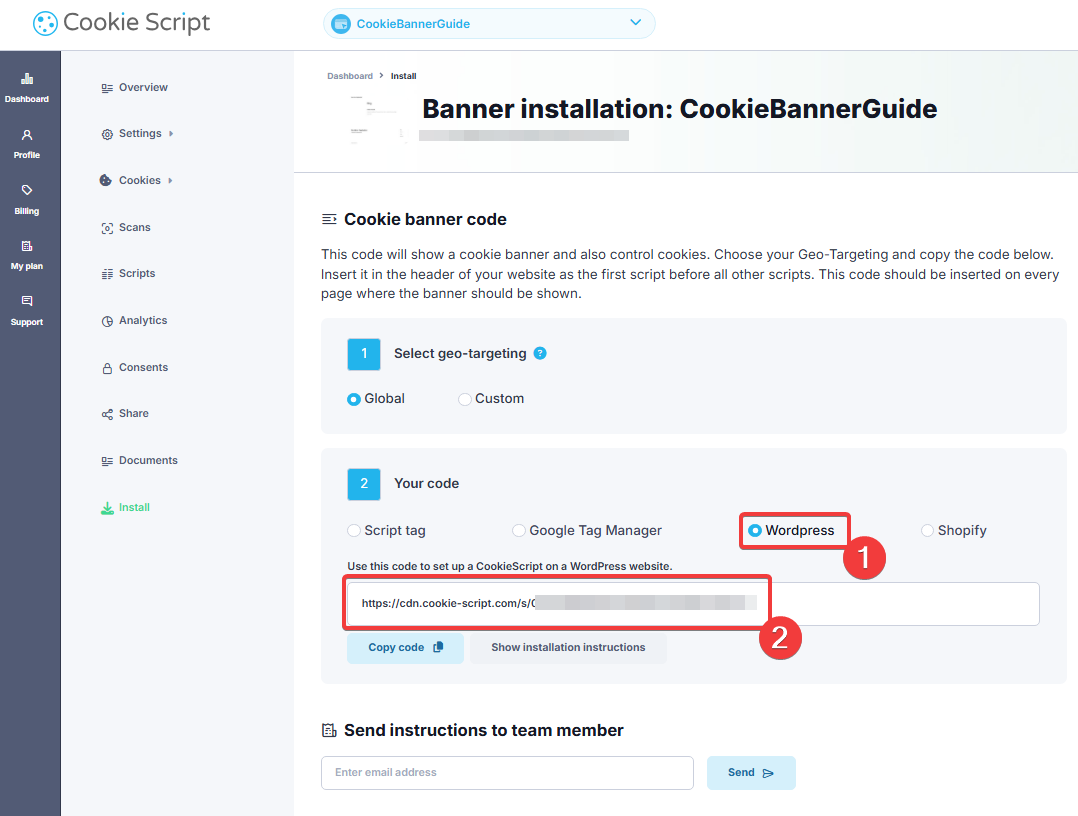
Return to the CookieScript installation instructions opened in Step 7. Under Your code, select WordPress.
Select and copy the entire Source Link shown for WordPress. Copy the address exactly as provided, without shortening it or adding anything to it.
Step 11 – Connect CookieScript to WordPress
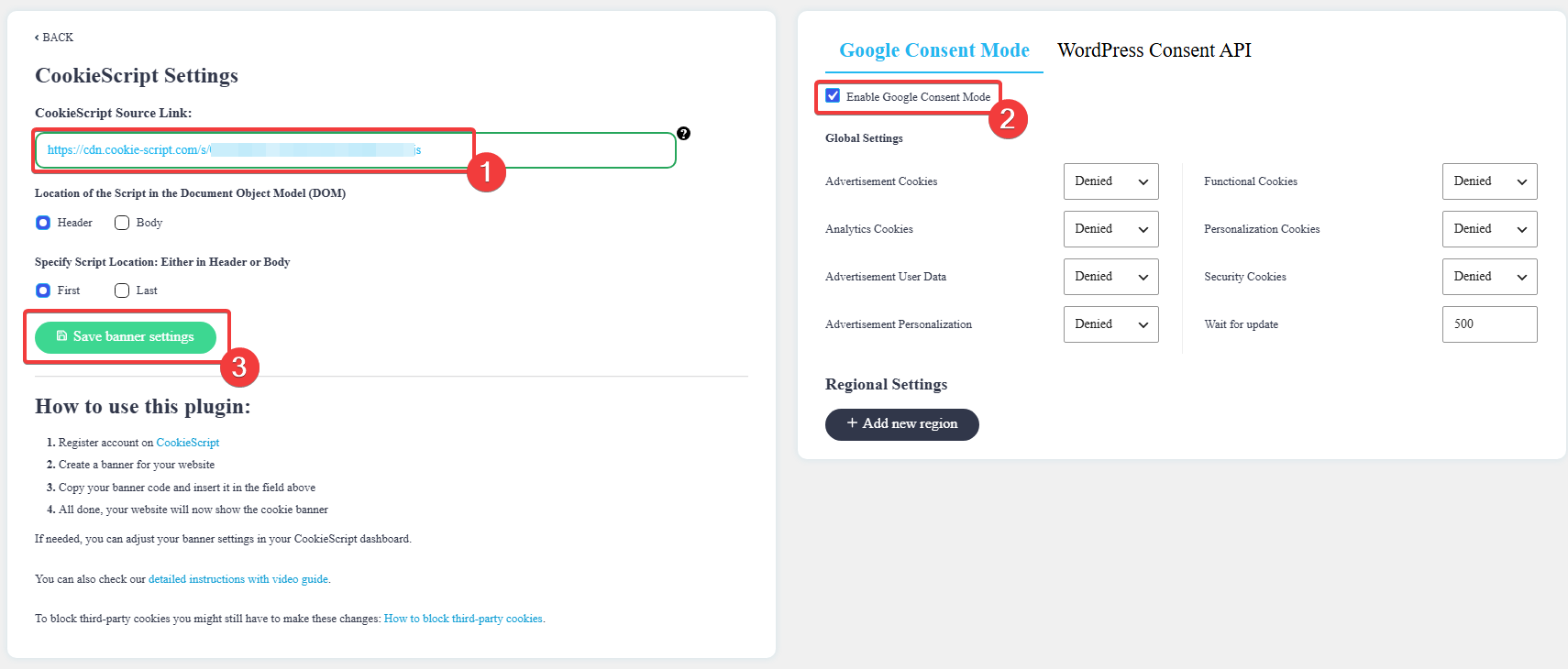
Return to Tools → CookieScript in WordPress. Paste the copied URL into the CookieScript Source Link field.
Set the script location to Header and First. This helps CookieScript load before other website scripts that may need to respond to consent.
If your website uses Google Analytics, Google Ads or related Google tags, review the plugin’s Google Consent Mode options. The example shown below enables Consent Mode and uses Denied defaults. Match the consent signals to your website’s Google services and review the configuration in the settings guide after connecting the banner. If your website does not use Google tags, skip this part of the example.
Click Save banner settings. A short “Banner is added” confirmation should appear.
Step 12 – Check the Banner and Consent Controls
Open your website in a new incognito or private browser window. The CookieScript banner should appear for a visitor who has not already saved a consent choice.
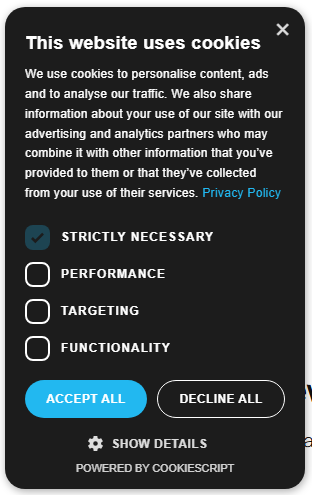
Check that:
- the banner appears on the website;
- the Privacy Policy link opens the correct page;
- Accept All saves the visitor’s choice;
- Decline All saves the visitor’s choice;
- Show Details opens the preference controls;
- the banner does not immediately return after the page is refreshed.
To test both Accept All and Decline All, close every incognito window between tests and start a new private session.
A visible banner does not prove that cookie blocking works correctly. After reviewing your settings and scan results, test what loads before and after consent to check whether tracking services respect the visitor’s choice.
Recommended Next Step
Next, review CookieScript’s consent buttons, cookie behavior and privacy settings so the banner matches your website’s services and visitors.

Frequently Asked Questions
Common questions about this topic
Yes. The Cookie-Script.com plugin is available through the WordPress plugin directory. It adds the CookieScript banner to WordPress without requiring you to edit theme files.
The plugin provides a quick path for users without an account. However, creating an account first is recommended when you want to manage the website, banner, cookie scan, and other settings through the CookieScript dashboard.
The WordPress plugin is free to install. CookieScript also offers a Free plan, while higher plans provide larger scan limits and additional customization, automation, and consent features. Read our CookieScript pricing guide for a detailed comparison.
Yes. The WordPress plugin includes Google Consent Mode settings. The correct configuration depends on the Google services and tracking setup used by your website.
No installation should be treated as automatically complete without testing. CookieScript provides cookie scanning, consent controls, and blocking options, but you must review how the scripts and services on your website behave before and after consent.
Yes. CookieScript can provide preference controls that allow visitors to review or update their choices. Make sure the option remains accessible after the initial banner has closed.